

These are two different questions. The entity is whose books you are in. The location is which warehouse you are looking at inside those books. Changing one never changes the other.
Entity Versus Location
A location always belongs to exactly one entity. That is why the location dropdown only ever lists the warehouses of the entity you are currently in, and why switching entity re-resolves your location for the new entity.
Where the Pill Lives
The workspace pill is the first control in the top bar, before the back and forward arrows. It is one capsule holding two separate buttons, with the environment chip on the end.
The workspace pill in a sandbox entity. The left half is the entity, the right half is the location, and the SANDBOX chip marks the environment.
- The entity mark and code, in bold dark text. This is the company you are working in.
- A divider, then the location code in lighter text. This is the warehouse filter currently applied.
- The environment chip,
LIVEorSANDBOX. Sandbox entities hold test data only.
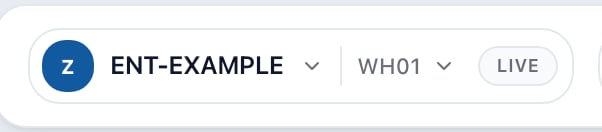
The same pill in a production entity. The neutral LIVE chip means changes here affect real business records.
Switch Entity
- Click the left half of the pill, the one showing the entity code.
- Pick the entity you want from the list. The one you are in carries a check mark.
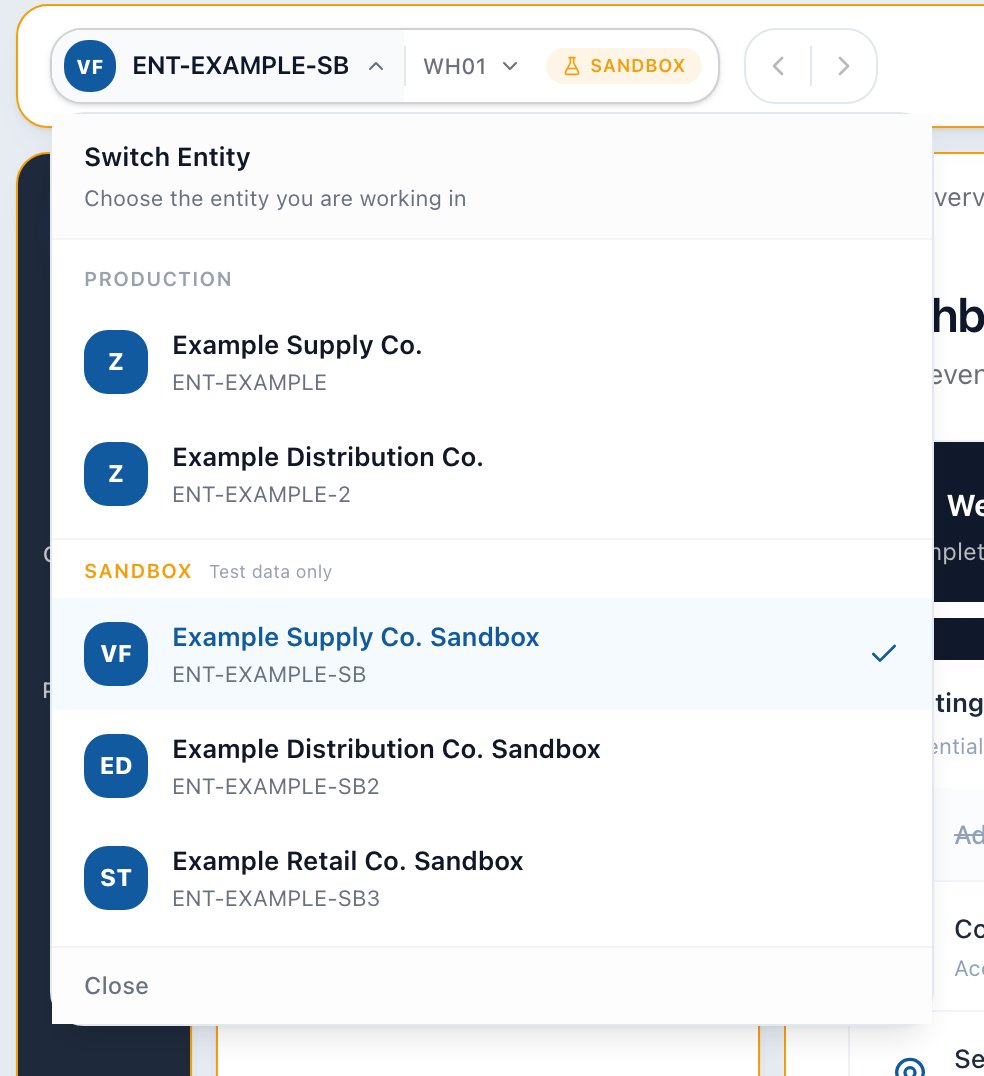
The entity dropdown groups your memberships under Production and Sandbox, and marks the entity you are currently in.
Production and Sandbox Groups
Your entities are grouped into Production and Sandbox, and the group headings stay pinned to the top of the list while you scroll, so the environment of the row you are about to click is always on screen. The Sandbox heading carries the reminder Test data only. This is the same signal as the chip on the closed pill. Check it before you create, edit, post, or pay anything.What Changes When You Switch
Switching entity is a bigger change than switching location. When you pick a new entity:- You land on the Dashboard. The page you were on belonged to the old entity, and the record you were looking at usually does not exist in the new one.
- Cached lists are cleared so nothing from the previous entity can linger on screen.
- Your role and permissions are refreshed for the new entity. You can be an owner in one entity and have a narrower role in another, so menus and buttons may differ after the switch.
- Your location is re-resolved for the new entity, because the old warehouse does not exist there.
- Your Home menu changes. Each entity keeps its own Home menu for you, so the Home panel shows the groups you arranged in the entity you just entered, or only the Dashboard if you have not arranged one there. See Arrange Your Home Menu.
Open a Link to a Record in Another Entity
You may open a link to a record (an order, a bill, an account) while your tab is set to a different entity than the one the record belongs to. If you are a member of the record’s entity, Arcus can switch the tab to that entity and open the record, instead of showing Not found. If you are not a member of that entity, the record stays closed to you.If You Have Many Entities
A search box appears above the list once you belong to more than six entities. Type any part of a name or code to filter, then press the down arrow to move into the results.Creating a New Entity
Organization owners with settings access see a New entity action at the bottom of the dropdown. It opens the standard entity creation dialog, and after the entity is created you are switched straight into it.An entity created from this dropdown is a production entity by default. If you want a sandbox for testing, set the environment in the dialog before you create it.
Switch Location
- Click the right half of the pill, the one showing the location code.
- Pick a warehouse, or pick ALL.
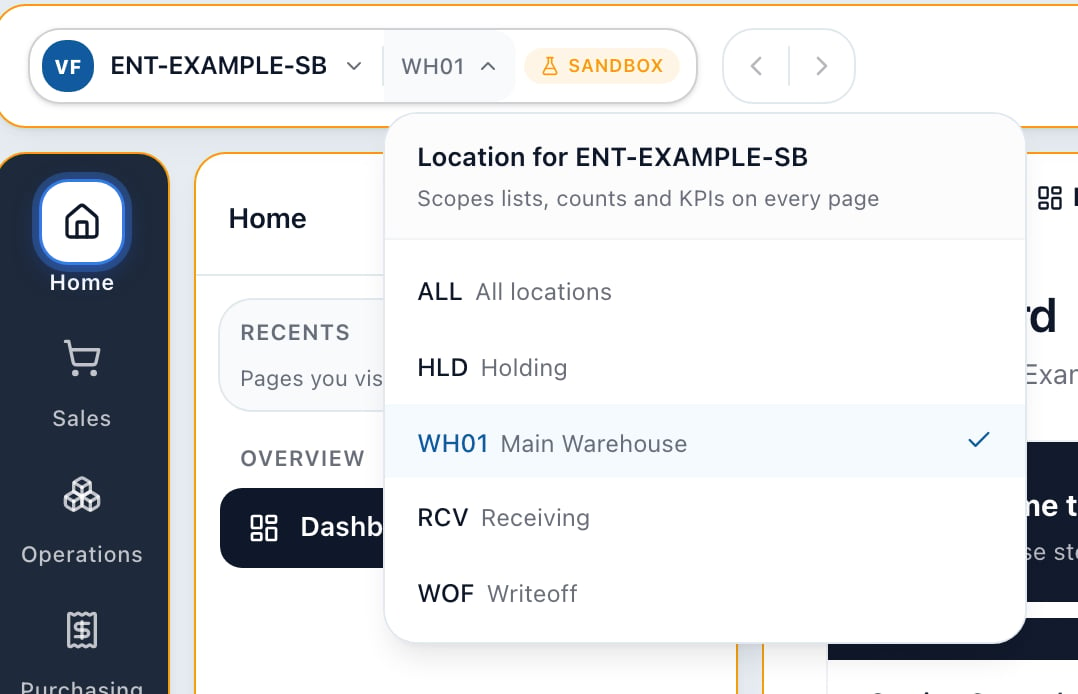
The location dropdown is headed with the entity it belongs to and lists that entity's warehouses plus the ALL option.
What ALL Means
ALL means entity-wide: no warehouse filter at all. It is a real choice, not an empty one, and it is different from picking a single warehouse even when the entity has only one. Some records are not tied to any warehouse, and those are only visible under ALL. Every warehouse row shows its short code on the left and its full name beside it. The code is what you see on the closed pill after you pick.What Changing Location Affects
Picking a location re-filters the data on the pages that are scoped by warehouse:- Orders, quotes, and invoices
- Purchase orders
- Inventory balances, transactions, and per-product stock
- Fulfillment queues, packing history, and pick lists
- Returns
- Per-location shipping settings
How Your Selection Is Remembered
Arcus remembers your choice per browser tab and per entity.- Two tabs can sit in two different entities, or in two different warehouses of the same entity, at the same time. They do not fight each other.
- Reloading a tab keeps that tab’s selection.
- Switching to another entity and back returns you to the location you last used in that entity.
- Opening a brand new tab starts from your saved defaults rather than from another tab’s choice.
Setting Your Defaults
To choose where a fresh sign-in or a new tab starts, open the user menu at the far right of the top bar, choose Profile, and find the Workspace Defaults section.Profile is a personal page, so it lives in your user menu rather than in the Settings area of the deck. Looking for it under Settings is the usual reason people cannot find it.
- Default entity sets the entity a new sign-in or new browser tab opens in.
- Default location per entity sets a starting warehouse for each entity you belong to, or All locations if you would rather start entity-wide.
If Your Access Is Limited to Certain Warehouses
An administrator can restrict a user to specific warehouses in an entity. If that applies to you, the pill tells you so instead of naming a warehouse you have not picked.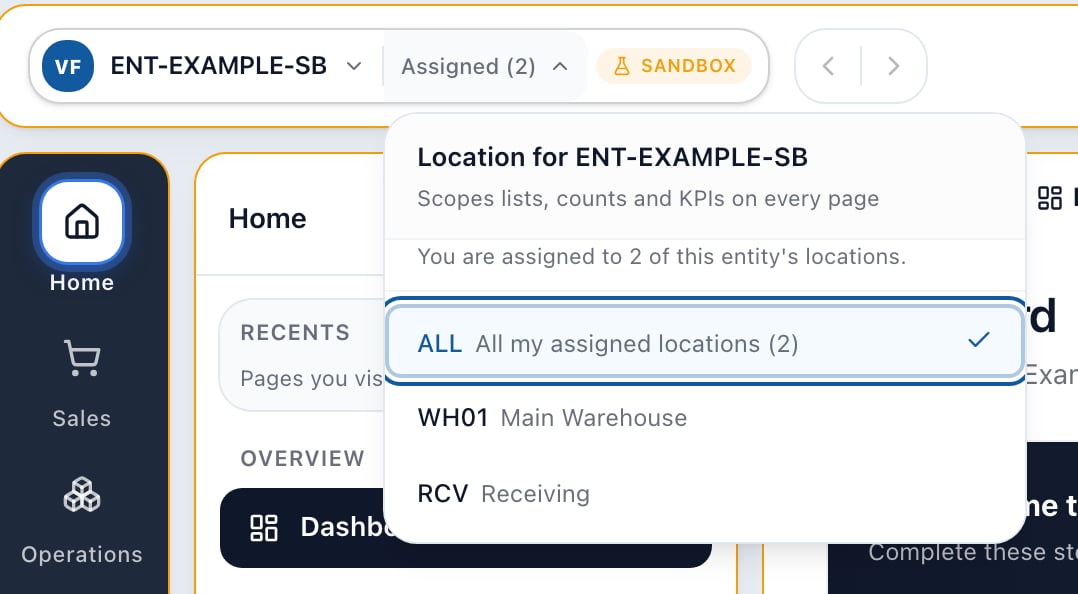
A user assigned to two of this entity's warehouses. The pill reads Assigned (2), the dropdown says so in words, and only the assigned warehouses are listed.
- The location half reads
Assigned (N), where N is how many of this entity’s warehouses you are assigned to. If it is exactly one, it readsAssigned: CODEinstead. - The dropdown says it in words: “You are assigned to N of this entity’s locations.”
- Only your assigned warehouses are listed. Warehouses you are not assigned to do not appear.
- The ALL row reads
All my assigned locations (N)rather than “All locations”, because for you it means everything you are allowed to see, not everything the entity has.
Assigned with no number, none of the warehouses you are assigned to belong to the entity you are currently in. The dropdown states this and leaves ALL available. Ask an administrator to review your warehouse assignments for this entity.
To change who is assigned to what, see User Management.
Using the Keyboard
Both dropdowns are fully operable without a mouse.- Tab moves onto the entity half, then the location half.
- Enter, Space, or Down arrow opens the dropdown of the half you are on.
- Up and Down move through the rows, Home and End jump to the ends.
- Enter picks the row.
- Escape closes the dropdown and puts focus back on the half you opened.
Common Scenarios
My records vanished
Almost always one of two things, and the pill answers both:- You are in the wrong entity. Check the code on the left half. If you switched recently, you are also on the Dashboard rather than where you were.
- A warehouse filter is applied. Check the right half. If it names a warehouse rather than reading “All locations”, set it to ALL and look again. Records that belong to no warehouse only appear under ALL.
The dropdown shows an error and a Retry button
The entity list failed to load, usually a brief network or connection problem. Click Retry in the dropdown. If the dropdown lists your entities but shows a warning strip above them saying it could not refresh, you are looking at your last known list. It is safe to keep working, and Retry fetches a fresh copy.The location half will not open
If it shows a placeholder instead of a code, Arcus is still working out which warehouses you may see in this entity. Give it a moment. If it stays that way, reload the page.The entity I need is not listed
The dropdown only lists entities you are a member of. Ask an administrator to add you, then sign out and back in. If the list is empty entirely, the dropdown says so and names the same next step.I only have one warehouse, so why is there a location half
Because ALL and that single warehouse are still two different scopes. Records that are not tied to any warehouse appear under ALL and not under the warehouse, so the choice stays meaningful.Related Articles
Navigation Overview
Find your way around the department deck, the top bar, list pages, and detail pages.
First Day in Arcus
Confirm environment, learn navigation, find records, and practice safely.
User Management
Invite users, manage entity access, roles, permissions, and location restrictions.
Entity Setup Walkthrough
Set up a new entity, its locations, and its opening configuration.
Common Error Messages and What To Do
Understand blocked actions, disabled buttons, missing setup, and escalation paths.
Settings Overview
Understand the admin surfaces, settings groups, and workflow impact areas.