

Serial capture is the pack-station workflow for serialized products. When a product is flagged Serialized Inventory, Arcus blocks fulfillment until one serial is scanned per unit shipped. For the serial number registry, history, returns disposition, and warranty review, see Serial Numbers.
When Serial Capture Runs
Arcus prompts for serial capture in three places:- Pack with Mighty at the fulfillment station, when the package contains any serialized line.
- Walk-In Pack at the counter, when a serialized product is on the order. See Walk-In Pack.
- Auto-fulfill flows (Shopify, Amazon, eBay) when a single-package fulfillment can be completed without operator intervention, except when serialized items are present, in which case auto-fulfill yields to manual capture.
serials_required with the exact missing items if the operator submits without complete capture.
Capture Steps
- Open the package on the pack station or the fulfillment station.
- Confirm the active entity and the active location.
- Add the items to the package until the package contents match the physical box on the table.
- Select the serialized line. Arcus shows the required serial count and an empty slot for each unit.
- Scan the serial label on each unit, or type the serial when no barcode is present.
- Confirm every serial slot is filled before completing the package.
- Submit the package or mark fulfilled.
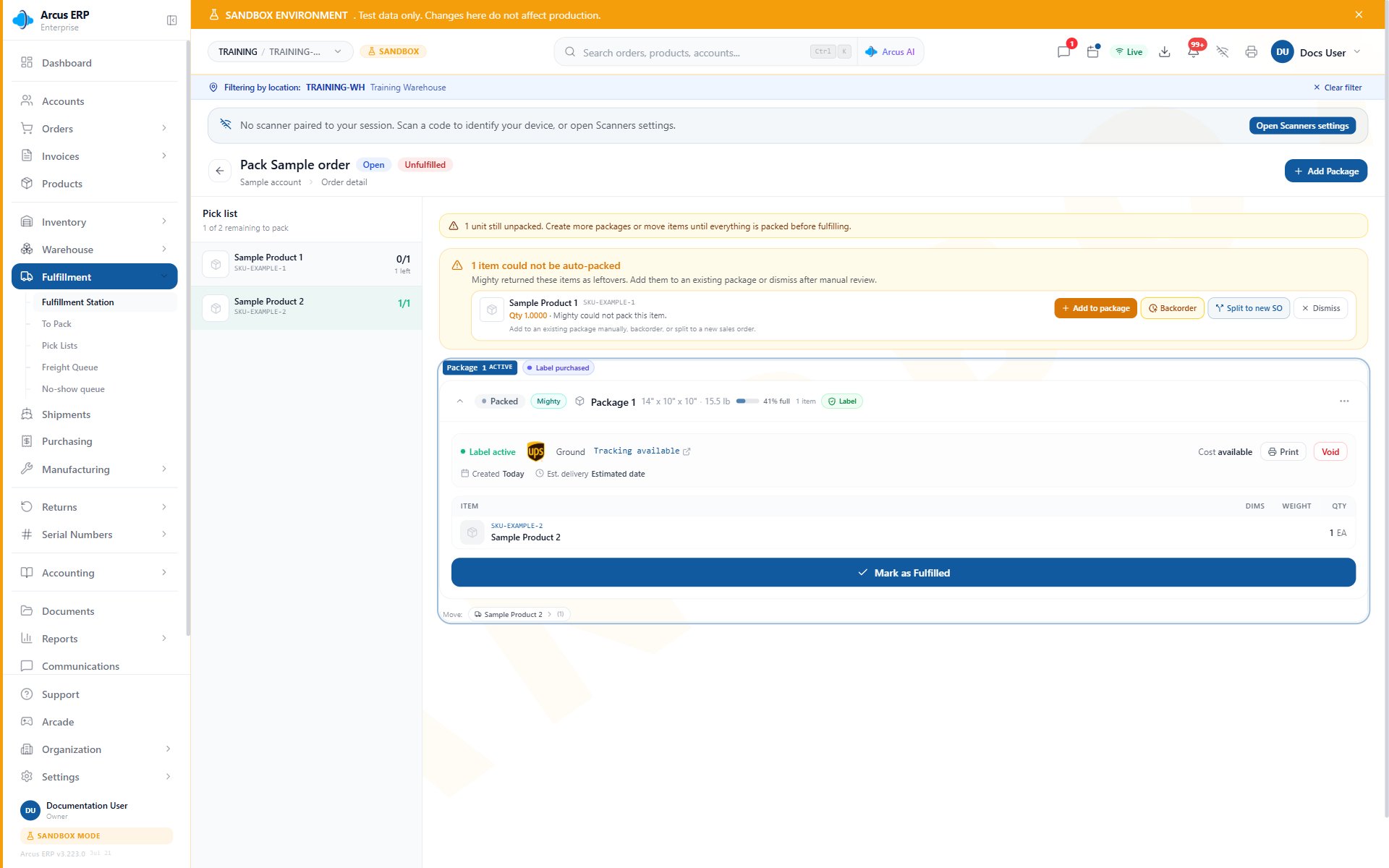
Package detail shows an active label, packed items, the Leftovers panel, and Mark as Fulfilled.
Scanner Behavior
A scanned barcode is normalized through the canonical scan formatter before it is stored. The same scan path runs whether the operator uses a wedge scanner, a Bluetooth handheld, or types the serial manually. Manual typing and scanner input are equivalent.- One scan equals one serial entry.
- A duplicate scan inside the same package is rejected with a clear error.
- A serial already marked sold elsewhere is rejected so the unit cannot be double-sold.
- A serial that does not match the product is rejected to prevent cross-product mix-ups.
What Happens After Capture
When the operator marks the package fulfilled with complete serials, Arcus:- Persists each serial against the line and the package.
- Transitions each serial from
availabletosold. - Stamps the warranty start date and computes the warranty end date from the product’s warranty duration and unit of measure.
- Records the serial movement so the unit history shows pack date, package, and order.
- Posts the fulfillment GL for the package.
When Serials Are Missing
If a serialized product is on the order and the unit you are about to ship does not have a serial:- Stop. Do not bypass the capture. Shipping without a serial breaks warranty, return, and audit traceability.
- Check the receiving record for the inbound shipment that brought the unit in. If the serial was missed at receive, you may need to receive the serial first against the original PO.
- If the unit has a label but the label is unreadable, contact the warehouse lead. Ask whether a new serial should be assigned or whether the unit should be quarantined.
- If the product itself was flagged serialized in error, the product setting can be changed by an admin, but pending shipments still hold the original gate until the admin removes the flag.
Scan mode vs manual entry
The capture screen adapts to the product’s barcode configuration:- Scan mode (default for barcode-configured products): the input waits for a physical scanner or Bluetooth handheld. Each scan fires immediately on Enter. The display shows
splitorpallet_scanmode next to the input. - Manual entry mode: the operator types the full serial and confirms. Used when the product is set to
wholebarcode mode or when the printed label has no machine-readable barcode.
Partial capture (capture-as-you-pick)
You do not need all units in hand before starting capture. The capture screen shows a running count — for example, “3 of 5 captured” — and a Save partial button. Tap it to commit the captured serials without closing the modal. The line stays open for the remaining units. When the last serial is scanned and the count reaches the required quantity, the Save partial button changes to Confirm all. Use Confirm all when you are done with the line. Partial capture is useful for high-quantity serialized items where units arrive from the pick area in batches.Removing a captured serial
To remove a serial from the list, click the X on the chip. Removal is blocked after the order is fulfilled or cancelled:- If the order has been fulfilled or cancelled, removing a serial returns an error: “Order is closed — use an RMA to return this unit.”
- For closed orders, initiate an RMA from the order detail page. The return form lets you specify the serial and set a disposition (Restock, Damaged, Quarantine, End of Life).
Returns and Serial Numbers
When a serialized unit comes back through a return:- The return form captures the original serial so the system knows which exact unit returned.
- After receive, an inspector sets a disposition (Restock, Damaged, Quarantine, End of Life).
- The serial moves to
returnedand then to the chosen disposition state.
Troubleshooting
“Serials Required”. One or more units on the package still need a serial. The block lists the product title and the quantity still missing. Scan the remaining serials and re-submit. “Duplicate Serial”. The same serial was entered twice on the same package. Each unit needs a unique serial. “Serial Already Sold”. The serial scanned is already marked sold on a previous order. Verify the physical unit and the label. If the unit was returned and restocked, check the unit’s history on the registry. “Serial Does Not Match Product”. The serial belongs to a different product. Confirm the picker pulled the correct unit. Scan beep but nothing happens. The scanner emulator may not be focused on the capture input. Click the input first, then scan.Related Articles
Serial Numbers
The unit-level registry, search, history, disposition, and warranty review.
Pack with Mighty
The full pack workflow at the fulfillment station.
Walk-In Pack
Counter-sale pack flow with serial capture.
Receiving
Capture or confirm serials when serialized stock arrives.