

Batch packing is the handoff between a wave pick list and individual package work. The batch page shows the orders in the wave and sends operators into the pack station for each order.
Open A Batch
Batch packing opens automatically after a wave is created. You can also return to the batch from the wave or pick list record when your team needs to continue packing. The batch page is organized around order cards. Each card shows the order number, order status, and pack session status so operators can see what still needs attention.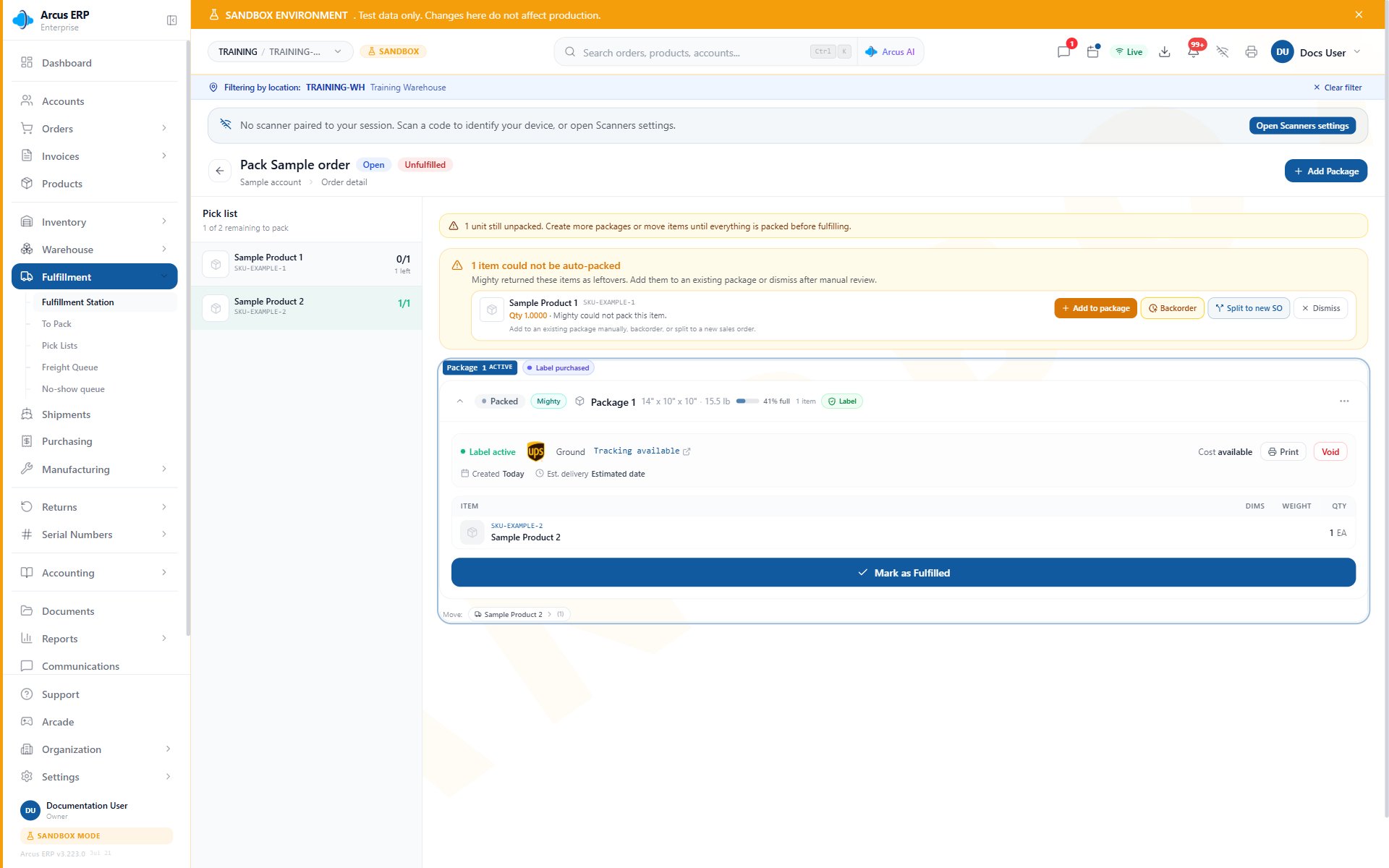
Package detail is the checkpoint operators reach from a batch order card, where item quantity, label state, and completion readiness are confirmed.
Pack Each Order
- Pick the physical items for the wave.
- Open the first order card.
- Use Pack with Mighty when the order has remaining unpacked units and the action is available.
- Review package contents, the box, dimensions, weight, and any Leftovers.
- Get rates and purchase labels when the package is ready to ship.
- Print the label and documents.
- Have a person review and mark the package fulfilled after it is ready for carrier handoff.
- Return to the batch and repeat for the remaining order cards.
Read Pack Session Status
Use the status on each order card to decide what to do next:- Not started: no operator has opened packing for the order yet.
- In progress: packing work has started and may need review before completion.
- Complete: the pack session for that order is done.
Print All Labels
The batch shows Print all labels only after the wave is complete. Use it when every package in the wave has a purchased label and the team needs one combined label packet. If the combined packet cannot be created, check these items:- At least one completed package has a label.
- Every order that should ship has completed package work.
- Label files are available from the carrier.
- The document merge service is available for the entity.
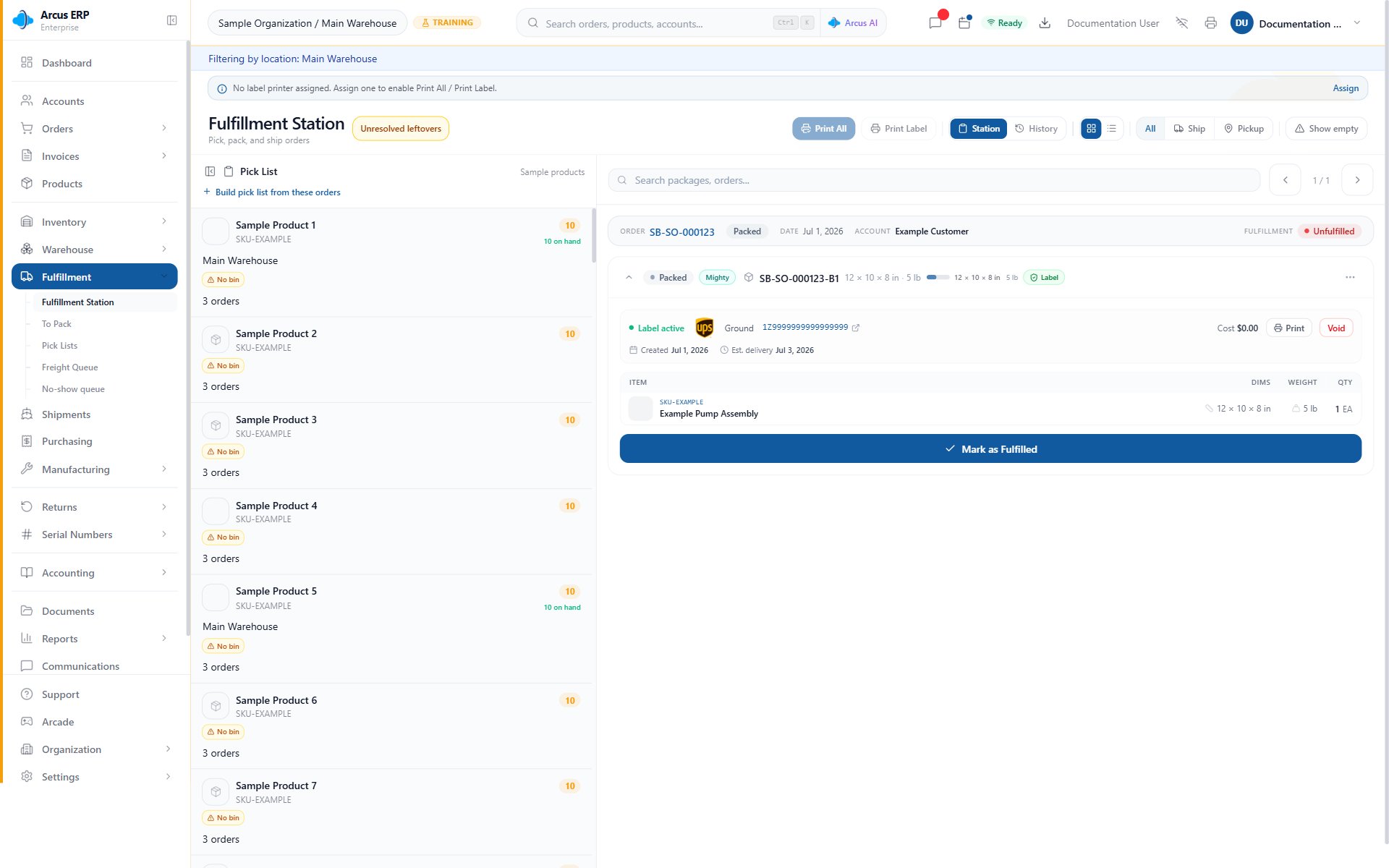
The fulfillment station provides a pick list, printer assignment and print controls, package search, active package detail, and fulfillment actions.
Side Effects
Batch packing itself does not charge shipping, create labels, or move inventory. Those side effects happen inside the package workflow:- Buying a label stores tracking and posts shipping cost details.
- Printing sends the label to PrintNode when a printer is selected, or opens the PDF fallback when printing is not available.
- Marking fulfilled consumes the packed package workflow and makes the shipment visible in tracking surfaces.
Common Blocks
- Order card will not open: confirm the user has fulfillment access and the order belongs to the active entity and location.
- Wave is stuck in progress: open each order card and finish or resolve the pack session.
- Print all labels is missing: the wave is not complete yet.
- Print all labels opens no packet: confirm labels were purchased on the packages and try printing labels one package at a time.
- Address or customs error blocks rates: fix the address or product customs fields, then retry rates from the package.
Related Articles
Wave Picking
Create the pick list that feeds batch packing.
Pack with Mighty
Finish package contents, label purchase, and fulfillment.
Mighty Leftovers
Resolve units that could not be placed during packing.
Fulfillment Station
Work package queues and printer controls outside the wave batch page.
Shipping Labels
Get rates, buy labels, print labels, and recover from label issues.
Address and Customs Blocks
Resolve Shippo address validation and international customs blocks.
Printer Fallback and Reprint Recovery
Recover when labels need to be printed again or PrintNode is unavailable.