

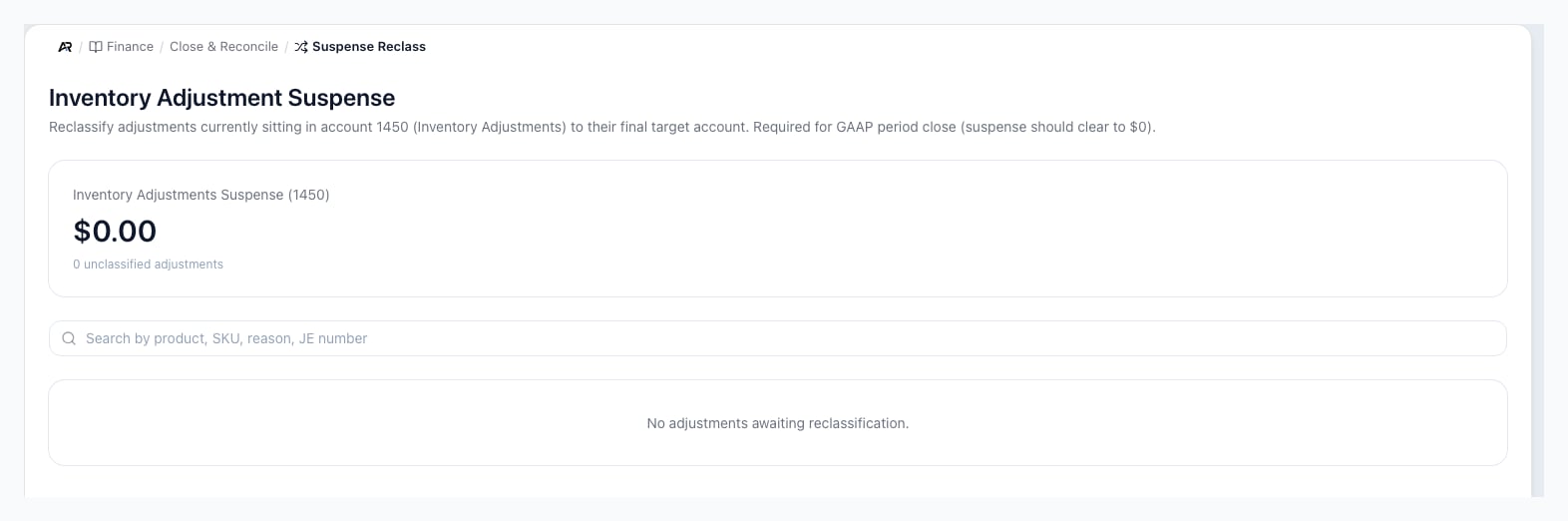
The Suspense Reclass screen in Finance.
Before You Start
- Permissions. Opening the page needs permission to view accounting. Confirm reclass needs permission to post accounting entries. The button is not hidden from a user without it, but Arcus refuses the reclass and nothing posts.
- An open period. The adjustment’s own period and today’s period must both be open. See Period Close.
- Why adjustments land in suspense. When you adjust stock, Arcus reads the adjustment’s reason and posts it straight to the matching account: damage, theft or loss to shrinkage, a cycle count variance to variance, obsolete or expired stock to writedown, a price or cost correction to revaluation, and found stock to other income. A reason that matches none of these goes to the suspense account, and it waits here.
Read The Page
The page is titled Inventory Adjustment Suspense. You can also reach it by searching for Suspense Reclass in the command palette.- Inventory Adjustments Suspense shows the account’s current balance and how many adjustments are still unclassified. A clean account reads zero, which is what period close expects.
- Search finds adjustments by product, SKU, reason or journal entry number. The search applies a moment after you stop typing, and at once when you press Enter or click away from the box. It is kept in the page address, so Back from a journal entry or product you opened returns you to the same search.
- The list has one row per adjustment: JE # (opens the adjustment’s journal entry), Date, Product (opens the product, with its SKU), Location, Reason, Amount, Suggested (the account Arcus suggests from the reason, when it has one) and Action, which holds the row’s Reclassify button.
- Empty states. With nothing left to move, the list says No adjustments awaiting reclassification. A search with no hits says No matching adjustments.
Reclassify An Adjustment
- Open Finance > Close & Reconcile > Suspense Reclass.
- Find the adjustment, then click Reclassify on its row.
- In Reclassify inventory adjustment, check the summary: the journal entry and date, the product, the quantity, the suspense amount and its side (debit or credit), and the original reason.
- Choose the Target account. When Arcus could suggest one from the reason, it is already
chosen and the dialog says Auto-suggested based on adjustment reason. Each choice shows its
account number beside its name. You can pick any of:
- Inventory Shrinkage & Write-offs: damage, theft or loss.
- Manufacturing Variance: a cycle count or production variance.
- Inventory Writedown: obsolete, expired or defective stock.
- Inventory Revaluation: a price or cost correction.
- Finished Goods Inventory: the stock was really there (found stock or a data error).
- Cost of Goods Sold: the units were actually sold.
- Other income for found stock: stock that turned up and is a gain. This choice is listed last, and it appears under a system label rather than an account name.
- Add a Memo if you want (up to 500 characters). It starts with the adjustment’s original reason.
- Review the Reclass JE preview: the debit and credit lines the entry will post.
- Click Confirm reclass.
The Result
Arcus says Reclassified. New JE with the new entry’s number, and the adjustment leaves the list. The suspense balance drops by the amount you moved. Open screens update without a refresh.What Reclassifying Changes
- One new journal entry, dated today. It takes the amount out of the suspense account and puts it in the target account, on the opposite side from the original posting. The original adjustment entry is not changed or reversed.
- No stock moves. The adjustment’s quantity and inventory value stay as they were; only the account the difference sits in changes.
- One reclass per adjustment. An adjustment can be reclassified once. To move it again, post a correcting journal entry.
- The activity log records who reclassified which adjustment, to which account, with the new entry.
Messages You May See
- Cannot reclassify adjustment posted in closed period followed by the period’s name: the adjustment’s original period is closed. Reopen the period, or post a correcting journal entry in the current period.
- Cannot post to closed period followed by the period: today’s date falls in a closed period, so the new entry cannot post. Reopen the period, or post a correcting journal entry in the next open period.
- This adjustment has already been reclassified to the named account: someone moved it already. Refresh the page.
- Only inventory adjustments can be reclassified., This adjustment has no GL posting; nothing to reclassify. or Suspense leg has zero amount; nothing to reclass.: there is nothing for this row to move.
- Failed to load suspense balances.: the page could not read the account. Refresh the page. If your business has no Inventory Adjustments suspense account set up, the page cannot load, and your chart of accounts needs that account.
- A message that the reclassification failed: the reclass did not complete and nothing posted. Try again, and if it fails again, ask your administrator.
- A permission message after Confirm reclass: you can open the page, but posting the reclass needs permission to post accounting entries.
Common Scenarios
The suggested account is wrong
Pick the right account in Target account before you confirm. The suggestion comes only from the words in the adjustment’s reason.The period is already closed
Do not reopen a closed period just for a reclass unless your close policy allows it. Posting a correcting journal entry in the current period moves the same amount without changing closed results.The balance is not zero but the list is empty
The balance comes from every posting to the account, and the list shows only adjustments that can be reclassified. Open the account in Account Ledger to find the other entries.Related Articles
Period Close
Run the pre-close checklist and lock the period once suspense is clear.
Inventory Adjustments
Record stock adjustments and the reasons that decide their account.
Cycle Counts
Count stock and post variances.
Account Ledger
Follow every posting to the suspense account or a target account.
Journal Entries
Review the reclass entry or post a correcting entry.
GL Reconciliation and Integrity
Compare control accounts to their detail before you close.