

Open the Shipping and Fulfillment Settings
- Open Settings.
- Choose Entity Settings.
- Open the Shipping and Fulfillment group for Shipping, Shipping Rules, Packing Configuration, and Scanners.
- Open the System group for Printing.
Settings are connected
Shipping rules, packing settings, scanners, and printing all meet inside the fulfillment
workflow. A label issue may start in Shippo setup, a packing issue may start with product
dimensions, and a print issue may start in PrintNode preferences.
Shipping Settings
The Shipping section controls the default carrier behavior Arcus uses when a user packs an order or buys a label. It also checks whether the Shippo connector is active for the current entity.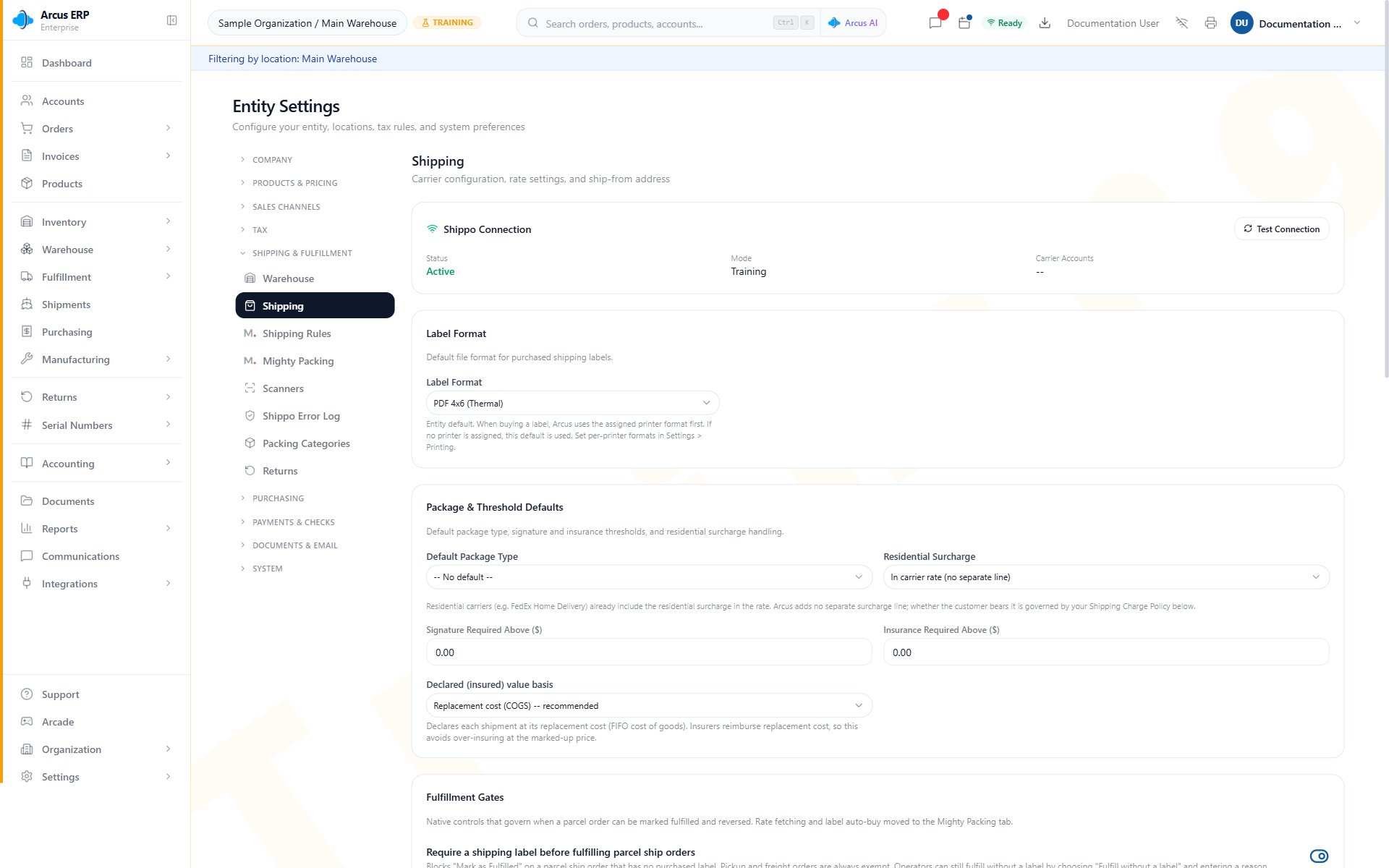
Shipping settings show the Shippo connection, label format, package and threshold defaults, and fulfillment gates.
- Shippo Connection: shows whether the entity has an active Shippo connector and lets admins test the connection.
- Default Carrier and Service: used when no shipping rule matches the package.
- Label Format: choose PDF, PNG, or ZPL for thermal printer workflows.
- Default Package Type: preselects common package types when package data is incomplete.
- Signature and insurance thresholds: tell the packing workflow when higher-value shipments need extra services.
- Residential surcharge handling: pass through, absorb, or add a flat fee when a residential label is purchased.
Fulfillment Gates
Use the fulfillment controls on Shipping to decide which shipping requirements must be satisfied before work can move forward. Review these controls with your Shippo connection, carrier defaults, label format, package defaults, and signature or insurance thresholds. Rate automation and label auto-buy are configured in Packing Configuration, not on Shipping. See Packing Configuration for the rate, no-rates, fallback-service, and label-purchase controls.Shipping Rules
The Shipping Rules section controls carrier routing. Rules can match by location, weight, order value, sales channel, product category, and carrier service token. Lower priority numbers are evaluated first.
Shipping rules can be scoped to all locations or one warehouse, then narrowed by weight, value, sales channel, category, and allowed carrier services.
- Apply to: choose all locations or a specific warehouse. Location-specific rules are evaluated before entity-wide rules.
- Weight and order value: use ranges to separate small parcel, heavy parcel, and large-order behavior.
- Sales channel: route Shopify, marketplace, phone, counter, or other channel orders differently.
- Product category: apply special shipping policy to categories that require different carriers or service levels.
- Carrier tokens: limit which Shippo service tokens are allowed for the rule.
- Preferred carrier and service: supplies the intended service when Auto-buy label on Pack with Mighty is enabled for the rule.
- Free shipping and flat rate: controls what the customer is charged. It does not change the carrier cost Arcus pays.
Flat rate and carrier cost are different numbers
A shipping rule can charge the customer a flat amount or free shipping while Arcus still
buys the actual carrier label through Shippo. Review margin when free shipping is used.
Freight Classification Rules
The bottom of Shipping Rules includes freight classification rules. These rules decide whether an order should stay parcel, move to LTL freight, suggest freight review, add accessorials, or block the order.- Freight rules are also priority-based. The first matching rule can change the shipping mode.
- Rules can look at weight, dimensions, product freight flags, customer preferences, and similar freight signals.
- If Shippo freight rate shopping is unavailable for the account, users can still enter freight quotes manually.
- Manual freight overrides are respected until a user removes or changes the override.
Packing Configuration
Packing Configuration controls Mighty parameters, pack triggers, rate automation, label auto-buy, and Packing Presets.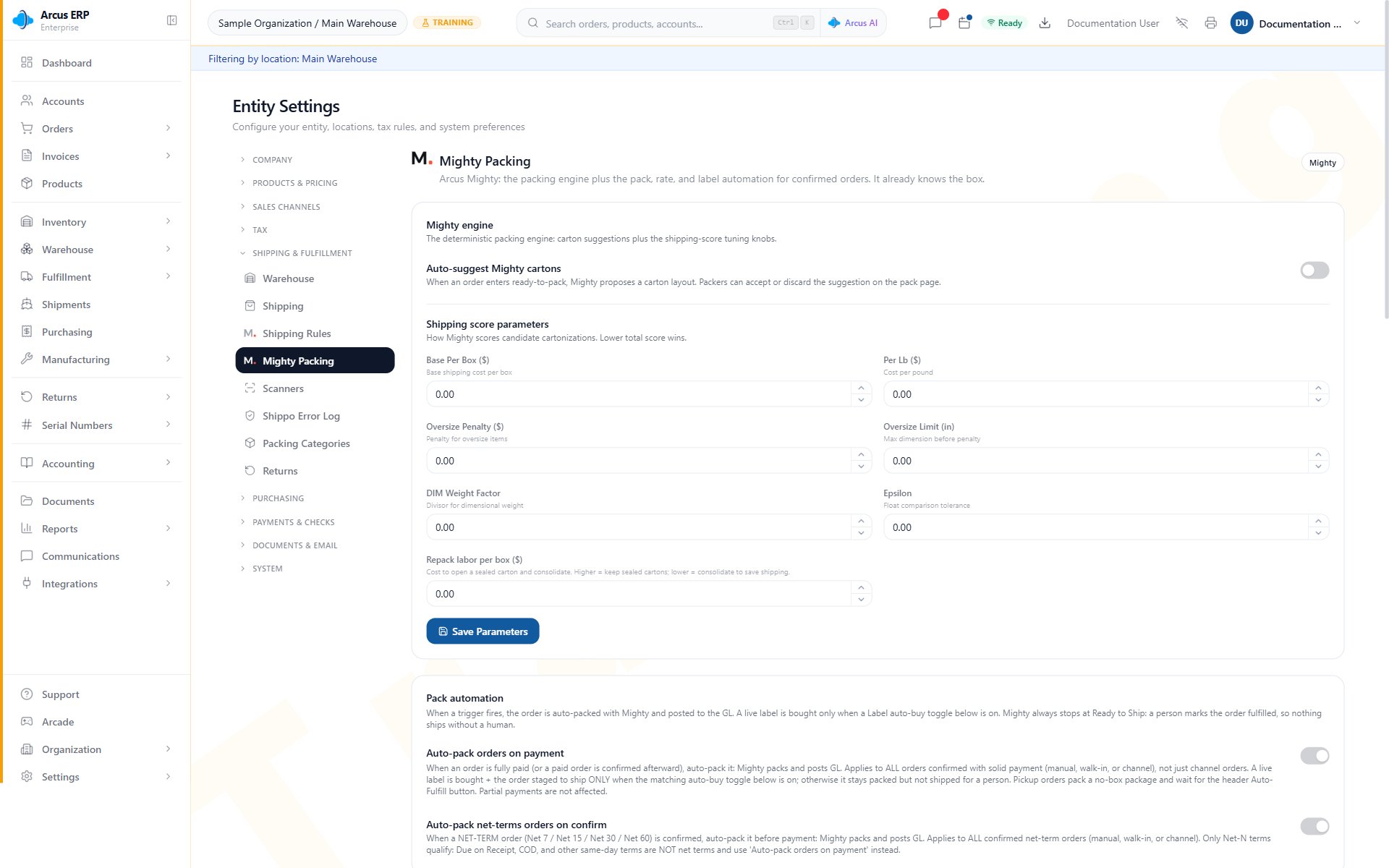
Packing Configuration shows carton suggestions, shipping-score parameters, and the first pack-automation controls.
- Mighty parameters: tune package cost, weight, oversize, dimensional weight, fit tolerance, and repack labor.
- Pack automation: controls carton suggestions and when packing starts.
- Rate automation: requests rates and controls what happens when no rates are available.
- Label auto-buy: uses order overrides, matching shipping rules, and then configured fallback services.
- Packing Presets: save parameter sets and support a no-write Test Pack preview.
Scanners
The Scanners section manages Zebra and Arcus Command devices. Devices register automatically after a warehouse user connects the app to the entity and signs in with their PIN.
Scanners includes device setup, online/offline status, sync control, user/location assignment, and recent scan history.
- New Device Setup: shows the entity setup code and QR code for Arcus Command.
- Registered Devices: shows each scanner, assigned user, assigned location, last seen time, and sync status.
- Sync toggle: turns scanner sync on or off without deleting the device assignment.
- Device details: shows the scanner ID and DataWedge configuration when setup troubleshooting is needed.
- Recent Scans: filters by date, device, type, and barcode text.
How Barcode Scans Are Classified
Arcus classifies each scan consistently across packing, serial capture, and scan logs.- Serial: package-scoped serial format or a matching serial number.
- Label: tracking number or shipment label match.
- Box: product barcode that belongs to a box product.
- Item: product barcode for a non-box product.
- Order: order number match.
- Unknown: no match found. The scan still lands in the log for review.
Printing
The Printing page sets per-user PrintNode preferences for the current entity. It uses the entity’s PrintNode connector, then lets each user choose default printers and auto-print behavior.
Printing preferences decide which printers receive labels and documents and whether fulfillments auto-print for this user.
- PrintNode connection: depends on the PrintNode connector in Integrations.
- Default label printer: used for shipping labels, usually a thermal 4x6 label printer.
- Default document printer: used for packing slips, invoices, pick lists, and letter-size documents.
- Auto-print on fulfill: sends label and packing slip jobs automatically when a package is fulfilled.
- Printer category filters: limit fulfillment station package visibility by product packing category when a filtered printer is selected.
- Recent Print Jobs: shows submitted, failed, queued, and offline-blocked jobs with filters.
Printing preferences are per user
Two users can choose different default printers in the same entity. This is useful when
each packing station has its own label printer.
Recommended Setup Order
- Configure locations first, including the ship-from address.
- Connect Shippo and test the connection.
- Set label format and default carrier fallback.
- Add shipping rules for common parcel lanes.
- Add freight rules for orders that should not ship parcel.
- Review product dimensions, weights, box products, and packing categories.
- Configure Mighty parameters, pack automation, rate automation, label auto-buy, and Packing Presets.
- Connect PrintNode, install the PrintNode client, and select user printer preferences.
- Register warehouse scanners through Arcus Command and verify recent scan logs.
- Run a test order through pick, pack, rate, label, print, and fulfill.
Common Blocks
- No rates returned: check Shippo connection, ship-from address, ship-to address, package dimensions, weight, and allowed carrier tokens.
- Wrong carrier selected: review the order override, rule priority, preferred carrier, preferred service, and Packing Configuration fallback services.
- Flat rate charged but carrier cost differs: this is expected. Flat rate is customer charge policy, not carrier cost.
- Auto-buy did not run: check Auto-buy label on Pack with Mighty, the order override, matching rule, Packing Configuration fallback services, Shippo connection, address validation, and label format.
- Mighty suggestions are missing: check the auto-suggest toggle, product dimensions, stock, serial requirements, freight mode, bins, and Audit Log.
- Scanner is offline: confirm the Arcus Command app is open, sync is on, the device has network access, and the user is signed in with PIN.
- Barcode scans as unknown: verify the barcode belongs to an order, product, serial number, box product, label, or supported package-scoped serial format.
- Print jobs do not print: check PrintNode connector, PrintNode client status, printer online state, user printer preferences, and recent print job errors.
- Printer only shows some packages: review printer category filters. A filtered printer only shows packages containing matching product categories.
Related Articles
Fulfillment Station
Operate the station view for picking, packing, and shipping.
Pack with Mighty
Use package cards, suggested boxes, and serial capture.
Shipping Labels
Buy labels, void labels, track shipments, and handle carrier errors.
Printing Setup (PrintNode)
Connect printers for labels, packing slips, and warehouse documents.
Order Fulfillment
Move an order from confirmed to picked, packed, shipped, and invoiced.
Approval Workflows
Configure order, PO, vendor bill, and journal entry approvals, invoice timing, purchasing automation, and delivery notifications.