

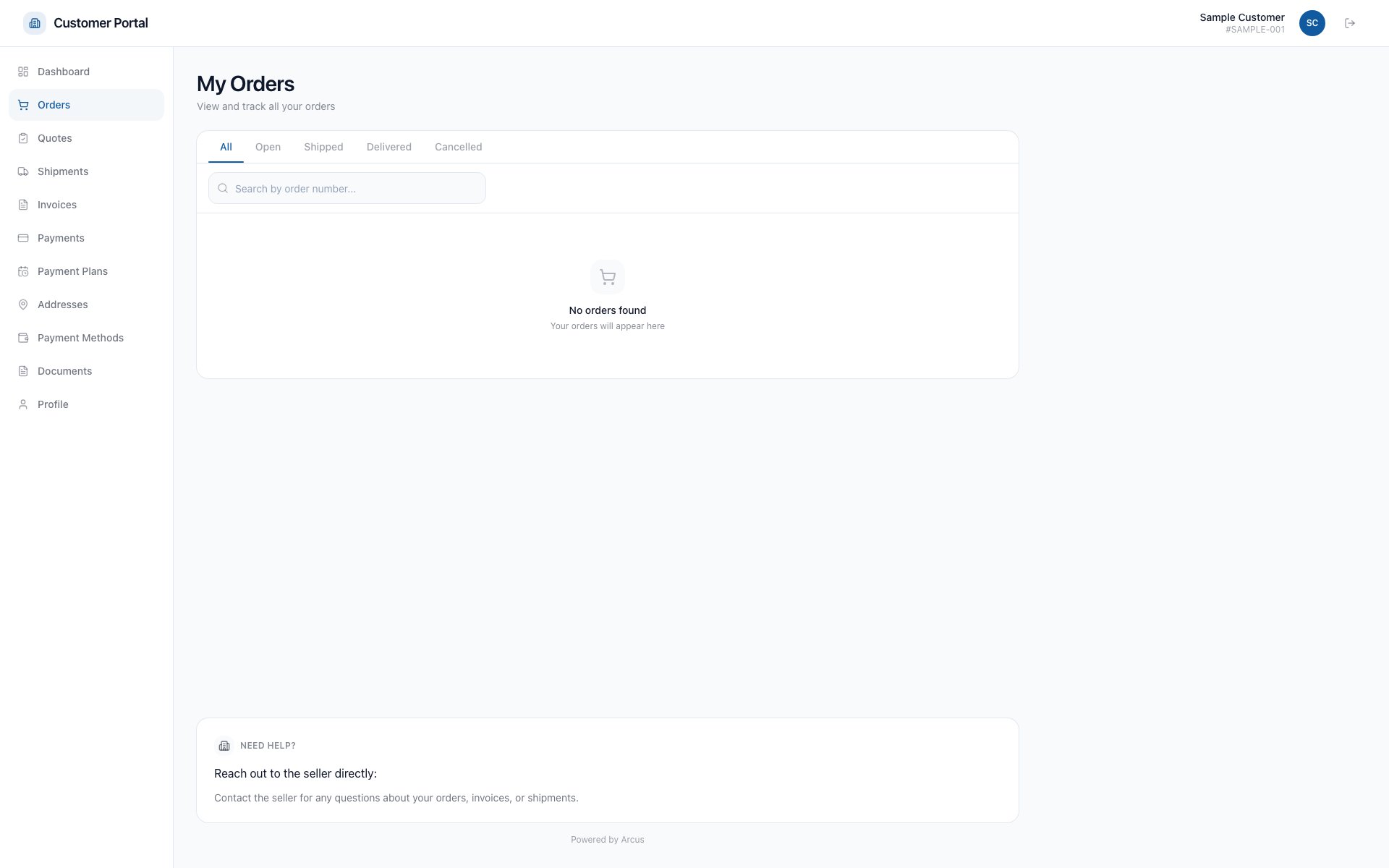
The portal Orders page provides status filters and order-number search, and shows an empty state when the account has no matching orders.
Before You Start
- Sign in to the customer portal. There is no separate permission for this page: every signed-in portal user on the account sees the same orders.
- The page is titled My Orders. It lists sales orders and invoices for your account, newest first, 15 to a page.
Find An Order
- Sign in to the customer portal.
- Select Orders in the portal navigation.
- Type all or part of the order number in the search box, or pick a filter: All, Open, Shipped, Delivered, or Cancelled.
- Select the order row, or its open arrow, to review its status, items, totals, shipments, invoices, and available documents.
- Select the download icon on the row (Download PDF) to open the order PDF in a new browser tab.
- Use Previous page and Next page at the bottom when you have more than one page of orders.
What Each Column Shows
How The Filters Work
- All shows every order and invoice on the account.
- Open shows orders the seller still has open.
- Cancelled shows cancelled orders.
- Shipped and Delivered currently return No orders found even when you have shipped or delivered orders. To find those orders, choose All and read the Fulfillment column, or open Shipments in the portal navigation to see every package with its delivery status.
The Order Detail Page
Select an order row to open its detail page. An invoice opens the same page, headed Invoice instead of Order.- Back to Orders returns you to the Orders list.
- Download PDF opens the order PDF in a new browser tab.
- Pay with the balance amount shows when a balance is due. It opens Payments with the Make a Payment dialog already open for this order.
- Three figures sit under the header: Total, Paid, and Balance due. When the seller owes you money instead, the last figure reads Refund due.
- A tracker shows where the order stands: Placed, Processing, Shipped, and Delivered. A cancelled order shows “This order has been cancelled.” in place of the tracker.
- Order info shows the Order date, and when they apply, the Due date, Invoice date, and PO number.
- Bill to and Ship to show the billing and shipping addresses on the order.
- Items lists each item with its part number or SKU, the quantity and unit price, and the line amount. When only part of an item has shipped, it shows how many of the quantity are fulfilled.
- Totals shows the Subtotal, then Discounts & coupons, Shipping, Tax, Processing Fee, and any tip, followed by Total, Amount paid, and Balance due.
- Shipments lists each package with its carrier, service, ship date, and delivery status. Beside a tracking number, the copy button (Copy tracking number) copies it and shows Tracking number copied, and the carrier link opens the carrier’s tracking page in a new browser tab.
Common Scenarios
- No orders: the page shows No orders found with “Your orders will appear here”. Confirm you signed in with the email connected to the intended customer account. Contact staff if the account relationship is wrong.
- Order not found: clear the search box and choose All. When a search is active the empty state says “Try adjusting your search”. A direct link to an order outside the signed-in account also returns Not Found.
- Recent order is missing: ask staff to confirm the order belongs to this account and is customer-visible.
- An invoice from several orders is not listed separately: when the seller combines invoices into one consolidated invoice, only the combined invoice appears.
- Details changed: refresh the page. Contact staff before acting if totals, shipment status, or payment status still looks wrong.
- Need to change or cancel an order: contact staff. Do not submit a second order to correct the first one.
- Need a return: open Returns in the portal navigation to follow a return the seller has authorized. The delivery email has no return link, so ask the seller to start a return, then follow it under Returns once the seller authorizes it.
- Your session ended: the list stops loading and the portal returns you to sign-in. Sign in again to continue.
Related Articles
Customer Portal Overview
Customer Portal > Dashboard: portal access, account scope, and the shortcuts into Orders.
Invoices and Shipments
Customer Portal > Invoices: review balances, pay invoices, and download invoice PDFs.
Portal Shipments
Customer Portal > Shipments: follow every package with its delivery status and tracking history.
Portal Returns and RMA Status
Customer Portal > Returns: follow an authorized return from request to refund.
Start a Return From an Email Link
Customer Portal > Email links > Return status: what the link in a return email opens, and how to start a return.
Public Links
Use a scoped link when full portal access is unnecessary.