

Most users should not need to change the chart every day. Treat this page as accounting
setup: review it before go-live, then make changes carefully because many workflows post
to these accounts automatically.
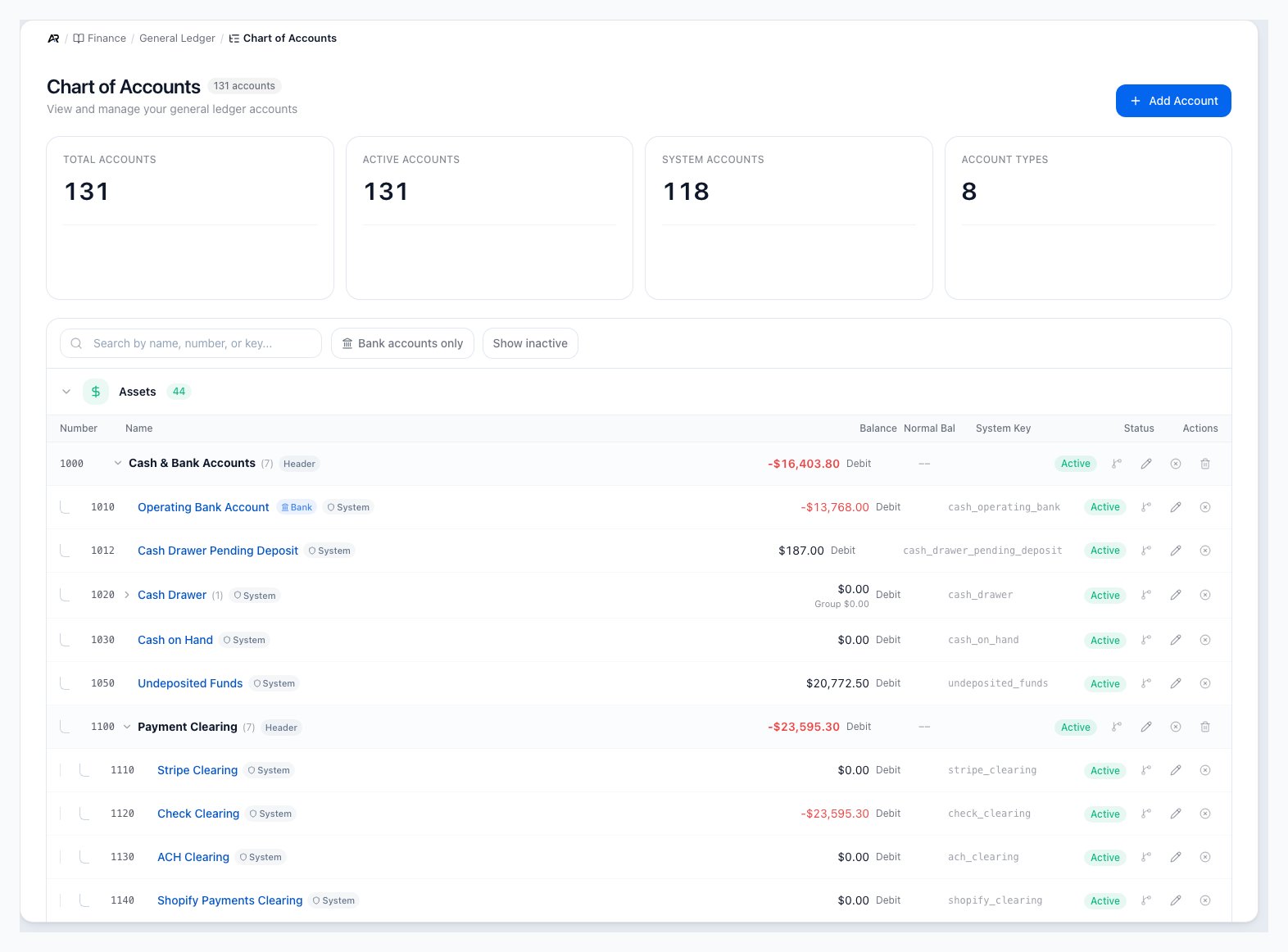
The chart grouped by account type, with each account's balance, system key, status and row actions.
Open the Chart
Open Finance > General Ledger > Chart of Accounts. You can also search for Chart of Accounts in the command palette, use Chart of Accounts in the Finance dashboard’s quick navigation (the cash and balance cards there open it too), follow the “create one in the Chart of Accounts first” link in the Add bank account dialog, or click Chart of Accounts at the top of an Account Ledger. The page opens with four summary cards: Total Accounts, Active Accounts, System Accounts and Account Types, and the title shows how many accounts the company has. Below them a search box (Search by name, number, or key…) narrows the list, Bank accounts only narrows it to bank accounts, and Show inactive includes switched-off accounts. Accounts are grouped by type. Click a group heading to collapse or expand it; click the arrow beside a parent to fold its sub-accounts. Arcus remembers which groups and parents you folded, per company, in your browser. Each row shows Number, Name, Balance, Normal Bal, System Key, Status (Active or Inactive) and Actions. A parent that can receive postings also shows a smaller Group total under its balance, which is the account plus its sub-accounts; the balance above it is the account’s own. Click an account’s number or name to open its ledger. If the list cannot load, the page says Failed to load accounts. If no account matches your search or filters, the list shows No accounts found, with Try a different search term. when you searched or Add your first GL account to get started. when the chart is empty. Viewing needs permission to view accounting. Adding, editing, deactivating, deleting and moving a system key need permission to post accounting.What Account Types Mean
- Assets: cash, bank accounts, accounts receivable, inventory, prepaid expenses, and fixed assets.
- Liabilities: accounts payable, sales tax payable, loans, credit cards, and accrued expenses.
- Equity: owner equity, retained earnings, and current year earnings.
- Revenue: product sales, service revenue, shipping revenue, discounts, and other income.
- COGS and expenses: inventory cost, freight cost, supplies, payroll, rent, fees, and operating expenses.
Add or Edit an Account
- Open Finance > General Ledger > Chart of Accounts.
- Click Add Account to create a top-level account, Add sub-account on a row to create a child, or Edit account to change an existing one.
- Enter the account number and name.
- Choose the account type and normal balance.
- Choose a Sub-type, such as cash and equivalents, accounts receivable, inventory, prepaid expense, fixed asset, accounts payable, accrued liability or long-term liability. The sub-type decides where the account appears in Working Capital, the Quick Ratio and the fixed-asset pickers. An account left Not classified is left out of those figures and listed on the Finance dashboard so you can classify it. For an account that already carries a system key, the sub-type is recorded for reporting only.
- Mark it as a header account only when it should group child accounts and not receive postings directly.
- Mark it as a bank account only for cash accounts that represent real bank, drawer, or clearing accounts. Only asset accounts can be marked as bank accounts.
- Set a parent account when the account should roll up under another account.
- Click Add Account for a new account, or Save Changes when editing an existing one, then review the account in the list before using it in settings or transactions.
System Accounts
Some accounts are protected because Arcus needs them for automatic postings. These include receivables, payables, inventory, cost of goods sold, sales tax, undeposited funds, and retained earnings. Protected accounts can often be renamed for clarity, but their accounting purpose should not be changed casually.Deactivate, Reactivate or Delete an Account
- Deactivate account opens Deactivate GL Account to confirm; Reactivate account opens Reactivate GL Account. Deactivating switches an account off: inactive accounts cannot receive new journal entry postings, and existing entries are not affected. Reactivating allows postings again. If the status change fails, Arcus shows Failed to update account status or the reason.
- An account that still carries a posted balance cannot be deactivated. Arcus tells you the balance and asks you to post a journal entry that reclassifies or zeroes it first.
- If active bank accounts still point at the GL account, deactivation is refused until you deactivate those bank accounts or point them at a different GL account.
- Delete account appears only on accounts without a system key and opens Delete GL Account, which warns that this cannot be undone. Arcus refuses to delete an account that has journal entry lines (the message says how many; deactivate it instead) or that still has sub-accounts (delete or reassign them first). A failed delete shows Failed to delete account or the reason.
Move a system key
An account that carries a system key (receivables, payables, undeposited funds and similar) cannot simply be switched off, because Arcus posts to it automatically. Deactivating one opens Move the system key before deactivating:- In Move the key to, choose another active, postable account of the same type that has no system key of its own. Only eligible accounts are listed.
- Click Move key and deactivate. Arcus moves the key and deactivates the old account in one step, and records both accounts in the activity log.
Where the Chart Affects Arcus
- Orders and invoices: sales, discounts, tax, payment, and receivable postings use mapped GL accounts.
- Inventory: receiving, adjustments, fulfillment, COGS, and recosting depend on inventory and cost accounts.
- Purchasing and AP: vendor bills, payments, credits, checks, and GRNI rely on payable and expense accounts.
- Bank reconciliation: bank accounts must connect to the correct GL cash account before reconciliation.
- Financial reports: account type, number, and parent structure control report grouping and order.
Common Blocks
- Account does not appear in a dropdown: confirm it is active and that the account type is allowed for that workflow.
- Bank account option is disabled: only eligible asset accounts can be marked as bank accounts.
- Cannot deactivate an account: clear its posted balance with a journal entry, re-point bank accounts that use it, or move its system key first.
- Duplicate account number: Arcus says the number is already in use for this company; choose another.
- Cannot save the account: if a saved edit is refused, read the message in the dialog; it names the rule (for example the number in use, or a bank account flag on a non-asset account).
- Reports look out of order: review account numbers and parent accounts.
Related Articles
Journal Entries
Create, review, and reverse journal entries.
Account Ledger
Review transaction history, source activity, debits, credits, and running balance for one GL account.
Financial Reports
Run balance sheet, profit and loss, cash flow, and operational reports.
Bank Reconciliation
Match bank transactions to payments, deposits, payouts, and checks.
Accounting Automation Settings
Configure fixed asset categories, lease payment routing, and transaction categorization rules.
AP and Bill Pay
Record vendor bills, approve them, post them, and track AP aging.