

Use Pack with Mighty for eligible orders that still have unpacked units. Mighty adds package work for only the remaining units and preserves packages already on the order.
Before You Pack
Confirm the order and station are ready:- The order is released and remains eligible for packing.
- Payment, dispute, revision, and permission checks do not block fulfillment.
- The active entity and location match the inventory being packed.
- Physical items are picked and available at the station.
- Product dimensions, weights, packing categories, and shipping details are current.
- Active boxes are available for the items you need to pack.
- Shippo and printers are configured when the packages need parcel labels.
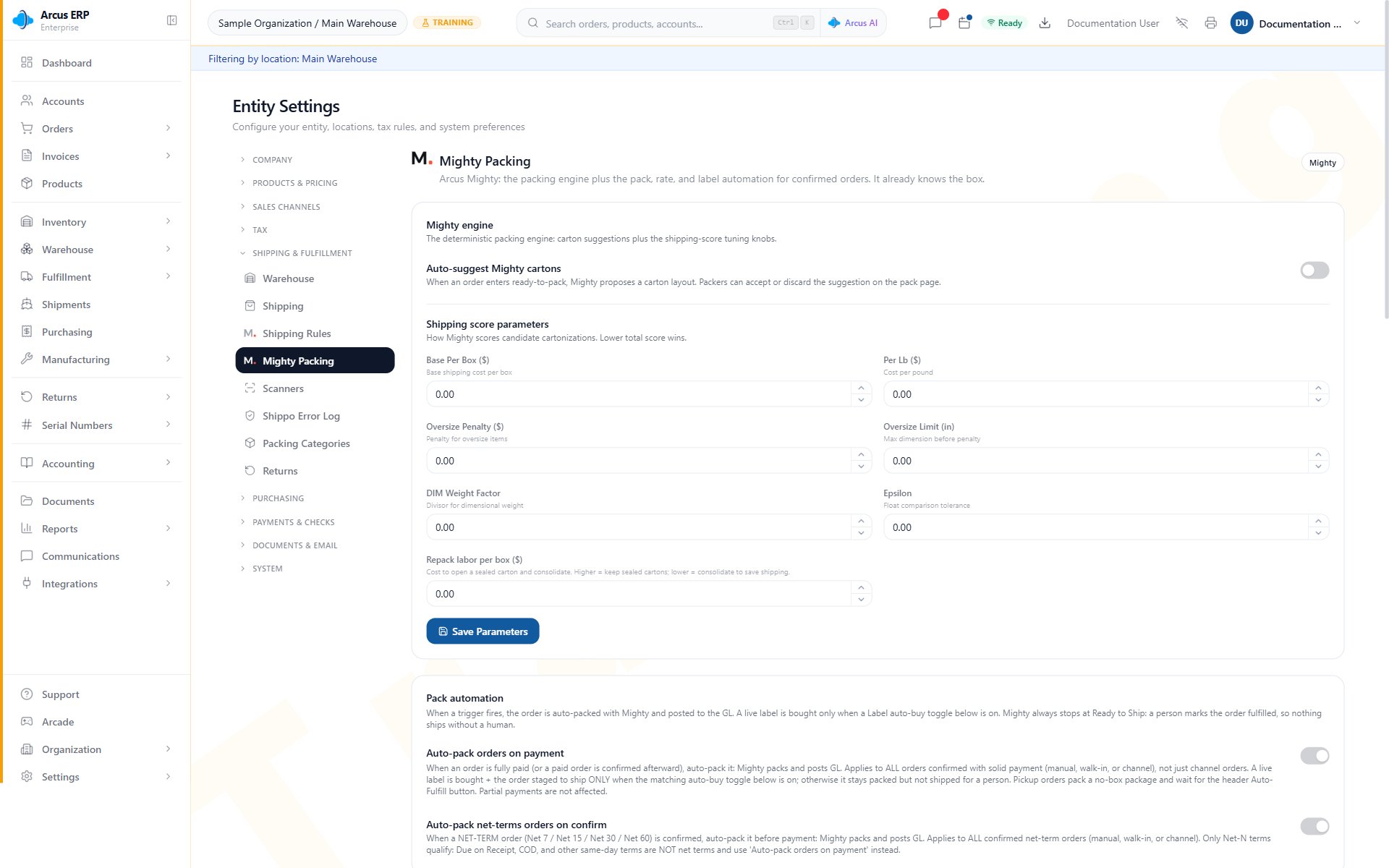
Packing configuration controls the boxes and operator choices available to Pack with Mighty.
Pack The Remaining Units
- Open the order that needs packing.
- Review existing packages and confirm they match the physical boxes already prepared.
- Choose Pack with Mighty.
- Review the packages created for the remaining unpacked units.
- Compare every package, item, and quantity with the physical pack.
- Adjust package contents, box details, dimensions, or weight when the physical shipment differs.
- Review any Leftovers before continuing to rates and labels.
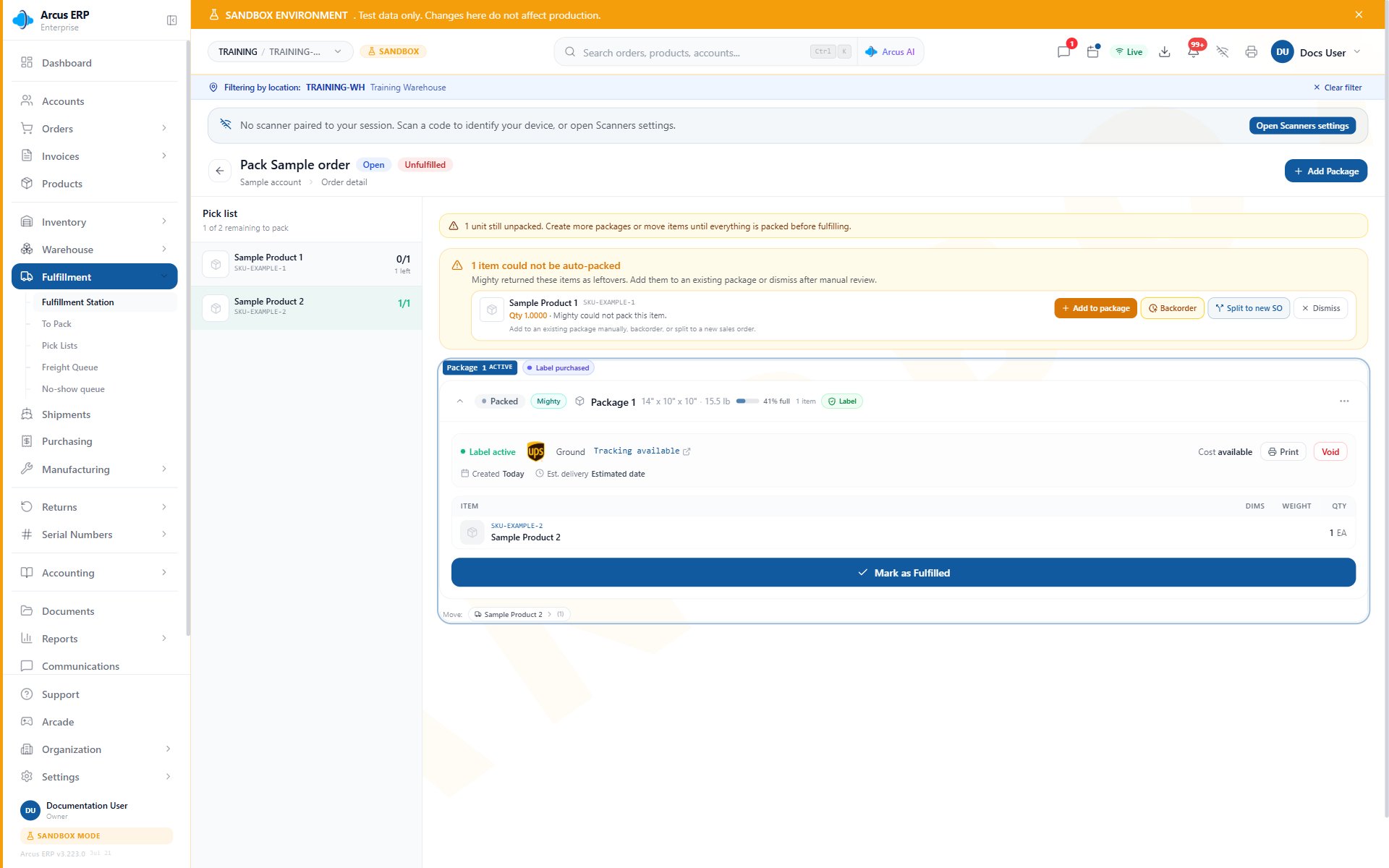
Use package detail to confirm the box, packed items, quantities, and label readiness.
Resolve Leftovers
Leftovers are units Mighty could not place into a package. The panel explains why each quantity remains unpacked, such as an incompatible packing category, an item that is too large, a box weight limit, no active boxes, temporary unavailability, or a general packing failure.- Choose Add to package to place some or all of the remaining whole units into an existing package on the same order.
- Choose Dismiss only when no packing action is required. Dismissal clears the warning without packing the units and requires a reason.
- Leave a leftover unresolved when it needs a backorder or separate-order decision, then follow the standard workflow after a lead confirms the handoff.
Continue After Packing
After all units that should ship now are in the correct physical packages:Carrier Shipments
- Confirm package contents, dimensions, and weight.
- Confirm the customer shipping address.
- Get rates.
- Resolve any address validation or customs block.
- Review the selected service and cost.
- Buy and print the label when it is correct.
- Place the label on the matching physical package.
- At Ready to Ship, have a person review the physical package, label, and required serial numbers before completing fulfillment.
Pickup Or Will-Call Orders
- Review the no-box pickup package and confirm its items and quantities match the physical order.
- Skip carrier rates and labels.
- When the physical order is ready, have a person choose Auto-Fulfill so the order moves to Awaiting Pickup.
- Choose Confirm Pickup only after the customer or authorized recipient collects the order.
Repack A Fully Packed Order
Use Repack with Mighty only when all units are packed, at least one package exists, the order is still unfulfilled, and the package split needs to be rebuilt.- Confirm the order remains unfulfilled and should be repacked.
- Review every package and active label.
- Choose Repack with Mighty.
- Let Arcus attempt the required label voids.
- If any void fails, stop and resolve that label. Existing package work remains in place.
- Review the rebuilt eligible packages and the packages Arcus preserved.
- Review rates and labels before buying anything new.
Common Blocks
- Pack with Mighty is unavailable: confirm units remain unpacked, then review the order state, payment, dispute, revision, and your fulfillment permissions.
- No active boxes: activate a suitable box or add the items manually to an existing package.
- Item does not fit: confirm product dimensions and active box choices, then pack the item manually when needed.
- Box weight exceeded: choose a suitable package or split the quantity across packages.
- Mighty is temporarily unavailable: keep the order unchanged and retry later, or pack manually.
- Serial number block: capture the required serial number before completing fulfillment.
- Address or customs block: correct the visible shipping details before buying a label.
- Repack blocked: a label void failed. Resolve the void before retrying Repack.
- Printer offline: keep the correct label and use printer fallback or reprint recovery.
Related Articles
Mighty Leftovers
Resolve unpacked units or leave them open for a confirmed follow-up workflow.
Fulfillment Station
Review Ready to Ship packages, printer controls, and final fulfillment work.
Label Reprint, Void, and Repack Recovery
Choose the safe recovery path after a label exists or package work must be rebuilt.
Packing and Shipping
Prepare an order for parcel, pickup, local delivery, or freight fulfillment.
Order Exceptions and Recovery Choices
Resolve payment, dispute, hold, and fulfillment blocks before packing.
Batch Packing
Open wave orders and finish each package from the batch workflow.
Packing Configuration
Configure packing behavior, rate automation, label controls, and Test Pack presets.
Product Setup
Maintain the dimensions, weight, packaging, serial, and freight data used during packing.