

Shipping labels belong to packages. Finish the package contents, box, dimensions, weight, destination, and ship-from location before buying a label.
Before You Get Rates
Confirm these items first:- Shippo is connected for the entity.
- The order uses shipping, not local pickup or freight handling.
- The package has contents, weight, dimensions, and a box.
- The ship-from location and customer shipping address are complete.
- The destination address has a fresh Shippo validation when Arcus asks for one.
- International shipments have customs fields on every physical product.
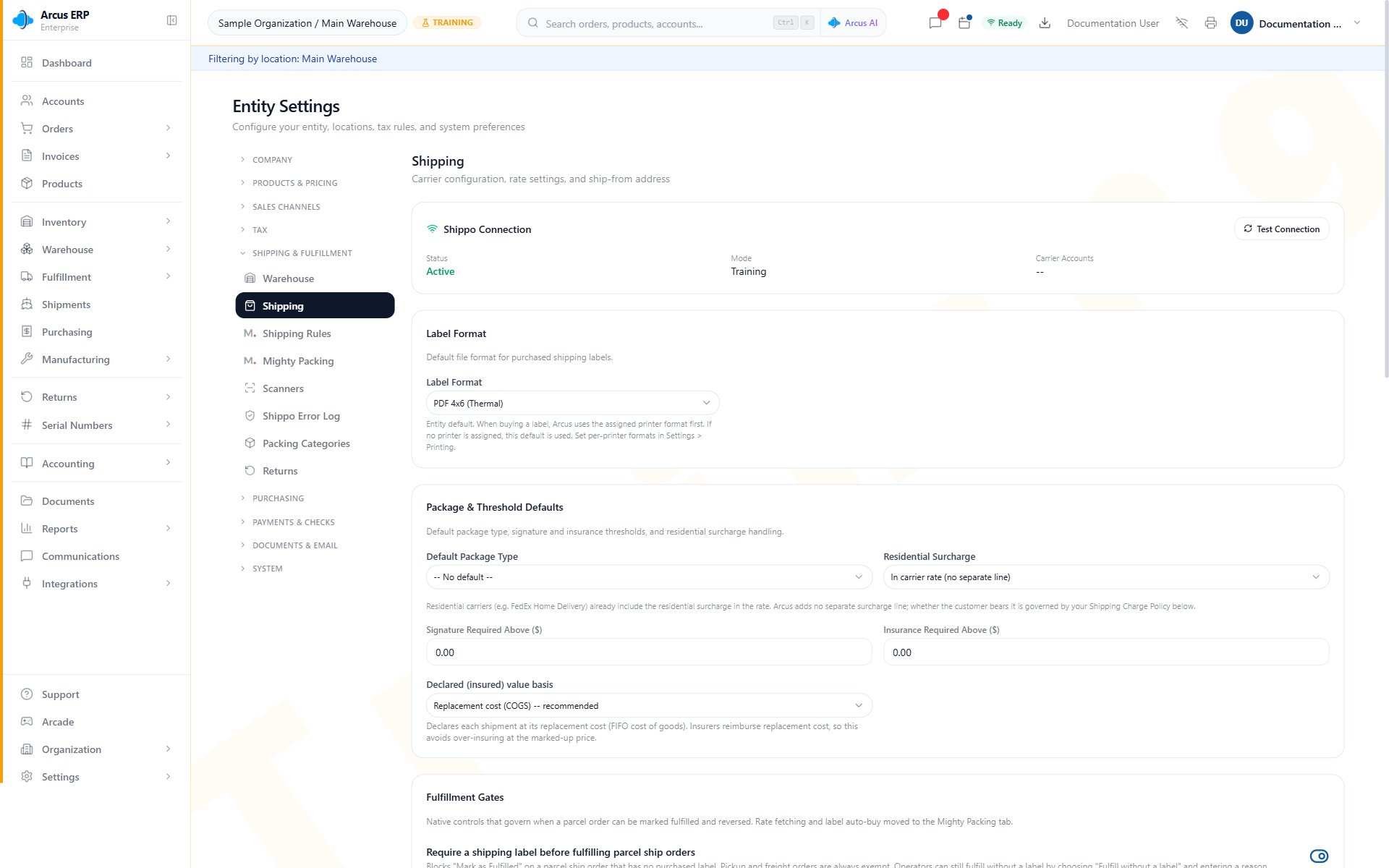
Shipping settings show the Shippo connection, label format, package and threshold defaults, and fulfillment gates.
Get Rates
- Open the package from the order, batch packing, or fulfillment station.
- Confirm the box, dimensions, weight, and contents.
- Select or confirm the shipping address.
- Choose Get Rates.
- Review the carrier, service, estimated transit, and cost.
- Select the rate you want to buy.
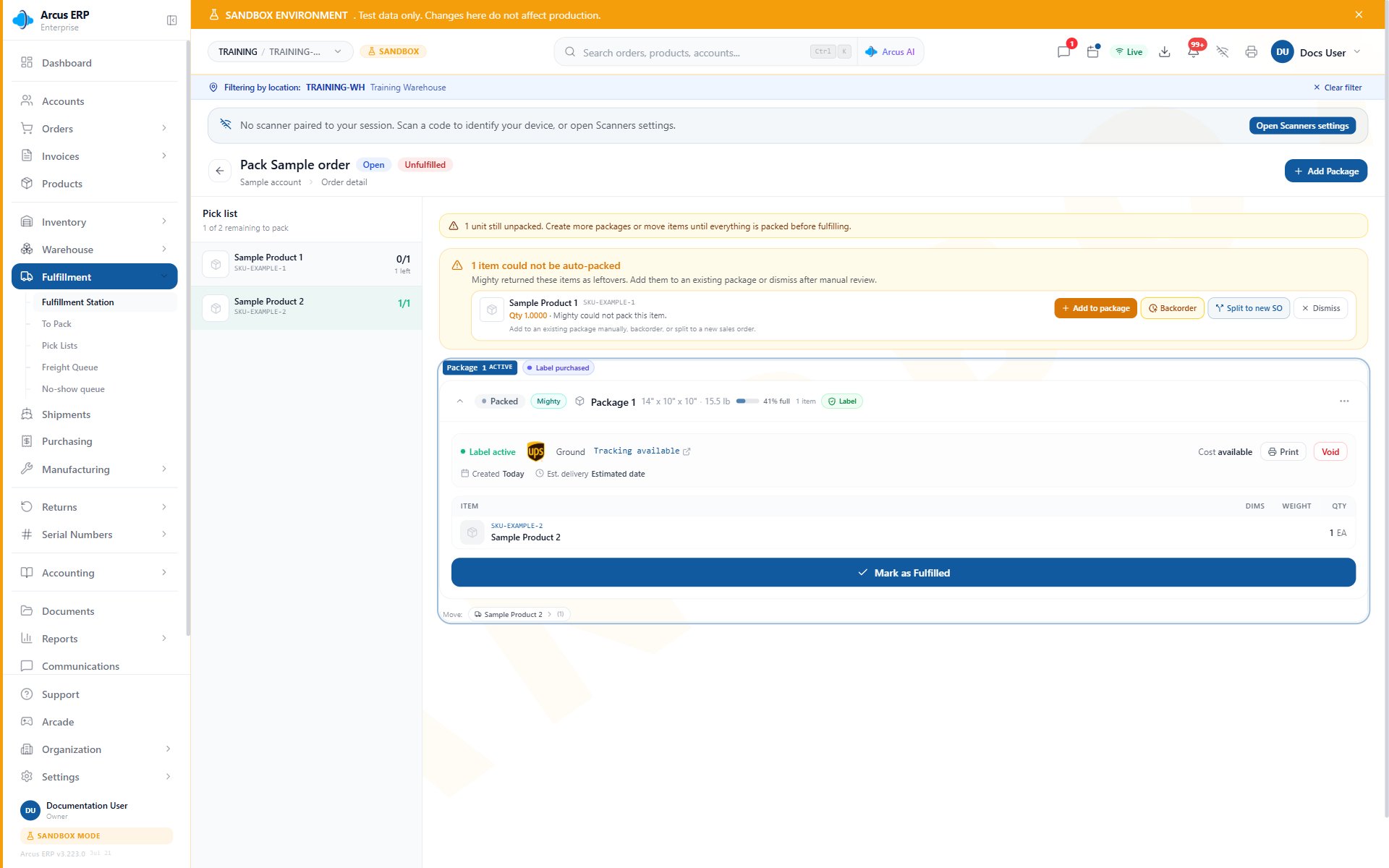
The package detail shows an active label, packed items, the Leftovers panel, and Mark as Fulfilled.
Buy A Label
- Select the rate.
- Buy the label.
- Wait for Arcus to store the tracking number, carrier, service, and label file.
- Print the label before the package leaves the station.
Label States
Use the label state to decide the next action:- No label: get rates.
- Rates fetched: purchase the selected rate.
- Label purchased: print the label or void it before changing shipment details.
- Printed: reprint if the same label is still correct, or void if the label is wrong.
- In transit: track the shipment. Voiding is blocked once the carrier has the package.
- Delivered: track only. Do not repack or void.
- Voided refund pending: wait for carrier confirmation before relabeling when the workflow requires it.
- Voided refund granted: get new rates when the package still needs to ship.
- Refund denied: the carrier may have scanned the label. Review the shipment and contact the carrier before trying to relabel.
Print And Reprint
Use reprint when the original label is still correct but the printer failed, the paper jammed, or the label was damaged before shipment.- Open the package or shipment.
- Choose print label.
- Use the selected PrintNode label printer, or open the label PDF when printer fallback is needed.
- Confirm the label on the package matches the package, service, and destination.

Printing preferences decide which printer receives labels and whether fulfillment can auto-print labels and documents.
Void A Label
Void a label when the active label should not be used. Common reasons include the wrong address, wrong box, wrong carrier service, package contents changed, or a repack is required. When the void is accepted:- Arcus asks the carrier for a refund.
- The active label is marked voided.
- Tracking and label details are cleared from the package.
- The package returns to a packed state so the team can get new rates.
- Shipping cost accounting is reversed for the voided label.
- Residential surcharge is removed when no other active labels need it.
Address And Customs Blocks
Rate and label work can stop before purchase when carrier data is not ready:- Address not validated: validate or correct the customer shipping address, then retry rates.
- Address missing required fields: add street, city, state, postal code, and country before retrying.
- Missing ship-from: confirm the location or entity shipping origin.
- Missing customs fields: add HS code, country of origin, and customs description for each physical product on an international shipment.
Common Blocks
- No rates returned: confirm Shippo is connected, the package has weight and dimensions, and the ship-from and ship-to addresses are complete.
- Address validation keeps appearing: accept a valid suggestion or edit the account address until the carrier can validate it.
- International label fails: complete customs fields on the product shipping tab for every physical product in the package.
- Print button opens a PDF: the selected label printer is missing, offline, or not configured for the user.
- Void is unavailable: the shipment may already be in transit or delivered.
- Refund denied: do not relabel blindly. Review carrier tracking and contact the carrier if the package should not ship.
- Repack is blocked: an old label could not be voided. Resolve the void before repacking.
Related Articles
Label Reprint, Void, and Repack Recovery
Decide when to reprint, void, or repack after label work starts.
Address and Customs Blocks
Resolve address validation and international customs failures.
Shipments and Rate Preview
Track packages and preview rates without buying labels.
Pack with Mighty
Pack packages, confirm contents, and handle Mighty suggestions.
Fulfillment Station
Work package queues, printer controls, and fulfillment actions.
Printing Setup (PrintNode)
Connect printers and understand online, offline, and blocked print jobs.
Printer Fallback and Reprint Recovery
Recover when PrintNode is not available or a print job fails.
Freight vs Parcel Fulfillment
Use freight handling instead of parcel labels when the shipment requires it.