

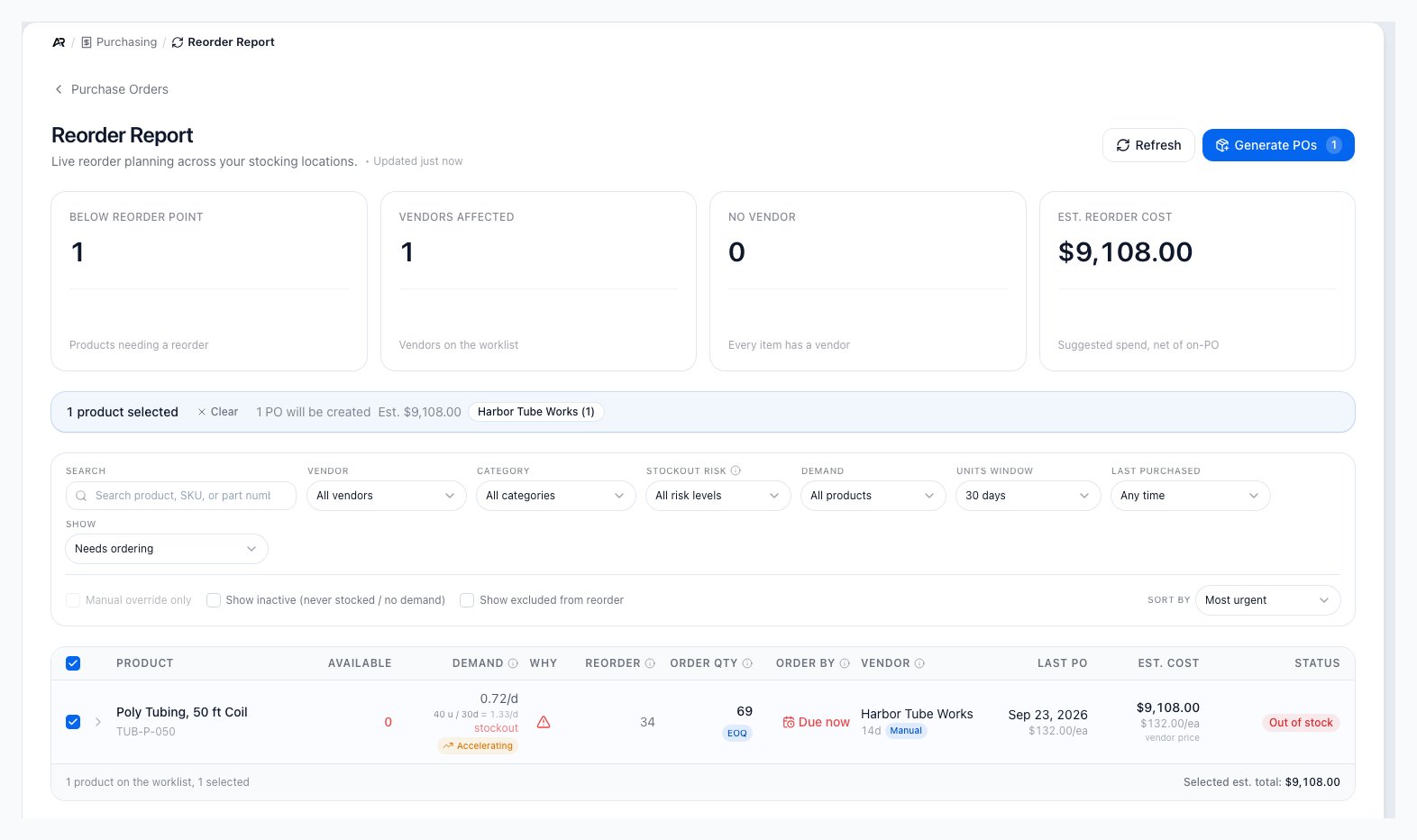
One product on the worklist: its demand, order quantity with the EOQ chip, order-by date, vendor and lead time, estimated cost and status, with the selection bar and footer total.
When to Use It
- Inventory needs a daily or weekly low-stock buying review.
- Purchasing wants to create POs from reorder settings instead of building every PO manually.
- You need to check how many units a product used over the last 30, 90, 180, or 365 days before you reorder it.
- You need to see which products are missing a vendor, or have several vendors and no default.
- Open work orders need components, and you want to buy for that demand before stock runs out.
Before You Start
- You need the purchasing.view permission to open the report.
- You need purchasing.create to use Generate POs and to send the created POs to vendors. Without it, Generate POs is disabled and its tooltip reads “You do not have permission to create purchase orders.”
- You need purchasing.override_moq to create a line below a vendor’s minimum order quantity.
- A product appears on the report when it is inventory tracked and has a reorder point, or when it is out of stock with nothing on order. A product needs at least one vendor before Arcus can put it on a generated PO. Vendors, the vendor minimum order quantity, the order multiple (case or pack quantity), and lead time are set on the product’s vendor list.
Open the Report
- Open Purchasing, then choose Reorder Report. The breadcrumb reads Purchasing > Reorder Report.
- Review the four summary cards at the top of the page.
- Set the filters and the Units window, then review each product row before generating POs.
- Clicking Reorder Report on Purchasing > Purchase Orders.
- Clicking Create POs on the Active Alerts table in Operations > Inventory > Overview. The report opens with the alerted products (or the rows you selected there) already selected, and shows them whatever your filters are. A chip reads “N linked products shown”, with ”, N not on this report” for any linked product the report does not carry. Click the x on the chip (“Stop showing the linked products regardless of the filters”) to go back to normal filtering. The selection is then trimmed to the rows your filters show.
- Searching for Reorder Report in the command palette, which has a navigation entry for it.

An earlier capture of the Reorder Report. Today's page has more columns (Demand, Why, Order by, Last PO), the Units window selector, and the Needs ordering filter, and the fourth card reads No Vendor.
Read the Summary Cards
All four cards count the worklist, which is the products below their reorder point. They match the line under the list (“N products on the worklist”), and choosing a wider Show view such as Entire catalog does not move them.- Below Reorder Point: products that need a reorder. The line under the number says how many inactive products, or products excluded from reorder planning, are hidden. Hover it to read the full explanation.
- Vendors Affected: how many vendors are on the worklist.
- No Vendor: products that cannot go on a generated PO until they have a vendor. It reads “Every item has a vendor” when none are missing.
- Est. Reorder Cost: the suggested spend, net of quantities already on purchase orders.
Filter and Sort the Worklist
The filter bar narrows the rows you see. Every filter works on the rows already loaded.- Search: type a product name, SKU, or part number. Search looks across the entire catalog, not only products below reorder point, and pauses every other filter while it is active. A chip reads “Searching all products: filters paused”, and the count of matches appears beside the box. Press Escape or click Clear search to return to your previous view.
- Vendor: show one vendor’s products. Choosing a vendor switches to a vendor view: rows are sorted by how soon they must be ordered, a chip reads “Vendor view: sorted by urgency”, and the footer shows a running Selected PO subtotal for that vendor.
- Category: shown when your products have categories.
- Stockout risk: All risk levels, Critical, High / Warning, or Low / OK.
- Demand: All products or Has demand.
- Units window: 30 days, 90 days, 180 days, or 365 days. This sets the window the units figure in the Demand column counts. It does not hide rows. It defaults to 30 days.
- Last purchased: Any time, Never received, Over 90 days ago, Over 180 days ago, or Over 1 year ago.
- Show:
- Needs ordering (the default): products that still need an order after counting what is on incoming POs.
- Covered by incoming PO: products whose open purchase orders already cover the need. The count is shown in brackets.
- New / unconfigured: products with no reorder point and nothing available. The count is shown in brackets.
- Everything below reorder point: every coverage state on the report.
- Entire catalog: every purchasable, tracked product, including healthy ones.
- Manual override only: only products whose reorder point was set by hand. The count of such products is shown in brackets. When no product on the report has a manual reorder point the box is disabled, and its tooltip reads “No product on this report has a manually overridden reorder point.”
- Show inactive (never stocked / no demand): reveals products that have never been stocked, bought, or sold and have no demand. They are hidden by default and are never selected automatically.
- Show excluded from reorder: reveals products whose Exclude from Reorder Planning setting (on the product’s overview) is on and that still hold stock. These rows are loaded on request, so a small spinner shows while they load.
- Sort by: Most urgent (soonest stockout first, the default), Highest demand, Recently sold, or Highest value. The sort is locked while a vendor view is active.
Review Product Rows
Rows with a vendor are listed first, then rows with no vendor. On a narrow window some columns hide to make room.- Product: the name and SKU (and part number when it differs). A Not reordering badge marks a product excluded from reorder planning.
- Available: the quantity you can use now. Below it, “+N on PO” shows open purchase quantity and “N MRP” shows the component units that Released and In Progress work orders still need to issue. Draft, completed, and cancelled work orders do not count.
-
Demand: the blended daily rate (for example “2.40/d”), then the units line for the selected window, for example “72 u / 30d = 2.40/d”. The units count everything that left the shelf in that window: sold as itself, shipped inside a kit, and drawn into work orders. The window’s own rate is not the same as the blended rate above it, which weights the 30, 90, 180 and 365 day windows together. A cell that reads “units unavailable” means the count could not be read on this load; it is not a zero, so reload to try again. Below the units are the days of cover (and the seasonal peak cover), the date today’s stock lasts through, and chips:
- Accelerating: demand over the last 30 days is running faster than the blended average, so the order-by and stockout dates use the faster rate and come sooner. The order quantity is still sized on the blended average.
- Declining: demand over the last 30 days is slower than the blended average. The dates and the order quantity keep the blended average, so a short slowdown does not push the order later.
- No recent sales: nothing sold in the last 30 days.
- Sales + builds: demand is shipped sales plus units consumed into work orders, each counted once.
- Builds: the product is never sold on its own line, and its demand is the units consumed into work orders.
- Consumption: demand comes from internal kit or assembly consumption history.
- Why: hover the icon for the reason the product is on the report: Below reorder point, On-PO short (incoming POs still do not cover the reorder point), Work-order demand, Low at a location or Low at N locations (the total is healthy but a location is below its own reorder point), Below at location, or Out of stock.
- Reorder: the reorder point every planning screen uses. It reads not set when no reorder point was ever saved for the product, which is different from a reorder point of zero. An M marks a manual reorder point, and “rec N” shows the recommended reorder point when it differs.
- Order Qty: the suggested quantity, net of stock on hand and on order. A product whose open purchase orders already cover it reads Covered with “N on order” beneath it and, when it has one, a muted “batch N” showing the economic batch Arcus would use. It suggests nothing to buy, so its Est. Cost reads $0.00. A product above its reorder point shows a muted quantity marked “if ordered now”: that is the top-up to its order-up-to level, not a need. A chip explains what set a suggested quantity: EOQ (the cost-optimal order size), Vendor min, Price break, Min cadence, Capped (held at the maximum days of supply), or Pallet round. “Min: N” appears when the vendor minimum is above the suggestion, and an Overstock chip appears when the order would lift stock past the maximum days of supply, whatever set the quantity (a vendor minimum, a pallet, or the order size itself). Hover it for the days of supply the order buys and the cost it ties up. A product excluded from reorder planning shows Not planned.
- Order by: the last safe date to order, which is the stockout date minus the lead time. It reads Due now when that date has passed, “in Nd” when it is within 14 days, and a dash when there is no demand signal.
- Vendor: the vendor Arcus will use, the lead time in days, and where the lead time came from: Observed (measured from real receipts), Manual (entered on the product’s vendor), or Default (the company fallback, so treat it with caution). Observed lead times ignore older receipt records with implausible elapsed times or quantities. “No vendor” appears in red when the product has none. “For:” links to the work order that needs the component.
- Last PO: the date and unit price of the last receipt, or “Never received”.
- Est. Cost: the suggested quantity times the best unit cost. Under the per-each price a short label says where it came from: vendor price (the vendor’s price list, including quantity breaks), last PO price, or product cost. That per-each price can differ from the one in Last PO, because the vendor’s current price list is used before the last purchase. The row, its coverage panel and the product page size an order on the same cost. It reads “no cost” when there is no purchase price, last purchase price, or product cost on file.
-
Status: the stock position, in this order of precedence:
- Out of stock: nothing is available.
- Due now: the order-by date has passed.
- Due soon: the order-by date is within 14 days.
- Below reorder point: available plus on order is at or below the reorder point, and the order-by date is further out than 14 days.
- Overstock: on hand plus on order is already beyond the maximum days of supply. This describes your position today, not the quantity this report suggests.
- Healthy: everything else.
Expand a Row
Click the arrow at the start of a row to see:- A coverage line: “Available + incoming + this order = units”, how long that lasts, and the order cost. When the order would lift stock past the maximum days of supply, a line under it says so, for example “~10 mo of supply (max 120d), $283.00 tied up”. Click the coverage line to open a table of the blended average, each window and the seasonal peak, with the rate per day, units, how long stock lasts, and the stockout date. Under it, Months ahead projects the next three months and marks each covered or short, beside the same months last year.
- Units by month: twelve months of units, split into sold directly, shipped inside kits, and drawn into work orders, with the same month last year under each and three projected months. The line “of which inside kits” gives the kit share; click it to list the kits that used the product. A seasonal peak note is advisory and does not size the order.
Select Products
The report ticks the rows a buyer would order without a second thought, and only rows you can see. A selection always follows your filters: when you change a filter, any ticked row that disappears is unticked, and Generate POs, the selection bar and the footer count only the ticked rows still on screen. These rows stay tickable but are never ticked for you, and hovering the checkbox says why:- A product covered by incoming purchase orders: “Not pre-selected: open purchase orders already cover this product.”
- A product above its reorder point: “Not pre-selected: stock is above the reorder point. The order quantity shown is what you would order now.”
- A product whose suggested order would lift stock past the maximum days of supply: “Not pre-selected: this order would lift stock past the max days of supply.”
- Inactive products and products excluded from reorder planning are never selected automatically.
- Clear any products that should not be ordered yet, or use the header checkbox to select or clear every visible product. It shows a partial state when only some visible rows are ticked.
- A product excluded from reorder planning cannot be selected. Its checkbox is disabled with the reason “Excluded from reorder planning, so it cannot be selected for auto-PO generation. Add it to a purchase order manually if you still need to buy it.”
- The selection bar shows how many products are selected, how many POs will be created, the estimated cost, and one chip per vendor.
Generate Draft POs
- Select the products you want to reorder.
- Click Generate POs. The badge on the button shows how many POs will be created.
- Review the Review Purchase Orders dialog. It has one section per vendor with the product, available, on PO, demand per day, days of cover, reorder point, order quantity, unit cost, and line total. A live coverage line under each product shows how long the order lasts.
- Adjust any line:
- Change the Order qty directly in the row. The chips beside it explain the suggested quantity, so once you type a different number they step aside and Reset to N puts the suggestion back. The Overstock chip follows whatever quantity the line holds, for example “Overstock: ~10 mo of supply”, and always agrees with the coverage line under the product.
- A product whose open purchase orders already cover it is never selected for you. If you select one, its line starts at the economic batch and reads “Already on order: N”, with a note that whatever the line orders comes on top of those purchase orders. Beside the quantity, Reset to N names what it restores: the suggested quantity, the economic batch, or the order quantity on the report.
- Click the arrow next to a product to change its Vendor, its Unit Cost, or to enter a minimum order override. The vendor list shows each vendor’s price (for example “at $4.20/ea”, with “(est)” when the price comes from purchase history), marks the default vendor, and names the part (“part X”, or “no part number”). A vendor that supplies the product under more than one part number is listed once per part, and a vendor’s blank row is never offered beside its real part. Picking a vendor keeps the line open so you can carry on editing. The expanded line shows the lead time the plan used (“Planning lead time: N days”); after you switch vendors it shows “Lead time entered for this vendor: N days”, or “No lead time entered for this vendor”.
- When a price break is within reach, click Bump to N to order enough to unlock the lower price. A Worth it badge marks a break that saves money after carrying cost.
- To add a vendor’s lines to that vendor’s oldest draft or open PO that has not been received against, tick Merge into existing PO in the vendor’s header. Otherwise Arcus creates a new PO for the vendor.
- Click Create N Draft POs.
- In Purchase Orders Created, open a PO, click Send to vendor (or Send all N to vendors) to email them, or click View All POs.

An earlier capture of the purchase order review step. The dialog is now titled Review Purchase Orders, has a table of editable lines per vendor, and its button reads Create N Draft POs.
Vendor Ordering Rules
When a vendor sells in packs or pallets, Arcus rounds the final suggestion up to a whole number of packs once, at the end, so a pallet is never applied twice to the same quantity. Arcus also recalculates a saved reorder figure instead of sizing an order on one that is out of date. The report and the review dialog use the same vendor minimum and order multiple. The minimum the dialog shows for a line is the minimum on the vendor row you picked, which is the one Arcus enforces when it creates the PO.- A banner at the top of the dialog, “Vendor ordering rules changed N lines”, lists each line whose suggestion moved, from what to what, and why (rounded up to whole packs, raised to the vendor minimum, or rounded up to whole pallets), with the days of cover before and after. A line leaves the banner once you change its quantity or its vendor, because the rule no longer set that number.
- A chip beside the quantity, such as “Rounded up to 70”, shows when the pack size raised it. The packs and the change in cover are written beneath it, for example “2 packs of 35, up from 49” and “Cover 74d to 91d”.
- If you type a quantity that is not a whole number of packs, a warning reads “Not a whole pack of N” with the nearest pack quantities. This is a warning only. The footer counts these lines and notes that the vendor may round the order up.
Below the Vendor Minimum
A quantity below the vendor’s minimum order quantity blocks Create until you resolve it.- The expanded line reads “Quantity (N) is below the vendor minimum order of N”.
- With purchasing.override_moq, enter an Override reason (required). The line then reads “Override reason saved. This will be audit-logged.” and shows MOQ overridden.
- Without it, the line reads “Your role does not have permission to override the minimum order quantity. Contact a manager or admin.” Raise the quantity to the minimum, or ask a manager.
What Arcus Updates
- One draft PO is created per vendor, or the lines are added to that vendor’s oldest unreceived draft or open PO when you chose to merge.
- Each PO line keeps the vendor, quantity, and unit cost you confirmed, and the vendor part you picked.
- Products with no vendor are skipped and listed in the dialog as “will be skipped (no vendor assigned)”.
- Vendor changes, unit cost changes, and minimum order overrides are recorded in the audit trail. A message reads “N overrides audit-logged”.
- Open PO quantity counts as on order, so the report nets it on the next load.
- Sending a draft PO emails it to the vendor and moves it from draft to open. If the PO total exceeds the PO Approval Threshold on Settings > System > Approval Workflows, it is not sent. It waits for approval on Purchasing > Pending Approval; Arcus does not email the approvers from this send. The results dialog can still mark that PO Sent, so open the PO to confirm whether it went to the vendor or is pending approval.
- Creating or sending a PO does not change stock or post to the general ledger. The created POs follow the normal purchase order review, approval, receiving, and bill workflows.
Demand-Driven Recommendations
When products have sales history but no reorder point, two tabs appear above the list: Below Reorder Point and Demand-Driven Recommendations. The second tab lists each product’s daily demand, available quantity, and recommended reorder point (with the pallet quantity when one is set). Click Set Reorder Point to open the product’s inventory settings and save it, so the product appears on the report automatically.Settings That Change the Report
On Settings > Purchasing:- Default Vendor Lead Time is used when a product’s vendor has no lead time of its own.
- The Reorder Economics card sets the carrying cost rate, order cost per PO, service level, max days of supply, min reorder cadence, slow-mover cap, safety-stock cap, slow-mover velocity, and max order value per line. These shape the suggested reorder point and order quantity.
When the Report Is Empty
“All stock levels are healthy” means no product is below its reorder point. The panel under it lists when a product appears: it has a reorder point set on its Purchasing tab, its available quantity is at or below that point, and inventory tracking is on. When there are demand-driven products to configure, a link opens that tab. Go to Inventory opens Operations > Inventory > Overview. “Nothing needs ordering right now” means products exist but your filters hide them. The message says how many are inactive or excluded from reorder planning, and which checkbox reveals them. A search with no result reads “No matches” for your text across the entire catalog, with a Clear search button.
The empty state explains why products may not appear and links to Inventory for setup review.
Common Blocks
- Generate POs is disabled: hover it for the reason. “Select at least one product to generate POs.” means nothing is selected. “Selected products have no preferred vendor” means none of the selected rows has a vendor; set a vendor on the product’s Purchasing tab.
- A product is missing: search for it. If it appears only in search, check its reorder point, inventory tracking, and whether it is excluded from reorder planning.
- No Vendor is greater than zero: add a vendor to those products before generating POs.
- Cost is too high or too low: review the vendor’s purchase price, quantity breaks, and the product cost. In the review dialog, a unit cost labeled “(est)” comes from purchase history because the vendor has no price on file.
- The item still appears after generating a PO: click Refresh, and check the Covered by incoming PO view.
- Send failed: “Send failed — check that vendors have email addresses on file” means no PO could be sent. A partial send reads “Sent N POs; N failed (no email on file)”. Add an email to the vendor account and send again from the PO.
- Failed to generate purchase orders: the message shows the reason Arcus gave, or “Failed to generate purchase orders” when there is none. Check that you still have purchasing.create, and purchasing.override_moq for any line below a vendor minimum.
- A line is missing from the created PO: when Arcus cannot add a line (for example, the product’s vendor relationship was deactivated), it skips that line, records it in the audit trail, and creates the rest.
Related Articles
Create and Manage Purchase Orders
Purchasing > Purchase Orders: send, receive, approve, cancel, and close POs.
Pending Approval and Purchase Order Approvals
Purchasing > Pending Approval: POs held above the approval threshold.
Inventory Overview
Operations > Inventory > Overview: stock levels and the Active Alerts that open this report.
Supply & Demand
Operations > Inventory > Supply & Demand: the same reorder point and demand, product by product.
Work Orders
Purchasing > Manufacturing > Work Orders: the builds whose component demand appears here.
Purchasing Defaults and Payment Terms
Settings > Purchasing: default lead time and the reorder economics.
Product Setup
Sales > Products > All Products: vendors, minimums, order multiples, and reorder points.
Purchase to Pay
Follow the full PO, receipt, vendor bill, and payment workflow.