

Use this guide when an order does not move forward normally. The safest next step depends on what already happened: approval, payment, packing, shipment, invoice posting, refund, return, or cancellation.
Start From The Order Detail Page
Open the order and read the top of the detail page before you change anything. The header and action area show the order type, order status, payment status, fulfillment status, customer, addresses, available actions, and any exception banners.
Start from order detail so you can review status, payment, fulfillment, customer, addresses, line items, and available actions in one place.
- Order status: draft, open, processing, cancelled, archived, or another lifecycle state.
- Payment status: unpaid, paid, payment terms, processing, partially refunded, or refunded.
- Fulfillment status: unfulfilled, partial, or fulfilled.
- Visible banners: approval, hold, ACH clearing, dispute, overcharge, RMA, ship-complete shortage, or marketplace guidance.
- Available actions: unavailable buttons usually mean Arcus is protecting payment, inventory, shipment, invoice, return, or accounting history.
Approval Banner
When Manager Approval Required appears, the order total exceeds the approval threshold for your entity. Confirmation is blocked until the order is approved. What to do:- Review the order total, prices, discounts, shipping, and tax.
- Have a manager, admin, or owner review the order.
- If the order is correct, the approver clicks Approve Order.
- If the order should be changed, the approver clicks Reject and can add a reason.
- After approval, confirm the order or continue the normal payment and fulfillment workflow.
- The person who created the order cannot approve their own order.
- Non-approvers see that the order is awaiting a manager.
- Rejection does not delete the order. It sends the order back for revision.
- The customer cannot be charged while confirmation is blocked by approval.
Hold Banner
When an order is on hold, Arcus shows the hold type and reason. Common examples include credit-limit holds, manual holds, and fraud-review holds. Fulfillment is blocked while the hold is active. What to do:- Read the hold reason.
- Resolve the business issue outside the order if needed, such as credit review, customer follow-up, or fraud review.
- A user with order edit authority can click Release Hold.
- After the hold is released, confirm the order or continue the next normal action.
Customer On Credit Hold Needs To Place An Order Today
Use this workflow when a customer is on credit hold but a manager, CFO, or controller has cleared a single order to proceed. The override pushes one order through the credit gate without removing the underlying customer credit hold. Examples include a GM approving the order by phone, a card on file pre-charged for the full balance, or the controller clearing a temporary credit review. Prerequisite: your role must include the accounts.override_credit_hold permission. Owner, Admin, Manager, and Accountant roles have this permission by default. Staff, Sales, Warehouse, Auditor, and Viewer do not. Ask an Owner or Admin if you need the permission added. Step by step:- Open the order detail page.
- Locate the amber Hold banner at the top.
- Click the red Override Hold button. The button is visible only when the hold type is Credit Limit or Manual and your role has the override permission. If you do not have the permission, the button shows as disabled with a tooltip explaining the requirement.
- Type your reason in the modal. Minimum 10 characters. Be specific. This text is permanently audit-logged and reviewed during finance team close. Example: “GM John approved by phone 3pm; card on file pre-charged for full balance.”
- Click Continue.
- Review the original hold reason next to your override reason side by side.
- Click Confirm Override.
- The order moves to open status. The activity log and order timeline record who completed the override, the reason, and the original hold context.
- The order leaves on-hold status and continues through the normal confirmation workflow. Inventory is allocated, GL entries post, and the order is eligible for fulfillment.
- The customer remains on credit hold for any future orders. The override applies only to this one order.
- An activity log entry titled “Credit Hold Overridden” appears under the order timeline and the entity-wide activity log. The entry shows your name, the reason, the hold type, and the original hold reason.
- Open order detail views refresh to show the change.
- If your entity has configured finance team notifications under Settings, Approval Workflows, Credit Hold Override Notifications, an email is sent to the listed recipients. The email includes the order number, customer, total, your name, the original hold reason, and your override reason. Recipients are usually CFO, Controller, or a finance-team distribution list. When no recipients are configured, no email is sent.
- The finance team notification respects an optional dollar threshold. If the threshold is set, only overrides at or above that order total trigger the email. Set the threshold to zero (default) to notify on every override.
- To permanently un-hold a customer for future orders, edit the credit hold flag on the customer account record. That action uses a different permission (account edit) and is recorded separately.
- The override applies to credit hold types only (Credit Limit and Manual). Fraud holds use a separate fraud-team workflow and the override button does not appear.
- Reasons under 10 characters are rejected so a reason is always present in the audit trail.
- If the override is rejected, read the message to confirm whether your role lacks permission or the reason is missing or too short.
- Configure who is notified: Settings, Approval Workflows, Credit Hold Override Notifications. Enter a comma-separated email list and an optional dollar threshold. Full configuration walk-through and audit-trail details: Credit Hold Override Notifications.
- Manage permissions: Settings, Roles and Permissions. Assign or revoke accounts.override_credit_hold on the role that should have approval authority.
- Customer credit setup: open the customer account, then review credit limit, payment terms, and the credit hold flag. Persistent customer-level changes belong here, not on the order.
ACH, Dispute, And Marketplace Blocks
Some banners do not ask you to fix the order fields. They tell you that another workflow must finish first.
Do not use Pack with Mighty, Auto-Fulfill, or manual fulfillment to bypass these blocks.
Overcharged Banner
When the overcharged banner appears, the customer was billed more than they owe. The banner shows the overcharge amount when available and can open the refund workflow for that amount. What to do:- Review why the order was flagged.
- Confirm money was actually collected before issuing a refund.
- Click the refund action from the banner when available.
- Use a partial refund for the overcharged amount.
- Review the payment history after the refund posts.
Backordered Items
If the order has open backorders, the detail page can show a Backordered Items section. It lists the product, SKU, backordered quantity, filled quantity, outstanding quantity, expected date when available, and customer-notification markers. Use backorders this way:- Leave unavailable items unpacked.
- Fulfill only the items that are physically leaving now.
- Use partial fulfillment when part of the order can ship or be picked up.
- Add internal notes when the remaining quantity depends on purchasing, receiving, manufacturing, or customer approval.
- After stock is received, review the backorder status before creating the next package.
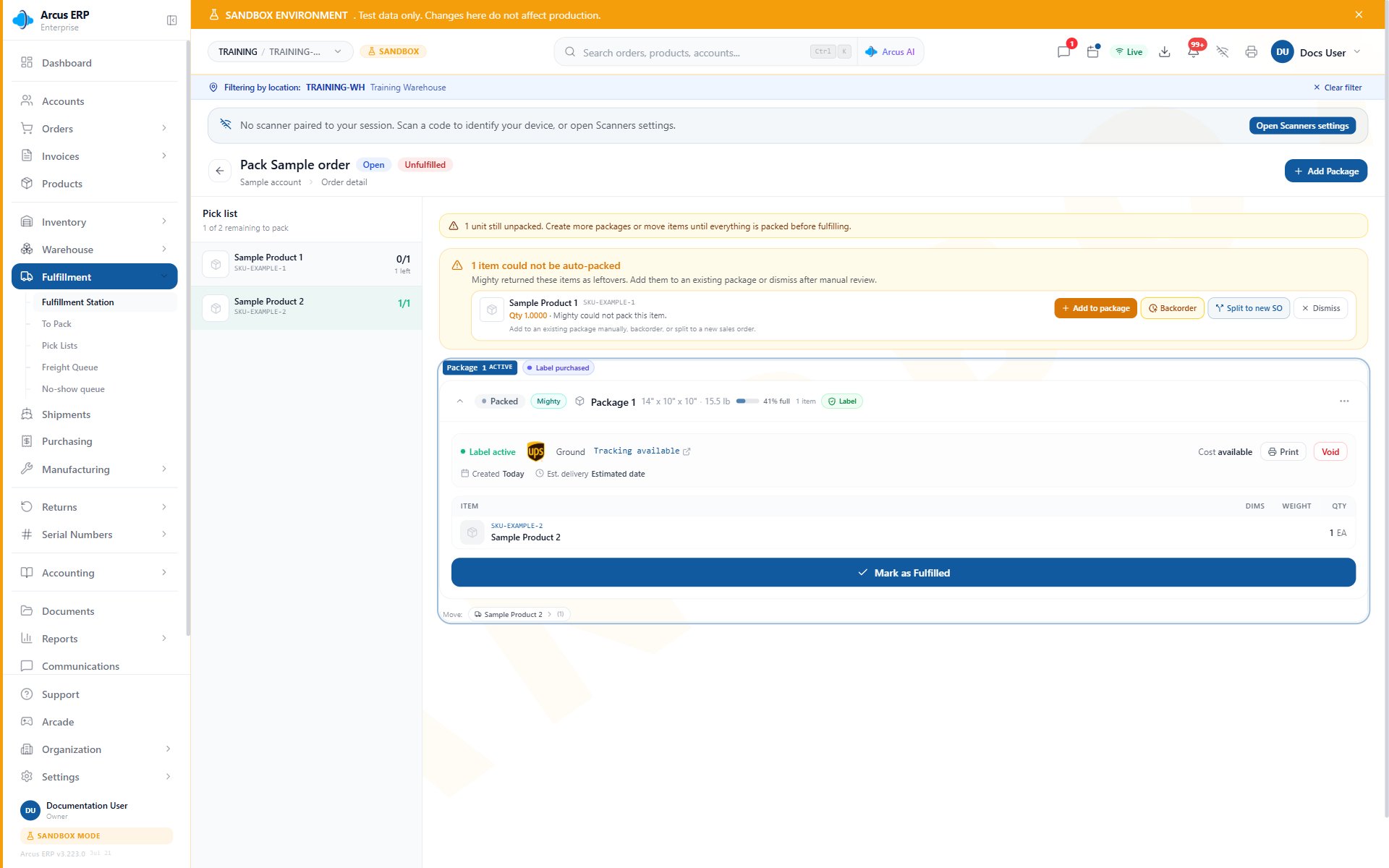
Package detail helps you confirm which items are in the package before completing a partial shipment or pickup.
Failed Auto-Pack Or Auto-Fulfill
Auto-Fulfill validates the order, creates packages, rates shipments, purchases labels for shipped packages, checks serial numbers, fulfills eligible packages, and sends shipment notification when possible. Pickup orders skip carrier label purchase. If Auto-Fulfill fails or pauses, use the message shown in the dialog or toast to choose the fix:- No line items: add products before trying again.
- Unpaid with no terms: collect payment or assign approved payment terms.
- ACH still processing: wait for payment to clear.
- Missing shipping address: add a shipping address or set the order to pickup when appropriate.
- Freight order: build pallets or use the freight workflow instead of auto-pack.
- Items do not fit boxes: adjust package setup, product dimensions, or pack manually.
- Serial numbers required: enter serial numbers on the package, then finish fulfillment manually.
- Label or rate problem: review addresses, package dimensions, carrier setup, Shippo, and shipping rules.
- Dispute block: resolve the chargeback review before fulfillment.
Quote Conversion Exceptions
A quote can be converted into a sales order, or it can be converted directly into an invoice. Direct invoice conversion still runs the same confirmation checks that a sales order uses. If direct invoice conversion is blocked:- Clear credit holds or manual holds.
- Complete approval if the order exceeds the approval threshold.
- Add required addresses and line items.
- Resolve delinquency acknowledgment if your policy allows proceeding.
- Review stock, freight, and fulfillment requirements before retrying.
Choose Cancel, Refund, Return, Archive, Or Delete
Pick the action that matches what already happened.
Use the returns workflow when goods already left the business and need to come back before refund or credit decisions are finalized.
Order Detail Safe Changes
Order edits are safest before confirmation, payment, invoice posting, packing, shipping, or return activity. Once work has begun, Arcus opens a clear “unpack” path for the pre-shipment window and switches to returns or corrections after the package leaves the warehouse. Use these rules:- Draft orders: most fields and line items can still change.
- Open or processing orders with no fulfillment: line edits can still be allowed, but recheck reservations, tax, totals, and payment balance.
- Packed but not yet shipped: click Unpack and Edit on the order detail page to return the order to editable state in one click (see next section).
- Partially fulfilled orders: only unpicked lines should be changed. Lines already being picked or packed are protected.
- Fulfilled orders: do not edit line items. Use returns, refunds, or corrections.
- Posted invoices: do not change GL-affecting totals. Use invoice, credit, refund, or return workflows.
- Cancelled or voided orders: do not edit the order. Create the correct follow-up record instead.
- Header-only corrections: addresses, notes, PO number, payment terms, due date, and sales agent can be available longer because they do not rewrite line, payment, or inventory history.
Customer Wants To Add Or Change Items After Packing
A common CS call sounds like “I forgot a 4-inch elbow, can you add it to my order?” AFTER the warehouse has already packed the order. There are three possible states for the order, and each has a clear path:- Before packing: edit the line items, then review totals, payment, approval, and fulfillment readiness.
- Packed but not shipped: choose Unpack and Edit on the order detail page. Confirm the warning, wait for Arcus to clear eligible package work, then add or change items and pack again. If a required label void fails, the package work remains in place so you can resolve the label first.
- Already shipped: use Create Return for items coming back and create a new sales order for additional items the customer needs.
Customer Wants To Change Ship-To After The Order Shipped
When a customer realizes the shipping address is wrong after a label was already purchased, Arcus refuses a silent in-place edit on the order header. The shipping address card on the order detail page becomes non-clickable and a tooltip explains “Void the shipping label first to change the address.” This protects the order from a misship: the carrier already has the old address on the printed label, the warehouse already prepared the package for the old address, and any tax that was finalized at the old destination cannot quietly drift. Arcus blocks protected address and order-header changes while an active shipping label exists. The rejected change appears on the order timeline so an operator can see why the save did not go through. What to do, by situation:
Important safeguards:
- The order header card and the address picker are visibly non-interactive while the label is active. This is intentional. A click that silently does nothing would be more confusing than a card the operator can see is locked.
- Voiding a label does not refund the customer. It only cancels the carrier contract. Use the refund workflow separately if the customer was already billed shipping that no longer applies.
- The billing address, the customer account, and the warehouse location on the order are protected by the same lock. Changing any of these on a labeled order would also break either the tax finalization or the carrier shipment.
- Notes, internal notes, PO number, payment terms, due date, and sales agent are NOT locked. Soft-metadata changes are still allowed even on shipped orders.
Related Articles
Order Lifecycle and Safe Changes
Understand draft, open, paid, fulfilled, cancelled, and archived order states.
Record Customer Payments
Record payments, short pays, overpays, credits, and customer balance changes.
Order Fulfillment
Move an order from confirmed to picked, packed, shipped, or partially fulfilled.
Packing and Shipping
Handle packages, labels, freight, pickup, partial shipments, and shipping blocks.
Mighty Leftovers
Resolve unpacked units or leave them open for a confirmed follow-up workflow.
Customer Returns
Create RMAs, receive goods, inspect items, choose disposition, and close returns.