

PrintNode lets Arcus send labels and documents to warehouse printers. Operators can still use PDF fallback when PrintNode is unavailable, but connected printers make station work faster and easier to audit.
Admin Setup
- Install and sign in to the PrintNode desktop client on the workstation that can reach the printers.
- Connect PrintNode in Arcus settings.
- Confirm printers appear in entity printing settings.
- Mark which printers are label printers and which are document printers.
- Choose entity defaults when the warehouse uses shared printers.
- Review recent print jobs after the first test prints.

Entity printing settings confirm whether PrintNode is connected and help admins review printer availability and recent print jobs.
User Printing Preferences
Each user can choose the printer they normally use.- Open printing preferences.
- Select a default label printer.
- Select a default document printer.
- Confirm auto print settings before go live.
- Save preferences.

User printing preferences decide where labels and documents print for that user.
Printer Categories
Admins can assign product categories to printers. When an operator selects a category-specific printer at the station, the package queue can focus on packages that include matching product categories. Use categories when a warehouse has dedicated printer lanes, such as hazmat labels, cold chain labels, or oversized product paperwork.Print From Fulfillment
- Select the right printer in the station or package card.
- Confirm the package has the label or document you want to print.
- Print the label, packing slip, or packet.
- Watch for online, offline, or blocked job feedback.
- Use PDF fallback if the package needs to move before the printer is restored.
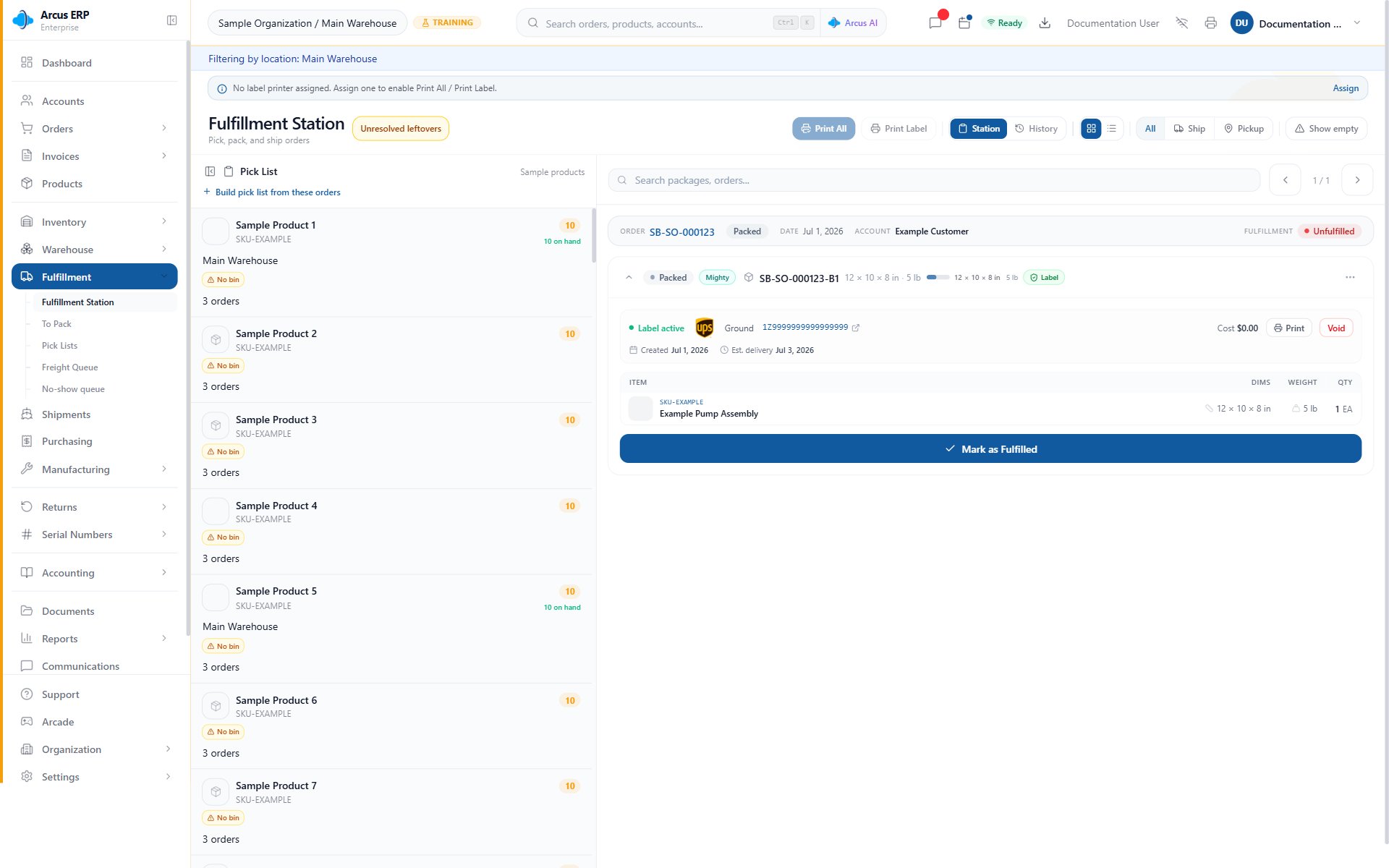
The station printer controls let operators choose the printer, print available labels, and manage active package work.
Offline Printer Behavior
Arcus checks printer state before submitting a PrintNode job.- If the printer is online or unknown, Arcus attempts to submit the job.
- If the printer is offline, Arcus blocks the submission and records an offline print job.
- The label or document remains available for retry.
- Operators can use the PDF fallback when they need to print outside PrintNode.
Test Printing
Use a test print after setup changes:- Confirm the printer is online in PrintNode.
- Confirm the correct stock is loaded.
- Send a test label or document.
- Verify scale, orientation, and margins.
- Update user preferences if the test printed on the wrong device.
Common Blocks
- No printers found: confirm the PrintNode desktop client is running and the workstation can see the printers.
- Printer is offline: power on the printer, reconnect the workstation, restart the PrintNode client, then retry.
- Wrong stock printed: select a label printer for labels and a document printer for slips.
- Queue filters look wrong: check whether the selected printer has category assignments.
- Auto print surprised an operator: review the user’s printing preferences and turn off auto print when manual control is needed.
- Print succeeded but label looks wrong: check printer driver scaling, stock size, and label format settings.
Related Articles
Fulfillment Station
Use station printer controls and package queues.
Printer Fallback and Reprint Recovery
Recover from offline printers and failed print jobs.
Shipping Labels
Buy, print, reprint, void, and track parcel labels.
Label Reprint, Void, and Repack Recovery
Choose the correct recovery path after a label exists.
Shipping and Fulfillment Setup
Configure Shippo, rules, printer behavior, Arcus Mighty, and fulfillment settings.
Integrations
Manage connected services used by fulfillment.