

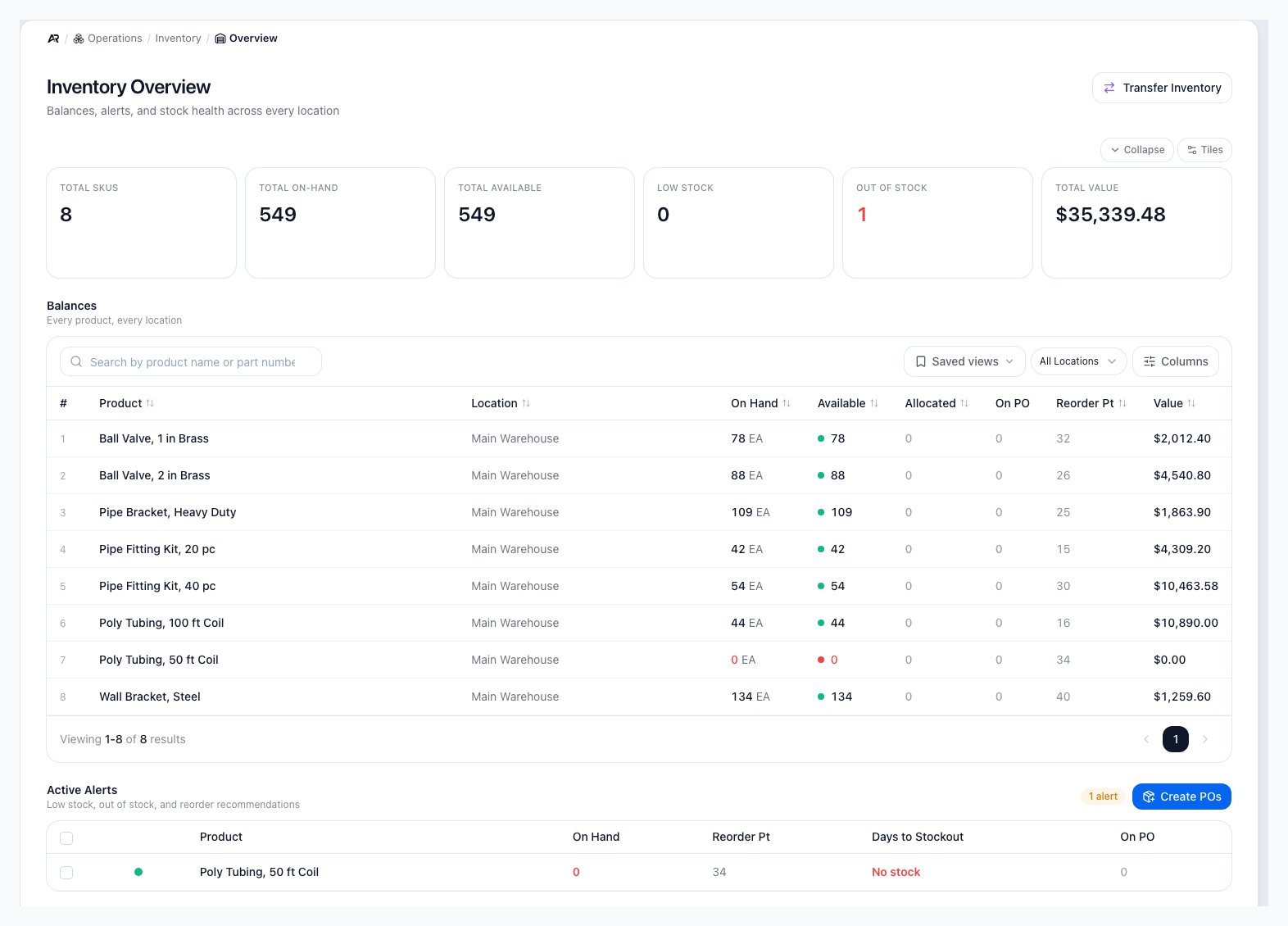
The six KPI cards sit above the Balances table, and Active Alerts closes the page.
What Inventory Overview Shows
Inventory Overview, at Operations > Inventory > Overview, is the starting point for stock review. It combines KPI cards, a searchable Balances table, and Active Alerts so operators can see what is available, what is reserved, what is on purchase order, and what needs attention. Anyone with the inventory view permission can open it. You also arrive here from the inventory links on the dashboard, the Reorder Report, and the other Inventory screens, or by searching Overview in the command palette. The page is read-only: stock changes happen on the receiving, adjustment, transfer, and fulfillment screens.- Review total SKUs, on-hand stock, available stock, low-stock count, out-of-stock count, and total value.
- Search balances by product name or part number.
- Filter balances by location.
- Open a product’s Inventory tab from the product name.
- Use Transfer Inventory to open Operations > Warehouse > Transfers.
- Review low-stock and out-of-stock alerts without leaving the page, and send them to the Reorder Report with Create POs.

Inventory Overview brings stock health, balances, alerts, and value warnings into one desktop review surface.
Read the KPI Cards
- Total SKUs: the number of stock records included in the current view.
- Total On-Hand: physical stock counted across the included locations.
- Total Available: stock you can promise, after reserved or allocated quantities are removed. Stock at a location whose Sellable setting is off is not counted here; the card then adds a line such as +12 in non-sellable locations. Those units are still owned, valued, and counted in Total On-Hand and Total Value, but they never count toward Available, never auto-allocate, and are never pushed to a sales channel.
- Low Stock: items at or below reorder pressure.
- Out of Stock: items with no available stock.
- Total Value: inventory value for the included balances. This is the on-hand value, so it leaves out units held in quarantine or staged for a vendor return. Operations > Inventory > Valuation counts those held units, so the two totals can differ by exactly that held value.
Review Balances
The Balances table shows one product and location at a time. Use it to understand what is physically in stock, what has already been allocated, what is expected from purchase orders, and what reorder point applies.- On Hand: physical quantity at that location.
- Available: quantity available after allocations.
- Allocated: quantity reserved for open orders or work.
- On PO: quantity on open purchase orders that has not been received yet.
- Reorder Pt: the reorder point used for low-stock pressure.
- Value: inventory value for that product and location.
Filter by Location
The page follows the selected entity and location context. You can also use the table’s location filter to review one warehouse, receiving area, holding area, writeoff area, or other configured location. The filter’s list of locations is read from your locations settings, so it needs settings view access; without it the list shows only All Locations.- Open Operations > Inventory > Overview.
- Find the All Locations filter above the Balances table.
- Select the location you want to review.
- Search by product name or part number if you need a specific SKU.
- Clear the filter to return to all included locations.

Use the location filter when you need warehouse-specific stock visibility.
Use Active Alerts
Active Alerts highlight products that need replenishment attention. Alerts are based on available stock compared with reorder settings and demand signals, not just on-hand quantity.- Critical or red: the item is out, below zero, or has urgent pressure.
- Warning: the item is near or below its reorder point.
- Days to Stockout: an estimate such as 12 days, in red at 7 days or less and amber at 14 days or less. It can also read No stock, No recent sales (not enough demand for a meaningful date), or Plenty (>1y).
- On PO: purchase quantity already on the way.
Create Purchase Orders from Alerts
- Tick the alerts you want to reorder, or tick the header box to select all of them. A bar shows how many products are selected, with Clear selection.
- Select Create POs. With a selection the button reads Create POs (N).
- Arcus opens Purchasing > Reorder Report with those products selected. With no selection, every product in Active Alerts is carried over.
- Review vendors and quantities there and create the draft purchase orders.
No alert can be good news
If Active Alerts is empty, the page says No low stock alerts and “All products are above their reorder points.” Keep checking the Reorder Report for buying suggestions.
Understand Value Anomalies
If Total Value or a row value appears negative, treat it as a data-quality warning. It usually means older cost history needs review before the value can be trusted.- Hover the row’s value to read “Negative inventory value, likely caused by zero-cost FIFO poisoning. Run a recosting against this product/location.”
- Select View N anomalies on the Total Value card. Arcus scrolls to the Balances table and searches for the first affected product.
- Open the product Inventory tab for that item.
- Review recent receiving, adjustments, and cost history.
- Ask an inventory or accounting owner to run a recost or correction if needed.

Negative inventory value should be reviewed before operators rely on the reported value.
What Changes the Overview
- Receiving inventory increases stock at the selected location and can add cost value.
- Adjustments can increase or decrease stock and value depending on the count and cost basis.
- Fulfillment and sales reduce available stock and consume inventory cost.
- Order allocations reduce available quantity before items are fulfilled.
- Purchase orders increase On PO until items are received.
- Transfers move stock through warehouse workflows instead of being edited directly from this page.
Common Blocks
- No balances appear: the table reads No inventory balances with “Receive your first inventory to get started.” Receive stock, check the selected location, or clear the search.
- “Failed to load inventory.”: the balances could not load. The reason follows the message. Refresh the page; if it repeats, check that your role has inventory view access.
- Stock seems missing from Available: check whether it sits at a location whose Sellable setting is off.
- Available is lower than on hand: some stock is allocated or reserved.
- On PO looks high: review open purchase orders and received quantities.
- No stockout days appear: the item may not have enough demand history.
- Low-stock count seems wrong: review reorder points and available quantity for the item.
- Total value is negative: review the value anomaly before relying on inventory value.
- Transfer Inventory is needed: use the warehouse transfer workflow rather than manual edits.
Related Articles
Inventory Valuation
Operations > Inventory > Valuation: the layer-basis value, today or on a past date, held stock included.
Supply & Demand
Operations > Inventory > Supply & Demand: projected stockouts and reorder timing.
Product Setup
Create physical products, services, and product records.
Reorder Report
Find low-stock products, review vendor grouping, and generate draft purchase orders from reorder settings.
Create and Manage Purchase Orders
Create POs, add vendor items, receive inventory, and handle approval, cancellation, billing, and close-short blocks.
Fulfillment Station
Operate the station view for picking, packing, and shipping.
Bin Locations
Use warehouse bins to organize stock by physical location.
Serial Numbers
Track serialized products from receiving through fulfillment and return.