

Fulfillment is the operational handoff between sales and the warehouse.
If the order still needs customer, address, payment, tax, or line-item
cleanup, correct that on the order before the warehouse completes the package.
Where Fulfillment Starts
Open the order detail page and review the order state before sending it to the warehouse. The order page shows the customer, addresses, fulfillment progress, documents, line items, payment state, and action buttons in one place. Use this view to confirm the order is the right work item before opening the fulfillment tools.
Start from the order detail page when you need to confirm customer, address, payment, document, and line-item context before fulfillment.
Before You Pack
A clean fulfillment starts with a clean order. Review the order before packing or printing because downstream fulfillment actions can update inventory, serial records, customer communication, carrier records, and external integrations.- Order status: the order should be active enough for fulfillment, not cancelled or only a quote.
- Fulfillment status: check whether the order is unfulfilled, partially fulfilled, or already complete.
- Delivery option: confirm ship, pickup, local delivery, freight, or other handling instructions.
- Shipping address: shipped orders need a usable address before label purchase.
- Line items: verify product, quantity, kit components, serial requirements, and available stock.
- Payment or approval holds: follow company policy before shipping orders that are unpaid or on hold.
The Standard Fulfillment Flow
- Confirm the order after customer, address, product, and pricing details are correct.
- Open the fulfillment workflow from the order or the Fulfillment Station.
- Pick the items from the station pick list or order pick list.
- Pack the items into the correct package or pickup group.
- Capture required serial numbers for serialized products.
- Purchase or attach labels for shipped packages when Shippo or the carrier process is used.
- Print labels or documents through PrintNode or the approved manual print process.
- Mark the package fulfilled only after the physical package is ready or handed off.
Use The Fulfillment Station
The Fulfillment Station is the warehouse workspace for open fulfillment work. It combines product picking, printer controls, package search, package detail, label state, and completion actions. This is the best place to work through the daily queue without bouncing between unrelated screens.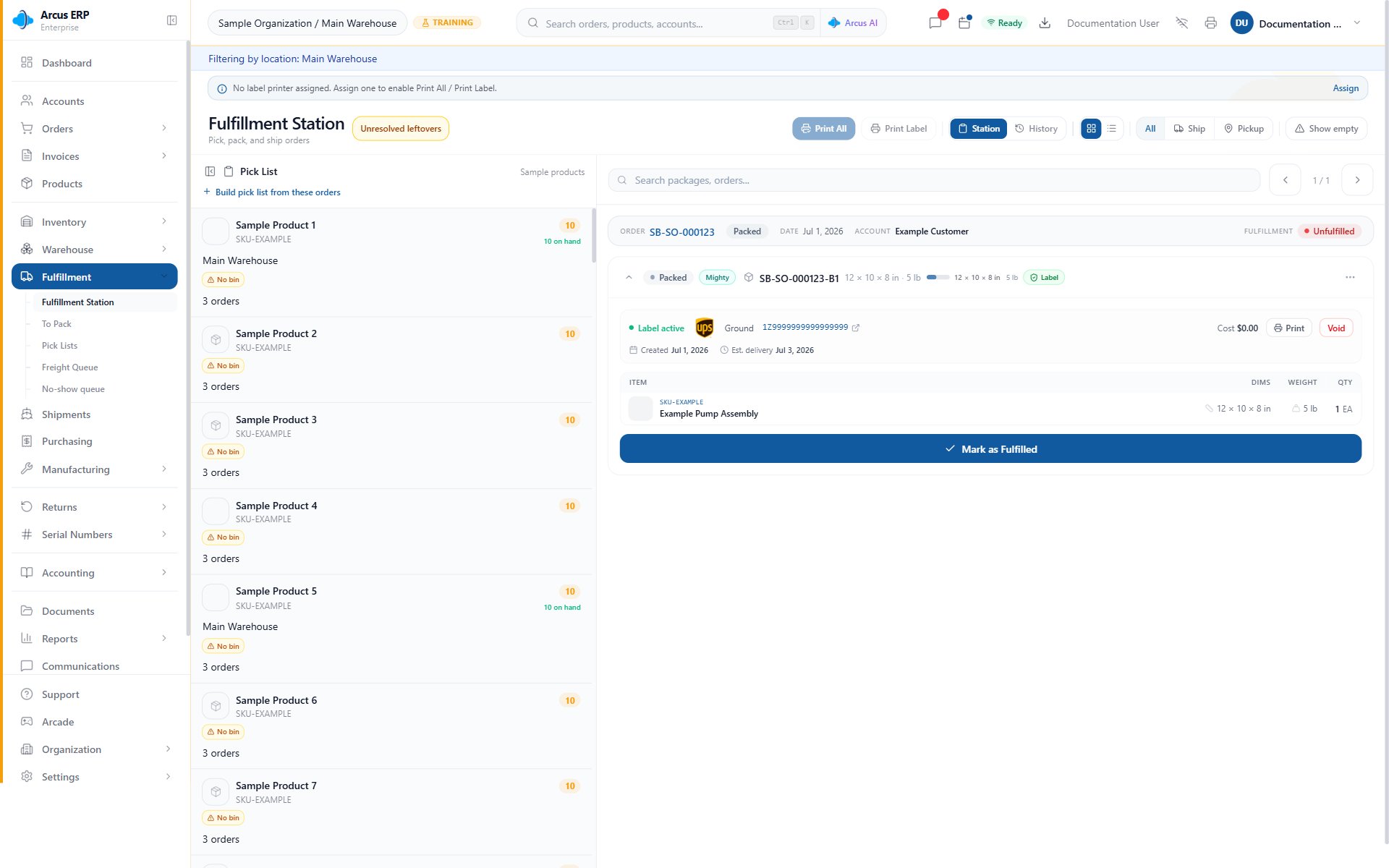
Use the station to search active package work, review the selected package, print available labels, and complete fulfillment.
Confirm The Package Detail
Package detail is the final checkpoint. Confirm the package number, order link, customer, item list, quantity, box details, carrier, and label state before marking anything fulfilled.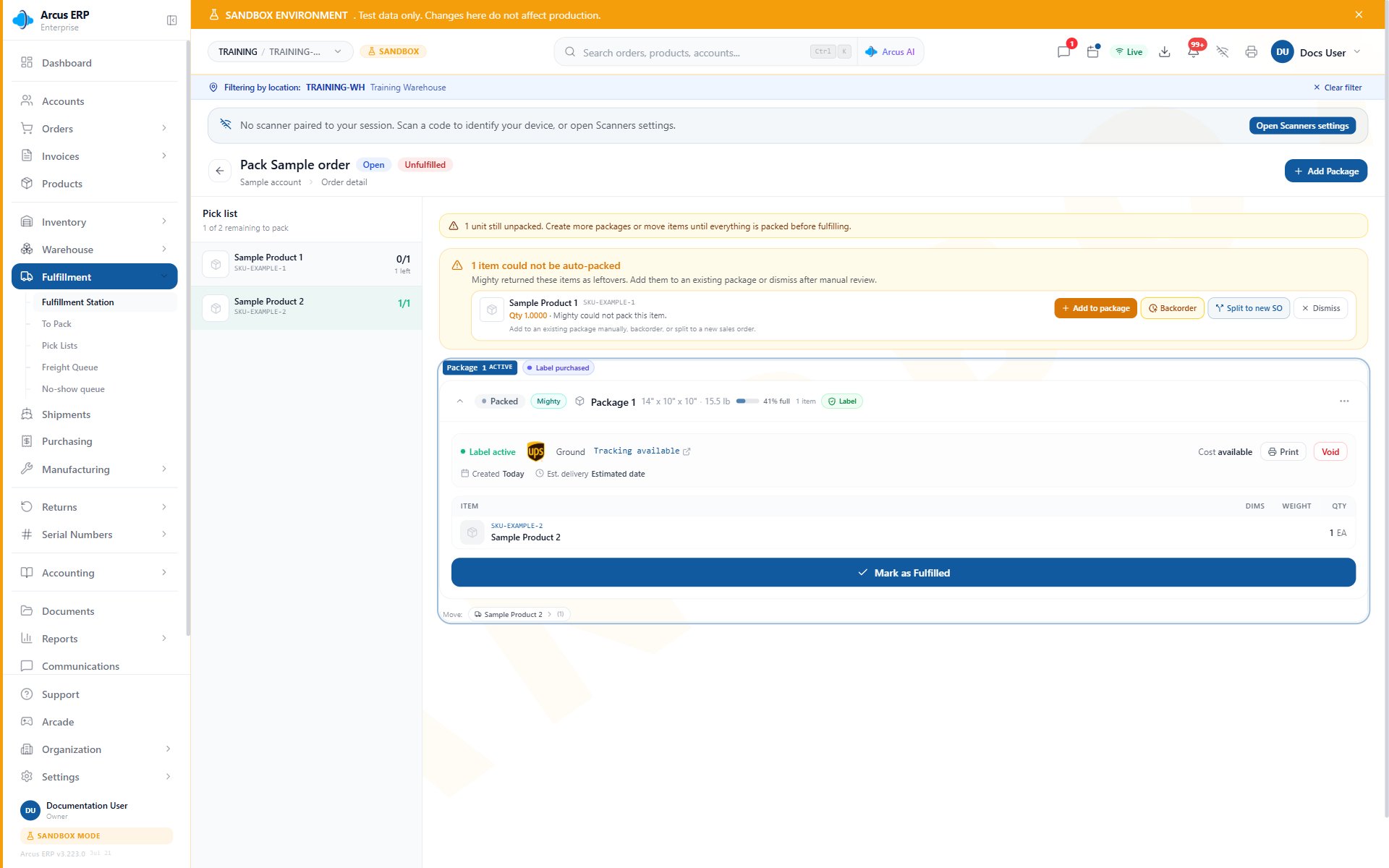
The package detail shows an active label, packed items, the Leftovers panel, and Mark as Fulfilled.
- No shipping label: purchase, attach, or print the label before completing a shipped package.
- Pickup order: no carrier label may be required, but the packed items still need review.
- Missing item: add or move package items instead of manually changing inventory.
- Wrong quantity: fix package quantity before fulfillment so inventory and audit history match the box.
Partial Fulfillment
Use partial fulfillment when only part of an order is leaving now. Pack and fulfill the available items, then leave the remaining quantity open for a later package. This is common for backorders, split shipments, pickup plus shipping, or orders where one product is delayed.- Only place the quantity leaving now into the package.
- Leave unavailable items unpacked instead of forcing the full order complete.
- Use clear internal notes when the remaining shipment depends on purchasing, receiving, or customer action.
- Review the order after completion to confirm the fulfillment status is partial, not complete.
Serial Numbers And Kits
Serialized products require one valid serial number per unit before completion. Kits need extra attention because the customer buys the kit, but the warehouse packs the physical components that satisfy the kit. If a kit component is missing, do not mark the kit fulfilled until the physical items are correct.- Serialized products: scan or enter each serial number assigned to the package.
- Kit parents: confirm the sellable kit is represented by the correct component products.
- Component shortages: fulfill only available components when a partial shipment is intentionally allowed.
- Returns later: serial and package history help the returns team verify what was sent.
What Fulfillment Updates
Fulfillment is not just a visual status change. Depending on the order and entity setup, completing package fulfillment can update package status, order fulfillment progress, inventory movements, serial number state, fulfillment history, shipment tracking, customer communication, and connected platform sync.Common Blocks
- Order does not appear in the station: check order status, fulfillment status, active location, line items, and delivery option.
- Address blocks label purchase: correct the shipping address or complete the address validation workflow.
- Printer does not appear: configure PrintNode and confirm the workstation printer is online.
- Label cannot be printed: confirm the label exists, is not voided, and belongs to the selected package.
- Mark as Fulfilled should wait: missing items, missing serials, wrong quantity, or no required label should be corrected first.
- Inventory looks unavailable: review warehouse location, receiving, holds, transfers, bins, and reserved quantities.
- Order is already fulfilled: use history and package records to audit what happened instead of creating duplicate fulfillment.
Related Articles
Creating Orders
Build a sales order, add customers, set addresses, and add products.
Packing and Shipping
Use package suggestions, freight decisions, labels, and tracking.
Fulfillment Station
Operate the station view for picking, packing, and shipping.
Shipping Labels
Buy labels, void labels, track shipments, and handle carrier errors.
Serial Numbers
Track serialized products from receiving through fulfillment and return.