

What Inventory Transactions Show
Inventory Transactions is the movement history for stocked products. Each row records a stock event such as receiving, adjustment, transfer, reservation, sale, return, or cancellation.- Read the summary tiles above the table for units in, units out, and net change across the rows you are viewing.
- Review the product, location, transaction type, quantity, and date.
- Compare balance before, change, and balance after.
- Review unit cost, total value, and supply or demand direction.
- Use source links when a row came from an order, return, or purchase order.
- Open FIFO layer detail for cost-consuming transactions.
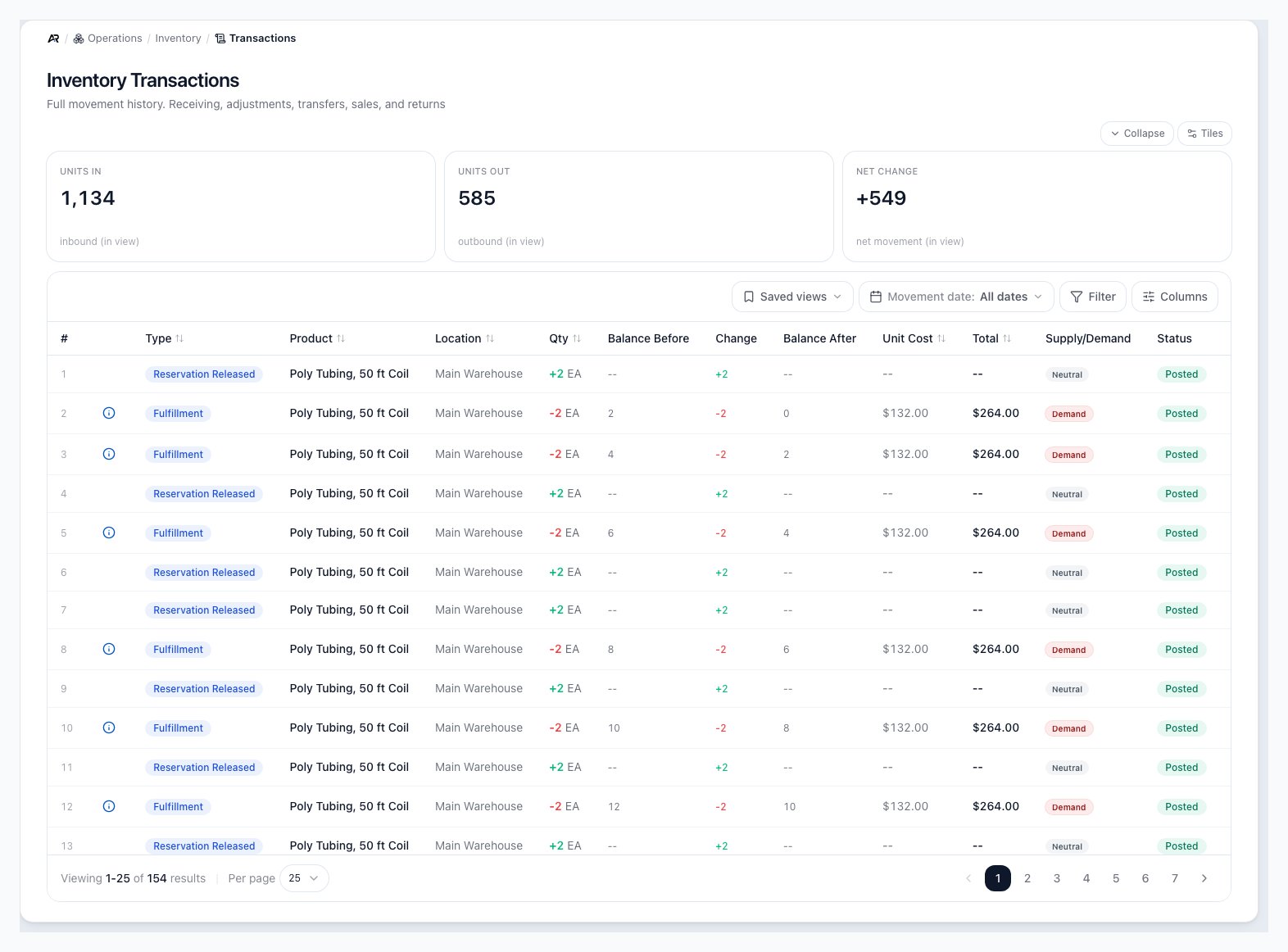
The Transactions screen in Operations, with the Units in, Units out and Net change tiles above the table of stock movements.
Open the Page
- Open Operations, then Inventory, then Transactions, or search Transactions in the command palette.
- Open the page from the inventory links on other records.
- Share or bookmark a filtered view by copying the page address: the movement type, movement date range, page, sort order and visible columns all live in the address. An older address that ends in a movement type, such as build consumption, still opens that filter.
Summary Tiles
Three tiles sit above the table and recalculate for whatever you have filtered, so they describe the rows in view, not your whole history.- Units in: the stock added by the movements in view.
- Units out: the stock removed or consumed by the movements in view.
- Net change: units in minus units out, shown with a plus sign when positive.
Read a Transaction Row
- Type: the workflow that created the movement.
- Product: the stocked product affected by the movement.
- Location: where the quantity changed.
- Qty: positive values add stock and negative values remove or reserve stock.
- Balance Before: the quantity before the movement posted.
- Change: the same movement expressed as the stock change.
- Balance After: the quantity after the movement posted.
- Unit Cost: the inventory cost used when the row carries cost.
- Total: the value impact recorded for the row.
- Supply/Demand: whether the row added stock, consumed stock, or was neutral.
- Status: whether the transaction is posted or otherwise categorized.
- Source: opens the related order, return, purchase order, or work order when the movement came from a source record. On an Adjustment row, Source instead shows the adjustment’s journal entry number with an arrow link, and the account the adjustment posted to underneath it.
- Notes: the note recorded with the movement.
- Row #: the position on the current page, which restarts on every page.
Balances are recorded at posting time
Balance before, change, and balance after come from the transaction
record. They are not recalculated from the current table view.
Filter and Arrange the Table
Use the filters when you need to isolate a workflow such as receiving, adjustments, transfers, reservations, sales, returns, or work order builds.- Open Operations > Inventory > Transactions.
- Select Movement date to pick a preset window or a custom range.
- Open the filter control and choose a Movement type. Active filters appear as chips above the table; remove a chip to clear that filter.
- Select a column heading to sort by it, and change pages if the filtered results span multiple pages.
- Use Columns to hide or reorder columns, and Reset to default to restore the standard layout. Type and Product always stay visible.
- Use Saved views to keep a filter, sort and column layout you use often, and to apply it again later.

The type filter narrows the table to a specific inventory movement family.
Understand Supply and Demand
- Supply: the row added stock or released a prior demand hold.
- Demand: the row consumed, reserved, or removed stock.
- Neutral: the row does not change planning demand in a meaningful way.
Open FIFO Layer Detail
Rows that consume inventory cost can show a FIFO detail icon. Open it to see which cost layer was used and how the transaction’s cost was built.- Find a consuming transaction, such as fulfillment consumption, sale, transfer out, vendor return, writeoff, warehouse loss, negative adjustment, build consume, or build scrap. Build produce and build return rows also show the icon, because they create a layer.
- Click the information icon on that row.
- Review the layer date, balance before, quantity used, balance after, unit cost, and layer cost.
- Review the total quantity and cost at the bottom of the table.
- Investigate any warning shown under the layer table.

FIFO Layer Detail explains the cost layer behind a consuming inventory transaction.
When FIFO Detail Is Not Available
Not every row has FIFO detail. Some rows add a new cost layer instead of consuming one. Others reserve stock, release reservations, or move no quantity through cost layers.- Receiving: creates a new cost layer. Opening the detail says that inbound movements create a layer instead of consuming one, and that future outbound movements will draw it down.
- Positive adjustment: can create a new cost layer.
- Reservation: may reserve availability without consuming cost.
- Reservation release: may restore availability without creating COGS.
- Zero-quantity rows: do not touch FIFO layers.
Messages You May See
- No transactions: “Inventory transactions will appear here as you receive, adjust, and transfer stock.” Nothing has posted yet, or the filters match nothing.
- Failed to load transactions.: the list could not load. The reason follows the message; refresh the page, and if it repeats check that your role has the View Inventory permission.
- Failed to load FIFO layer detail.: the layer dialog could not load. Close it and try again.
- No FIFO record for this transaction: a quantity moved but no created or consumed layer was recorded. The cost records may be inconsistent for this row, so investigate in accounting.
- No FIFO layer data for this transaction.: transfers, reservations, and zero-quantity adjustments do not touch FIFO layers.
- Layer COGS total does not match transaction total: the layers add up to a different amount than the transaction recorded. Investigate in accounting before relying on the row’s cost.
- Transaction not found: the row could not be found, so its layer detail cannot open. Refresh the list and try again.
What Creates Transactions
- Receiving inventory from a purchase order or manual receiving flow.
- Manual inventory adjustments after counts, damage, writeoff, or found stock.
- Transfers between locations.
- Order reservation and reservation release activity.
- Fulfillment, sales, and shipment-related consumption.
- Customer return receiving and return disposition activity.
- Work order builds, which consume components, produce finished goods, return parts and scrap material.
- Vendor returns that send stock back to a vendor.
Common Blocks
- No transactions appear: receive, adjust, transfer, reserve, fulfill, or return stock first.
- Expected row is missing: check the selected header location, type filter, and pagination. If a location filter is hiding rows, switch to all locations and search again.
- Source link is blank: the movement may not have come from an order, return, or purchase order.
- Unit cost is blank: the row may be a reservation or other non-cost movement.
- FIFO icon is missing: the row did not consume FIFO layers.
- Layer detail shows no data: the movement may be neutral, inbound, or a row that did not touch FIFO layers.
- Layer cost warning appears: investigate cost history before treating the value as final.
Related Articles
Inventory Overview
Monitor stock health, location balances, low-stock alerts, and inventory value warnings.
Product Setup
Create physical products, services, and product records.
Product Types and Costing
Understand product type conversion rules, FIFO layers, product value, and Recost repair behavior.
Reorder Report
Find low-stock products, review vendor grouping, and generate draft purchase orders from reorder settings.
Create and Manage Purchase Orders
Create POs, add vendor items, receive inventory, and handle approval, cancellation, billing, and close-short blocks.
Inventory Adjustments
Correct stock after a count, damage or write-off and see the account an adjustment posts to.
Receive Inventory
Post standalone stock receipts and see them appear here as receiving transactions.
Customer Returns
Create RMAs, receive returned items, inspect condition, choose disposition, and close customer returns.