

Packing and shipping is the physical workflow. Payment, order approval,
address cleanup, and line-item corrections should be handled before the
warehouse completes the package.
Start From A Clean Order
Review the order before packing. The order detail page shows the customer, shipping and billing addresses, action buttons, fulfillment progress, documents, and line items. If the address, customer, delivery option, or products are wrong, fix the order first.
Use the order detail page to verify the customer, addresses, delivery option, line items, and fulfillment state before the warehouse packs.
Choose The Right Shipping Path
The delivery option determines what the warehouse should do next. Some orders need parcel labels, some are pickup work, and some require freight or local delivery handling outside the standard parcel flow.- Parcel shipment: pack the items, rate the package, purchase the carrier label, print it, and complete fulfillment.
- Pickup or will-call: pack the items for handoff. A carrier label is usually not required.
- Local delivery: follow the route or delivery process your team uses, then complete fulfillment when ready.
- Freight: use the freight workflow when the order ships on pallets, LTL, or another non-parcel process.
- Digital or service lines: complete only through the approved non-shipped fulfillment path when no physical goods leave inventory.
Use The Fulfillment Station
Go to Fulfillment to work from the warehouse station. The station shows product picking on the left and package work on the right. Use search to find the order or package, then confirm the active package before printing or fulfilling.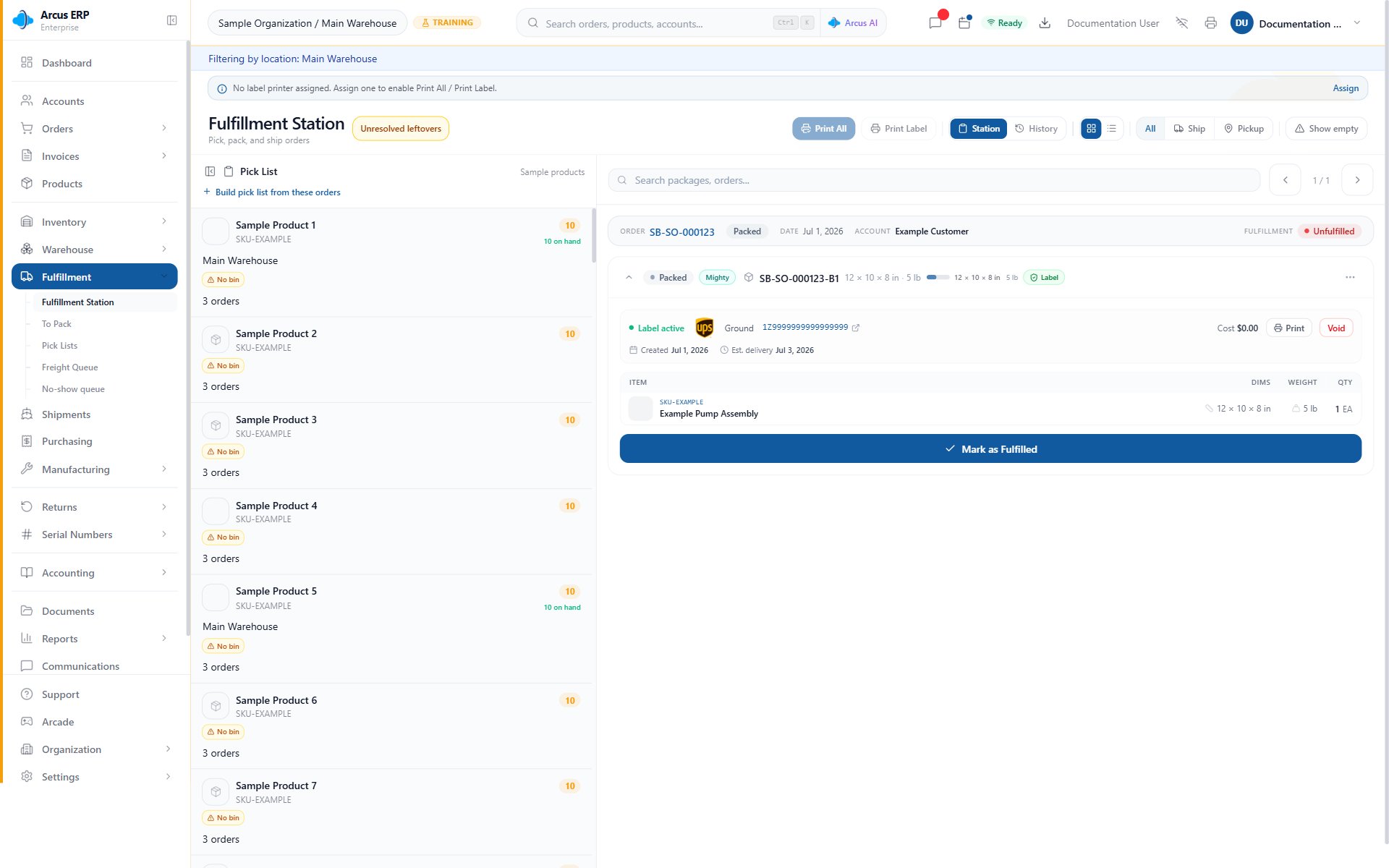
The Fulfillment Station gives the warehouse one place to pick products, select a package, print labels, and complete work.
Pack The Physical Items
Pick the items shown for the order and place only those items into the package. If the order is split into multiple packages, keep each package accurate. If the package is missing an item or has the wrong quantity, correct the package before label purchase or completion.- Quantity: match the package quantity to what is physically in the box.
- Serialized items: capture the serial number for each unit before completion.
- Kits: pack the component items that satisfy the kit, not just the kit parent name.
- Backorders: leave unavailable items unpacked and use partial fulfillment when only some items leave now.
- Prepackaged items: use the product’s own package when the product ships in its manufacturer box.
Check Label State
Package detail shows whether a package has a label, is missing a label, or needs more work before printing. For parcel shipments, rate shopping and label purchase depend on ship-from address, destination address, package dimensions, weight, carrier rules, and Shippo setup.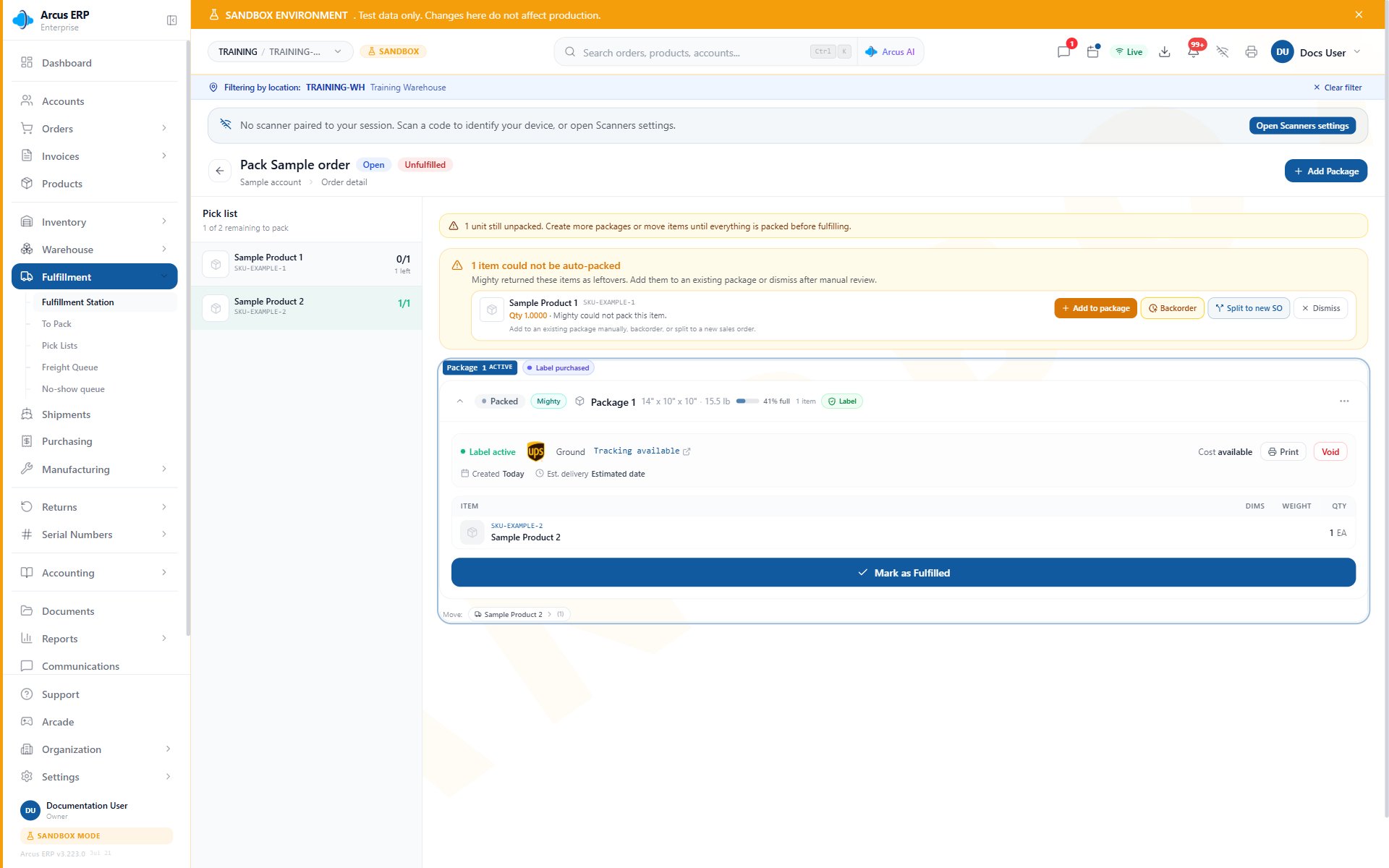
Package detail shows an active label, packed items, the Leftovers panel, and Mark as Fulfilled.
- No label: purchase or attach the carrier label before shipped fulfillment.
- Rates unavailable: review addresses, package dimensions, weight, Shippo connection, carrier services, and shipping rules.
- Label purchased: print or reprint the label through PrintNode or the approved manual print flow.
- Label voided: get new rates and purchase a new label before shipping.
- Carrier scanned: do not void or repack unless your team follows the carrier exception process.
Print And Handoff
Print the label and any packing document your team requires. Attach the correct label to the correct package, then hand the package to the carrier, pickup desk, driver, or freight process. If PrintNode is offline, resolve printing before completing the package.- Print Label: prints the selected package label when the label exists.
- Print All: sends queued labels or documents in one batch when available.
- Packing slip: use when the package needs item detail inside the box.
- Pickup handoff: use company pickup verification before marking complete.
Mark Fulfilled
Mark the package fulfilled only after the package is physically ready. For parcel shipments, that means the label is purchased, printed, and attached. For pickup, it means the package is ready for handoff or has been handed to the customer according to your process.Common Blocks
- Order is missing from the station: check order status, fulfillment status, active location, and whether the order has packable line items.
- Cannot get rates: review ship-from address, destination address, dimensions, weight, Shippo connection, and service availability.
- Printer is unavailable: pick a valid PrintNode printer or use the approved manual print process.
- Package quantity is wrong: adjust the package item quantity before purchasing the label or completing fulfillment.
- Need to repack after label purchase: void the old label first when the package dimensions, weight, or contents change.
- Only part of the order can ship: use partial fulfillment and leave the remaining quantity open.
- Customer changed pickup to ship: update the delivery option and address before creating labels.
Related Articles
Order Fulfillment
Move an order from confirmed to picked, packed, shipped, and invoiced.
Fulfillment Station
Operate the station view for picking, packing, and shipping.
Pack with Mighty
Use package cards, suggested boxes, and serial capture.
Mighty Leftovers
Review units that remain unpacked and choose a safe next step.
Label Reprint, Void, and Repack Recovery
Recover when a label or package split must change before shipment.
Shipping Labels
Buy labels, void labels, track shipments, and handle carrier errors.
Printing Setup (PrintNode)
Connect printers for labels, packing slips, and warehouse documents.