

Credit memos represent customer credit that can be applied to future balances. They can come from a manual credit, an overpayment, a return settlement, or another customer-facing correction workflow.
Open Credit Memos
Open Finance > Receivables > Credit Memos. You can also search for Credit Memos in the command palette, or click Credits Outstanding in AR Management. Opening a credit’s own page by link also works, and the success messages after you issue, apply, void or reactivate a credit carry a View button that opens it. The tiles show Total Issued, Outstanding, Active, Partial and Expired. The list shows the credit number, customer account, original amount, remaining balance, reason, source, created date, expiration, and status. If the list cannot load, click Retry.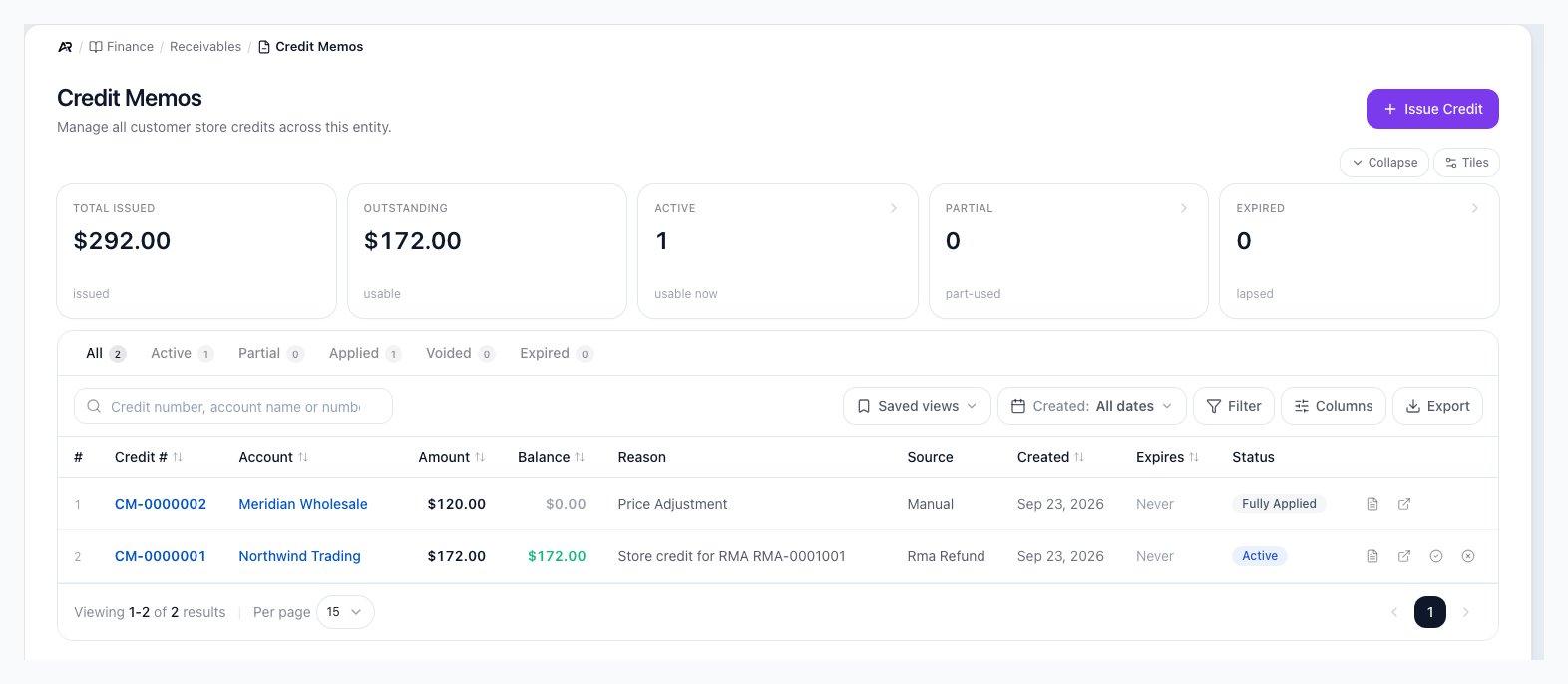
The Credit Memos list with its tiles, the status tabs, and one row per credit.
Before You Start
- Viewing needs the View Accounting permission, and Download PDF needs the same.
- Issue Credit needs Post Journal Entries on the page and Refund / Void Payments to confirm. The button stays visible; hover it to see which permission is missing.
- Apply Credit and Void need Post Journal Entries; the Void Credit confirm button also needs Refund / Void Payments, and without it the dialog shows You need the ‘Refund / Void Payments’ permission to perform this action. and the button stays disabled. Reactivate needs Post Journal Entries to show the button and Refund / Void Payments to complete; without the second the reactivation is refused.
- Applying credits in the Apply Credits window needs Process Payments.
- Email Customer needs Edit Accounts.
Understand Credit Status
- Active: the full remaining balance is available to apply.
- Partially used: part of the credit has already been applied, and the remaining balance is still available.
- Fully applied: the credit has been used up.
- Applied: legacy or imported wording for a used credit.
- Voided: the unused balance was removed from the customer’s account.
- Expired: the credit passed its expiration policy and is no longer available.
What Happens When a Credit Memo Expires
When a credit memo passes its expiration date, Arcus automatically transitions it to expired status and recognizes the remaining balance as forfeited income:- Status changes from active or partially used to expired.
- Customer credit balance is reduced by the remaining balance amount (no longer available for future use).
- Journal entry is posted with a debit to the customer escrow account and a credit to the “Credit Memo Forfeited Income” GL account (a revenue account on the 4000 series).
- Balance remaining is preserved as an audit record showing what amount was forfeited. Do not edit or manually clear this column — it is a sealed historical record.
Review A Customer Credit
- Open Finance > Receivables > Credit Memos.
- Search for the customer account, reason, or account number.
- Check the Amount and Balance columns.
- Review the Source column to understand why the credit exists.
- Check the expiration date before promising the credit to a customer.
- Click the account link to open the customer account when you need payment history, transactions, or communications.
- Click the credit to open its detail page. It shows Original Amount, Applied and Balance Remaining, then Details (reason, source, created, expires), the Journal Entries it posted, and its Applications. Back to Credit Memos returns to the list.
- Source names where the credit came from, with a link such as View originating return or View originating order when there is one. A credit created from an overpayment points to its order.
- Journal Entries lists the ledger entries this credit memo posted, each labeled Issued, Topped up, Voided or Expired, with a link to the entry. A credit with none says that no journal entry of its own is recorded, and why when it can: it was migrated as a balance, or the document it came from booked the credit.
- Applications lists the orders the credit has been applied to, the amount applied, who applied it, and the journal entry of each application. An application that came from a payment links to its Receipt. A credit with no applications says Not applied yet with This credit has its full balance available., or Never applied with This credit was voided before it was applied to any order. or This credit expired before it was applied to any order.
- Download PDF downloads the credit memo.
- Email Customer opens the send dialog with a preview, CC and BCC. If the customer has no email on file, the dialog says so and offers Add email to customer; if the customer opted out of this notification, it offers Send anyway. The email log (opened from Communications) shows each send as queued, sent, delivered, failed, or bounced.
- Apply Credit, Void and, for an expired credit, Reactivate (Credit memo reactivated, or Credit memo and its number followed by reactivated). On a narrow screen these buttons wrap onto more lines instead of scrolling sideways, so Void and the others stay in view.
Issue A Credit
Click Issue Credit to open Issue Credit Memo, choose the customer, enter the amount and reason, and click Issue Credit. The button stays disabled until the amount is above zero, and the line under the form says what is still missing. Arcus confirms with Credit memo and its number issued for the amount, with a View button. Arcus posts the issuing journal entry immediately: the credit liability side is a customer escrow account, and the offsetting side depends on why the credit was issued, for example Accounts Receivable for a manual credit or Sales Returns & Allowances for a return-related credit. When the customer’s notification preferences allow it (on by default, in Settings > Documents & Email > Email Configuration), Arcus emails the customer that a credit memo was issued.Apply A Credit
Use Apply credit to order on a row, or Apply Credit on the detail page, to open Apply Credits. The window lists the customer’s available credits on one side and their open invoices on the other, with the credit you started from already ticked. Several credits can go to several invoices in one pass.- Tick the credits to use and the invoices to pay (Select all ticks every one in a list).
- Arcus proposes the applications, using credits oldest first on the oldest invoices first. Use Fill oldest first to propose them again, and change any amount in Applications. An amount cannot exceed the credit’s remaining balance or the invoice’s open balance.
- Click the apply button, review the list that names every credit and every invoice and links to both, and confirm. Until the choices are valid the button says why, for example Pick at least one credit and one invoice, with an amount above $0.00.
- The window then shows a result for each application: Applied with a link to its journal entry, Not applied with the reason, or Not attempted (an earlier application was refused). Applications post one at a time, each with its own journal entry, and the first refusal stops the rest. Arcus also shows Applied and the amount, or Applied and the total in a number of applications, with a View button for the first credit.
Void Unused Credit
You can void active or partially used credit memos when the remaining balance should no longer be available.- Open Finance > Receivables > Credit Memos.
- Find the active or partially used credit memo.
- Click Void credit memo on the row, or Void on the detail page.
- Enter a reason: Void Credit stays disabled with Enter a reason to void this credit. until you do. The dialog lists what will happen (reverse the unused credit, post a balancing GL reversal journal entry) and the customer’s credit balance before and after, and reminds you that only the unused balance is reversible; anything already applied to orders stays applied.
- Confirm Void Credit. Arcus shows Credit memo and its number voided, with a View button.
Common Blocks
- No credit memos appear: credits are created only after a credit workflow runs, such as overpayment, return settlement, or manual credit issuance.
- Void action is unavailable: the credit is already fully applied, voided, expired, or has no remaining balance. The dialog says This credit memo is and its status and cannot be voided, or This credit memo has no unused balance to reverse.
- Void Credit, Issue Credit or Apply is disabled: you lack Refund / Void Payments (issue and void) or Process Payments (apply). Hover the control for the message, or ask an administrator.
- A credit was not applied: an application in the Apply Credits window was refused. Its row gives the reason, and the applications after it were not attempted.
- Credit is expired: do not apply it unless an authorized accounting user reactivates it according to policy.
- Balance looks wrong: review the customer account transactions and payment history for prior credit applications.
- Credit should refund cash instead: use the return, payment, or refund workflow that matches the original transaction.
Related Articles
AR Management
Review receivables, aging, statements, and customer balances.
Collections
Follow up with customers who owe money before a credit is applied.
Record Customer Payments
Apply customer credits while recording payment activity.
Customer Returns
Understand return settlement choices, including store credit.
Account Ledger
Review posted GL activity and source transactions.