

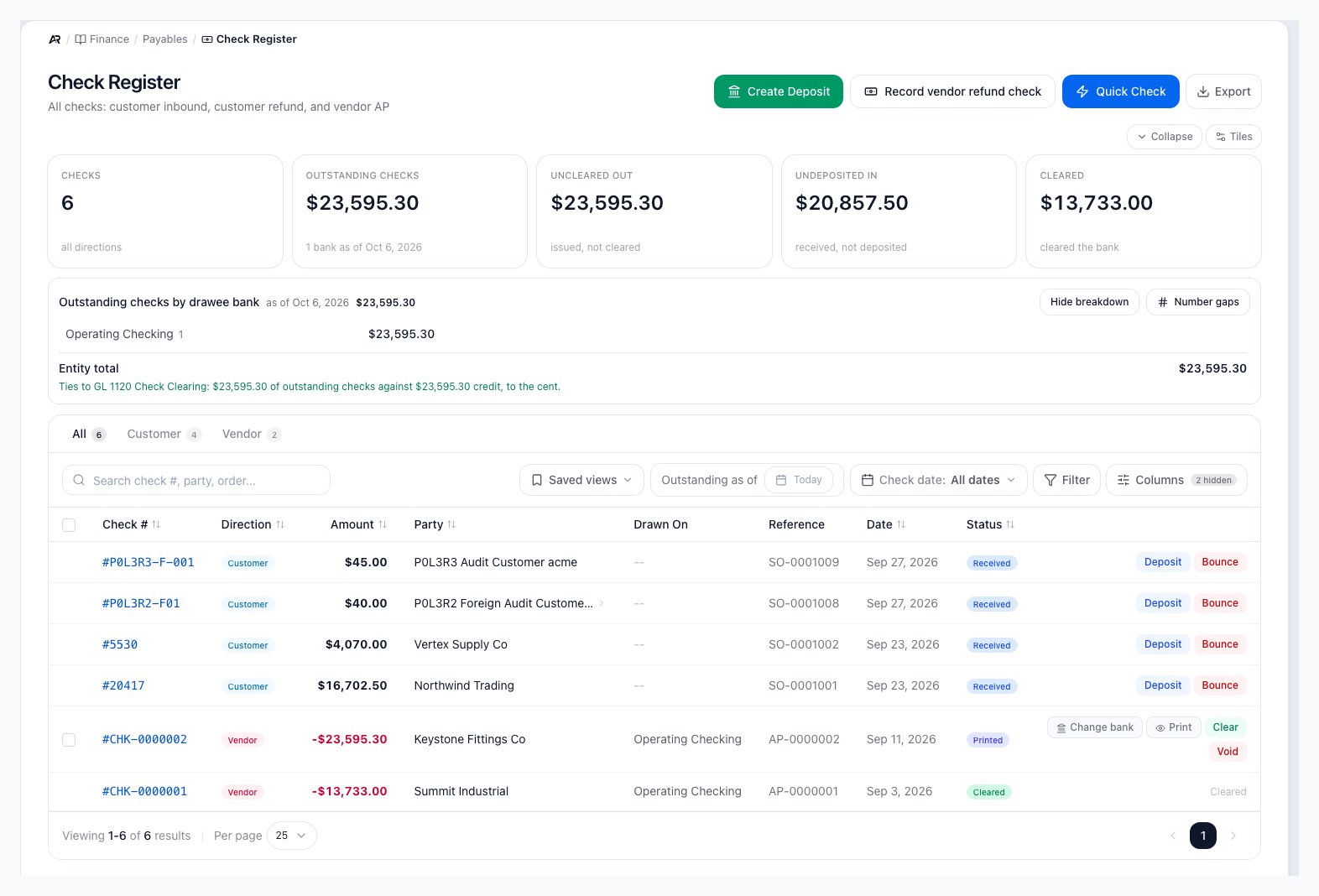
The register with its summary tiles, the outstanding-checks breakdown by bank, the lenses and the row actions.
What the Check Register Shows
Open Finance > Payables > Check Register, search for it in the command palette, or arrive from Pay Bills, Write a Check, a lease payment, a bill’s linked documents or payment history, a vendor’s AP activity, or the deposit resolution dialog. The old Received Checks address opens the Customer lens. A link to one check opens its detail page; if it cannot be opened, the page says This check could not be opened (the link may be mistyped, the check may belong to another company, or it may have been removed) and offers Back to Check Register. Viewing needs permission to view accounting. Use the lens at the top of the page to switch between all checks, customer checks, and vendor checks. The lens and a selected set of checks can be carried in the page address, so a link you share opens the same view.- Customer: inbound customer checks and outbound refund checks.
- Vendor: AP checks created from Pay Bills or other vendor payment workflows.
- Status filters: narrow the list to printed, cleared, voided, deposited, received, pending, or sent checks depending on the lens.
- Search: find a check by check number, party, reference, or order-related text.
- Filter: Status, Drawn on (every bank you have written checks on, including checks with no bank set), Paid after void (checks Arcus shows as voided that the bank paid anyway), Stale (checks that have sat uncleared too long, with Older than 90, 180 or 365 days; 180 by default), a check date range, and Saved views. Columns lets you show or hide Check #, Direction, Type, Amount, Party, Drawn On, Reference, Status, Date, Cleared and Cleared via.
- Export CSV: download the current register view for review or audit support.
- Tiles: Checks (all directions), Uncleared out (issued, not cleared), Undeposited in (received, not deposited), Cleared, and Outstanding checks as of a date you choose.
- Drawn On: the bank each check was written on. It always shows the bank’s current name.
Outstanding Checks by Bank
The Outstanding checks tile counts checks issued on or before the date you pick and not cleared or voided on or before it. That is the outstanding-check figure a bank reconciliation uses. The line Outstanding checks by drawee bank splits it by bank, and Breakdown opens the per-bank detail. Arcus compares the total with your check-clearing account in the general ledger: it either ties to the cent or shows the gap. If no check-clearing account is mapped, it says there is no control to tie to. Checks with no bank recorded cannot be attributed to a bank or cleared until someone sets the bank. Number gaps lists check numbers that were never recorded, per bank.Other Register Actions
- Create Deposit: deposit received customer checks (customer and all lenses). It opens a four-step wizard: Bank account and Deposit date (the day the money went to the bank, not the receipt date), Checks (tick the received checks to include; with none waiting, it says No eligible received checks waiting to be deposited. Click Next to record a cash-only deposit.), Cash (cash from open register sessions and Other cash; amounts cannot be negative), and Review. Submit deposit posts the deposit (Deposit (number) posted) and the register confirms Deposit created successfully. If someone else deposited a check first, Arcus says One or more checks were deposited by another user. List refreshed. A date in a closed period is refused with the period named. A check taken off a deposit ticket stops showing that deposit, and can be deposited again.
- Record vendor refund check: record a physical refund check a vendor sent against an open vendor credit. Only credits with a remaining balance for that vendor are offered; the amount defaults to what remains on the credit and cannot exceed it. With no open credit for the vendor, Arcus says No open vendor credits for this vendor. Issue a vendor credit first.
- Quick Check: write a one-off check. Create & Print Now prints it right away; Create & Print Later leaves it in the register. Each Quick Check creates its own check, and its own vendor bill and payment record behind it; voiding a Quick Check’s check also voids that bill. The check date is a posting date: when it is outside your company’s posting window (set under Settings > System > Fiscal Year), a dialog titled Quick check says whether the date is past the forward or backdate window, in a closed period, in a locked tax year or not covered by an accounting period, and states No bill or check was created. A user who can close periods can give a reason of at least four characters and Create with this reason; in a closed period the dialog offers Use (the next open date). A check over your approval threshold is held (requires manager approval before it is issued), and a repeated submit says This check was already created (bill (number)). Nothing new was written. Find it in the Check Register. If printing was blocked after creation, Arcus says Check created, but the print window was blocked. Allow popups for this site.
- Deposit and Bounce on customer checks, and Void on refund checks. Deposit on a row deposits that one check, dated today, into the bank account you choose. Bounce reverses the GL entries and restores the customer’s receivable balance; it is blocked if the GL accounts a bounce needs are not configured.
Open Vendor Checks
- Open Finance > Payables > Check Register.
- Click Vendor.
- Use the status pills to find printed, cleared, or voided checks.
- Use search when you know the check number, vendor, or AP bill number.
Print or Reprint an AP Check
- Find the vendor check in the Vendor lens.
- Click Print on the row.
- Choose the check stock format your printer is loaded with: Check on Top (QuickBooks Voucher), Check in Middle (Sage Compatible), Check on Bottom, or 3-Per-Page / Wallet (no stubs).
- Add or edit the memo if needed.
- Click Print Check.
Batch Print Vendor Checks
Select the checkboxes beside printed checks when you want to print more than one check from the same page. The selection bar shows how many checks are selected and the total amount before you click Print Selected.Mixed check types print separately
If vendor checks and customer refund checks are selected together, Arcus
asks Which stock do you want to load first? (Vendor checks first or Refund
checks first) because they can use different check stock. The Print check packet
dialog previews the check faces first, then any plain-paper overflow, and says No
continuation pages when every remittance fits on the check face.
Mark a Check Cleared
Mark a check cleared after it clears the bank. This is different from printing it. A printed check may stay outstanding until the bank shows the check has cleared.- Open Finance > Payables > Check Register.
- Click Vendor and keep the status on Printed.
- Find the check that cleared at the bank.
- Click Clear on the row, or open the check detail and click Mark Cleared.
- Use Bank Reconciliation to match cleared activity to the bank statement.
Set the Bank a Check Was Drawn On
Use Set bank on the row, or Change bank in the dialog, when a printed check has no bank recorded or the wrong one. Set the bank this check was drawn on lists your bank accounts; pick one and click Save bank. If the check has already cleared at the bank, Clear it now clears it in the same step. If no bank accounts exist yet, the dialog says No bank accounts are set up on this entity. Setting the bank needs permission to post accounting. On its own, setting the bank only records which bank the check was drawn on (and fills the same bank onto its bill payment, when that payment does not already name one); it posts nothing to the ledger unless you also clear the check in the same step.Void an AP Check
Void a check when it was printed by mistake, lost, damaged, or should no longer count as payment. For AP checks, voiding reverses the associated AP payment, restores affected bill balances, and posts a reversal journal entry dated today in the current open period; the original entries and their periods are never changed. If the payment covered more than one bill, voiding it reopens every bill the payment covered, not only the one you started from. Voiding needs permission to void or reverse payments. The Void Check dialog lists what the void will do, including each reversal journal entry, and says Reversal entries post today-dated in the current open period; the original entries are never modified. A reason is required. Arcus confirms Check (number) voided, or Check (number) voided; quick-check bill (number) voided with it; voiding a refund check says Refund check voided and order restored.- Find the AP check in the Vendor lens.
- Click Void.
- Enter a clear reason, such as incorrect amount or lost check. The reason is stored on the check and on the reversal entries.
- Click Void Check only after you are sure the check should be reversed.
Review the Check Detail Page
Click a check row to open its detail page. The detail page shows the check number, status, amount, vendor, print date, action buttons, check stock details, related bills, journal entries, and activity timeline. A customer check also shows Payment Details (Captured at Intake) (bank, notes and a Check Image you can open full size), or No additional details were captured at intake. An empty timeline says No activity recorded for this check. Related Documents connects the check back to the vendor bills it paid.What Arcus Updates
- Printing opens the formatted check and keeps the check available for reprint when allowed.
- Clearing marks the check as cleared so outstanding checks are easier to reconcile.
- Voiding an AP check reverses the payment, restores affected AP bill balances, and posts a reversal journal entry; it can also reprice open inventory layers when the voided payment carried a landed-cost revaluation.
- The check detail keeps the related bills, journal entries, and activity trail together for review.
- CSV export reflects the current lens, filters, and search results.
Common Blocks
- No vendor checks are shown: switch to the Vendor lens or confirm the bill was paid by check.
- Print is missing: the check may already be voided, bounced, cleared, or not eligible for printing.
- Print window did not open: allow popups for Arcus, then click Print again.
- Check stock looks wrong: choose the correct format or review check configuration before printing a live run.
- Clear is missing: the check may already be cleared, voided, or in a status that cannot be cleared; only printed or sent checks can be cleared.
- Clear is blocked: confirm a Check Clearing GL account is configured in Chart of Accounts.
- Void is blocked: a check matched to a bank statement line must be unmatched in Bank Reconciliation first; a check loaded through data migration cannot be voided at all, use a manual adjusting journal entry instead.
- Deposit and Bounce: Deposit opens Deposit Check to confirm (and Deposit to picks the bank) and says No bank accounts configured. Add one in Settings before depositing. when none exists. Bounce opens Mark Check Bounced. Bounce needs permission to void or reverse payments.
- A quick check is refused for its date: read the dialog; it names the cause and what to do.
- Reference does not match what you expect: open the check detail and review the related AP bills.
Related Articles
Pay Bills and Print Checks
Pay open vendor bills by check, ACH, ACH file, wire, or cash.
Write a Check
Create one-time vendor checks without starting from an existing bill.
Bank Reconciliation
Match bank transactions to payments, deposits, payouts, and checks.
Cash Registers
Manage drawer sessions, cash in and out, close counts, stale sessions, Z-reports, and deposit handoff.
Account Ledger
Review transaction history, source activity, debits, credits, and running balance for one GL account.
1099 Vendors
Review flagged vendors, W-9 status, tax-year totals, downloads, and locks.
Vendor Credits
Issue, review, expire, and apply supplier credits during bill payment.