

Check Access And Recipes
You need manufacturing.view to review manufacturing work and manufacturing.create to open the combined-run wizard and create its members. Before planning:- Confirm every required BOM is Active.
- Check the quantity per run on each recipe.
- Verify stock at the location where the work will happen.
- Decide the physical sequence of the jobs.
- Confirm that two or more independent work orders are actually needed.
Choose Combined Run Or Conversion
Do not use a combined run merely to produce multiple outputs from one process. A Conversion BOM is the clearer record when the inputs and outputs belong to one operation.
Open The Planning Wizard
Go to Manufacturing > Work Orders, then click Plan Combined Run.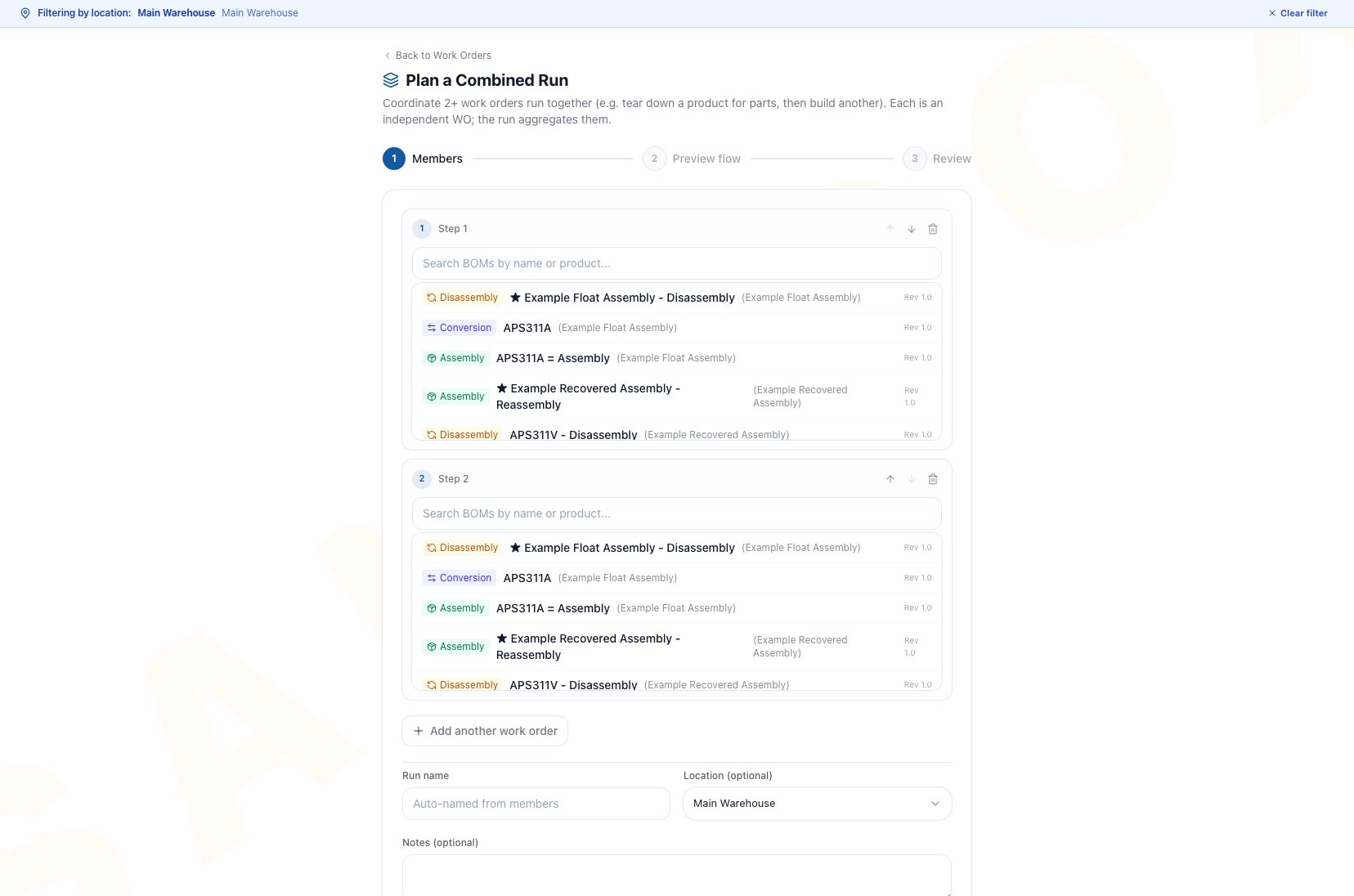
The Members step is ready for recipe selection, with both Active BOM candidate lists open. Add another work order, run name, location, and the top of Notes are visible.
Plan The Members
- Search for an Active BOM in Step 1.
- Enter the quantity to build, disassemble, or convert. Use a positive whole number of at least 1.
- Select an Active BOM in Step 2 and enter its quantity.
- Click Add another work order when the run needs more steps.
- Use the move controls to put the jobs in their intended floor sequence.
- Enter a useful run name or keep the generated name.
- Select the optional location. The selected location is copied to every member work order.
- Add coordination notes that apply to the run as a whole.
- Click Continue.
Only Active BOMs are available. If a recipe is missing, return to Manufacturing > Bills of Materials and verify its lifecycle state.
Review Intermediate Flow
The preview identifies products that are produced by one member and consumed by another member in the same run.
A positive Banked quantity is planned to remain available after the connected jobs. A negative Banked quantity means the members plan to consume more than they produce.
When Banked is negative, Arcus requires I understand the shortfall draws from stock before you can continue. Select it only after confirming that existing stock at the working location can cover the difference.
If no intermediate product connects the members, the preview says the jobs produce or consume independently. Continue only when shared scheduling or supervision still makes the group useful.
Review And Create The Run
- Confirm the member order and BOM type.
- Verify each quantity and the displayed run count for batch recipes.
- Review the location, notes, estimated member cost, total estimate, and intermediate flow.
- Go back and correct any shortfall or sequencing decision.
- Click Create combined run.
Verify And Release Each Member
The success view lists the newly created work orders. Use that list as the handoff into execution:- Open the first member work order.
- Verify its recipe snapshot, quantity, location, dates, instructions, materials, and serial plan.
- Click Release when that member is ready.
- Resolve any release refusal on the member itself.
- Repeat for every remaining member.
- Start and complete the members in the physical sequence the floor requires.
Return To And Review A Combined Run
On the Work Orders page, current groups appear in the Combined Runs strip above Kanban. Grouped Kanban cards also carry a group ribbon, and List view provides a Group column. Select any of those group references to review:- Intermediate product flow, with planned and actual produced, consumed, and banked quantities.
- Members in their floor sequence, with each work-order status and completed-versus-planned progress.
- Labor minutes and booked cost aggregated across the members. Timers still run on each work order, not on the group.
The group drawer can currently show member rows, intermediate flow, and labor totals while its header still shows the generic Combined run label. In that state, the group name, status, notes, and Dissolve group action are not available in the drawer. Use the Combined Runs strip for the group number, status dot, and completed-step count, then use the member work orders as the source of truth. If the group association must be removed, do not cancel or recreate members to imitate a dissolve. Continue from the member records and contact Arcus support for help.
If one member is cancelled, the others keep their own statuses. Reassess the remaining sequence, material availability, and intermediate flow before continuing.
Understand Inventory, Labor, And Cost
The combined run is a planning and coordination record. Each member owns its operational and financial activity:- Issue, return, scrap, and substitute materials on the member that performs the work.
- Start or book labor on that member. There is no shared group timer.
- Complete each member separately with its own quantities and serials.
- Inventory movements and manufacturing GL entries post from member actions, not from creating the group.
- A teardown’s recovered stock becomes available through its member completion. Planning a positive intermediate flow does not put that stock on hand early.
- Close or cancel each member under the normal work-order rules.
Common Scenario: Teardown Then Rebuild
Suppose a Disassembly BOM recovers a motor and an Assembly BOM consumes that motor:- Put the Disassembly member first and the Assembly member second.
- Set quantities so the preview shows the planned motor flow.
- Acknowledge a negative Banked amount only when other on-hand motors can cover it.
- Create the combined run.
- Review and release the teardown member.
- Complete the teardown and verify the recovered motor inventory.
- Review, release, and run the assembly member.
- Use each work order’s cost, inventory, and GL history for the final audit.
Troubleshooting And Refusals
- A BOM does not appear: confirm it is Active and search by recipe name or product.
- Continue is disabled: select at least two recipes and enter a positive whole-number quantity of at least 1 for every member.
- The review step is blocked: acknowledge the negative Banked amount after verifying stock, or change the member quantities.
- The wrong location is shown: return to Members and select the location before creation. Change member work only through the normal work-order controls after creation.
- Create is refused: recheck that every recipe is still Active and that the quantities and location are valid, then retry.
- A member stays Draft: open that work order and use Release to see and resolve its specific gate.
- The downstream job is short on material: complete the upstream output first or supply the shortage from existing inventory. Planned intermediate flow is not available stock.
- The group header or Dissolve group action is missing: use the Combined Runs strip to identify the group and review every member from the board or List view. Keep operating the member work orders normally. Do not cancel them just to remove the grouping.
- A group summary is unclear: open each member from the creation result or Work Orders page and verify the member statuses directly.
FAQ
Does creating a combined run reserve or move intermediate stock?
No. Stock changes only when member work orders perform their normal material and completion actions.Can one member finish while another stays Draft?
Yes. Members have independent statuses and can advance at different times.Does cancelling one member cancel the other members?
No. Apply the normal cancellation decision to each affected work order and then review the remaining sequence and material flow.Can MRP create a combined run for me?
No. Use Production Planning (MRP) for build and purchase suggestions, then plan any related multi-job sequence separately from Work Orders.Where do I review the accounting result?
Open each member’s cost, inventory, completion, and GL history. The combined group does not post a separate ledger.Related Guides
Disassembly And Conversion
Choose the right recipe when recovering products or transforming inputs into outputs.
Bills of Materials
Activate the Assembly, Disassembly, or Conversion recipes used by the members.
Work Orders
Review, release, start, complete, close, or cancel each member independently.
Materials And Substitutions
Record the material activity that makes intermediate stock physically available.
Labor Tracking
Record timer, manual, or standard labor on the correct member.
Partial Completions And Undo
Complete member output in stages and reverse only eligible completions.
MRP Planning
Calculate build and purchase suggestions before planning related floor jobs.