

Open The Reports
You need manufacturing.view to open the page and its linked manufacturing records. Report access does not grant permission to change those records. Go to Purchasing > Manufacturing > Reports, the path the breadcrumb prints, or search for Reports in the command palette, which has a navigation entry for it. Work Orders, Bills of Materials and Production Planning sit beside it in the same group. The page heading reads Manufacturing Reports, and it has four tabs. Each report row links to its work order (Purchasing > Manufacturing > Work Orders), and a component row links to the product (Sales > Products > All Products).
There is no export control on the current report page. There is also no product filter. Cost Variance, Build History, and Component Usage provide From and To date filters; WIP Aging does not.
Review WIP Aging
WIP Aging shows the current Released and In Progress population.
The summary shows Total open WOs, one card for each age bucket, and displayed WIP value. Each row includes WO #, Product, Qty (completed versus planned), Status, Location, Age, Due and cumulative actual cost labeled WIP Cost. The age is colored by its bucket, from green for the newest work to red at 30 days or more, and a due date that has passed reads “(overdue)” in red.
The displayed WIP value is useful for operational triage, but it is not a residual work-in-process ledger balance after partial completions. Cumulative actual cost can include cost already relieved by completed output.

A privacy-safe zero state shows all four WIP Aging buckets. The page's days-in-progress helper text does not change the age-from-creation calculation.
Investigate Aging Work
- Start with overdue rows and the 30+ days bucket.
- Open the linked work order.
- Compare creation, release, start, and due dates.
- Review materials, active or stopped labor timers, completed quantity, serial requirements, and floor notes.
- Continue, complete, close, or cancel the work through the correct lifecycle action.
- Use the work order’s cost, completion, inventory, and GL history for residual WIP review.
When one of the tab’s date filters is set, Clear removes both dates. Widen or clear the range before concluding that no work was completed.
Review Cost Variance
Cost Variance ranks Completed and Closed work by the absolute difference between estimate and actual cost.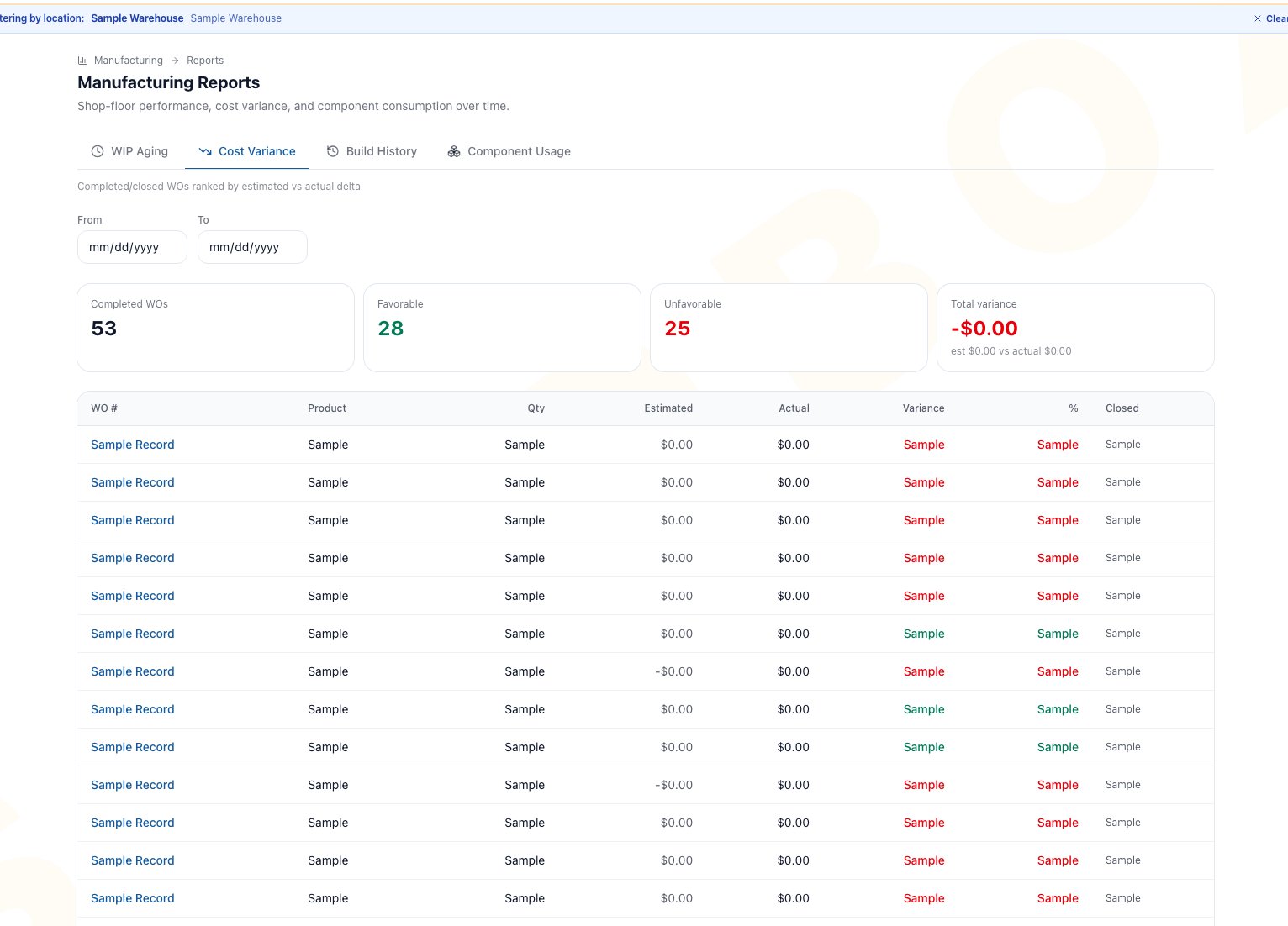
Sanitized sample data shows the date filters, favorable and unfavorable summaries, and estimated-versus-actual work-order rows. Variance is estimated cost minus actual cost.
- Select Cost Variance.
- Enter From and To dates when you need a completion-date range.
- Use Clear to remove both date filters.
- Start with the largest favorable or unfavorable amount.
- Open the linked work order and compare its recipe estimate with actual material, labor, overhead, quantity, and scrap.
The summary shows Completed WOs, Favorable, Unfavorable, and Total variance with estimated and actual totals. Rows show the product, quantity, Estimated cost, Actual cost, Variance amount and percentage, and the date the work order was Closed (its completion date).
Variance is a review signal, not an automatic adjustment. Determine whether the cause is a stale estimate, changed FIFO input cost, substitution, scrap, labor, overhead, quantity, or a one-time event before revising a BOM.
Review Build History
Build History summarizes completed output and cost per unit.- Select Build History.
- Set From and To for the completion-date range, or use Clear.
- Review Builds, Units produced, Total cost and Avg cost/unit.
- Compare product trends for repeated builds.
- Open the work orders on both sides of a meaningful unit-cost change.
Review Component Usage
Component Usage summarizes recorded material lines from completed work. Only Consume and Add input lines are included. Return-to-stock recovery, recipe Scrap, and Retain lines do not appear as separate Component Usage rows.- Select Component Usage.
- Set From and To for the completion-date range, or use Clear.
- Start with High-scrap components or an unexpected actual-cost total.
- Compare Planned, Issued, Returned, and Scrapped quantities.
- Open the product, then review the BOM and owning work orders before changing the recipe.
The summary shows Distinct components, Total consumed value and High-scrap components, the components with a scrap rate of 5 percent or more.
The Returned field applies only to the included Consume and Add rows. Use the work-order Materials activity and Inventory Movements for the full recovery sequence, including Return-to-stock output and other recipe dispositions.
If an expected same-day completion is missing at the To boundary, extend To to the following day and verify the linked work order. The current filter can exclude activity later on the selected end date.
Match Status To Report Coverage
If a record is missing, check status first. Then check the completion-date filters, completed quantity, component activity, and current company context.
Common Scenario: Period Review
For a weekly or month-end manufacturing review:- Open WIP Aging and investigate overdue and older work first.
- Use work-order GL and completion history for residual WIP evidence instead of treating the WIP tile as the ledger balance.
- Set the completed-period dates on Cost Variance and investigate the largest absolute differences.
- Use Build History to compare output and unit cost with earlier builds.
- Use Component Usage to review scrap and material patterns.
- Correct the owning operational record under the normal permissions. Do not try to rewrite history by changing the report or a future BOM revision.
Troubleshooting And Refusals
- WIP age looks too high: compare the work-order creation date with its release and start timeline. The report ages from creation.
- WIP value does not match residual open cost: open the work order’s completion and GL history. The report displays cumulative actual cost.
- A completed work order is missing: confirm its status is Completed or Closed, its completed quantity is positive where Build History requires output, and its completion date is in range.
- Variance direction looks reversed: remember that the report calculates estimate minus actual. Negative is unfavorable.
- Build trend and percentage seem to use different first points: the sparkline keeps only the most recent 20 points, while the percentage uses the full selected range.
- Returned quantity is unexpected: remember that this tab includes only Consume and Add rows, then trace the work-order Materials activity and Inventory Movements.
- A component is not listed: confirm it is a Consume or Add line on Completed or Closed work in the selected date range. Use Materials and Inventory Movements for Return-to-stock, recipe Scrap, and Retain lines.
- A same-day completion is missing at the To boundary: extend To to the following day and verify the linked work order.
- No export button appears: the current page does not provide report export. Open linked records for detailed review.
- No product filter appears: the current page has no product selector. Use the visible product rows and linked records.
FAQ
Do report filters use the work-order creation date?
Only WIP Aging uses creation date for age. The other three report date filters use the completed-work date.Can I correct a cost from the report?
No. Reports are read-only. Investigate and correct the owning work order, inventory, BOM, labor, or accounting record through an authorized workflow.Does changing a BOM revise completed report history?
No. A future recipe change does not rewrite the recipe snapshot or actual activity on completed work orders.Is WIP Aging an accounting trial balance?
No. It is an operational aging view with cumulative actual cost. Use work-order GL history and the accounting records for ledger reconciliation.Can I export or filter to one product?
Not from the current Manufacturing Reports page. It has no export control or product filter.Related Guides
Work Orders
Open a report row and inspect its status, cost, completion, inventory, and GL history.
Bills of Materials
Review estimates, recipe revisions, labor plans, overhead, and component instructions.
Materials And Substitutions
Trace issues, returns, scrap, and substitutes behind component results.
Labor Tracking
Investigate timer, manual, and standard labor behind actual cost.
Partial Completions And Undo
Understand cost relief and history created by staged completions.
MRP Planning
Plan future work and purchases before they become WIP or completed history.
Inventory Transactions
Trace the stock movements and cost layers behind manufacturing activity.
Financial Reports
Continue from operational review into company financial reporting.