

Prerequisites
- You need returns.create to create an RMA.
- Exchange, advance replacement, and warranty replacement follow-up work requires returns.edit.
- Correcting a mis-shipment requires returns.process.
- The original order must have eligible fulfilled or partially fulfilled quantity.
- A final-sale line needs returns.override_final_sale and a reason.
- Exchange and advance replacement need an eligible replacement product.
- Refund-only still requires selecting the lines being credited.
Open The Workbench
Use either entry point:- Open the eligible order and click Create Return.
- Or go to Returns, click Create RMA, search by order number, and select the original order.
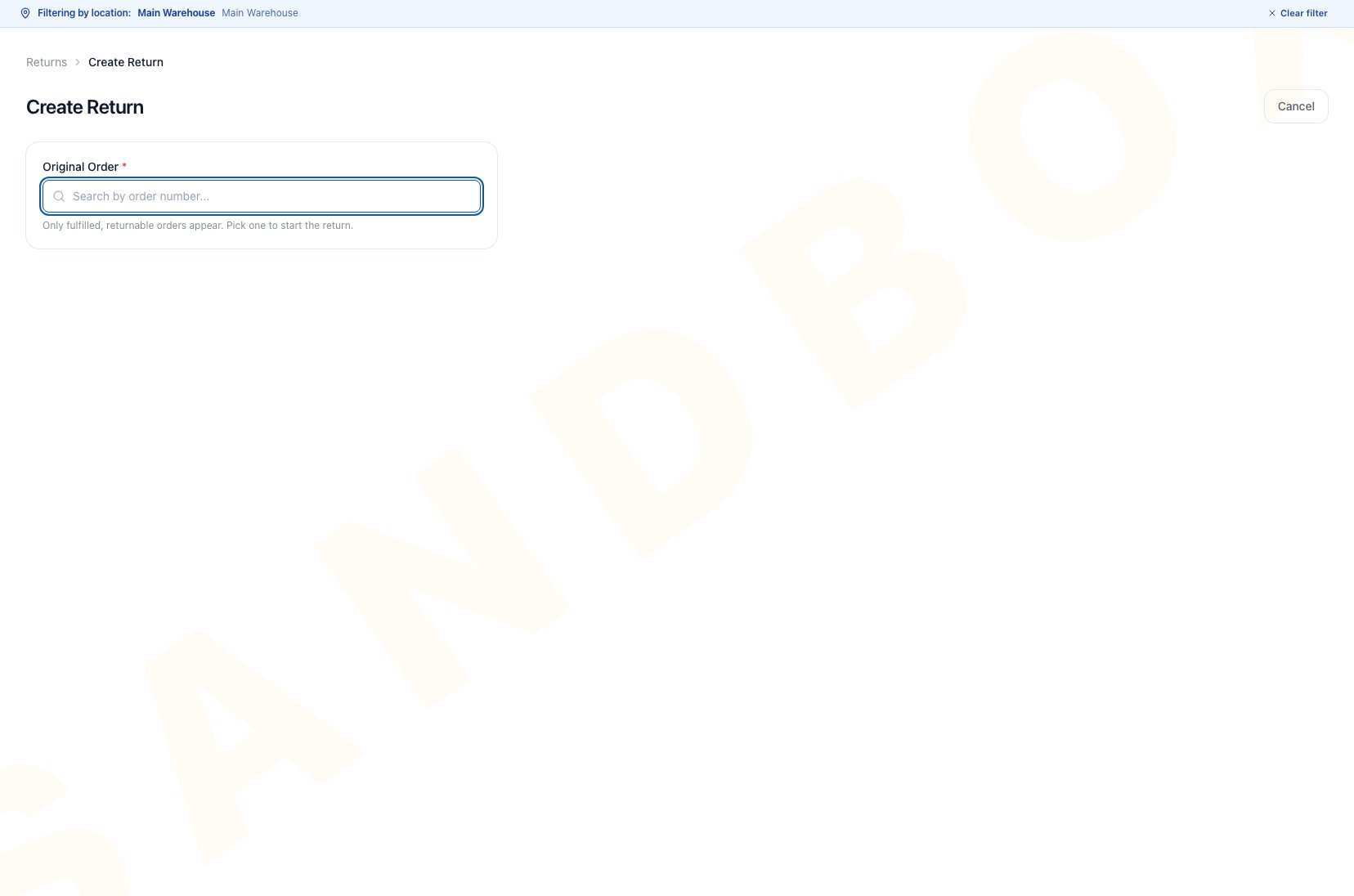
Create RMA opens the return workbench at the required Original Order search. Only fulfilled, returnable orders appear.
Choose The Return Type
Select Lines And Reasons
- Select each line being returned or credited.
- Use Select all for an eligible full return.
- Set quantity up to the remaining returnable amount.
- Choose a reason for every selected line.
- Expand line economics when you need to review original price, discounts, tax, and proposed credit.
Complete Type-specific Decisions
Exchange
Select the replacement product and quantity. When several lines are returned, identify which line is being exchanged. Choose whether the customer should be charged any price difference.Advance replacement
Select the replacement product and quantity, then set Return due within (days).Warranty repair
Leave Auto-create replacement order on for an even replacement. Turn it off when the same unit will be repaired and returned.Mis-shipment
- Select the ordered item that should have shipped.
- Select the SKU that physically shipped instead.
- Enter the wrong-item quantity and the correct-item quantity to re-ship.
- Choose what happens to the wrong item: write off, bill the customer, expect it back, or return it to the vendor.
- Leave price-difference settlement off for a revenue-neutral warehouse correction, or turn it on and enter or accept the signed difference.
Refund only
Select the items being credited even though no goods return. After creation, use Issue Refund (no goods back) on the RMA. Use the order’s general refund action instead for goodwill money that is not tied to products.Review Refund Economics
The right rail previews the net refund and its components.- Choose Refund to original tender, Credit Memo, or Store Credit. Auto is not an available outcome in this workbench.
- Review automatic return-rule fees and credits. Remove an eligible automatic rule only when policy allows it.
- Add or edit return adjustments when needed.
- Review the resolved restocking fee. Enter an override percentage, including
0to request a waiver, only when allowed. - Include shipping and shipping tax only when they should be refunded.
- Include the card processing fee only when policy allows it.
- Use Full refund to include every available paid component, then review the resulting ladder.
Verify The Return Label Guidance
Read the badge and guidance the current workbench shows for this return. It can show Prepaid, Customer pays own shipping, or On request. When available, you can estimate a live label cost before creation. If the outbound parcel has not entered carrier custody and should not leave, select Void the outbound shipping label + suppress the shipment notice. If the package is already in transit or delivered, Arcus preserves the shipment and gives intercept or receive-back guidance instead.Add Source And Notes
Choose how the request arrived, such as phone, email, customer portal, in person, website, or other. Add operator notes that help approval, inspection, or settlement.Create The Return
The header button changes with the return type, for example Create Return + Exchange or Correct Mis-shipment. It remains disabled until required order, line, reason, replacement, override, or mis-shipment fields are complete. Hover the disabled button to read the missing requirement. Visible validation can include Pick the original order first, Select at least one item to return, Pick a reason for every selected line, Enter a reason for the final-sale override, Pick a replacement product, or the specific missing mis-shipment choice. Correct the named field before submitting. After creation:- Standard and refund-only flows open the new return.
- A successful exchange or advance replacement follow-up can open the linked order.
- A warranty replacement can fail after the RMA is created. Use the return detail and approved recovery process instead of creating another RMA.
- A successful pre-transit label void reports whether the shipment notice was suppressed.
- A mis-shipment correction returns to the original order instead of opening an RMA.
Common Blocks
- Original order not found: verify fulfillment and remaining returnable quantity, then refine the search. There is no separate order-search retry action.
- No returnable lines: the lines are already returned, final sale, or otherwise protected.
- Create Return is unavailable on the order: open More actions and read the disabled reason. Quotes and unsupported document types cannot be returned. Cancelled or voided orders cannot start an RMA. An unfulfilled order directs you to cancellation instead, and a fully returned order directs you to existing RMAs.
- Create button disabled: select a line and reason, provide required replacement data, or finish the displayed override.
- Preview unavailable: the workbench can still submit and resolves the figures on the server. If you continue, verify the resolved refund on the return before settlement.
- Refund-only selected but no lines chosen: select the product lines being credited.
- Mis-shipment selected but no shipped line exists: this correction is available only after an item was fulfilled.
- Initial RMA request fails: read the returned message and check Returns for the original order before submitting again.
- Exchange or advance replacement follow-up fails: the RMA may already exist even though no linked order was created. Recover from that RMA through the approved return-detail, support, or admin process.
Related Articles
Customer Returns
Understand the complete RMA lifecycle and work queues.
Request, Receive, and Dispose Customer Returns
Receive, inspect, disposition, settle, and correct the created RMA.
Order Exceptions and Recovery Choices
Decide between refund, cancellation, fulfillment reversal, and return.
Vendor Returns
Continue supplier-side recovery after a Send to Vendor disposition.