

Before You Start
- You need accounting.post and payments.process permission.
- The file must contain a reference column and an amount column. References can be invoice, purchase order, or order numbers.
- Every matched invoice in one import must belong to the same customer account.
- Verify the payment advice belongs to the correct business and that the referenced invoices are still open.
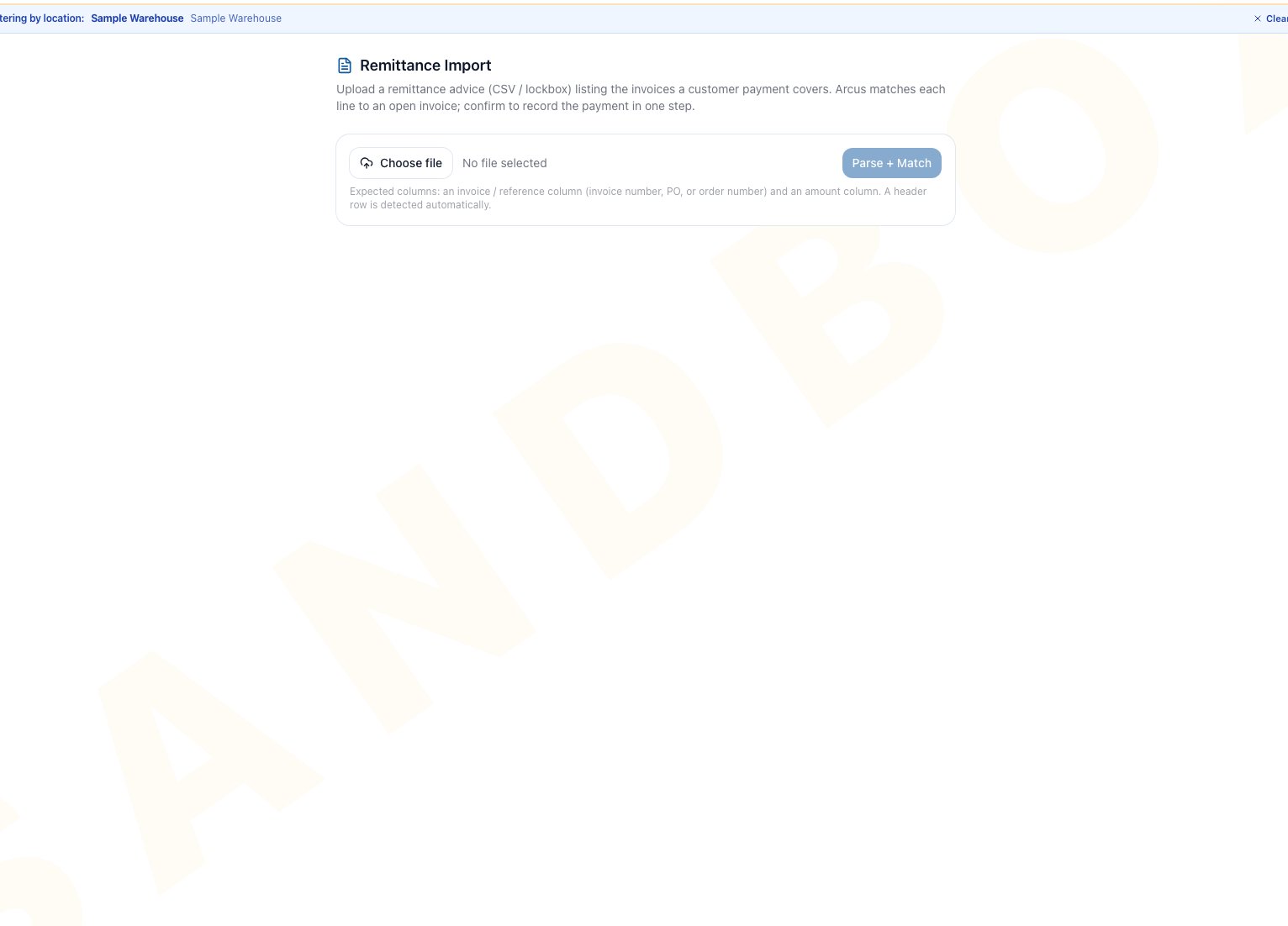
Remittance Import starts with Choose file and Parse + Match. Review the staged results before recording a payment.
Parse And Review The File
- Click Choose file and select a
.csvor compatible plain-text file. - Confirm the selected file name.
- Click Parse + Match.
- Wait for the confirmation showing how many lines were parsed and matched.
- Review every line, its reference, amount, and match result before recording anything.
0 when a row has a reference but its amount cannot be read as a number. Correct those rows in the source file before confirmation.
Record The Matched Payment
- Confirm every matched reference belongs to the same customer account.
- Confirm the positive matched amounts agree with the remittance advice.
- Click Record Payment.
- Wait for Remittance confirmed: payment recorded and applied and the Confirmed status.
- Open AR Management and verify the affected balances.
no_positive_amounts and records no payment. Unmatched lines are not applied by this import. The normal payment flow can also apply an eligible early-payment discount.
The amount shown in the Record Payment button is calculated from all matched staged rows. A zero row is shown but contributes nothing, while a negative row can make that preview differ from the positive amount confirmation will apply. Reconcile the source file instead of relying on the button alone.
Safe Corrections And Exceptions
- Matched invoices span customer accounts: confirmation stops because one import cannot post across multiple customer accounts. Split and parse corrected files for the appropriate customer account.
- Partially matched file: you may record the positive matched lines, but first compare them with the actual payment. Resolve the remaining amount separately so cash and AR are not left unexplained.
- No matched lines: Record Payment is disabled. Correct the source reference or confirm that the invoice is open, then choose and parse a corrected file.
- Zero, negative, or invalid amounts: correct and reparse the source. Confirmation skips nonpositive amounts and stops with
no_positive_amountswhen none remain. - Wrong or stale reference: correct the source file outside Arcus, choose the corrected file, and click Parse + Match again. The staged preview itself is not editable.
- Same file selected again: Arcus returns the existing durable import and its current status instead of creating a second import. Check that status, AR Management, and payment history before taking action.
- Invalid amount, unreadable file, or unsupported layout: Arcus shows the returned parsing result or error. Correct the file and reselect it. Do not convert sensitive remittance data through an unapproved third-party tool.
- Wrong file parsed: do not confirm it. Choosing another file clears the local preview from the browser, but it does not delete the durable staged import. The page has no Discard action. Use the approved support or admin recovery process for the wrong staged import.
- Some rows are unmatched: Arcus warns that unmatched lines are not applied.
- Confirm fails: do not click repeatedly. Check whether Confirmed appeared or the AR balance changed, then retry only if the payment was not recorded.
- Page unavailable: an accounting administrator must grant accounting.post.
- Record Payment fails for access: the button remains visible without payments.process, but confirmation fails. Ask an administrator for the payment-processing permission rather than clicking repeatedly.
Related Articles
AR Management
Verify open invoices and the resulting customer balance.
Record An Order Payment
Record a payment manually when no usable remittance file exists.
Bank Reconciliation
Reconcile the recorded payment to the bank statement.