

Quarantine is the inspection queue for damaged units that arrived on a purchase order. When a receiver records damaged units and routes them to quarantine or to a vendor return, Arcus holds those units out of sellable stock and lists them here until someone decides what happens to them. Open it at Operations > Warehouse > Quarantine.
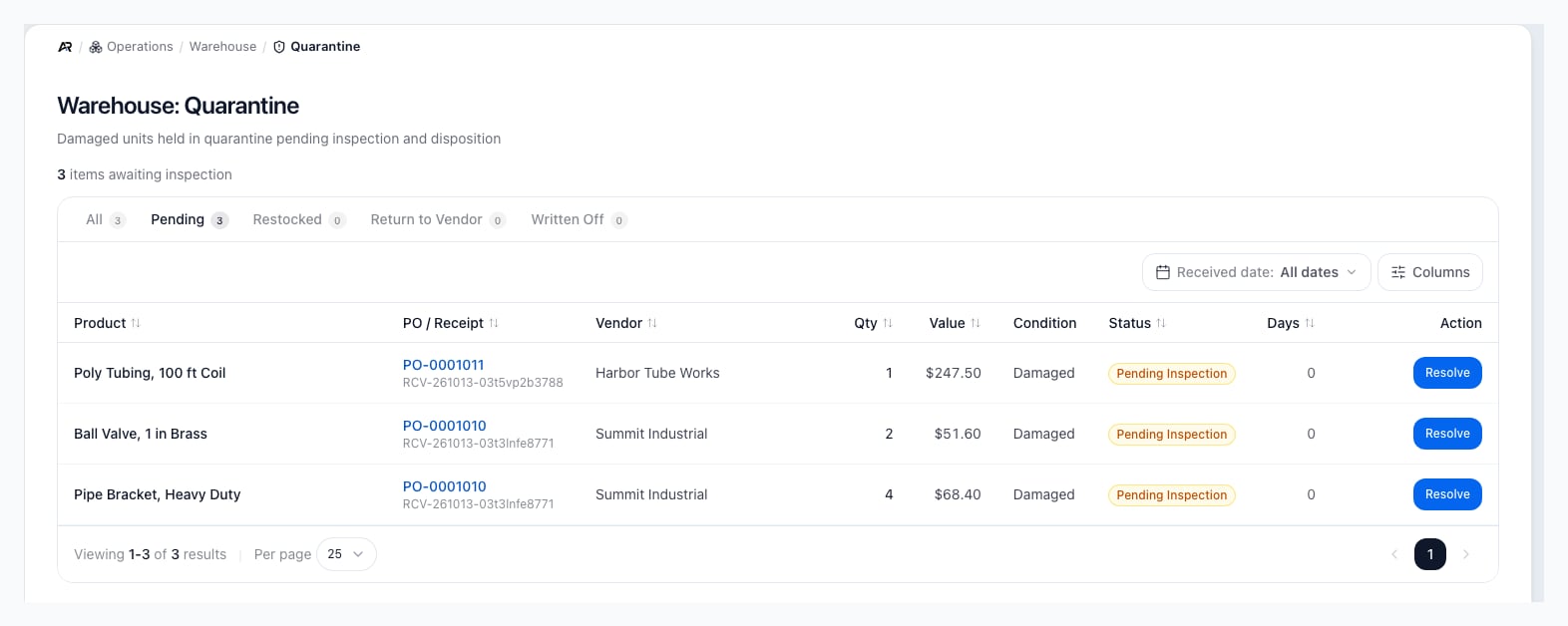
The Quarantine screen in Operations, with the pending count, the status tabs, and one row per quarantined receipt line.
Before You Start
- Permissions: opening the screen needs View Inventory, and reading the list also needs View Purchasing. Resolving an item needs Receive Inventory. The Resolve button shows for everyone who can see the list, so a user without Receive Inventory sees it and the server refuses the resolution. The Quarantine entry under Operations > Warehouse and its command palette entry appear only to users who also hold Receive Inventory, although the screen itself opens with View Inventory.
- How units get here: in the purchase order receive dialog, when a line has damaged units, the receiver picks a Damaged unit disposition. Quarantine (hold for inspection; may auto-draft a vendor return) and Return to vendor (drafts a vendor return) both put the damaged units in this queue. Write off does not; those units are expensed at receipt and never appear here.
- Header location: when you pick a location in the header, the queue shows only items received at that location.
- Search for Quarantine in the command palette.
- The Binned Products tile on Operations > Warehouse > Bins counts products with units held in quarantine, and a location’s quarantine bin card counts its units. Review those units here.
Read the Queue
The line above the table says how many items are awaiting inspection, or “No items currently awaiting inspection.” The tabs filter by status, and each shows its count:
Each row shows:
- Product: the product name and its part number.
- PO / Receipt: the purchase order number, which opens the order’s receiving tab under Purchasing > Purchase Orders, and the receipt number below it.
- Vendor, Qty (the damaged units), and Value (the units times the receipt’s unit cost).
- Condition: the condition the receiver recorded.
- Status: Pending Inspection, Restocked, Return to Vendor, or Written Off.
- Days: how long the line has been in quarantine.
- Action: Resolve on a pending line. A resolved line shows Resolved; hover it to see when and by whom.
Resolve a Quarantined Item
- Open Operations > Warehouse > Quarantine and stay on Pending.
- Select Resolve on the row. The Resolve quarantined item dialog opens with the product, the units, and the receipt number.
- Review the summary: PO, Vendor, Qty / Value, and the Damage notes the receiver wrote.
- Under Disposition, choose one:
- Approve restock: release the units back into stock.
- Return to vendor: confirm the units go back to the vendor.
- Write off: record the units as a loss.
- Optionally add notes, such as inspector findings, a vendor claim number, or why you wrote the units off.
- Select Resolve. It stays disabled until you choose a disposition.
What Each Disposition Does
Every disposition first takes the units out of quarantine. Then:
Return to vendor records your decision only. A vendor return may already have been drafted when the goods were received. Open Operations > Returns > Vendor Returns to continue it, or create one there if none exists.
Other effects of every resolution:
- Activity log: the resolution and the units are recorded with your name. Your notes are saved with the resolved line, not in the activity log.
- Marketplace stock: a restock changes available stock, so connected sales channels receive the new quantity.
- Warehouse tiles: the counts on Operations > Warehouse > Bins update.
Common Scenarios
The vendor agreed to credit the damaged units
Choose Return to vendor, add the vendor’s claim or authorization number in the notes, then continue the vendor return under Operations > Returns > Vendor Returns.Inspection shows the units are fine
Choose Approve restock. The units go back into sellable stock at the location where they were received.The units cannot be sold or returned
Choose Write off and say why in the notes. The loss posts to the general ledger.Messages You May See
Related Articles
Receiving
Operations > Warehouse > Receiving: receive purchase orders and record damaged units.
Receive Against a PO
Record damaged units and choose their disposition at receipt.
Vendor Returns
Operations > Returns > Vendor Returns: send damaged goods back to the vendor.
Bins
Operations > Warehouse > Bins: the quarantine bin and the warehouse tiles.
Putaway
Move received, returned, and quarantined stock to the right place.
Inventory Transactions
Operations > Inventory > Transactions: the stock movements a resolution records.