

Bins are the physical storage spots in a warehouse: a shelf, a rack position, a receiving area, a staging lane. The Bins screen is the map of those spots. Open it at Operations > Warehouse > Bins when you need to find where stock sits, add a bin after the floor layout changes, or check what a bin holds.
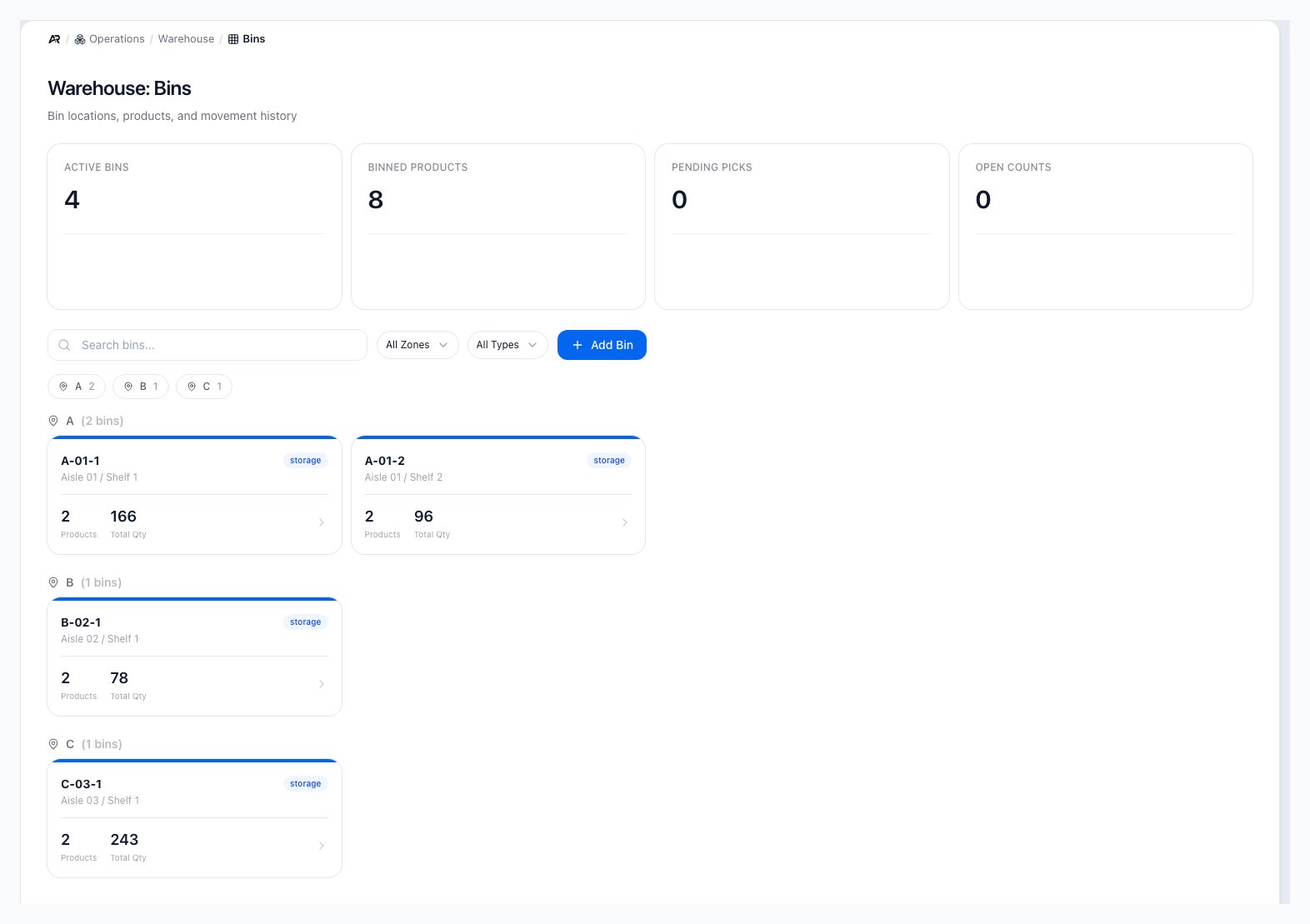
The Bins screen shows the four summary tiles, a bin search with zone and type filters, Add Bin, and one card per bin grouped by zone.
Before You Start
- Permissions: opening Bins and a bin’s detail page needs View Inventory. Adding a bin needs Adjust Inventory; without it the Add Bin button is hidden.
- Locations: every bin belongs to one warehouse location. The Location list in Create Bin is read from Settings > Company > Locations, which needs View Settings. If the list offers no locations, ask an administrator for that permission or to add the location.
- Header location: when you pick a location in the header, the tiles and the bin cards show only that location. The exception is Pending Picks, which also counts pick lists for orders that have no location.
- Search for Bins in the command palette.
- Bins is the first view of the Warehouse area, so an older Warehouse link without a tab opens here.
- A link to one bin opens that bin’s detail page directly. If the bin belongs to another company you are a member of, Arcus finds it, switches you to that company, and shows “Switched to” the company name, “to open this bin.” If you are not a member of that company, the page cannot find the bin.

The Bins screen shows the warehouse summary tiles, the search and filters, Add Bin, and one card per bin grouped by zone.
Read the Bins Screen
The four tiles at the top summarize the warehouse:- Active Bins: bins that are active.
- Binned Products: the number of products with stock in a regular bin, plus the number of products with units held in quarantine or staged for a vendor return. A product in both places counts twice.
- Pending Picks: pick lists for single orders that have not been started. Wave pick lists are not counted.
- Open Counts: cycle counts that are open or in progress.
- Type in the bin search box to find a bin by its code, zone, or aisle. Close spellings of a code also match.
- Use All Zones to show one zone, or select a zone chip. Each chip shows the zone name and how many bins it has. Select the same chip again to clear it. Choosing Unassigned does not narrow the list; it still shows every bin.
- Use All Types to show one type: Storage, Picking, Receiving, Staging, or Shipping.
- Read the cards. Bins are grouped by zone, and bins with no zone sit under Unassigned. Each card shows the bin code, its aisle, rack and shelf when they are set, a colored type badge, and two numbers: Products and Total Qty.
- Select a card to open the bin’s detail page.
Add a Bin
- Open Operations > Warehouse > Bins.
- Select Add Bin. The Create Bin dialog opens.
- Choose the Location. It is required.
- Enter the Bin Code, for example A-01-01. It is required, and Arcus saves it in capital letters.
- Optionally fill in Zone, Aisle, Rack, and Shelf. The zone decides which group the card appears under.
- Choose the Bin Type: Storage (the default), Picking, Receiving, Staging, or Shipping.
- Optionally enter Max Weight (lbs) and Max Volume (cu ft) to record the bin’s limits.
- Select Create Bin. The dialog closes and the new card and the tiles update.
Open a Bin
The bin’s detail page shows:- The bin code, its zone, aisle, rack, shelf, and position (or No location details), the location name, and the type badge.
- Products in Bin: each product with its part number and quantity, and its minimum and maximum when set. A warning icon marks a product at or below its minimum. A bin that has never held a product says No products in this bin. A product whose stock was picked or moved out stays listed with a quantity of 0.
- Recent Movements: the last 20 bin-to-bin moves and cycle count corrections that involve the bin, with the product, quantity, from and to bins, notes, the movement type, and the time. Stock put away during receiving, assigned from a product page, or picked for an order changes the bin’s quantity but does not appear here. A bin with no moves says No movement history.
What Adding a Bin Changes
- Adding a bin records the new bin in the activity log with its code, location, type, and zone.
- It does not move any stock and does not post anything to the general ledger. Stock reaches a bin when a purchase order receipt puts it away (only when Track inventory by warehouse bin is turned on at Settings > Shipping & Fulfillment > Warehouse), when you assign the product to the bin with Assign to Bin on the product’s Bin Locations tab, or when you relocate it from another bin. A cycle count only corrects the quantity of a product that is already in the bin.
Transfer Detail Pages
A link to a single inventory transfer opens that transfer inside the Warehouse area, under Operations > Warehouse > Transfers. The full workflow is in Inventory Transfers. As with a bin, a link to a transfer that belongs to another company you are a member of switches you to that company first and shows “Switched to” the company name, “to open this transfer.” The page shows the transfer number, its type and status, From, To, Expected Arrival, a Timeline, the Items, shipping details, notes, and the GL Entries Posted links, which open the journal entries under Finance > General Ledger > Journal Entries. Each item links to its product under Sales > Products > All Products. Back to Transfers returns to the list. Every button below except Labels needs Transfer Inventory; Labels needs only View Inventory. The page shows them by status, not by permission, so a user without that permission sees them and the server refuses the action.
When one of these fails, the message names the step and the reason, for example “Submit failed:”, “Approve failed:”, “Reject failed:”, “Ship failed:”, “Receive failed:”, or “Cancel failed:”, followed by the server’s reason, such as the transfer no longer being in draft status or a product without enough stock. If the carton labels cannot be opened, the message reads “Failed to load labels:” followed by the reason, such as “Labels are only available on FBA inbound transfers” or “No labels available yet. Submit the transfer to Amazon first”.
Scan serial numbers
Before a transfer ships (while it is a draft, submitted, waiting for approval, or approved), a Scan Serial Numbers (Source) panel lets you scan each serialized unit before it is loaded; once the transfer is in transit, shipped, or receiving, the panel becomes Scan Serial Numbers (Destination) for units as they arrive. The panel is not shown for Amazon FBA transfers or for a cancelled transfer. It counts the scans at the source and at the destination, and lists the latest scans as Recent scans with a src or dest tag. A scan confirms with messages such as “Serial SN-1001 verified at source” or “Serial SN-1001 received at destination”, and a repeat scan says “Serial SN-1001 already scanned at source.” or “Serial SN-1001 was already at destination”. A destination scan moves the unit’s home to the destination location. The panel reads “No serials scanned yet on this surface. Scan a unit’s barcode to start.” until you scan something. A scan can be refused, and the reason shows in red under the scan box. At the source, the serial must exist in the source company’s stock, belong to a product on the transfer, have the status available, and sit at the source location: “Serial ‘SN-1001’ was not found in the source entity’s inventory.”, “Serial ‘SN-1001’ belongs to” a product “which is not on this transfer.”, “Serial ‘SN-1001’ has status” a status ”; only ‘available’ serials can be added to a transfer.”, or “Serial ‘SN-1001’ is not at the source location.” A scan at the source is only a check. A destination scan before shipping, or a source scan after shipping, is refused, with a message such as “Cannot scan at source in” a status “status. Source scans are valid before ship.” Removing a scan from Recent scans only clears it from your view; the record is the activity log and the serial’s location. Every button action and every scan at the destination is recorded in the activity log; a scan at the source only checks the serial number. The steps that move stock also send the new stock levels to your connected marketplaces.Common Scenarios
Add Bin is missing
Your role does not have Adjust Inventory. Ask an administrator to add it.The Location list is empty
The list needs View Settings, and at least one location set up at Settings > Company > Locations.A bin shows zero products but stock is on the shelf
A bin counts only the stock recorded in it. Stock received without a bin, or received while bin tracking was off, is not in any bin, and a relocation cannot fix that because it only moves stock that is already in another bin. Open the product under Sales > Products > All Products, go to its Bin Locations tab, and select Assign to Bin to record the quantity that is on the shelf.A bin card is in the wrong group
The group comes from the bin’s Zone. Bins with no zone appear under Unassigned.Related Articles
Receiving
Operations > Warehouse > Receiving: receive vendor stock into bins.
Putaway
Move received items to their final storage bins.
Cycle Counts
Operations > Warehouse > Cycle Counts: count bins and approve variances.
Inventory Transfers
Operations > Warehouse > Transfers: move stock between locations.
Bin Locations
How bin assignments show on products and pick work.
Warehouse Overview
Choose the right Warehouse view for each physical task.