

Open and print a traveler
Go to Manufacturing > Work Orders and open the work order. You need manufacturing.view permission.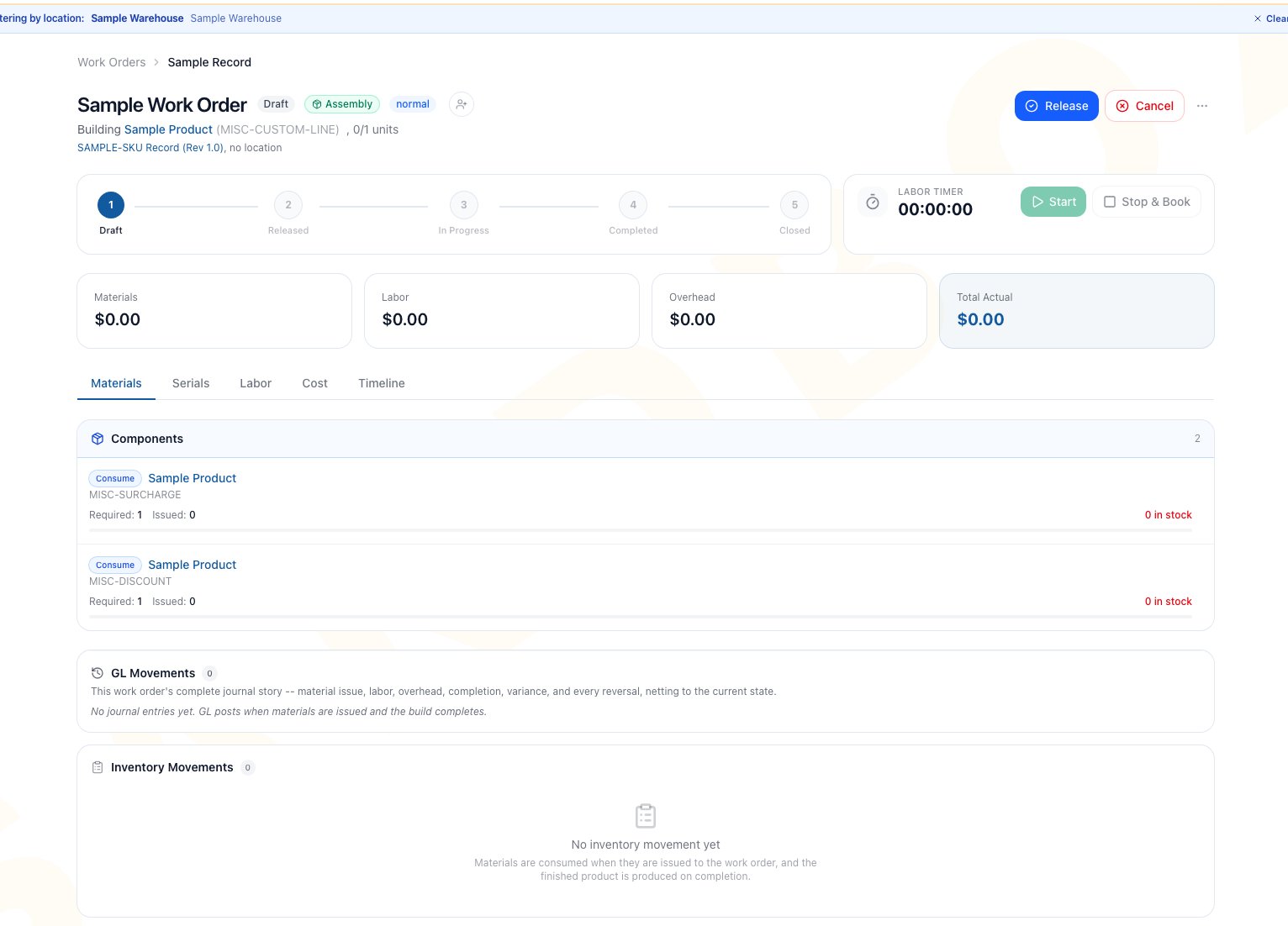
Use the work-order header to confirm the job before opening its action menu. The action menu is closed in this orientation image.
- Work-order type, status, priority, quantity, and location.
- BOM name and revision.
- Planned start and end dates.
- Source product and source serial for disassembly or conversion.
- Required, issued, and remaining material quantities.
- BOM instructions and notes.
- Open the work-order action menu in the header.
- Click Print traveler.
- Wait for the PDF to open in a new browser tab.
- Review the work-order number and barcode before printing.
- Use the browser’s print or save controls for your approved internal process.
Outcome
You receive an internal PDF for the current job. Inventory, work-order cost, GL, status, and Timeline remain unchanged.Read the traveler
The footer uses the entity’s configured contact details when available.
Attached BOM documents are not embedded in the traveler PDF. Open approved drawings, SOP files, or other attachments separately from the work-order Materials tab.
Use the pick list correctly
The pick list includes BOM lines with Consume or Add disposition. It shows the quantity already issued and the remaining planned quantity at the time the PDF is generated. The Bin value is a best-effort suggestion. Arcus derives it from an active default or stocked bin for that product at the work-order location. A-- value means no suggested bin was found.
After gathering material, record the real transaction on the work order. A checkmark on paper alone does not issue stock. Follow Materials and Substitutions.
Use type-specific recovery sections
Assembly
The traveler focuses on the input pick list, output quantity and serial capture, labor, and sign-off. It does not add a source-recovery section.Disassembly
The traveler adds the source product and serial when present, expected Return-to-stock recovery, Scrap lines, and actual-recovery write-in fields. Match recovered quantities to what is physically usable before recording completion.Conversion
The traveler adds the source, inputs and added parts, removed parts expected to return to stock, Scrap lines, and components retained in the converted unit. The paper records floor observations. Arcus inventory changes only when a user records Return, Scrap, Issue, or Completion in the application.Capture serialized output
When the work order’s output product is serialized, the traveler includes one write-in line per planned unit, up to 40 rows. If planned quantity exceeds 40, the PDF tells the operator to attach a serial sheet for the remaining units.- Write each physical output serial legibly.
- Check for duplicates on the paper before leaving the floor.
- Enter exactly one unique serial per completed unit in the completion modal.
- Compare the entered serials with the paper traveler before clicking Complete.
Complete labor and sign-off
The printed labor strip uses the BOM’s estimated minutes and rate. It does not list the work order’s booked timer or manual labor entries. Use the ruled fields for your approved floor process:- Actual hours and operator.
- Built by and date.
- Inspected by and date.
- QA pass and notes.
Common scenario: run a conversion with a paper packet
A conversion job replaces one component, retains another component in the unit, and expects an old part back into stock.- Print the traveler after the correct BOM revision, source serial, and location are on the work order.
- Use Inputs / Pick List to gather the added component.
- Match the Source card to the physical serialized unit.
- Record the removed part’s actual quantity in the recovery section.
- Confirm the retained component stays in the unit and keep scrap segregated.
- Capture operator, inspection, and QA sign-off.
- In Arcus, record any manual material action, book labor, and complete the conversion.
- Compare Inventory Movements and Serials with the signed packet.
Reprint when the plan changes
The traveler reflects the data available when it is generated. Reprint it after a material issue, substitution, work-order quantity change, schedule change, or a current BOM-level instruction, labor-plan, or overhead change that matters on the floor. BOM component and revision edits do not rewrite the material lines already saved on an existing work order. If its pick plan is wrong, stop and resolve the work order through your approved process instead of expecting a reprint to adopt the edited recipe.Troubleshoot traveler problems
Frequently asked questions
Does printing a traveler reserve or issue components?
Does printing a traveler reserve or issue components?
No. Traveler generation is read-only. Record Issue, Return, Scrap, or Completion in Arcus to change inventory.
Can I give the traveler to a customer?
Can I give the traveler to a customer?
No. Treat it as an internal shop-floor document because it can contain estimated cost, labor rate, labor cost, and overhead.
Why does the traveler show -- for a bin?
Why does the traveler show -- for a bin?
Arcus did not find an active suggested bin for that product at the work-order location. Find the material through your warehouse process and verify live stock before issue.
Are handwritten serials saved automatically?
Are handwritten serials saved automatically?
No. Enter the serials in the completion modal. The work-order Serials tab is the system record after completion.
Is the PDF saved to the work order?
Is the PDF saved to the work order?
No. Arcus renders it on demand in the browser. Print or save it only through your authorized internal document process.
Related guides
Work Orders
Create, release, start, assign, close, or cancel the work shown on the traveler.
Materials and Substitutions
Turn paper pick and recovery observations into inventory transactions.
Labor Tracking
Post actual hours instead of relying on handwritten fields.
Bills of Materials
Maintain the recipe revision and SOP instructions printed on the traveler.