

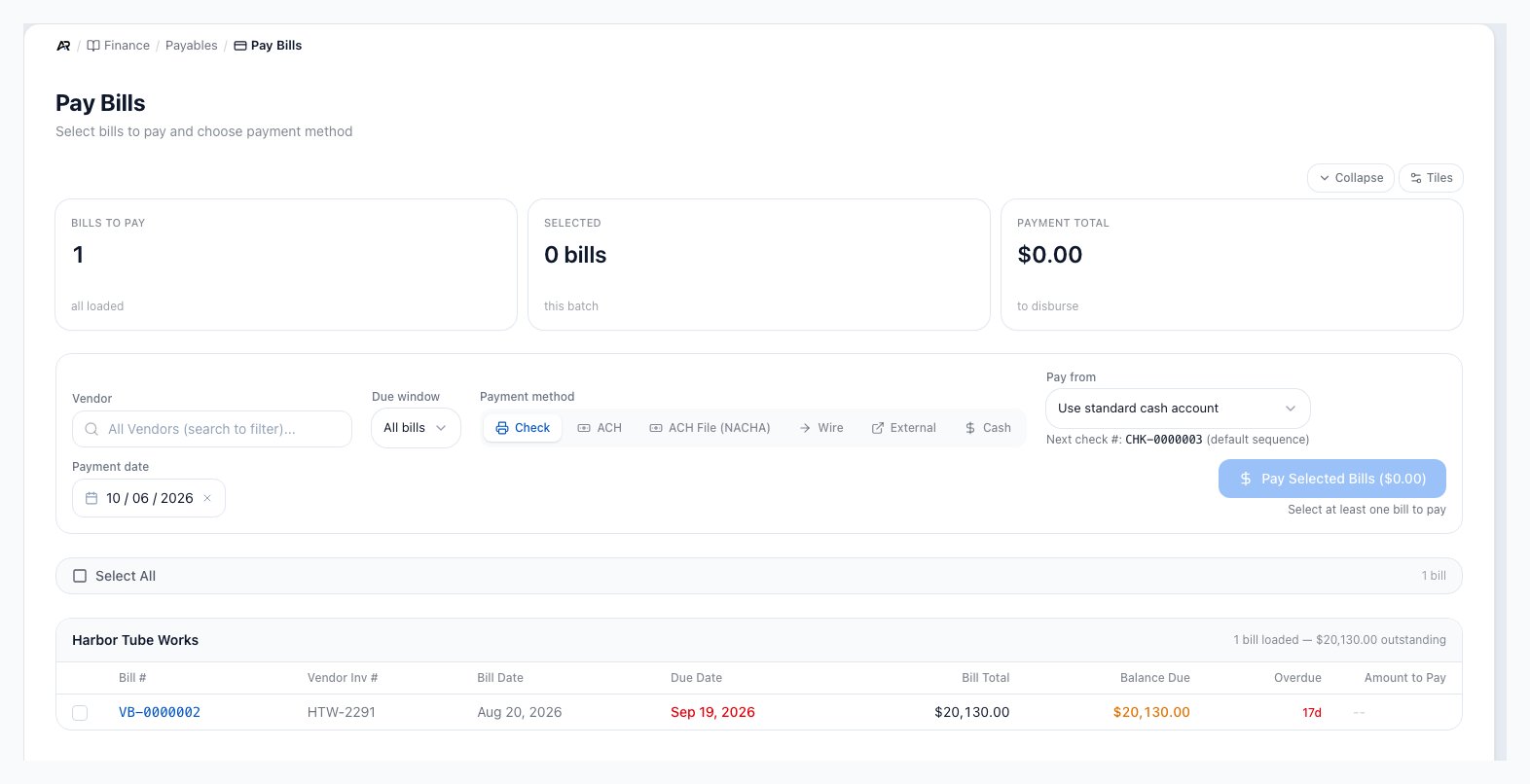
Pay Bills with the summary tiles, the vendor and due window filters, the payment method buttons, and the bills grouped by vendor.
Before You Pay
- The vendor bill must be open or partially paid with a remaining balance.
- A bill on a payment hold is listed but cannot be selected (see Bills on Payment Hold).
- You need the Post Journal Entries permission to open Pay Bills and record payments. The lists the screen reads (bills, bank accounts, credits) also need View Accounting, which roles that can post already have.
- The payment date must be in an open accounting period, in an unlocked tax year, and not more than 180 days in the past.
- Check, ACH, NACHA, and wire payments need a bank account selected.
- Cash payments do not require a bank account.
- Checks need check numbering, check layout, check stock, and the check-clearing account configured.
- NACHA requires a funding bank with routing details and vendors with ACH banking information.
Open Pay Bills
- Open Finance > Payables > Pay Bills. You can also search for Pay Bills in the command palette, reach it from the Write a Check screen, or follow the pay link on a vendor’s payables tab or a shortcut on your Home screen. The link from a vendor’s account opens the full list: pick the vendor in Vendor to narrow it.
- Use the vendor filter when you only want one supplier, and the due filter (All bills, Overdue only, Due in 7 days, Due in 14 days, Due in 30 days) to focus the run.
- Choose a payment method, bank account (Pay from), and payment date. Every method except Cash needs a bank account. For checks, the screen shows Next check # and whether it is this bank’s sequence or the default sequence.
- Select one or more bill rows, or Select All. Select All selects every bill you can pay, and clicking it again clears them. Load More brings in more bills when the list is long, and a line above the list says how many of the total are showing.
- Add a memo if you want one. It is saved on every payment of the run.
Bills on Payment Hold
A bill on payment hold still appears with a hold pill and the reason, but its checkbox and Amount to Pay are disabled. Hover it to read why: On payment hold, so it cannot be selected for payment. followed by the hold details and Open the bill to release the hold, which needs the permission to approve vendor bills. The count of held bills shows beside Select All, for example (2 on payment hold, not selectable). If a bill is put on hold while you have it selected, it drops out of your selection.Choose a Payment Method
- Check: records the payment and creates a printable vendor check.
- ACH: records an ACH payment you send yourself. Log in to your bank’s portal to start the transfer; Arcus records the payment out of the selected bank account and posts it right away, and you match it against the bank feed when it clears. If your entity has Plaid Transfer initiation set up, Arcus instead initiates the transfer through Plaid and posts it once the transfer settles.
- ACH File (NACHA): bundles the selected bills into one batch and produces a .ach file. Upload it to your bank’s portal, then click Confirm Sent. The payments and their GL entries post only when you confirm, and Arcus says the batch is confirmed: Payments are posted; GL entries created.
- Wire: records a wire payment after the wire is sent separately through your bank.
- External: records a payment already made out of the selected bank account by other means, such as a card or your bank’s portal. Nothing is sent from Arcus.
- Cash: records a cash payment without a bank account selection.
Vendor credits are not a payment method button
Vendor credits appear inside the matching vendor group. Apply them to reduce
the cash portion of the payment before you confirm.
Pay Selected Bills
- Select the bill rows you want to pay.
- Adjust Amount to Pay if you are making a partial payment.
- Apply vendor credits when they should reduce the cash outlay.
- Confirm the selected method, bank account, and payment date.
- Click Pay Selected Bills. Until it is ready the button is disabled and says why: Select at least one bill to pay, or Select a bank account to pay from (required for check, ACH, wire, NACHA, and external).
- Review the Confirm Payment modal.
- Click Confirm Payment.
Apply Vendor Credits
Vendor credits reduce what you need to pay a supplier. They only appear under the vendor they belong to, and they can only be selected after at least one bill for that vendor is selected.- Apply all: applies available credits up to the selected bill total, in list order.
- Clear credits: removes selected credits from the payment preview.
- Cash portion: shows the bill amount minus the applied credits.
- Fully covered bills: may not need a check or bank withdrawal if credits cover the full amount.
Review the Confirm Payment Modal
The confirmation modal shows the method, date, bank account, bill count, selected bill total, vendor credit total, and final cash outlay. This is the last checkpoint before Arcus records the payment. For a check it says A check for the cash portion will be auto-generated and ready to print after payment is created. When credits cover everything it says Fully covered by vendor credits, so no check is generated. and the credits settle the bills.Print Checks
When you pay by check, Arcus creates a check record after the payment is confirmed. Use the success card’s Print Check action, or open the check later from Finance > Payables > Check Register. When a run creates several checks, Print all checks (ordered packet) opens Print check packet, which tells you which check stock to load and prints the check faces first, then any plain-paper overflow. View created checks in Check Register opens the new checks. If the browser blocks the print window, Arcus says Popup blocked. Allow popups for this site to print checks. After any payment, Email Remittance sends the vendor a remittance advice (Remittance emailed to the vendor’s address) and Print Remittance prints it. If the vendor has no email on file, Arcus says Add an email to the vendor record and links to it; add the email and try again.- The check amount is the cash portion after vendor credits.
- Printed checks usually sit in check clearing until they clear the bank.
- Checks can be printed or batch printed from the Check Register.
- Void a check from the Check Register when it should no longer count.
- Voiding a check reopens the affected bill balance when the payment is reversed.
- In the Print check packet window you choose which stock to load first, Vendor checks first or Refund checks first, and see the page count and a Packet preview before printing. It says No continuation pages. Every remittance fits on the check face. when nothing overflows.
Use ACH File (NACHA)
NACHA creates a bank-upload file for selected vendor payments. It does not send money by itself. Your team still uploads the file to the bank portal.- Select the bills to pay.
- Choose ACH File (NACHA).
- Select the funding bank account.
- Confirm the payment to generate the batch and download file.
- Upload the file to your bank portal.
- Click Confirm Sent only after the upload is complete.
What Arcus Updates
- Each payment reduces the paid bills’ balances and the vendor’s payable in the general ledger, and is recorded in the activity history with its method, check number and credits used.
- Vendor credits you apply are posted against the bills they settle.
- A check payment also creates the check record, which sits in check clearing until it clears the bank.
- ACH, wire, external and cash payments post when you confirm. An ACH file posts only when you click Confirm Sent, and then sets the batch to confirmed.
- Email Remittance sends the vendor a remittance advice by email, and the activity history records the payment.
- Other users on the screen see the list refresh, and a bill paid elsewhere leaves your list.
Common Blocks
- Pay Selected Bills is disabled: select at least one bill and choose a required bank account.
- No bills are shown: no open or partial bills match the selected vendor filter.
- Amount to Pay is blocked: reduce the amount so it does not exceed the remaining bill balance.
- Vendor credit is unavailable: select a bill for that vendor and confirm the credit is open and unexpired.
- Check payment is blocked: review check numbering, check layout, check-clearing account, and bank account setup.
- ACH is blocked: if your business sends ACH through a connected bank, Arcus may say ACH is not yet available for production. or Select a Plaid-linked bank account before paying via ACH. Use the NACHA file or record the ACH you sent yourself instead.
- NACHA is blocked: confirm the funding bank and vendor ACH details include valid routing and account information.
- Payment date is blocked: the date may be in a closed or locked accounting period, in a locked tax year, or more than 180 days back. Pick a date in an open period or reopen the period from Period Close.
- No Check Clearing account configured: a check payment needs a check clearing account in your chart of accounts. Add it, then pay again.
- A Plaid-linked funding bank account is required for ACH payments: appears when your company initiates ACH through a connected bank and the chosen account is not linked.
- The funding bank account is missing its routing number or fails ABA checksum validation: fix the number under Bank Accounts, then generate the file again.
- Batch is in status followed by its status and cannot regenerate: a batch that is already confirmed sent cannot be regenerated. Confirming a batch twice does nothing.
- Failed to load check for printing or Failed to load remittance for printing: close the window, then print again from the Check Register.
- Confirm-sent failed: the batch could not be confirmed; the message gives the reason. Nothing is posted until it succeeds.
- File URL unavailable; refresh the page.: the NACHA file link expired. Refresh the page and generate again if needed.
- Print window did not open: allow popups for Arcus and use the Print Check action again.
Related Articles
AP and Bill Pay
Record vendor bills, approve them, post them, and track AP aging.
Recurring Bills
Create scheduled vendor bill templates, pause runs, allocate GL splits, and review history.
Write a Check
Create one-time vendor checks without starting from an existing bill.
1099 Vendors
Review flagged vendors, W-9 status, tax-year totals, downloads, and locks.
Vendor Credits
Issue, review, expire, and apply supplier credits during bill payment.
Check Register and AP Checks
Print, batch print, clear, void, and audit vendor checks.