

Use Operations > Fulfillment > Freight Queue to supervise orders that ship as freight (pallets, crates, or other less-than-truckload shipments) instead of parcel labels. The board sorts each freight order into a stage, so you can see which orders still need a quote, which are waiting for the carrier, which are on the road, and which have arrived. Package, quote, bill of lading, and PRO number work happens on the order itself; the queue is where you find the next order that needs it.
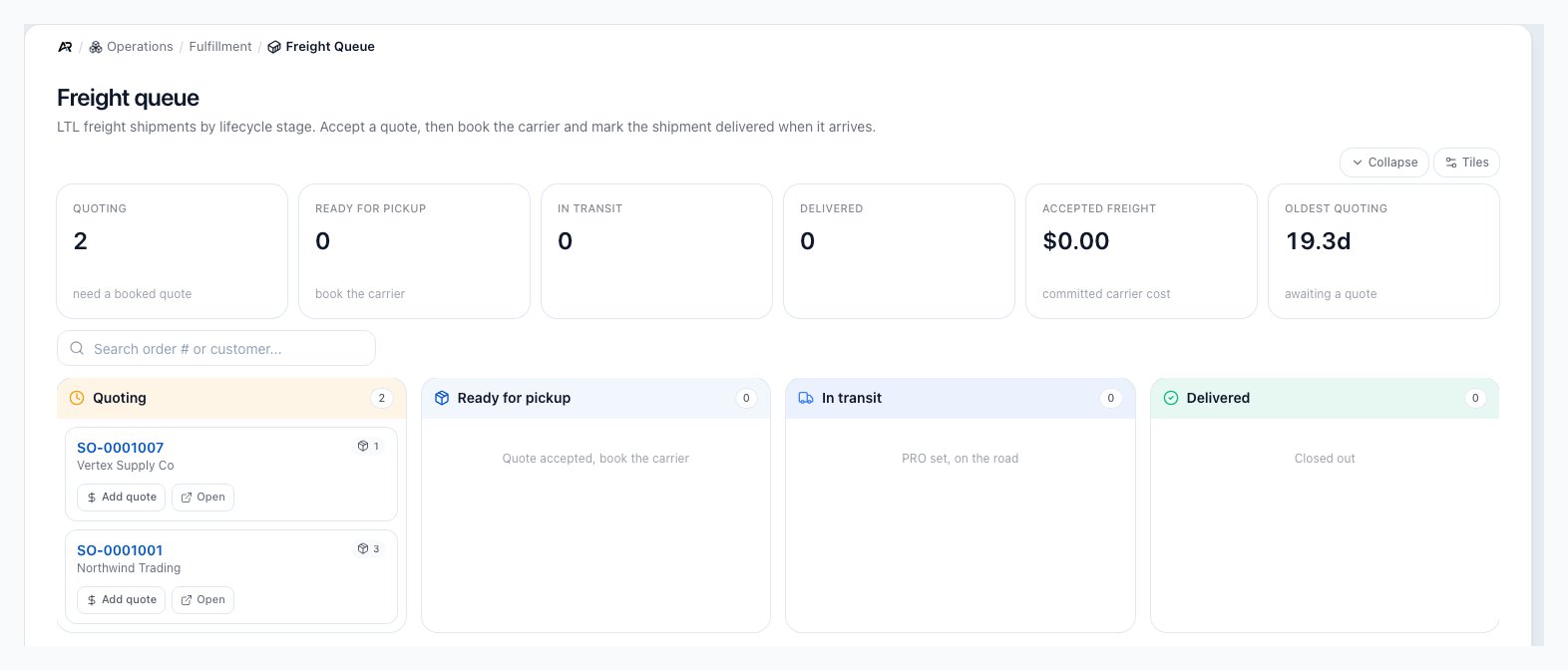
The Freight Queue screen in Operations.
Before You Start
- Permissions: opening the queue needs View Fulfillment. Accept quote and Add quote appear only for users with Edit Orders. Mark delivered appears only for users with Ship Orders. Accepting a quote also reads the order’s quotes, which needs View Orders; without it Arcus refuses the step even though the button shows.
- Which orders appear: sales orders whose shipping mode is freight and that are not cancelled or archived. An order becomes freight from its product setup, a shipping rule, the customer’s preference, or a manual override on the order. See Freight vs Parcel Fulfillment.
- Location: the queue follows the location picked in the header and the locations your user may work at. Orders with no location show at every location.
- Search for Freight Queue in the command palette.
Read the Board
The header reads Freight queue: “LTL freight shipments by lifecycle stage. Accept a quote, then book the carrier and mark the shipment delivered when it arrives.” Six tiles sit above the board:- Quoting: orders that still need a booked quote. The tile is highlighted when any order is waiting.
- Ready for pickup: orders with an accepted quote, waiting for you to book the carrier.
- In transit: orders with a PRO number.
- Delivered: orders marked delivered.
- Accepted freight: the committed carrier cost, the total of the accepted quote amounts across the board.
- Oldest quoting: how many days the oldest order in Quoting has waited. It turns red at five days or more.
- The accepted carrier and its amount, once a quote is accepted.
- How many quotes the order has when none is accepted yet.
- The PRO number, once one is recorded.
Unconfirmed Orders
Freight orders that are still a draft or have expired are not counted on the board or in the tiles. They appear in an Unconfirmed section below the board, with a count and a note that the order must be confirmed before it can be booked. Select the header to collapse or expand it. Each row shows the order number, the customer, the order status, and Open. Confirm the order on its detail page and it moves onto the board.Search
Search matches the order number and the customer name across all four columns and the Unconfirmed section. A column with orders but no matches says “No matches in this stage”. The search stays in the page address, so going Back from an order, refreshing, or sharing the link keeps it, and opening the queue fresh starts with no search.Stages and What Moves an Order
The stage follows the furthest step reached. Accepting a different quote later does not move an order back once it has a PRO number.
Work an Order by Stage
Each card shows one main action for its stage, plus Open.- Quoting, with quotes: select Accept quote. Arcus loads the order’s quotes and picks the most recent one that is not accepted. The Accept this freight quote? dialog names the carrier, its service, and the Carrier cost, and explains: “Sets the order’s shipping charge (carrier cost plus your freight markup). Any other quote on this order is un-accepted. You can accept a different quote later.” Select Accept quote to confirm. Arcus shows “Quote accepted” and the card moves to Ready for pickup. To choose a different quote than the most recent one, open the order and accept it there.
- Quoting, no quotes yet: select Add quote to open the order, then add a manual quote or request freight rates on its freight card.
- Ready for pickup: select Book / PRO to open the order, where you add pallets or crates, print the bill of lading, and record the PRO number once the carrier picks up.
- In transit: when the shipment arrives, select Mark delivered. The Mark freight shipment delivered? dialog asks you to confirm the order has arrived, and says it “Stamps the delivery date on” the freight package (or all of the order’s freight packages) and “Moves the shipment to the Delivered stage. Does not change fulfillment, invoicing, or accounting.” Select Mark delivered. Arcus shows “Freight shipment marked delivered” and the card moves to Delivered.
What Each Action Changes
- Accept quote changes money on the order. The order’s shipping charge becomes the quote’s carrier cost plus your freight markup, sales tax and the order total are recalculated, and any other accepted quote on the order is un-accepted. The carrier cost is also copied onto the order’s freight packages, so shipping margin shows right away.
- Mark delivered only records a delivery date on the order’s freight packages that do not have one. It does not fulfill the order, ship stock, create or change an invoice, post to the ledger, or email the customer. There is no way to undo it from this screen.
- Both actions are recorded in the activity log on the order, and everyone with the queue or the order open sees the change without reloading.
Messages You May See
Common Scenarios
- An order is missing from the board: check the header location, whether the order is a draft or expired (look in Unconfirmed), and whether its shipping mode is still freight.
- Accept quote or Mark delivered is not on the card: your user lacks Edit Orders or Ship Orders, or the order is in a different stage.
- The wrong quote was accepted: open the order and accept the right quote. Accepting another quote un-accepts the first and resets the shipping charge.
Related Articles
Freight vs Parcel Fulfillment
What makes an order freight, and how quotes, pallets, and the bill of lading work on the order.
All Orders
Sales > Orders > All Orders: open the order behind a freight card.
Fulfillment Station
Operations > Fulfillment > Fulfillment Station: pack, label, and fulfill parcel work.
To Pack
Operations > Fulfillment > To Pack: the orders waiting to be packed.
Pick Lists
Operations > Fulfillment > Pick Lists: send staff to the right bins before packing.
No-show Queue
Operations > Fulfillment > No-show queue: pickup orders the customer has not collected.