

Before You Start
Confirm these decisions outside the modal:- The eligible specific product or SKU being built, disassembled, or produced by conversion.
- For a conversion, the eligible specific Source Product being transformed.
- The physical quantity handled or produced by one run.
- The materials and disposition of every line.
- Whether the entity’s configured default overhead is appropriate for this new recipe.
- The planned labor time, rate, and auto-book decision.
- Whether an assembly is an MRP-only phantom subassembly.
1. Create The Draft Header
- Click New BOM.
- Select Assembly, Disassembly, or Conversion.
- Enter a name that tells planners which physical process this recipe represents.
- Complete the type-specific product field:
- Assembly: Product to Build
- Disassembly: Product to Disassemble
- Conversion: Output Product and Source Product
- Enter Output Quantity per Run.
- Click Create BOM.
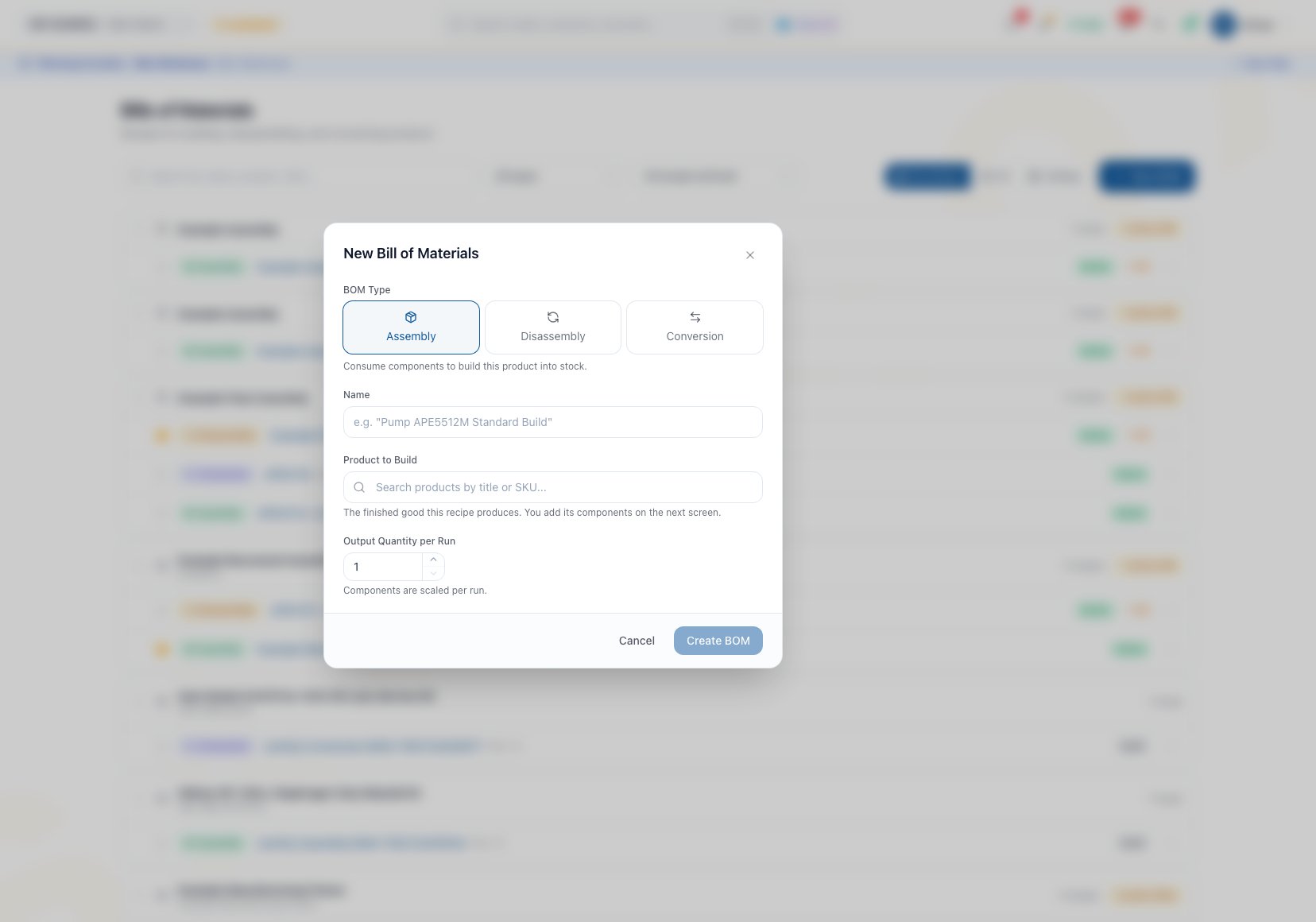
New Bill of Materials captures the recipe type, name, output product, and output quantity before component work begins.
2. Add Material Lines
- In the recipe’s Flat view, click Add Component.
- Select the eligible specific product or SKU.
- Enter Quantity per Run.
- Choose an available Disposition.
- Add optional floor instructions for that line.
- Click Add.
- Repeat until the physical recipe is complete.
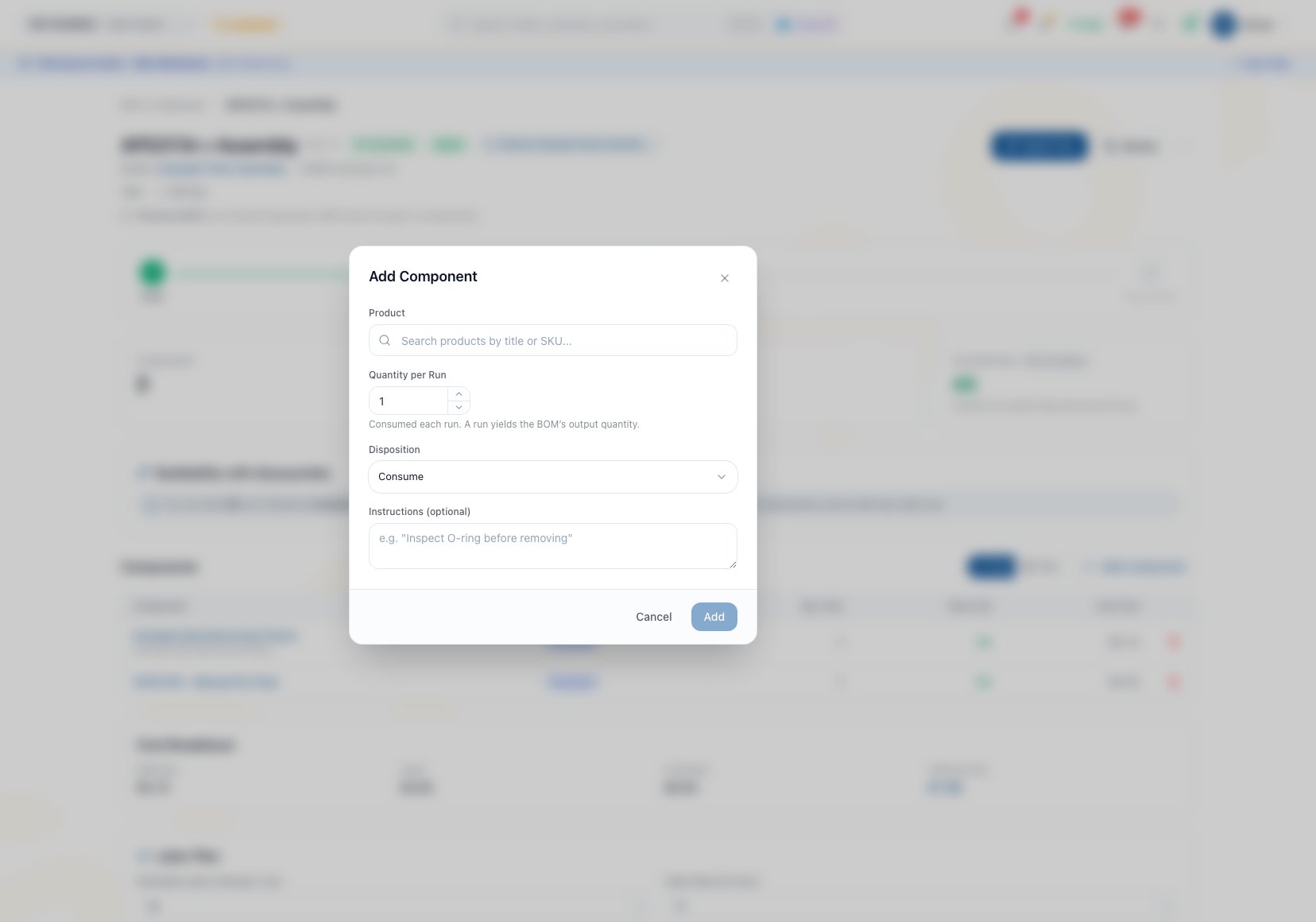
Add Component collects a product, quantity per run, disposition, and optional floor instruction. Add remains unavailable until a product is selected.
Adding the same product and variant again updates that existing line and adds the new quantity to it. It does not create a second independent row, and it keeps the existing line’s first disposition. Do not try to model one item in multiple dispositions by adding it again. Check the resulting total and retained disposition before continuing.
Use Disassembly And Conversion before choosing teardown or conversion dispositions. Add and Consume currently share the same material and accounting treatment: both pull the line from inventory into work-order material cost. The distinction records floor intent, not a different cost path.
Correct A Material Line
The current component table does not provide a complete inline editor for product, quantity, disposition, or instruction. On a Draft:- Click Remove on the incorrect line.
- Click Add Component.
- Re-enter the correct product, quantity per run, disposition, and instruction.
- Verify the resulting line and cost.
3. Review Labor, Cost, And Instructions
- Enter estimated labor minutes per run and the planned hourly rate.
- Turn on Auto-book labor only when completion should book that planned labor automatically.
- Review material, labor, and overhead in the cost summary.
- Confirm every component quantity and instruction.
- Attach the controlled SOP, drawing, or specification in Documents.
4. Set Assembly-Only Phantom Behavior
Use Phantom BOM only on an assembly that should disappear as an intermediate level during MRP explosion. MRP then plans its leaf components instead of emitting the phantom product as a separate requirement. Phantom status does not move inventory, create work orders, or make a Draft usable. It affects MRP only. It also does not carry forward automatically when a revision is created.5. Verify And Activate
Use this final gate:- Type, source, output, and output quantity describe the physical job.
- At least one total material line exists. On the current BOM page, Activate remains unavailable with no lines, including for a Conversion. This is a page control, not a two-line conversion rule.
- Quantities are per run, not accidentally per finished unit.
- Each disposition matches the floor outcome.
- Disassembly return-cost percentages are valid.
- Labor and auto-book choices cannot double count normal work.
- Cost and entity-wide availability have been reviewed.
- Current instructions are attached.
- Phantom is used only for an intentional assembly planning level.
Common Scenario: A Four-Unit Assembly Run
A production cell builds four finished units each cycle.- Create an Assembly BOM with Output Quantity per Run set to 4.
- Enter each component’s total quantity for the four-unit cycle.
- Add the cell setup instruction to the relevant component or attach the current SOP.
- Enter labor for the whole run.
- Review Can Build Now as finished output, not as run count.
- Activate only after a second reviewer confirms the per-run math.
Troubleshooting And Refusals
- Create BOM is unavailable: Confirm you have create permission.
- Create BOM stays disabled: Enter a name, select the required product, and for Conversion select both output and source products.
- A product is missing: Select an eligible specific product or variant. Unsupported product types are intentionally excluded.
- Activate is unavailable: On the BOM page, add at least one material line and confirm you have edit permission.
- A duplicate component changed the quantity: Arcus combines the quantity with the existing product and variant line and retains that line’s first disposition. Remove and re-add the line when the physical disposition is wrong; do not add the same item again to represent a second outcome.
- The wrong source, output, quantity, or overhead was saved: Do not activate the recipe. Create a correct Draft because those fields are not currently editable on the detail page.
- Cost looks unexpected: Check current recorded component costs, labor, overhead configuration, return-cost allocation, and quantity-per-run math.
- The action still does not appear after creation: The BOM must be Active, and the user needs create permission for production work.
FAQ
Why does every new BOM start as Draft?
Why does every new BOM start as Draft?
Draft keeps an incomplete recipe out of normal production and MRP while materials, quantities, cost, labor, and instructions are reviewed.
Can I change Output Quantity per Run after creation?
Can I change Output Quantity per Run after creation?
Not from the current BOM detail page. If it is wrong, create a correct Draft and retire the mistaken unused recipe through the normal lifecycle.
Are component quantities per output unit?
Are component quantities per output unit?
No. They are per run. Compare every line to Output Quantity per Run before activation.
Does Activate also set the BOM as default?
Does Activate also set the BOM as default?
No. Status and default are separate. Set the approved Active recipe as default only when MRP should normally use it.
Related Guides
Bills Of Materials
Choose the recipe type and find the correct product revision.
Disassembly And Conversion
Plan source products, dispositions, recovery cost, and conversion outcomes.
BOM Documents
Attach the work instructions and specifications operators need.
BOM Lifecycle
Activate, revise, compare, default, archive, delete, and restore recipes.
Buildability
Check current availability before creating production work.
Work Orders
Turn an Active BOM into controlled floor work.