

Use wave picking when several orders should be picked together before operators pack each order. A wave creates one pick list with consolidated item quantities, then opens the batch packing workflow for the orders in that wave.
Before You Build A Wave
Confirm these details before creating the wave:- You are working in the correct entity and warehouse location.
- Orders are ready for the status filter you plan to use, such as unfulfilled.
- Inventory, holds, and order review work are clear enough for the selected orders to be picked.
- Operators know whether the wave should be grouped by location, carrier, same SKU, or a custom strategy.

Pick Lists is the warehouse queue that receives grouped picking work after a wave is created.
Build The Wave
- Open the wave builder from fulfillment.
- Enter a wave name that operators can recognize on the floor.
- Choose the grouping strategy.
- Set the order status filter.
- Set the maximum order count for the wave.
- Create the wave.

The wave builder controls the name, grouping strategy, order status filter, and maximum order count before the wave is created.
What Arcus Creates
When the wave is created, Arcus:- Selects eligible orders for the active location.
- Creates a draft wave pick list.
- Adds the selected orders to the wave.
- Consolidates pick quantities by SKU, bin, and location so operators can pick efficiently.
- Opens the batch packing page for the new wave.
Work The Wave
After the wave exists, operators should pick the consolidated list, then open each order from batch packing.- Pick the items listed for the wave.
- Keep substitutions, shortages, and exceptions visible to the lead before packing.
- Open the order card from batch packing.
- Pack the order and confirm package contents.
- Get rates and purchase labels when the order is ready for parcel shipment.
- Mark packages fulfilled only after labels and physical packages are correct.
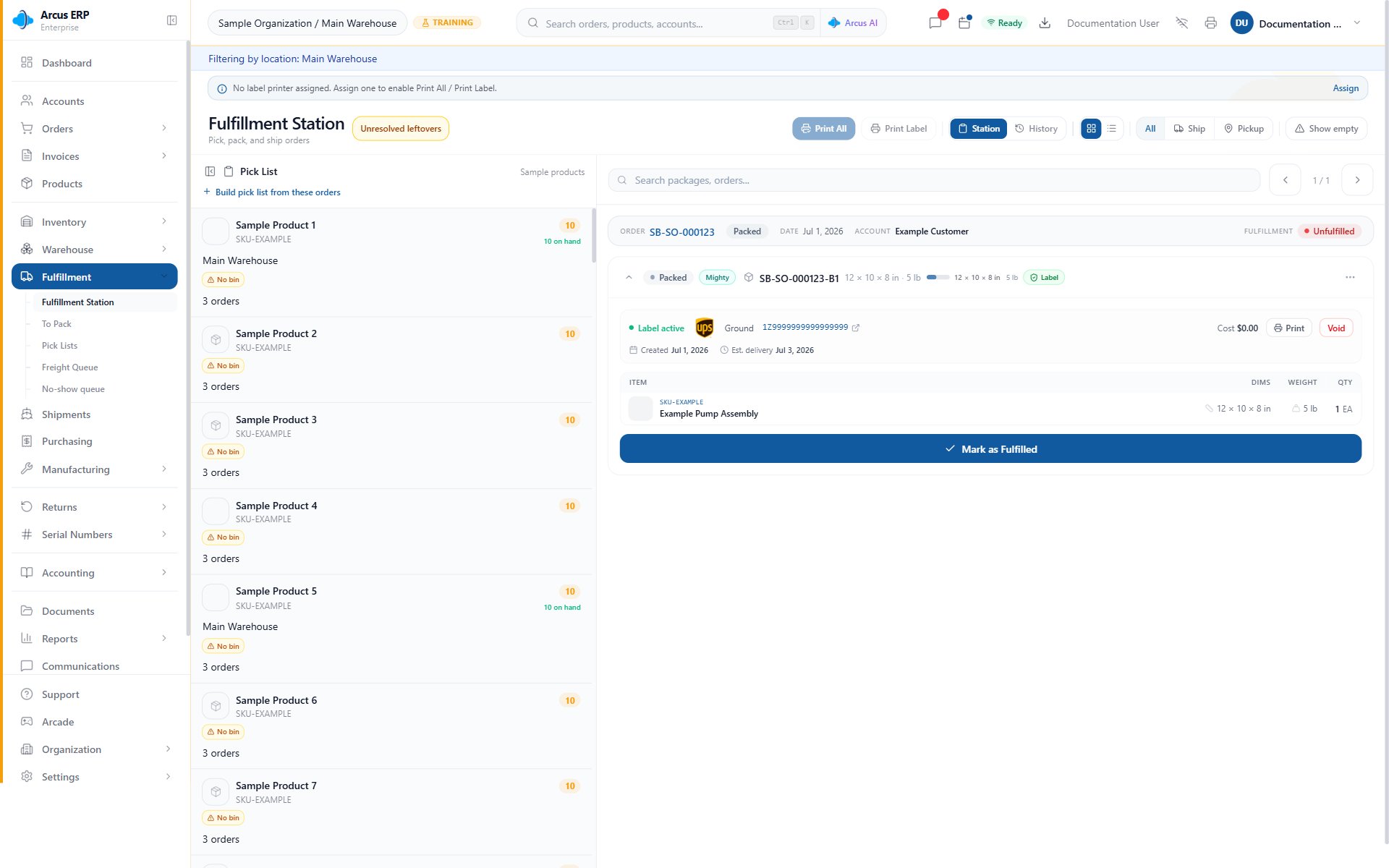
The fulfillment station is where operators confirm package contents, print labels, and complete package fulfillment after picking.
Wave Statuses
Wave status helps supervisors understand where the group is in the workflow:- Draft: the wave has been created and is ready for warehouse control.
- Released: the wave can be worked by pack sessions.
- Packing: at least one order in the wave is being packed.
- Complete: every order pack session in the wave is complete.
Common Blocks
- No eligible orders: check the active location, order status filter, holds, inventory availability, and order readiness.
- Wrong orders were selected: reduce the maximum order count, use a narrower status filter, or split work into smaller waves.
- Operators cannot pack from the wave: confirm the wave has been released and that the user has fulfillment access for the location.
- Wave does not close: review each order card in batch packing. The wave remains open until all pack sessions are complete.
- Labels are missing at the end: labels are purchased per package during packing. Batch label printing only works after labels exist.
Related Articles
Batch Packing
Open each order from a wave and finish package work.
Fulfillment Station
Use package queues, printer controls, and package detail in one workspace.
Pack with Mighty
Pack orders, confirm items, buy labels, and handle packing exceptions.
Shipping Labels
Get rates, buy labels, print labels, and recover from label errors.
Warehouse Overview
Review warehouse work queues and location scoped inventory.
Order Fulfillment
Understand order readiness, holds, and fulfillment status.