

Receiving is the dock workflow for stock entering Arcus. Open it at Operations > Warehouse > Receiving to receive purchase orders, work the returns queues, and record stock that arrived with no purchase order or return behind it. The other Warehouse screens, such as Bins, Cycle Counts, Transfers, Quarantine, and Walk-in Pack, sit beside it under Operations > Warehouse.
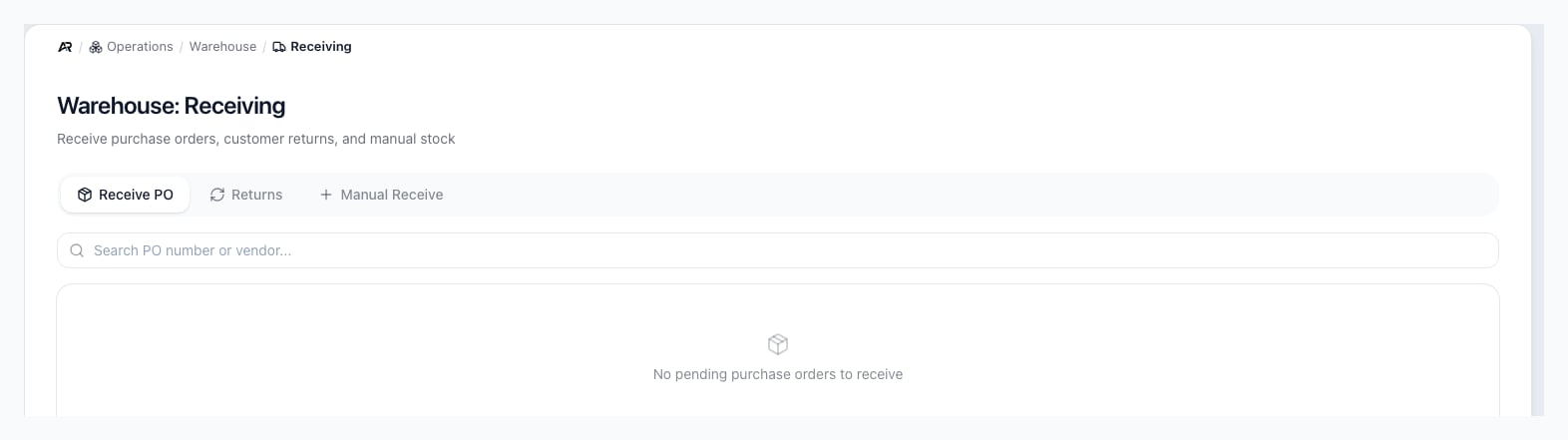
Receiving opens on Receive PO, with the three modes across the top and a search box under them.
Before You Start
- Permissions: opening Receiving and its lists needs View Inventory. Receiving against a purchase order also needs View Purchasing to list the orders. Manual Receive needs Receive Inventory, View Products to find the product, and View Settings to load the location list. On the Returns mode, the Receive button needs Receive Returns, Inspect needs Inspect Returns, and Put away needs Process Returns. A button you are not allowed to use is dimmed or replaced by a short note.
- Location: pick a location in the header before you receive when you are working one warehouse. The purchase order list, the returns queues, and the Quarantine queue show only that location, and the receive window preselects it when it can receive stock. If your user is limited to certain locations, you see only those.
- Search for Receiving in the command palette.
- A link to Receiving can open straight on the Returns mode or on Manual Receive. An older link to the Warehouse returns tab opens the Returns mode too.
Receiving Modes
The mode switch at the top has three modes:- Receive PO: receive open or processing purchase orders that still have quantity remaining.
- Returns: work the customer returns the dock is waiting on or holding.
- Manual Receive: add inventory that arrived without a PO or RMA, with a reason, location, unit cost, and GL offset account.
Receive a Purchase Order
- Go to Operations > Warehouse > Receiving.
- Select Receive PO.
- Search by PO number or vendor. Each row shows the PO number, the vendor, the number of items, and the PO’s status. Select the PO number to open the purchase order.
- Click Receive on the PO row. Arcus opens the PO detail receiving tab. When no order is waiting, the list says “No pending purchase orders to receive”.
- Click Receive Items.
- Select the Receive to Location. Only locations marked as receiving locations are shown.
- If bins are enabled, select a bin or leave the bin blank to use the default receiving behavior.
- Enter good quantity, damaged quantity, and serial numbers when required.
- Choose whether to Create vendor bill automatically.
- Click Receive Items.
Damaged Units on PO Receipts
The PO receive modal has separate fields for Good Qty and Damaged. Damaged units count against the PO receive cap but do not enter normal sellable inventory. When damaged quantity is greater than zero:- Select a disposition: Quarantine (hold for inspection), Return to vendor, or Write off.
- Enter damage notes. The receive action is blocked without notes.
- Optionally attach up to five damage photos on the damaged line.
- Keep good quantity and damaged quantity within the over-receipt cap.
Over-Receipt and Serial Blocks
Arcus blocks PO receipts when:- The PO is not found for the current entity.
- The PO is rejected or still awaiting required approval.
- No receiving location is selected.
- A required unit cost is missing or zero.
- Good quantity plus damaged quantity exceeds the configured over-receipt tolerance.
- A serialized line does not have exactly one captured serial per good unit.
- A serial number is duplicated on the same receipt.
Work the Returns Queues
The Returns mode shows the customer returns (RMAs) the dock is waiting on, in up to three sections. Each section is a table with its own page controls, and each row starts with the RMA number, which opens the return, and the customer. The queue reads every open return at your location, so the counts in the section titles are complete.
The waiting time turns amber, then red with a warning icon, as a return ages; hover over it to see how it was measured. Within a section the oldest waiting return is first, and when you search by an exact RMA number that return jumps to the top.
A row that cannot be received says why instead of showing Receive: “No units on this RMA. The office adds lines or voids it.” or “Refund only: no goods come back.” If you lack the permission for the next step, the note reads “Waiting on the office to grade” or “Waiting on the office to put away”, with the unit count.
Returns that came over from a previous system are hidden from Expected so they do not bury today’s work. When there are some, a Show migrated authorizations checkbox with their count appears beside the Expected title.
Other messages:
- “No returns are expected.” (or “No returns are expected at” your location, with “Returns for other warehouses show when you switch location.”) when Expected is empty. A search that finds nothing says “No expected returns match” followed by your search, and “Nothing is waiting in Holding” is the empty In Holding message.
- “The returns queue could not be loaded. Refresh the page; if it keeps failing, tell the office.”
- A yellow note when one status holds more than 2,000 returns: “More than 2,000 returns share one status here, so not every one is listed. Search by RMA number or customer to find a specific return.”
Manual Receive
Use Manual Receive only when there is no PO and no RMA behind the inventory event. Examples include opening balance cleanup, found stock, customer-owned conversion stock, or another approved non-PO receipt. The panel is titled Manual Inventory Receive.- Search the Product by name or part number (type at least two characters) and select it. Products that do not track inventory, and kits, cannot be received this way.
- Choose the Location. Only receiving locations are listed, and your default one is preselected.
- Enter the Quantity. It must be above zero.
- Optionally enter the Unit Cost.
- Choose the Reason: Found inventory, Initial stocking, Adjustment (in), Donation, or Opening balance.
- Choose the GL Offset Account. The list groups eligible accounts by type: Asset, Liability, Equity, Revenue, and Other Income. Expense and cost of goods sold accounts are not offered, because they would post the entry backwards. If it reads No eligible accounts, your chart of accounts has none of those types set up.
- Optionally add Notes. They are copied onto the journal entry description.
- Select Receive Inventory. The button stays dimmed until the product, location, quantity, reason, and offset account are all filled in.
Quarantine Follow-Up
Use Warehouse > Quarantine for damaged PO receipt lines that are still pending inspection. The queue shows product, PO, receipt, vendor, damaged quantity, value, condition, status, and days in quarantine. Resolutions are:- Approve restock: releases the units from quarantine and restocks them at the receiving location default bin when available.
- Return to vendor: records the vendor return decision. If the line was originally quarantined, follow up in the vendor return workflow as needed.
- Write off: releases quarantine and posts the write-off entry.
Accounting Impact
PO receiving creates the purchase receipt and inventory movement for good units. It also supports the GRNI accrual and optional vendor bill creation, depending on settings and the receive modal choice. Manual receive posts an inventory movement. If unit cost is positive, it also posts a balanced journal entry using the selected offset account. If unit cost is zero, inventory quantity can move without a journal entry because there is no value to debit or credit. The receipt is recorded in the activity log, and other users looking at stock see the change without refreshing. Receiving a return into Holding does not make the units sellable. They become stock again only when someone puts them away as a restock. Damaged quarantine does not make the units normal sellable stock. Write-off and vendor return outcomes affect inventory and accounting based on the selected disposition.Troubleshooting
No pending purchase orders appear: confirm the PO is open or processing, has remaining quantity, and is not blocked by approval state. Receive Items is disabled: check whether all lines are already received or whether serialized lines still need required serial scans. Unit cost is required: update the PO line cost or provide a valid unit cost before receiving. Cannot receive more than cap: good quantity plus damaged quantity is above the configured tolerance. Bin is missing: confirm bins are enabled for the entity and that the bin belongs to the selected receiving location. A bin or location that does not belong to your company is answered as not found (“No bin with this id exists in this entity.” or “No location with this id exists in this entity.”), the same as one that does not exist. A return is in the queue but has no Receive button: read the note in its Next step column. It is waiting on approval, has no units, is refund only, or you do not have Receive Returns. A return is not in the queue at all: it may belong to another location. Change the header location, or clear it, and search by RMA number. Returns that came over from a previous system are behind the Show migrated authorizations checkbox. Damaged line will not submit: enter damage notes and choose a disposition for every line with damaged quantity.Related Articles
Receive Against a Purchase Order
Purchasing-focused receiving guidance for PO line quantities, costs, and vendor bills.
Putaway
Move received or held stock to the correct storage, quarantine, or write-off location.
Receiving Customer Returns
Receive RMAs and route returned items through inspection and disposition.
Bin Setup and Management
Configure bins used by receiving, storage, picking, staging, and shipping.
3-Way Match
Match purchase orders, receipts, and vendor bills before payment.
Vendor Returns
Send defective or rejected stock back to suppliers for credit or replacement.
Customer Returns
Operations > Returns > Customer Returns: approve, receive, inspect, and settle customer returns.
Cycle Counts
Operations > Warehouse > Cycle Counts: count bins and correct stock after receiving errors.