

Printer fallback is for printing an existing label or document another way. It should not be used to replace label void, relabel, or repack decisions.
Start With The Label State
Before troubleshooting the printer, confirm the label is still correct.- If the label is correct, reprint or use PDF fallback.
- If the package, address, carrier, service, or contents are wrong, void and relabel instead.
- If the physical package split is wrong, resolve repack and any old label voids first.
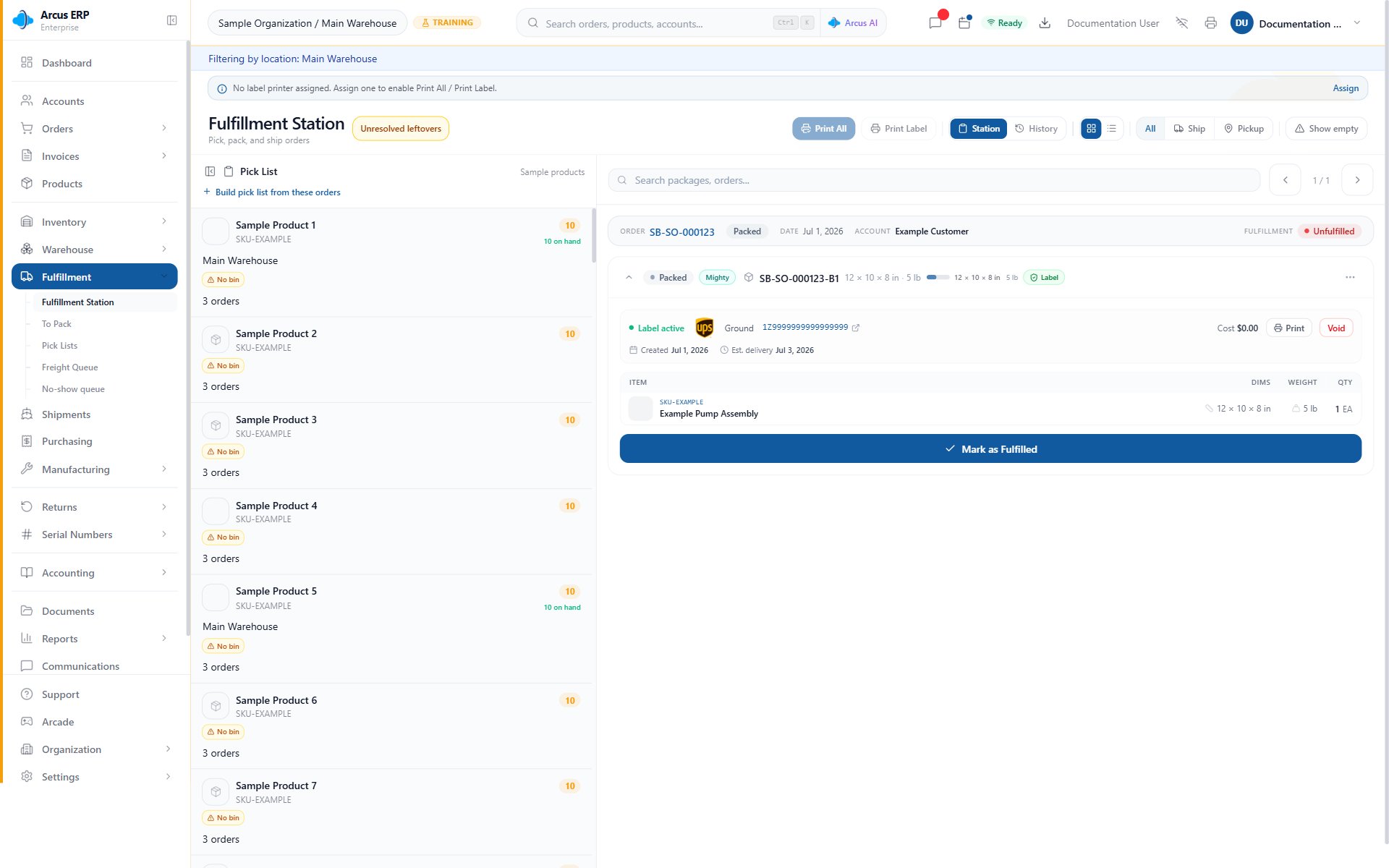
The Fulfillment Station includes printer controls near package work so operators can choose the right label or document printer before printing.
Standard Print Path
- Confirm the selected package has an active label or document.
- Choose the correct label or document printer.
- Confirm the printer is online and loaded with the right stock.
- Print the label, packing slip, or packet.
- Verify the printed document before the package leaves the station.

Printing preferences decide which printer receives labels and documents for each user.
Use PDF Fallback
Use PDF fallback when PrintNode is not available but the label or document file exists.- Open the package or shipment.
- Open the label PDF, packing slip, or packet.
- Print from the browser or workstation print dialog.
- Confirm scaling and stock size before applying the label.
Recover From An Offline Printer
Arcus checks printer state before sending a PrintNode job. If the selected printer is offline, Arcus blocks the job and keeps the label available.- Confirm the printer has power, network or USB connection, and label stock.
- Confirm the PrintNode desktop client is running.
- Refresh the printer list if needed.
- Retry the print job.
- Use PDF fallback if the package must move before the printer is restored.

Entity printing settings help admins review connection state, printer availability, defaults, and recent print jobs.
Reprint A Damaged Or Missing Label
Use reprint when the label is valid but the first printed copy failed. Good reasons to reprint:- Label paper jammed.
- Label printed too light to scan.
- Label was damaged before shipment.
- Operator printed to the wrong physical printer but the label itself is still correct.
Category And Stock Checks
If the selected printer has product category assignments, the station queue can focus on matching packages. This helps route work to the right lane, but it can make a package appear missing if the wrong printer is selected. Check these items before assuming the package is gone:- Active location
- Search and pickup filters
- Selected printer category assignments
- Whether the package is already fulfilled
- Whether the package has the label or document you are trying to print
Common Blocks
- No label printer selected: choose a label printer in the station or user preferences.
- Printer is offline: restart the printer or PrintNode client, then retry.
- Wrong stock printed: reprint the same label on the correct printer. Do not void a correct label.
- Label PDF is missing: confirm a label was purchased for the package.
- Package missing from queue: check active location, filters, printer categories, and fulfillment status.
- Label data is wrong: stop printing, void the label when allowed, correct the package, and buy a replacement.
Related Articles
Printing Setup (PrintNode)
Connect PrintNode, assign printers, and review offline print jobs.
Label Reprint, Void, and Repack Recovery
Decide when to reprint, void, or repack after label work starts.
Shipping Labels
Get rates, buy labels, print labels, and understand void outcomes.
Fulfillment Station
Use package queues, printer controls, and station print actions.
Pack with Mighty
Pack packages and resolve packing blockers before fulfillment.
Shipments and Rate Preview
Find shipped package tracking and label PDFs.