

Use parcel fulfillment for packages that can ship through a parcel carrier label. Use freight fulfillment when the order needs pallet, crate, LTL, or manual carrier handling before shipment.
Where The Decision Appears
Arcus shows the resolved shipping mode on order and fulfillment surfaces. The mode can be parcel or freight. A freight order uses freight package, quote, and bill of lading work instead of the standard parcel label purchase flow.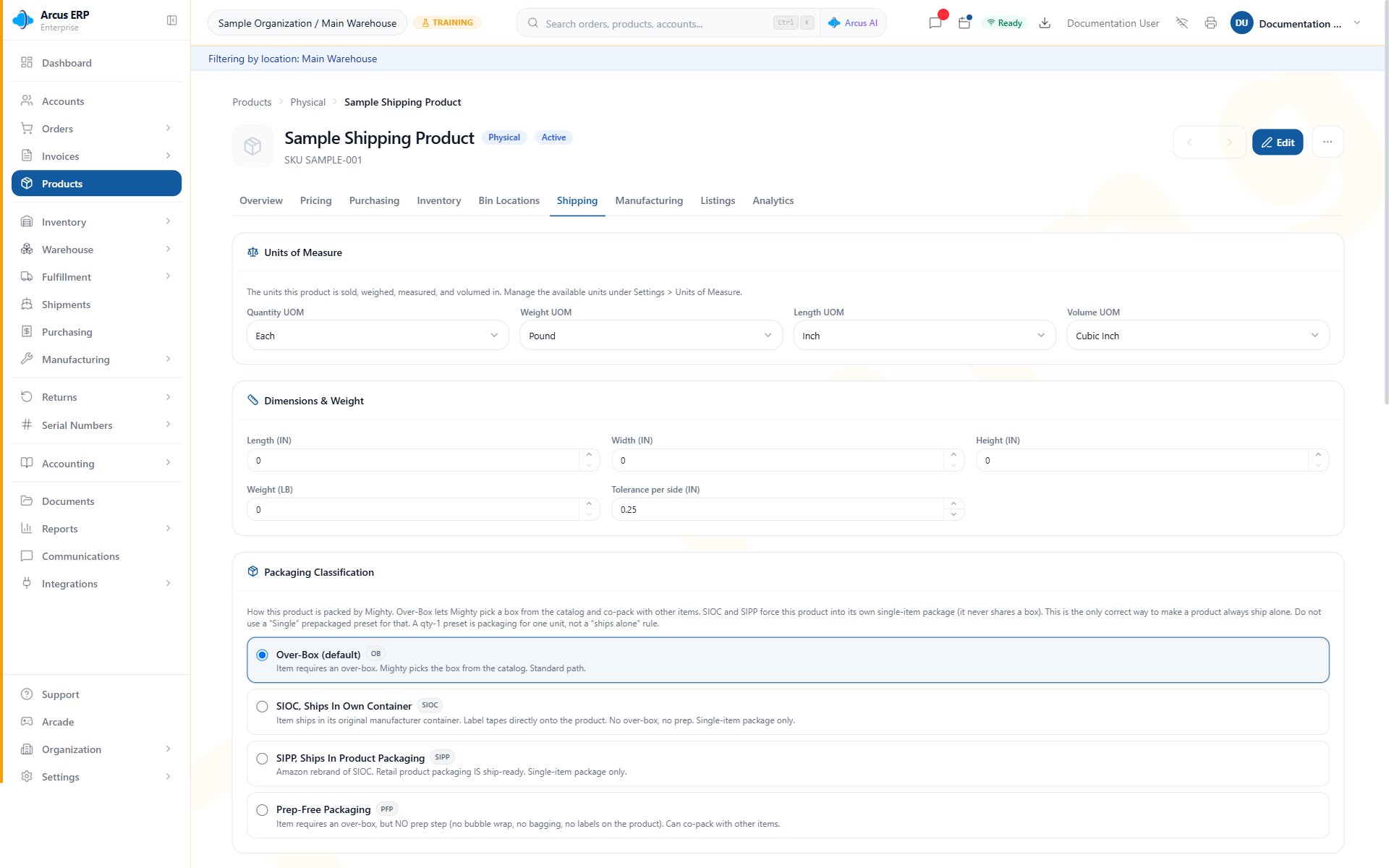
Product shipping setup shows units of measure, dimensions and weight, and packaging classification.
What Makes An Order Freight
Freight mode can come from product setup, shipping rules, customer preference, account preference, pallet or weight logic, or a manual override by a user with order edit permission.- Product setup: items can be marked as ships freight and can carry a freight class.
- Shipping rules: rules can force freight, force parcel, or suggest freight based on order and delivery conditions.
- Customer or account preference: the order can follow customer level shipping requirements.
- Package reality: pallet count, total weight, dimensions, hazmat status, and accessorials can make parcel labels inappropriate.
- Manual override: authorized users can flip an order between parcel and freight and must enter a reason.

Shipping rules can force or suggest freight when order, product, account, or delivery conditions match.
Use Parcel Fulfillment
Use parcel fulfillment when the package can be rated, labeled, printed, and tracked through the normal package workflow.- Confirm the order is ready to pack.
- Confirm package contents, weight, dimensions, and ship-from location.
- Get rates from the package workflow.
- Purchase the selected carrier label.
- Print the label and packing documents.
- Mark the package fulfilled only after the physical package is ready.
Use Freight Fulfillment
Use freight fulfillment when the shipment needs pallet, crate, custom freight package, LTL carrier quote, PRO number, accessorials, or a bill of lading.- Review the order shipping mode and reason.
- Add a freight package for each pallet, crate, or custom freight unit.
- Enter dimensions, total weight, freight class, pallet count, declared value, hazmat details, and accessorials when they apply.
- Add freight quotes manually or request available freight rates when the account supports them.
- Accept the quote the team will use.
- Generate the bill of lading after a quote is accepted.
- Record carrier and PRO details when they are available.
Work The Freight Queue
The freight queue groups freight orders by lifecycle so the team can see what needs action:- Quoting: freight packages exist or the order is freight, but no quote has been accepted.
- Ready for pickup: a quote is accepted and the team is waiting for the carrier pickup step.
- In transit: the shipment has carrier movement details such as a PRO number.
- Delivered: the freight shipment is closed out.
Add And Accept Quotes
Freight quotes can be entered manually, and eligible accounts can request available freight rates from Shippo. The accepted quote is the quote the team plans to use for pickup and paperwork. Accepted quotes should stay with the order. If the team changes carrier or amount, accept the replacement quote first, then keep the order history clear for audit.Override The Mode
Users with order edit permission can override the mode. Use this only when the resolved mode does not match the real shipment.- Choose Parcel when the order can safely use standard package labels.
- Choose Freight (LTL) when palletized, oversized, heavy, hazmat, accessorial, or customer delivery requirements make freight the right path.
- Enter a clear reason. The reason is visible for later review.
- Recheck quotes, labels, and package work after the override because the downstream workflow changes.
Audit Freight Decisions
Use the Freight Classification Audit report when you need to review many decisions at once. It helps identify which orders were classified as parcel or freight, which rule matched, and whether manual overrides are being used.
Freight Classification Audit reviews parcel and freight decisions across orders so operations can tune rules and investigate exceptions.
Common Blocks
- Order is freight but should be parcel: review product ships freight, shipping rules, account preference, and manual override history.
- Order is parcel but should be freight: review freight rule coverage, product freight setup, customer preference, and pallet requirements.
- Add pallet is disabled: confirm the order still has unpacked items available for freight packaging.
- BOL cannot be generated: accept a freight quote first.
- No freight quotes appear: add a manual quote, confirm Shippo freight availability for the account, or use the carrier quote process outside Arcus and record it.
- Quote should not be deleted: accepted quotes should stay with the order. Accept a different quote first when the team needs to change the selected carrier.
- Shipment needs parcel tracking: use the package label workflow for parcel packages, not the freight card.
Related Articles
Pack with Mighty
Use package cards, suggested boxes, and serial capture for parcel packing.
Shipping Labels
Buy labels, void labels, track shipments, and handle carrier errors.
Address and Customs Blocks
Resolve parcel address and customs blockers before buying labels.
Shipments and Rate Preview
Track packages and preview parcel rates without buying labels.
Fulfillment Station
Work parcel package queues and printer controls.
Shipping and Fulfillment Setup
Configure Shippo, shipping rules, freight routing, Arcus Mighty, scanners, and PrintNode printing.