

Address and customs blocks protect the team from buying labels that carriers may reject. Fix the data, then retry rates from the package.
Where Blocks Appear
Address and customs blocks usually appear when an operator chooses Get Rates or tries to buy a label. The package stays available for correction, and no label is purchased until the block is resolved.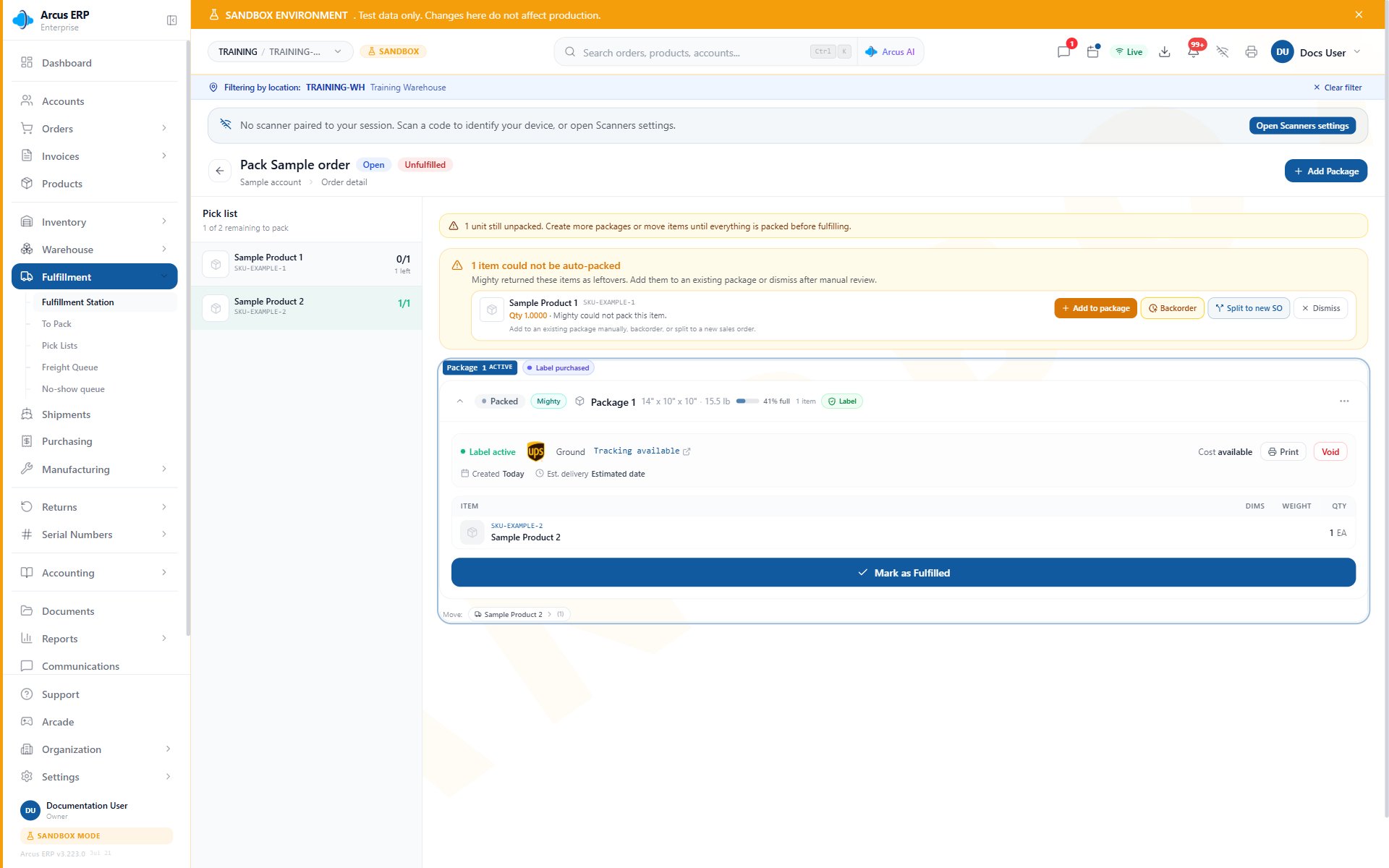
Package detail shows an active label, packed items, the Leftovers panel, and Mark as Fulfilled.
Fix An Address Validation Block
Arcus can ask for address validation when the shipping address has not been validated recently, the carrier returns a suggested correction, or required address fields are missing.- Review the address validation modal.
- Compare the carrier suggestion with the customer address.
- Accept the suggestion when it matches the intended destination.
- Edit the customer or order address when the suggestion is wrong or incomplete.
- Re-run validation when needed.
- Retry rates from the package.
Fix Missing Required Address Fields
If the carrier cannot rate the package because required fields are missing, add the missing data before retrying.- Street address
- City
- State or province when the destination uses one
- Postal code when the destination uses one
- Country
- Ship-from location or entity shipping origin
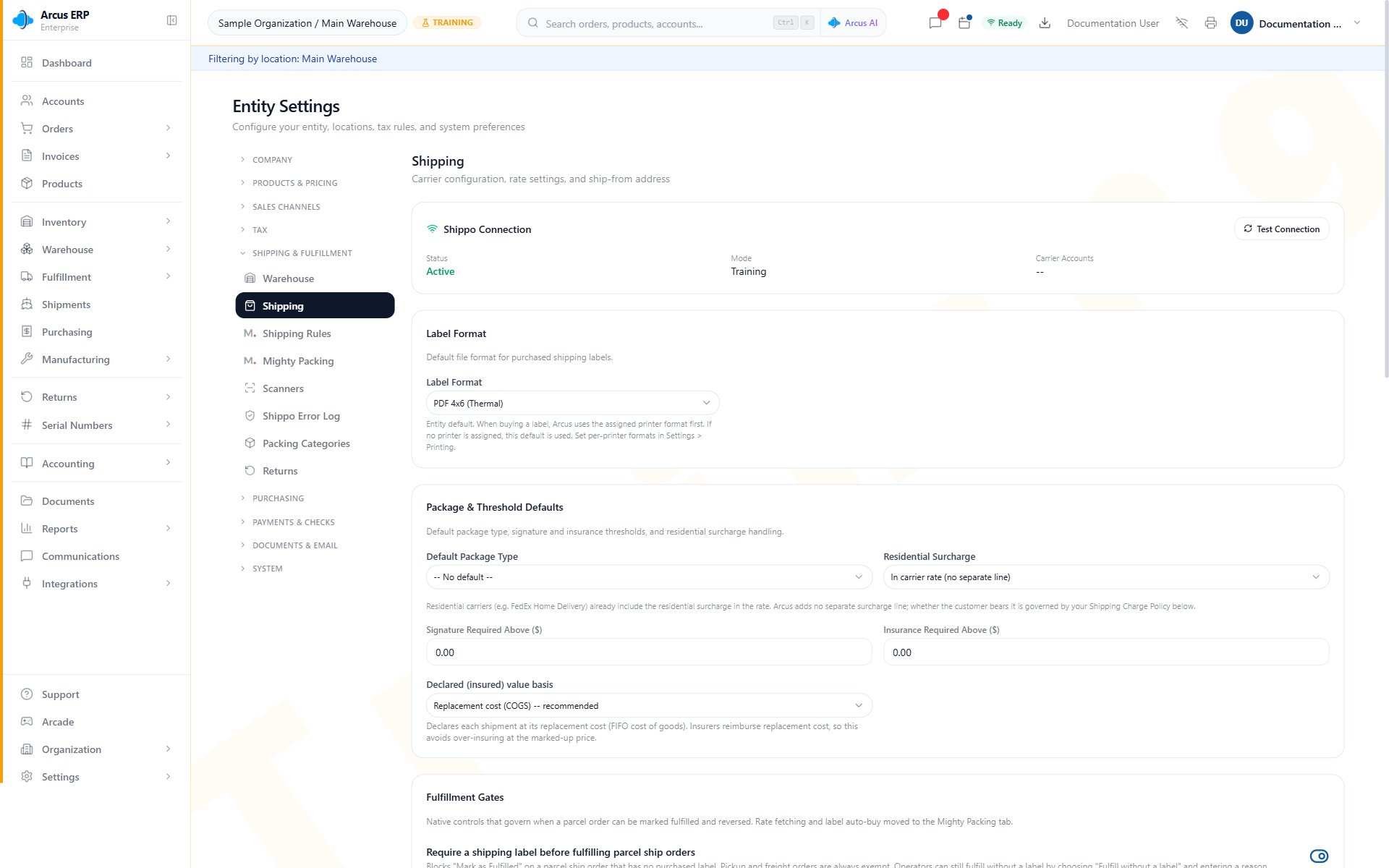
Shipping settings show the Shippo connection, label format, package and threshold defaults, and fulfillment gates.
Fix International Customs Blocks
International parcel labels need customs data for every physical product in the package. If any physical line is missing required customs fields, Arcus stops rate or label work and reports the missing fields. For each product in the international shipment:- Open the product.
- Go to the shipping section.
- Add the HS code.
- Add the country of origin.
- Add a customs description.
- Add customs value when your process requires it.
- Save the product.
- Retry rates from the package.
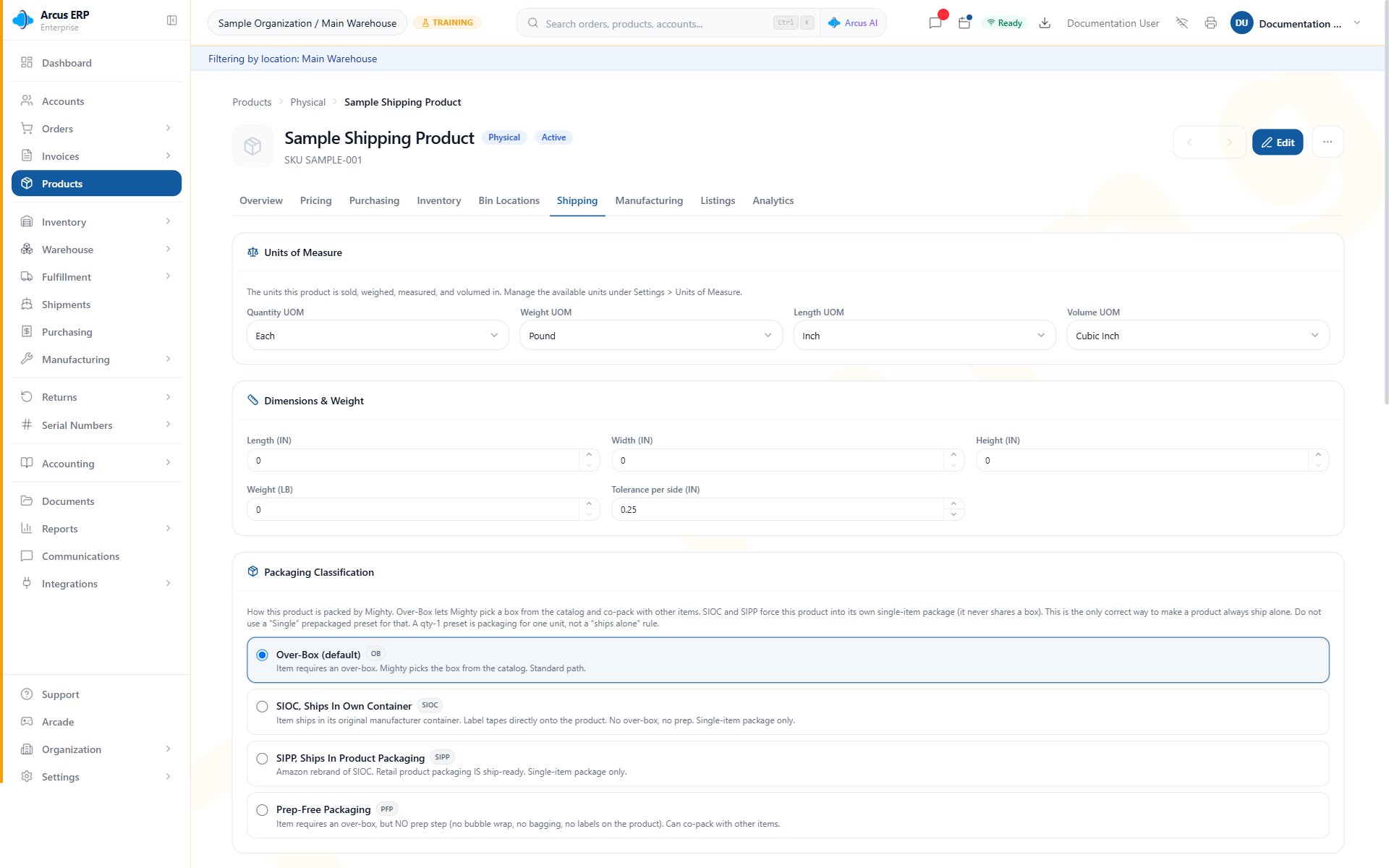
Product shipping setup shows units of measure, dimensions and weight, and packaging classification.
What Changes After You Fix It
- Address corrections can update the account or order shipping address.
- A fresh validation can be reused until Arcus asks for validation again.
- Product customs fields affect future international shipments that include the product.
- Rate and label work can continue only after the package passes the required checks.
Common Blocks
- Carrier suggestion looks wrong: do not accept it blindly. Edit the address manually and validate again.
- Address validates but rates still fail: check ship-from setup, package dimensions, weight, carrier availability, and shipping rules.
- International order still fails: confirm every physical product in every package has HS code, country of origin, and customs description.
- Domestic order asks for customs: confirm ship-from and destination countries are correct.
- Local pickup order asks for rates: switch to the pickup workflow instead of buying a parcel label.
- Freight order needs paperwork: use freight package, quote, and BOL work instead of parcel labels.
Related Articles
Shipping Labels
Get rates, buy labels, print labels, and recover from label issues.
Pack with Mighty
Confirm package contents and resolve rate blockers during packing.
Shipments and Rate Preview
Preview rates without purchasing labels and track shipped packages.
Freight vs Parcel Fulfillment
Use freight handling when parcel labels are not the right path.
Shipping and Fulfillment Setup
Configure Shippo, shipping rules, origins, and fulfillment defaults.
Product Setup
Maintain product dimensions, weights, and customs data.