

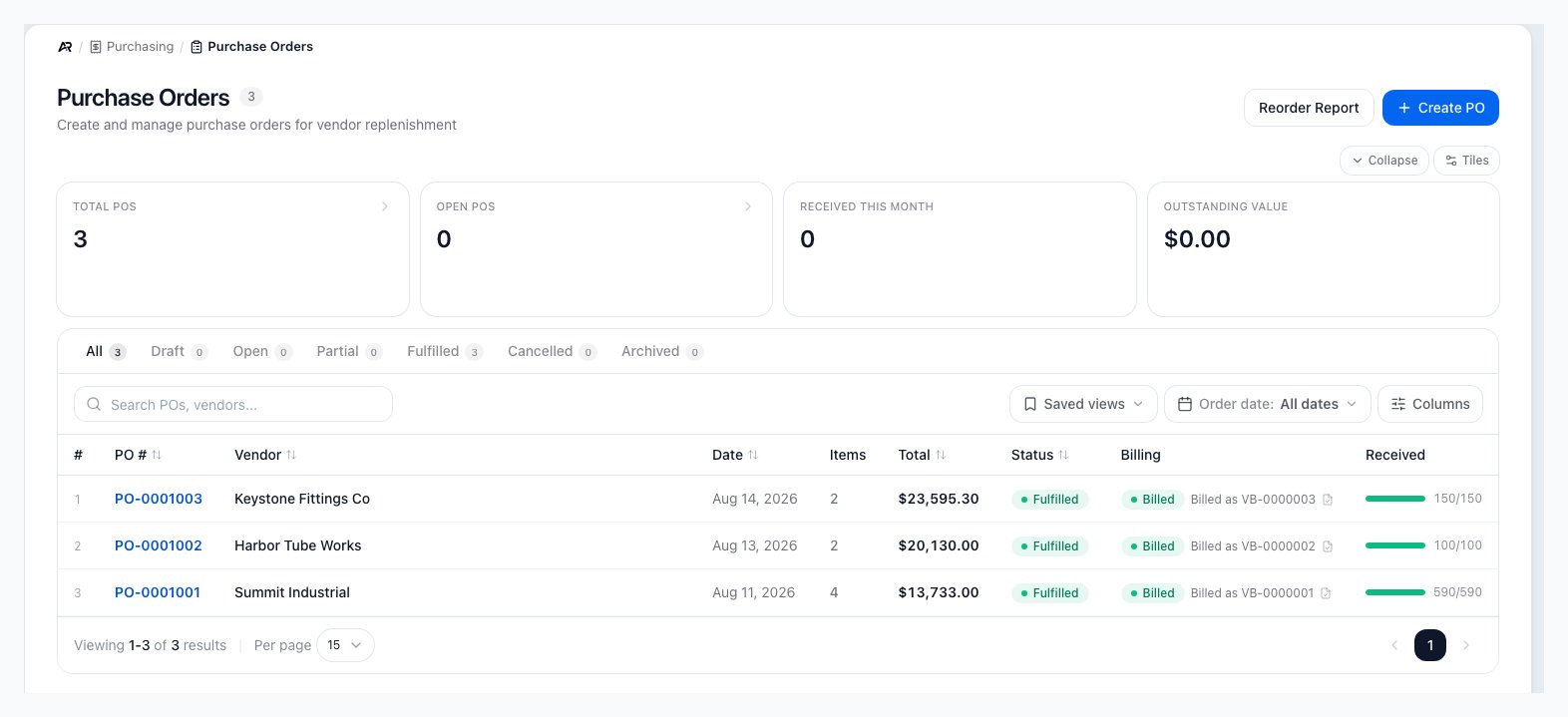
The four summary cards, the status tabs with their counts, and the PO, vendor, date, items, total, status, billing and received columns.
Where Purchase Orders Live
Open Purchasing, then choose Purchase Orders. The breadcrumb reads Purchasing > Purchase Orders. You need the purchasing.view permission to open it. You can also get here from the command palette (which also finds a PO by its number), from New Purchase Order in the quick-create menu (needs purchasing.create), and from links on the Reorder Report, Pending Approval, warehouse Receiving, Inventory Receive, the activity feed, and inventory transactions. A link from the received-not-invoiced report opens the PO ready to create its vendor bill. The list shows:- Summary cards: Total POs, Open POs, Received This Month, and Outstanding Value. Click Total POs or Open POs to filter the list.
- Tabs with counts: All, Draft, Open, Partial (the Processing status), Fulfilled, Cancelled, and Archived.
- Columns: PO #, Vendor, Date, Items, Total, Status, Billing, and Received, plus an optional row number. Search by vendor or PO number, and filter by Order date.
- Reorder Report, which opens Purchasing > Reorder Report, and Create PO.
Opening A PO That Belongs To Another Company
If you belong to more than one company and open a link to a PO that is not in the one you are working in, Arcus looks for it in your other companies. When it finds the PO it switches you to that company and says “Switched to NAME to open this purchase order.” If the switch fails it says “Could not switch to NAME to open this purchase order. Try again.” When none of your companies holds the PO, the page reads “Purchase order not found”. You only ever see POs from companies you belong to.
The Purchasing list is the daily workspace for finding POs, checking invoice status, and spotting unreceived quantities.
PO Statuses
- Draft: the PO exists, but it is still being prepared or is waiting for approval.
- Open: the PO is ready to send to the vendor and can receive items.
- Processing: at least one item has been received, but more quantity remains open.
- Fulfilled: all ordered quantities have been received.
- Cancelled: the PO was stopped before any receipts were recorded.
- Archived: the PO was archived. The Archived tab lists these POs.
- Closed Short: part of the PO was received and the remaining quantity will not arrive.
Create a Purchase Order
You need purchasing.create. Without it, Create PO is disabled and its tooltip explains why.- On Purchasing > Purchase Orders, click Create PO.
- In Create Purchase Order, search for the vendor by name or email.
- Select the vendor. Clicking Create PO with no vendor shows “Please select a vendor first”.
- Click Create PO. The message reads “Purchase order created”.
- Arcus opens the new PO detail page so you can add items.

Create PO starts with the vendor because purchase rules, contact details, and billing terms come from the vendor account.
Use the PO Detail Page
The PO detail page is where purchasing, warehouse, and accounting meet. The header shows the PO number, status badges, document actions, edit actions, receipt actions, and the receiving progress bar. The badges beside the number show the PO status and its fulfillment status. Received, Awaiting Invoice appears when goods have arrived and part of their value is not yet billed, and Invoiced appears once the received goods are fully billed. The main buttons are Receive Items (on a drop-ship PO it reads Mark shipped by vendor) and Create Vendor Bill. Everything else is in the More actions menu.
Email to Vendor opens Send Purchase Order with the vendor’s PO contact filled in, + Add CC/BCC and the email preview open; on send Arcus says “Purchase Order sent to EMAIL”, stamps the PO as sent and moves a draft to Open. A vendor with no address on file shows “This vendor has no address on file” with Send anyway (the PO prints without a vendor address block), a PO above the approval limit is not sent and goes to Purchasing > Pending Approval, and a failure reads “Email delivery failed:” with the reason.
A button that you are not allowed to use stays visible and turns off with the permission it needs, for example “Permission required: purchasing.cancel. Ask an owner, admin, or accountant to grant your role “Cancel Purchase Orders” in Settings > Users > Edit Role > Purchasing.”
Below the header you see the status stepper and Receiving Progress (for example 4 / 10 items), then the Line Items and Receiving tabs. The right-hand column holds Vendor, Ship To, Source Sales Order for a drop-ship PO, PO Summary (order date, created and created by, sent to vendor, revision, Expected Delivery, Tracking Ref, last received, items, received value and total), Vendor Bills, Landed costs, Notes and Activity.
A banner reads “This PO has changed since it was emailed to the vendor” when you edit a PO after sending it. Click Email Revision to tell the vendor, which says “Vendor notified of revision”. Change a line, the ship-to or the expected delivery date and Arcus says “Purchase order updated”, “Line updated”, “Line notes saved” or “Ship-to destination updated”.

The PO detail header keeps document actions, item changes, receiving, cancellation, and status progress in one place.
Add Items
- Open the PO detail page.
- Click Add Item.
- Search the vendor-linked product catalog.
- Select the product.
- Enter the quantity.
- Review the unit cost and line total.
- Click Add Item.

Add Item can auto-price from vendor purchase rules, then shows the line total before the product is added.
Buy components, not kit parents
If the product is sold as a kit, buy the component products from the vendor. Receiving
a kit parent would hide the actual components that need stock, cost, and fulfillment history.
Receive Items
- Open an open or partially received PO.
- Click Receive Items.
- Select the receiving location.
- Enter the quantity received for each line.
- Choose a bin when bin tracking is enabled for the entity.
- Enter required serial numbers when the product is serialized.
- Choose whether Arcus should create the vendor bill automatically.
- Click Receive Items.

Receive Items adds stock to the selected location and can create a linked vendor bill when that workflow is appropriate.
Un-Receive A Receipt
On the Receiving tab each receipt lists its lines, quantities, damaged units and unit cost. Click Un-receive on a receipt (you need Receive Purchase Orders) to reverse units that were never actually received.- Enter the quantity to reverse on each line, or click Un-receive all reversible units, then continue.
- Review the reversal and what it posts, and give a reason. The reason is required and is stamped on the reversal.
- Confirm. Arcus says “Un-received N unit(s) from RECEIPT” and names the reversal entry.
Vendor Bills and Accounting
When received goods arrive with an invoice, create a vendor bill from the PO or let Arcus create one during receiving when your entity settings allow it. The bill stays connected to the PO so AP can review what was ordered, what was received, and what the vendor is asking you to pay.- Received, Awaiting Invoice: received goods are not yet matched by goods billed on a vendor bill.
- Invoiced: the received goods are fully billed.
- Payment: payments happen from AP and Bill Pay, not from the PO detail page.
The Vendor Bills Card
The Vendor Bills card appears when the PO has linked bills, when you can create one, or when a landed cost bill reaches its receipts. New Bill starts a bill for this PO. Each row shows the bill number, the vendor’s invoice number, “Billed DATE” and, only when it differs, “effective DATE”, which is the date the bill posts to the books. It also shows the amount, the status and an icon that opens the bill in AP. A bill that carries landed cost says “Landed:” with its categories. The card ends with Total Billed. When some of that is not goods, a second line reads “of which goods” and shows the goods share, which is what clears goods received not invoiced. Bills that only add freight, duty or other landed cost to this PO’s receipts are listed under “Landed cost bills on its receipts”. With nothing to show the card reads “No vendor bills yet”.Landed Costs
Once something has been received, or a landed bill reaches the PO, the Landed costs card shows the freight, duty and other charges added to this PO’s receipts: “Freight, duty and other charges capitalized onto this purchase order’s receipts”.- The totals are Goods cost, Landed cost, Still in inventory (the landed share on units still on hand) and In cost of goods sold (the share on units already sold). Chips break the landed total down by category, and “Not traced to a line” shows any amount Arcus could not tie to a PO line.
- Per line shows the product, received of ordered, the Goods unit cost, the Landed unit cost with the landed amount per unit in brackets, and the Landed total.
- By bill lists each landed bill with its amount and status, how it reached this PO (“On this PO’s bill”, “Landed bill on this PO” or “Picked this PO’s receipts”), and each allocation split into inventory and cost of goods sold.
- The amounts show what each unit cost, so they appear only to roles with the View Order Margin permission. Others read “Landed cost amounts are shown only to roles with the View Order Margin permission, because they reveal what each unit cost. The landed bills themselves are listed on the Vendor Bills card.”
- With nothing allocated yet it reads “No landed cost has been applied to this purchase order’s receipts yet. A freight or duty bill on its receipts adds it here.” A load failure reads “The landed costs could not be loaded.” with Try again.
Approval Locks
Some entities require approval when a PO exceeds a purchasing threshold. While approval is pending, Arcus locks editing, vendor email, receiving, and cancellation actions so the PO cannot change after it was submitted for review.- Approve PO: available to users with purchasing approval permission. A PO above the high-value limit needs the tier-2 permission, otherwise the button reads Approve PO (Controller Required) and is off.
- Reject: requires a reason and returns the PO to the creator for correction.
- Withdraw for Revision: lets the creator unlock a pending PO and edit it again.
- Self approval: creators cannot approve their own PO when manager approval is required.
- Re-approve: if an approved PO’s total later rises above the approved amount after something has been received, the banner Approval is out of date appears, nothing is blocked, and an approver who is not the creator can click Re-approve to record the new amount; on an Open PO with nothing received yet the increase sends the PO back to Pending Approval instead.
Cancel or Close Short
Use Cancel PO only before anything has been received. If any receipt has already been recorded, use Close Short when the vendor will not ship the remaining quantity. That preserves the receipt history and closes only the open balance.- Cancel PO opens Cancel Purchase Order?, which says cancellation is not allowed if any receipts exist and asks for an optional reason (“Why is this PO being cancelled?”). Keep PO backs out. Arcus says “Purchase order cancelled”.
- Close Short opens Close PO Short?, which states how many units were received, says the un-received balance will not be expected and that this cannot be undone. Keep Open backs out. Arcus says “Purchase order closed short”.
- Reopen PO (fulfilled POs) opens Reopen this purchase order?. It moves the PO back to Open so quantities can be edited and the remainder received, for when the PO was entered short or more arrived than was ordered. Nothing already received is reversed and no money moves, and the PO returns to Fulfilled by itself once everything is received. Arcus says “Purchase order reopened. Line quantities are editable again.”
- Mark as sent (I contacted the vendor) opens Mark as sent without emailing?. Mark as sent stamps the PO as sent and moves it from draft to open without an email (“Marked as sent — no email sent from Arcus”). Keep as draft backs out. On a drop-ship PO it also unlocks Mark shipped by vendor.
Drop-Ship POs
A drop-ship PO ships from the vendor straight to your customer, so its Source Sales Order card links to the order and Ship To shows the customer’s address. Mark shipped by vendor replaces Receive Items and records the vendor’s shipment and tracking. Arcus says “Marked shipped by vendor”, with the tracking you entered and the PO’s new status. The sales order moves forward, and no stock is received. On the Receiving tab the same receipt offers Undo vendor shipment in place of Un-receive. It reverses the sale’s accounting, rolls the sales order and this PO back, and removes the shipment package; a reason is required. If the customer was already emailed the dialog warns you. Undo is refused when a refund has already reversed that sale: “Sales order NUMBER’s sale was already reversed by” the journal entry that did it, such as a refund’s, followed by “Undoing this vendor shipment would reverse the same sale a second time. Leave the shipment as received; if the vendor never shipped, ask accounting to correct the drop-ship cost with a journal entry.” Undone shipments say “Already undone”.Settings That Change Purchase Orders
These settings are on Settings > System > Approval Workflows. Changes apply to future POs and receipts.Common Blocks
- Create PO is unavailable: confirm you have purchasing.create and selected an active vendor account. “Failed to create purchase order” shows the reason Arcus gave.
- A product is missing from Add Item: confirm the product is linked to that vendor and is active.
- Unit cost looks wrong: review vendor purchase rules, quantity breaks, and whether the product has a default vendor cost.
- Add Item is blocked: the PO may be awaiting approval, cancelled, fulfilled, or locked by status.
- Receive Items is blocked: add at least one item, wait for PO approval, or reopen the buying decision before receiving.
- Quantity cannot be received: reduce the receive quantity to the remaining open quantity unless your settings allow over-receipt.
- Serial fields appear: the product is serialized, so every received unit needs a unique serial number.
- Create Vendor Bill is blocked: receive at least one item before creating the bill.
- Cancel PO is blocked: receipts already exist. Use Close Short instead.
- Email to Vendor is blocked: the PO may be pending approval or the vendor contact details may need correction.
Related Articles
Purchase to Pay
Follow the full PO, receipt, vendor bill, and payment workflow.
AP and Bill Pay
Record vendor bills, approve them, post them, and track AP aging.
Pay Bills and Print Checks
Pay open vendor bills by check, ACH, ACH file, wire, or cash.
Inventory Management
Track stock, locations, reorder points, and inventory movement history.
Vendor Returns
Send returned or defective stock back to suppliers for credit, warranty review, or replacement inventory.
Reorder Report
Purchasing > Reorder Report: find what needs buying and create draft POs by vendor.
Pending Approval and Purchase Order Approvals
Purchasing > Pending Approval: POs held above the approval threshold.
Receive Against a Purchase Order
Receiving details: locations, bins, serials, and damaged units.
Drop-Shipping Sales Orders
Sales orders your vendor ships directly to the customer, and their purchase orders.