

Assignment helps a team divide work. It does not restrict access. Anyone with the required Manufacturing permission can still view or act on the work order.
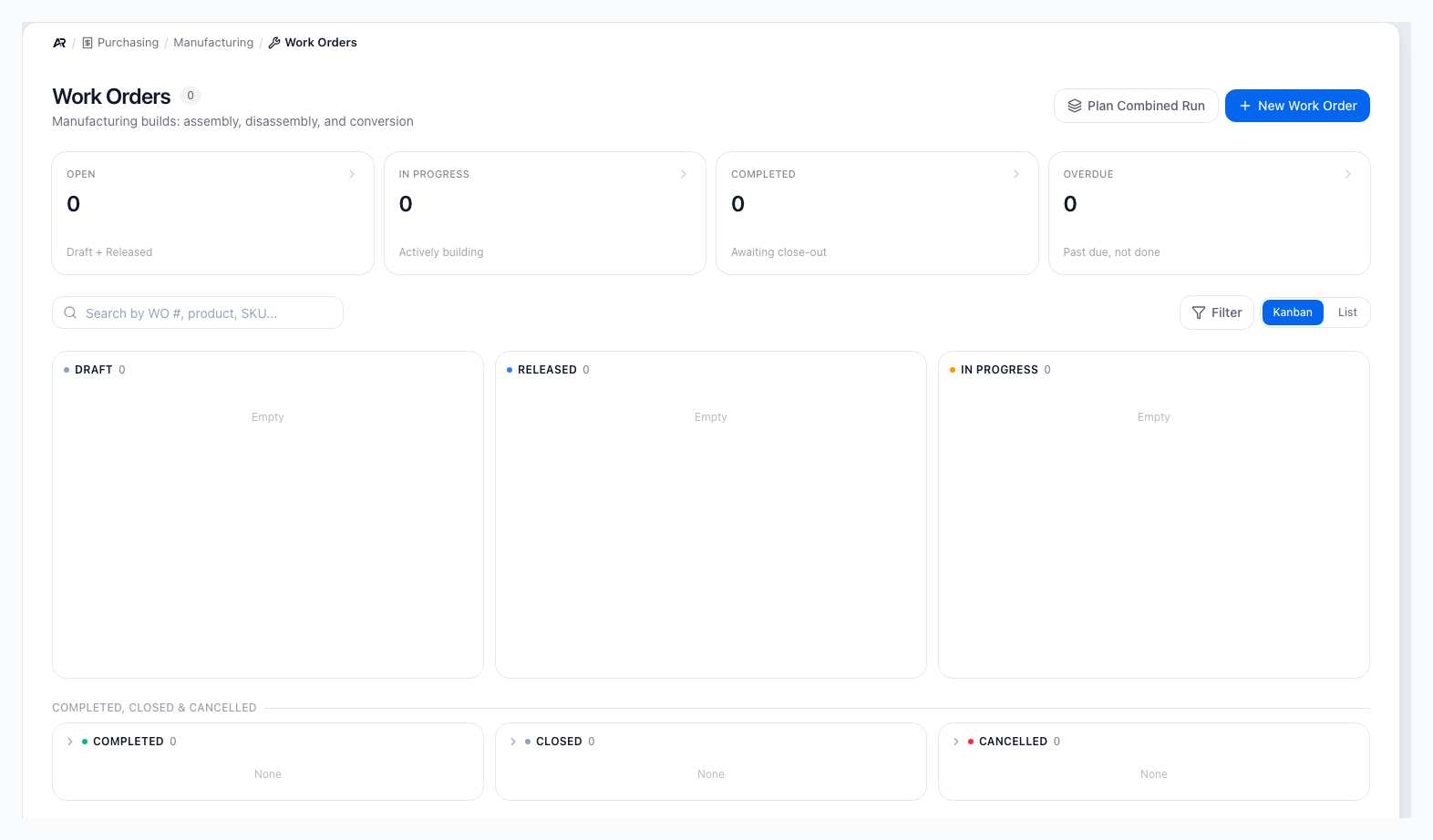
The Kanban board with its Draft, Released and In Progress lanes, the four summary cards, and the collapsed Completed, Closed and Cancelled lanes.
Check access and prerequisites
Before creating an order, confirm that you have:
- An active assembly, disassembly, or conversion BOM.
- A positive whole-number quantity.
- The manufacturing location.
- An Available source serial when a serialized source is being disassembled or converted.
Open Work Orders
Open Purchasing, then Manufacturing, then Work Orders. The breadcrumb reads Purchasing > Manufacturing > Work Orders. You can also search for Work Orders in the command palette. Other ways in:- A work-order link on a sales order, the Reorder Report, Manufacturing Reports, an inventory transaction, or the dashboard opens that work order.
- Customize on Purchasing > Manufacturing > Production Planning, the build, disassemble, or convert button on an active bill of materials, and Build This Product on a product’s Manufacturing tab open New Work Order with the recipe already chosen.
- View all beside a product’s recent work orders opens the list filtered to that product. Click Clear product filter to see every work order.
- A link to a work order that belongs to another of your companies switches you to that company and says “Switched to NAME to open this work order.” If the switch fails it says “Could not switch to NAME to open this work order. Try again.” You only ever see work orders from companies you belong to.
Create a work order
- On Purchasing > Manufacturing > Work Orders, click New Work Order.
- Search for and select an active BOM.
- Enter the whole-number Quantity to Build, Quantity to Disassemble, or Quantity to Convert.
- If Source Serial Number appears, select the serial for this source unit.
- Review the availability panel. A warning identifies a shortage but does not receive, reserve, or create stock.
- Select the Location.
- Choose Low, Normal, High, or Urgent priority.
- Set Start Date, an optional Due Date, and optional Notes.
- Review Release immediately (skip draft state). It starts selected. Leave it selected to have this page request Release after creation, or clear it to request Draft. Clearing it does not override an enabled company automatic-release setting.
- Click Create & Release or Create.
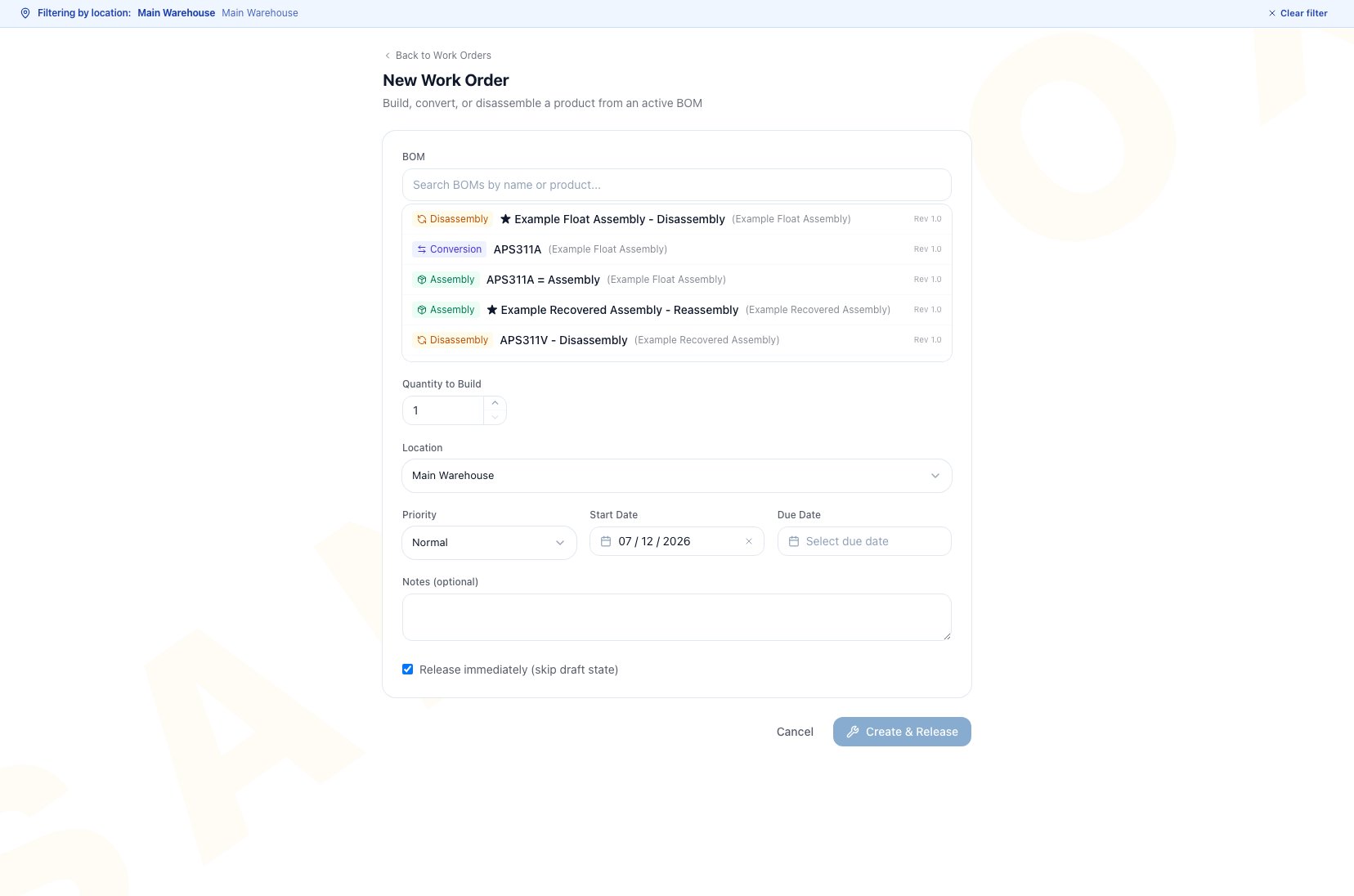
New Work Order begins with the Active BOM picker open. Choose a recipe, then confirm quantity, location, schedule, and release choice.
- The company Release new work orders immediately (skip draft) setting can release it as part of creation, even when you clear the checkbox on this page.
- The selected page checkbox makes a separate Release request after creation, even when the company setting is off.
Outcome
The new work order snapshots the selected BOM revision, lines, quantity, location, and estimated cost for the job. A selected source serial is allocated to the order. The resulting status is Draft or Released, depending on whether either release path succeeds. To request Draft from the manual page, the company automatic-release setting must be off and the page checkbox must be cleared.Work the queue
The Work Orders page provides Kanban and List views.- Search by work-order number, product, or SKU.
- Use the Open, In Progress, Completed, and Overdue summary cards.
- Filter by type, assignee, and created date. Choose Unassigned to find work without an owner.
- In List view, filter by status: Open (Draft + Released), Draft, Released, In Progress, Completed, Overdue, Closed, or Cancelled. The list shows WO #, Product, Type, Status, Qty, Assigned, Actual Cost, Due, and Created.
- Plan Combined Run (needs manufacturing.create) starts a combined run of related teardown, conversion, and build jobs. A work order that belongs to a combined run links to it with Open the combined run.
- In Kanban, the active columns are Draft, Released, and In Progress. Completed, Closed, and Cancelled columns start collapsed.
- A Kanban column initially shows up to eight cards. Use its controls to show more or open the full list.
What Arcus Says After An Action
A button you may not use stays visible and turns off with its reason: “You do not have permission to edit work orders (manufacturing.edit)” for Release and Start, “You do not have permission to complete work orders (manufacturing.complete)” for Complete, “You do not have permission to close work orders (manufacturing.complete)” for Close, and “You do not have permission to cancel work orders (manufacturing.delete)” for Cancel.
Kanban drag follows the board sequence Draft > Released > In Progress > Completed > Closed. The board does not drag a Released card directly to Completed, even though the work-order detail page can complete a Released order. A drop from In Progress to Completed asks for a quantity, but it cannot collect serialized output details. Use the work-order detail page for serialized completion, and always enter whole units.
Review the work-order detail
Open a work order before starting physical work. The header shows the work-order number, status, type, priority, product, completed and planned quantities, BOM revision, location, assignees, and current viewers. Use the five tabs to answer different questions:
The detail page also shows GL Movements first, with typed journal rows, reversal links, amounts, and dates. A row carries a chip when it is tied to another entry: Reversed by an entry, Corrects an earlier entry (the row’s status reads Correction), or Corrected by a later one. Expand a row to review its debit and credit account lines, then use View journal entry for the full journal entry.
Inventory Movements follows with product, movement type, signed quantity, amount, and date. Expand a row for balances, location, supply or demand, account, and posting details, and open FIFO detail when available. An untouched Draft or Released order can have honest empty states until an action posts.
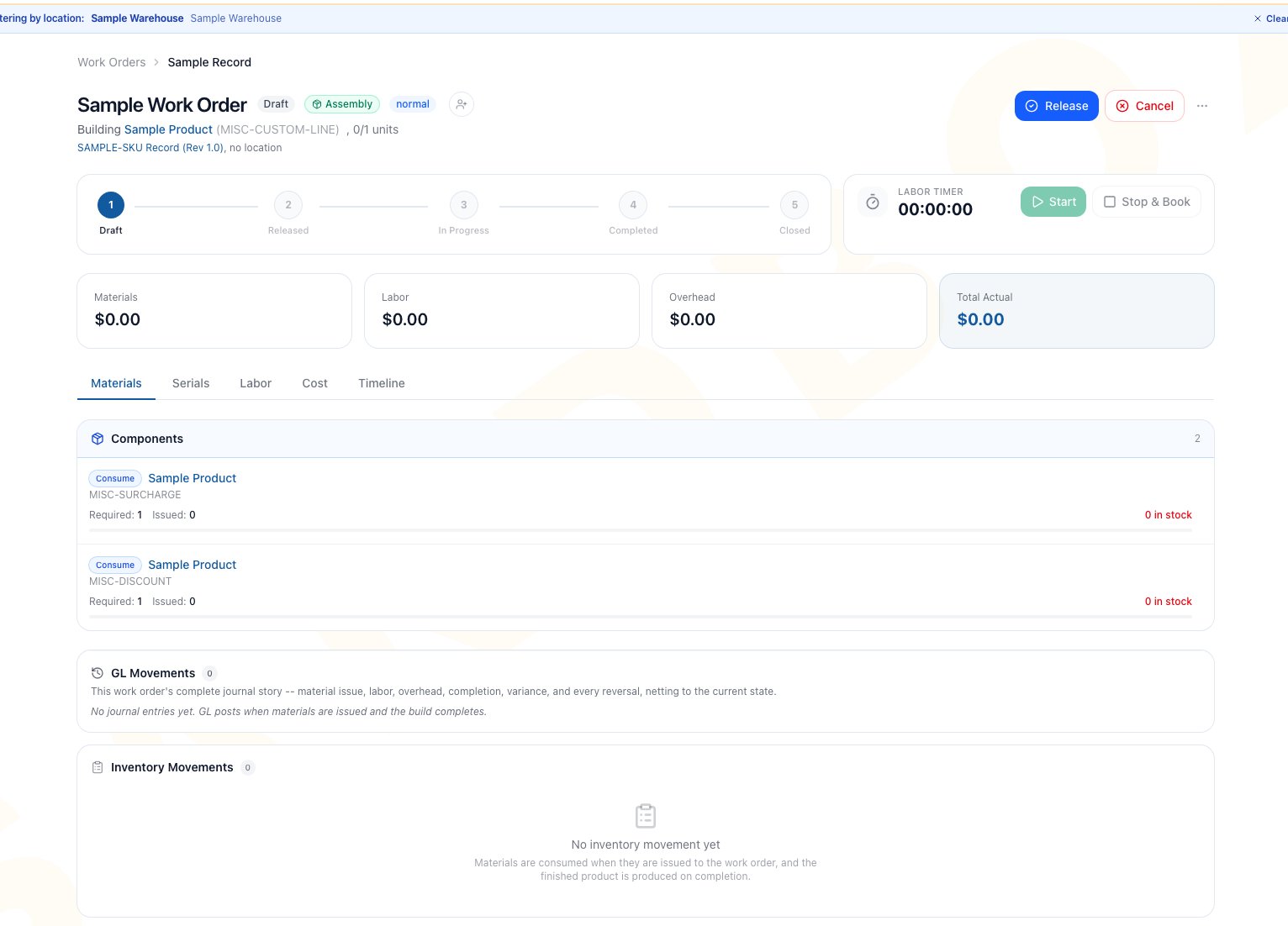
Example Draft work order showing the lifecycle stepper, labor timer, cost cards, Materials tab, and empty ledgers before any activity posts.
Assign owners
- Click the add-person control beside the assignee avatars.
- Search Add assignee and select a team member.
- Repeat to add more owners.
- Use the remove control beside an assignee to unassign them.
Release and start
Click Release on a Draft after confirming the BOM revision, quantity, location, schedule, and material plan. Click Start on a Released order when physical work begins. Starting the job normally also starts your labor timer when all of these are true:- The company setting to start a timer with the job is enabled.
- The BOM is not configured to auto-apply planned labor at completion.
- You do not already have a running timer on this work order.
- You have edit permission and a signed-in user context.
Run materials, labor, and completion
Use the focused procedures for work that changes stock or cost:Materials and Substitutions
Issue, return, scrap, or substitute material and understand location and FIFO effects.
Labor Tracking
Use live timers, manual entries, or BOM auto-applied labor without double counting.
Partial Completions and Undo
Complete whole units, record serials, and reverse the newest eligible completion batch.
Work-Order Travelers
Print the current pick, recovery, serial, labor, and sign-off plan for the floor.
Parts a conversion returns to stock need a cost
When you complete a conversion work order, parts removed from the source unit go back on the shelf through the order’s return-to-stock lines. Each returned part needs a cost, because a part put back at zero cost understates inventory and makes every unit look like pure profit when it sells. Arcus works the cost out in this order and stops at the first one it finds:- A cost you type in the Costs needed step below.
- The cost on the work-order line, which is copied from the part’s own Cost (its product’s Pricing tab, or its variant’s cost) when the work order is created, because a bill-of-materials line has no cost of its own.
- A cost from the part’s purchase and stock history.
- The average cost of that part’s stock at the work-order location, but only when none of that stock sits at $0.
- The company setting Recovered parts with no cost (below).
- For each part, check the Back to stock quantity and enter its Cost each. When the product already has a cost, the field is filled from it (“Filled from the product record; change it if it is wrong.”). The Value column and the total going back on the shelf update as you type.
- Optional: when the part has no priced stock on the shelf, you can tick “Set 0, the tick also re-costs them. Setting a cost needs the Inventory adjust permission.
- If some of that part’s units already sit on the shelf at 0 and stay at $0. The cost you enter applies only to the parts going back now.” People with the permission get a link, Set this part’s cost on its product page, to re-cost the shelf properly.
- Click Complete with these costs. It stays off until every part has a cost above 0 for every part.”). Change the quantity returns to the quantity step and keeps what you typed. Cancel asks “Discard the costs you entered for the removed parts?” when you have typed costs.
With Never block completion the success message adds a note, for example “1 removed part went back to stock at $0 (Settings > Manufacturing).” Zero-cost stock understates inventory until you set a cost, so use it deliberately.
Whenever Arcus finds a returned part’s cost itself, or uses the setting, the cost and where it came from are recorded with the completion in the audit trail.
Common scenario: run a short assembly
- Create the order from the active assembly BOM and confirm its location and quantity.
- Release it only after the recipe and material plan are ready.
- Assign the floor owner, then click Start when physical work begins.
- Issue known staged inputs or let completion backflush the remaining requirement.
- Track actual labor with timers or manual entries, unless the BOM intentionally auto-applies standard labor.
- Complete only the whole units physically finished.
- Compare output, serials, cost, Inventory Movements, and GL Movements.
- Close after the full quantity and final variance review agree.
Review costs and ledgers
Before closing or cancelling, compare the work order to the physical job.- Cost separates actual material, labor, and overhead and compares total actual cost with the BOM-based estimate. Missing labor can make the variance look more favorable than the work performed.
- GL Movements shows manufacturing journal entries and linked reversals.
- Inventory Movements shows issues, returns, production, and reversal movements with FIFO detail where available. Work-order scrap does not create a second inventory movement because stock already left on issue.
- Marketplace stock: if you sell through connected marketplaces, every stock change from issuing, returning or scrapping material, completing, undoing a completion or cancelling queues the updated available quantities for those channels.
- Timeline preserves who performed lifecycle and transaction actions.
Close completed work
Close only after the full planned quantity is Completed and these checks agree:- Physical output and output serials.
- Materials issued, returned, substituted, and scrapped.
- Timer and manual labor entries.
- Actual cost and variance.
- Inventory and GL movements.
Cancel unfinished work
Cancel only a Draft, Released, or In Progress order with zero completed quantity.- Compare the physical stock with the Materials tab and Inventory Movements.
- Click Cancel.
- Enter an optional reason.
- Click Cancel Work Order.
Troubleshoot common blocks
Frequently asked questions
Does assigning a work order prevent other users from acting on it?
Does assigning a work order prevent other users from acting on it?
No. Assignment is delegation metadata. Permissions, not assignment, determine who can view or perform an action.
Can I create a work order when material is short?
Can I create a work order when material is short?
Yes, the create page can warn and still create the order. The warning does not supply stock, so issue or completion remains blocked until material is available.
Why did Create & Release leave a Draft?
Why did Create & Release leave a Draft?
The work order is created first, and release attempts are best-effort. The page’s separate request can fail because of access or a normal release gate. Confirm manufacturing.edit permission, resolve the gate, then release from the detail page when the order is ready.
Why was the order Released after I cleared Release immediately?
Why was the order Released after I cleared Release immediately?
The page checkbox controls only that page’s separate Release request. If the company Release new work orders immediately setting is enabled, creation can still release the order. Turn off the company setting and clear the page checkbox when a Draft review is required.
Can I cancel after a partial completion?
Can I cancel after a partial completion?
No. Cancellation requires zero completed quantity. Undo every eligible completion batch first, or complete and close the work instead.
What is the difference between Completed and Closed?
What is the difference between Completed and Closed?
Completed means the planned output has been recorded and the latest eligible completion can still be reviewed for Undo. Close finalizes the operational record and clears residual WIP to Manufacturing Variance.
Related articles
Manufacturing Overview
Choose the correct Manufacturing workflow and follow its inventory and cost effects.
Bills of Materials
Build and activate the recipe that a new work order snapshots.
Manufacturing Reports
Review open WIP, completions, build history, and component usage.
Manufacturing Settings
Settings > Products & Pricing > Manufacturing: work-order release and timer-start behavior.
MRP Planning
Purchasing > Manufacturing > Production Planning: suggested work orders and purchases.
Combined Runs
Plan related teardown, conversion, and build jobs together.