

Open the Page
- Open Operations, then Inventory, then Receive.
- Search for Receive in the command palette, which lists the page as a navigation entry.
- Choose Receive from the Inventory pages that share this section: Overview, Transactions, Adjustments, Supply & Demand, Valuation, Aging, Dead Stock and ABC Analysis.
Choose the Right Receiving Path
Arcus has two receiving paths. Choose the path based on why the stock is coming in.- Purchase order receiving: use the PO detail page when stock is arriving against an open purchase order. The blue Receiving against a Purchase Order? banner at the top of this page repeats that advice and its Open Purchase Orders link takes you to the open purchase order list.
- Standalone receiving: use Inventory Receive for found stock, beginning balances, or other inbound stock that is not tied to a PO.
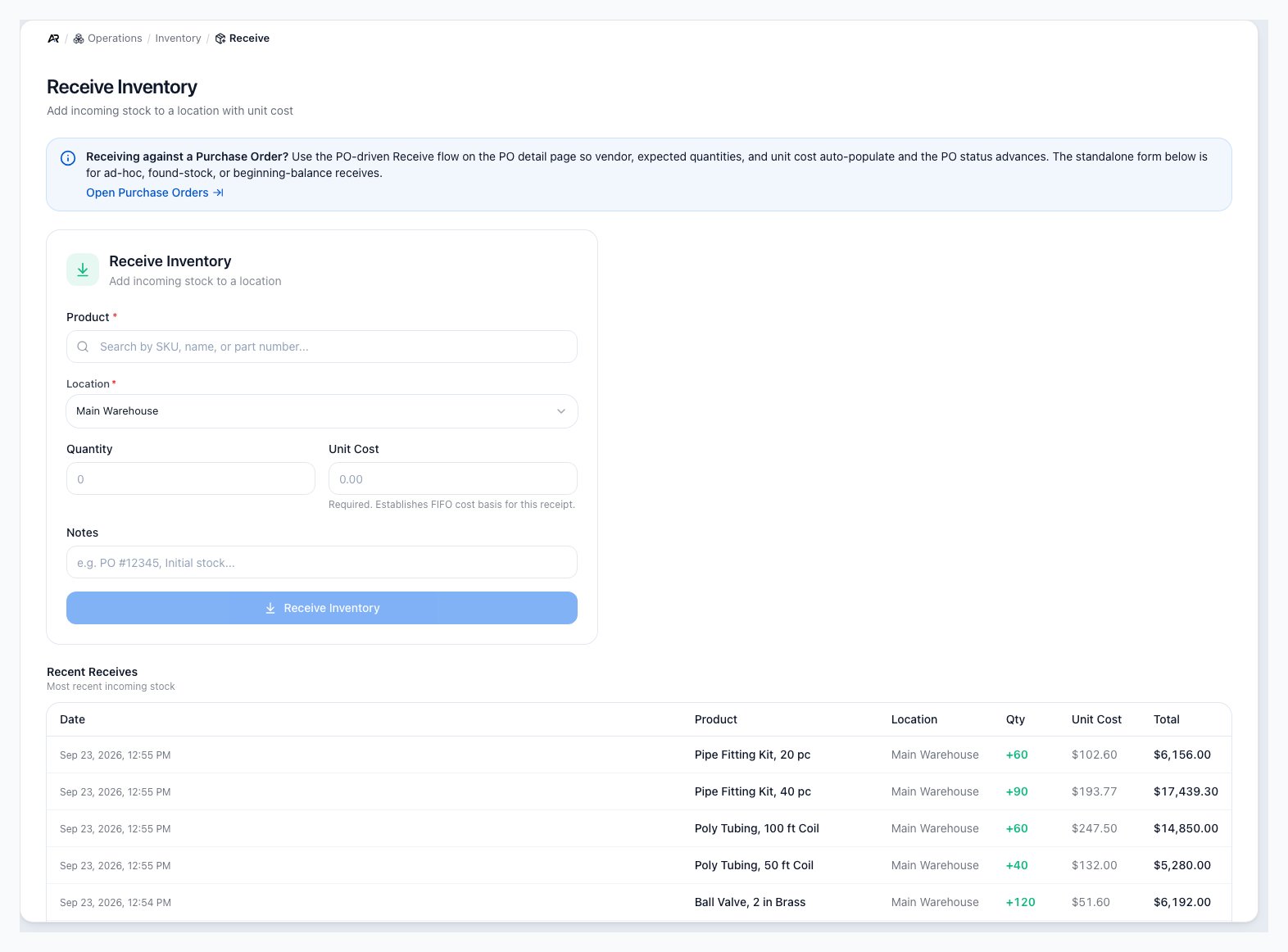
The Receive screen in Operations, with the purchase order banner above the standalone form and the Recent Receives table.
Before You Receive
Confirm the product, location, quantity, and unit cost before posting. Receiving changes inventory immediately and establishes the cost layer used by future fulfillment and cost reporting.- The product must be a stocked product. The Product picker searches by SKU, name or part number and lists stocked products only. Services, kits, boxes, variant parents and products with stock tracking turned off are not valid receiving targets.
- The location should be the physical place where the stock is being added. The picker starts on your company’s default warehouse, and you can change it before you submit.
- Quantity must be positive.
- Unit Cost is required and must be greater than zero.
- Notes are optional, but they should explain why the receipt was posted, especially for found stock or opening balances. The note travels with the stock movement and the journal entry description.
Unit Cost is not optional
A receipt creates inventory cost basis. Arcus blocks blank, zero, and
negative unit cost because future FIFO cost and COGS depend on this value.
Receive Standalone Stock
- Open Inventory.
- Open Receive.
- Search for and select the stocked product.
- Confirm or change the receiving location.
- Enter the quantity being added. It must be a whole number of at least 1.
- Enter the unit cost for the stock. It must be at least 0.01.
- Add a note that explains the receipt.
- Select Receive Inventory. The button reads Receiving… while the receipt posts.

The standalone form requires product, location, quantity, and a positive unit cost before it can post.
What Happens After Posting
After a successful receive, Arcus updates stock and cost records together so the inventory view, transaction audit trail, and accounting value stay aligned.- On-hand and available stock increase at the selected location.
- A receiving transaction appears in Inventory Transactions.
- A FIFO cost layer is created at the unit cost entered on the receipt.
- Inventory value increases based on quantity times unit cost.
- Accounting: a balanced journal entry posts in the same step, debiting your finished goods inventory account and crediting the inventory adjustments clearing account. A standalone receipt creates no vendor liability, so nothing is added to Accounts Payable. The journal entry is linked to the receiving transaction, and if it cannot post, the whole receipt is rolled back and no stock is added.
- Sales channels: the added stock raises available quantity, and any connected marketplace listings are updated with the new availability once the receipt is saved.
- Audit trail: the receipt is recorded in the activity log with the product, quantity, unit cost and location.
- The Recent Receives table, inventory balances and low-stock alerts refresh with the new receipt, including on other screens that are open at the same time.
Review Recent Receives
The Recent Receives table shows the ten most recent receiving transactions. It shows No recent receives with the line “Received inventory will appear here.” until the first receipt posts. Use it as a quick confirmation that the receipt posted to the expected product and location.- Date: when the receipt posted.
- Product: the stocked item received.
- Location: where the stock was added.
- Qty: the received quantity.
- Unit Cost: cost entered for each unit.
- Total: quantity times unit cost.

Recent Receives is the fastest confirmation that the standalone receipt posted.
When Not to Use This Page
- Open PO receipt: receive from the purchase order detail page.
- Counting stock: use Inventory Adjustments or cycle counts so the change records the counted quantity.
- Moving stock: use warehouse transfers so source and destination locations stay balanced.
- Returned customer stock: receive through the return workflow so condition and disposition are recorded.
- Damaged or scrapped stock: use the correct return, adjustment, or writeoff workflow instead of adding stock here.
Recovery Scenarios
- You received a PO item here by mistake: stop receiving additional lines, review the PO, and use a documented correction so inventory and PO receipt history both tell the truth.
- Unit cost was entered incorrectly: review the receiving transaction immediately. If the cost layer is wrong, escalate to inventory or accounting before fulfillment consumes it.
- The wrong location was used: move the physical stock and post the appropriate transfer or corrective adjustment so on-hand follows the warehouse.
- The quantity was too high: post a documented adjustment for the overage instead of deleting history.
Messages You May See
- Received 12 of Example Product (on hand: 40): the receipt posted. The number in brackets is the new on-hand quantity at that location.
- Failed to receive inventory: the receipt did not post and no stock changed. When the system has a specific reason, that reason replaces this text.
- unit_cost is required and must be a finite number greater than 0: the unit cost was blank, zero or negative. Enter a positive cost; a receipt at zero cost is blocked on purpose.
- quantity must be positive: enter a whole number of at least 1.
- Kit parent products are virtual and cannot receive direct stock: receive the component products instead. Services, variant parents and boxes carry similar messages, and a product with stock tracking turned off asks you to enable tracking on the product first.
- Variant parent products are virtual; stock lives on the child variants: receive the specific variant rather than the parent product.
- The page sends you to a permission-denied screen: your role does not have the Receive Inventory permission. Ask an administrator.
Common Blocks
- Receive button is disabled: product, location, quantity, or positive unit cost is missing.
- Product is missing from the picker: the record may not be stockable.
- Unit Cost will not accept zero: receiving at zero cost is blocked to protect FIFO and COGS.
- Wrong location was selected: correct the stock through the appropriate adjustment or transfer workflow.
- Receipt belongs to a PO: cancel the standalone attempt and receive from the purchase order instead.
- Recent Receives is empty: no receiving transactions have posted yet, or the page is still loading.
Related Articles
Warehouse Overview
Use the Warehouse workspace for bins, pick lists, receiving, returns, relocations, transfers, and cycle counts.
Inventory Adjustments
Correct stock after a count, damage or write-off, and see which account an adjustment posts to.
Inventory Overview
Monitor stock health, location balances, low-stock alerts, and inventory value warnings.
Inventory Transactions
Audit stock movement history, movement types, supply and demand rows, and FIFO layer detail.
Purchase to Pay
Follow the full PO, receipt, vendor bill, and payment workflow.
Create and Manage Purchase Orders
Create POs, add vendor items, receive inventory, and handle approval, cancellation, billing, and close-short blocks.
GRNI and PO-Linked Vendor Bills
Create vendor bills from received purchase orders and clear received-not-billed balances.