

The Fulfillment Station is the warehouse workspace for day-to-day package work. Open it at Operations > Fulfillment > Fulfillment Station. It puts the pick list, the package queue, the selected package, printing, and the fulfill action on one screen, and it has a History view of recently fulfilled packages.
Before You Start
Confirm these items before operators begin:- Permissions: opening the station needs View Fulfillment. Print All and deleting an empty package need Pack Orders. Print Label and Fulfill need Ship Orders. Without them, Print All, Print Label, and the list view’s Fulfill and Delete buttons stay disabled, and hovering one says which permission is missing, for example “You do not have permission to fulfill (needs fulfillment.ship).” In the detail view, Mark as Fulfilled, Delete Empty Package, and the package menu’s Delete Package stay clickable, and the server refuses the action without the permission.
- Permissions the server checks: voiding a label and settling a shipping cost difference need Edit Shipments, and validating or correcting a customer address needs Edit Accounts. The buttons show either way, and the server refuses the action without the permission. Arcus also refuses to create a package on an order that was revised after it was sent to the customer, until the customer acknowledges the revision or someone with Acknowledge Revision Internally acknowledges it on the order page; this check is on unless your company turned off customer acknowledgment of revisions. It also refuses a package on an unpaid order that has no card hold or net payment terms, with “Collect payment or attach terms first.” To pack before collecting payment, set Require payment intent before to Shipping only at Settings > Payments & Checks > Payments.
- Location: the queue follows the location picked in the header and the locations your user may work at. If a package is missing, check the location first.
- Printer: pick your label printer and document printer in your user menu (top right). The station no longer has its own printer picker.
- Shipping carrier: when Shippo is not connected, a warning says “Shippo is not connected. Shipping labels cannot be purchased.”
- Packages: packages must be packed, rated, labeled, or otherwise ready for the next step.
- Search for Fulfillment Station in the command palette, or press G and then F.
- Operations > Fulfillment > Fulfillment History opens the station on its History view.
- A link from Settings > Shipping & Fulfillment > Shippo Error Log opens the station. It does not select the package, so search for it.
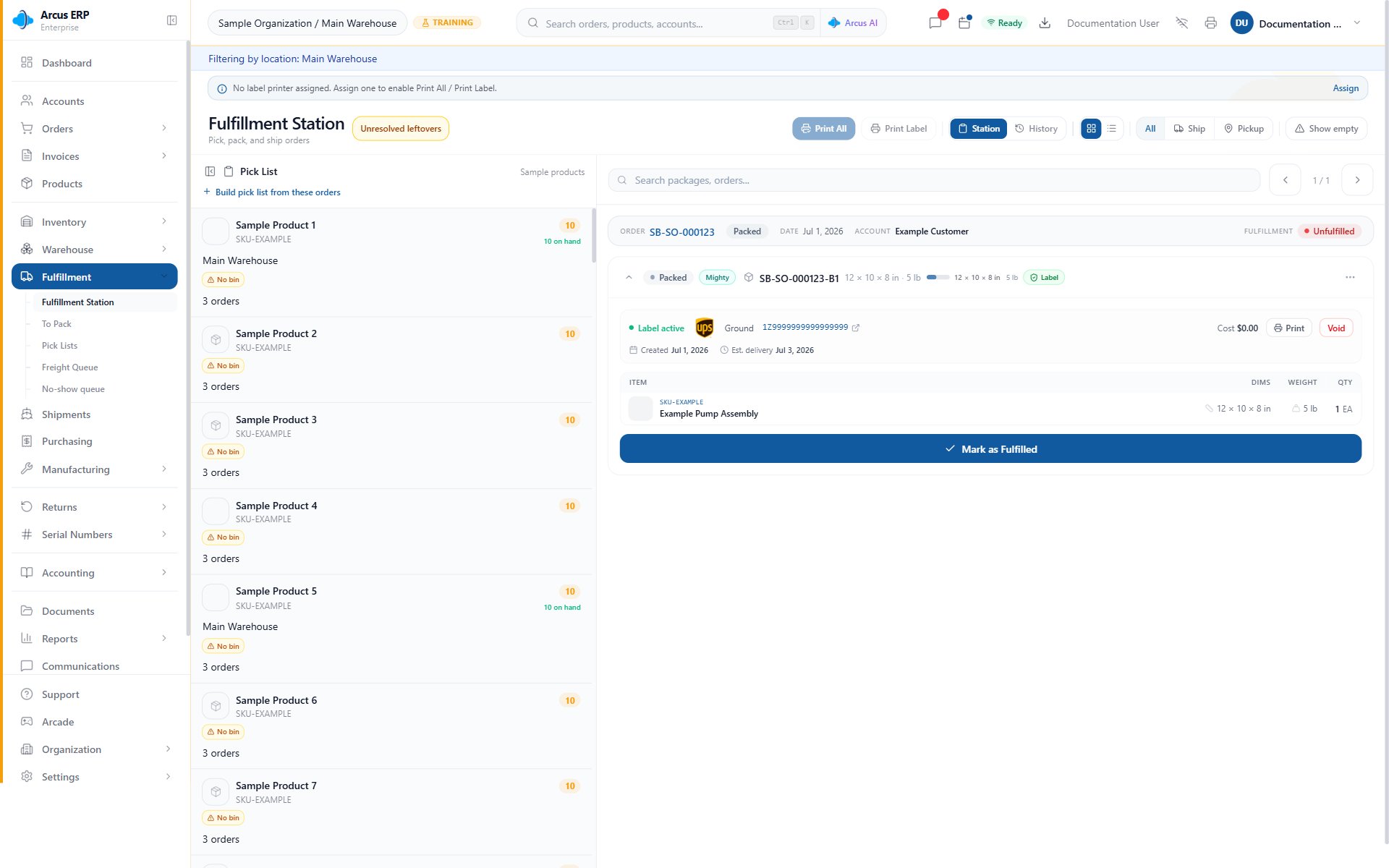
The station combines the pick list, printer controls, package search, package detail, label state, item list, and fulfillment action in one workspace.
Work The Queue
- Open Operations > Fulfillment > Fulfillment Station.
- Confirm the location in the header.
- Choose Station (the queue) or History (fulfilled packages).
- Choose the detail view (one package at a time) or the list view (a table of packages).
- Use All, Ship, or Pickup to show every package, only packages that ship, or only local pickup work.
- Search packages or orders in the search box, or step through the queue with the previous and next package buttons.
- Select a package, review it, and complete its next step.
The Pick List
The pick list beside the queue totals the unshipped quantities on open sales orders, whether or not they are packed yet, with each product’s bin. It follows the header location, the All, Ship, or Pickup filter, and your printer’s categories, but not the package search. A product with No bin links to the product so someone can assign one.- Collapse pick list and Expand pick list hide and show it.
- When your label printer has product categories assigned, the list and queue show only those categories, and a note at the top names the categories and the printer. Show all categories lifts that scope for the pick list only, and the queue stays limited to the printer’s categories; Scope to station puts the pick list back.
- Build pick list from these orders opens Build a wave pick list on Operations > Fulfillment > Pick Lists with the visible products filled in; review it and create the pick list there. See Pick Lists.
- When nothing needs picking, it says No items need picking.
Use Printer Controls
The printer picker lives in your user menu, and it separates label printers from document printers. Operators should select the printer that matches the media in the printer.- Use a label printer for shipping labels.
- Use a document printer for packing slips and packet documents.
- If no label printer is assigned, the station shows “No label printer assigned. Assign one to enable Print All / Print Label.” Select Assign to open Settings > System > Printing.
- If the selected label printer has product categories assigned, the queue narrows to packages that match those categories.
- If the printer is offline, Arcus blocks the print job and leaves the label available for retry or PDF fallback.

Printing preferences decide the user's default label printer, document printer, and automatic print behavior.
Print From The Station
Use station printing only after the selected package has the document you want.- Select the package.
- Confirm the label exists.
- Confirm your label printer in your user menu.
- Select Print Label (or Label on a phone).
- If printing fails, use the PDF fallback or reprint after the printer is online.
Print All
Use Print All when the packages in view need batch paperwork. Confirm the filter first so the packet includes the intended packages. Print All merges the packing slips and the labels of every package in view into one PDF, opens it in a new tab, and starts printing. Arcus shows “Printing 12 packages” (with your count). With nothing in view, Print All stays disabled. If the packet cannot be built, Arcus shows the reason, for example “No PDFs were found for the provided packages.”; print packages one at a time and check for missing labels.Review Package Detail
Use package detail as the final checkpoint before marking fulfilled.- Confirm the order and customer. The order number opens the order’s fulfillment section.
- Confirm the package contents and quantities.
- Confirm the label state. “There is no shipping label for this package.” or “Pack with Mighty could not find a rate for this package.” means the label step is not done. Pickup and freight packages show the no-label notice too, and they do not need a parcel label.
- Confirm the tracking number when a parcel label exists.
- Select Mark as Fulfilled (or Fulfill in the list view) only when the physical package is ready.
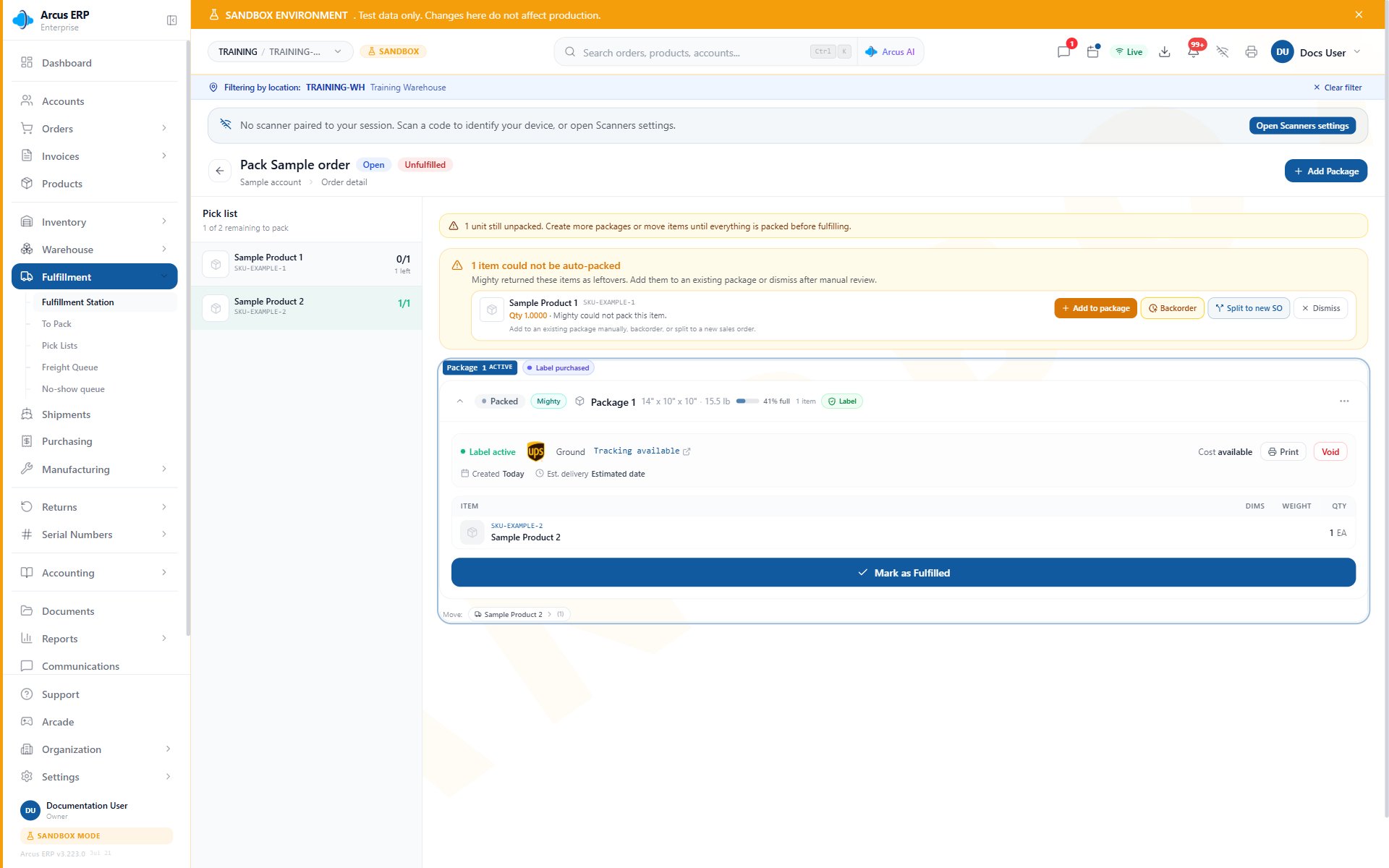
Use the package detail to confirm label state and packed items before marking the package fulfilled.
Mighty Leftovers
When units stayed unpacked after Mighty packed an order, a badge beside the title shows how many items need attention. It opens Mighty leftovers needing attention, grouped by order, with Open order for each. With none left, the badge is hidden. See Mighty Leftovers.Pack One Order
Each order also has its own pack page, titled Pack followed by the order number. It opens from Operations > Fulfillment > To Pack, from a pick list, or from the order’s fulfillment section, and it needs Pack Orders.- The left side shows how many units remain to pack and the pick list with bins and packed counts.
- Add Package opens Create Package: choose a Catalog box, a Saved template, or a Custom size, pick the items, and select Create Package, or Create & add another box to keep the dialog open for the next box. After the first box, the main button reads Create box & finish. Add Pallet opens Add freight package for a pallet, crate, or custom freight unit with its accessorials.
- A Mighty suggestion card offers an automatic carton layout. Accept starts packing from it; Discard removes it.
- Scanning a box makes the package that already uses that box the active package, or opens Create Package when no package uses it yet. Scanning a product adds one unit to the active package (“Added to active package”). A product not on the order is refused with “This product is not on the parent order. To add it, edit the order first, then return to packing.”
- The scanner banner shows whether a scanner is paired to your session. Release frees your scanner. Claim takes over another operator’s scanner and needs Edit Settings.
- Getting rates may open Shippo Address Validation (Keep original, Accept suggestion, or Use address anyway, which needs Ship Orders); after you accept or fix the address, rates are fetched again. Buying a replacement label after voiding one may open Shipping cost difference when its cost differs from what the customer was charged by more than your re-rate threshold and your settings do not absorb it (Absorb, Charge card, Add to order balance, Refund to AR, or Manual handling).
- Mark as Fulfilled fulfills the package; for a freight order it first asks for the details in Enter Freight Details. Back to Fulfillment Station returns to the station.
Use History
The station history view helps supervisors review recently fulfilled packages. Use it when an operator needs to confirm a package was already completed or when a shipment has left the active queue.- Search by order number, tracking number, or account, and filter by carrier, account, and date. The dates start at the last seven days; Clear resets the filters.
- The order number opens the order’s fulfillment section, where you can review the fulfilled package. Selecting a row switches back to the Station view, which shows the first package in the queue rather than the fulfilled one.
- With nothing to show it says “No fulfilled packages match these filters”.
Side Effects
Station actions can change operational records:- Adding a product to a package splits its units across every order line that holds that product, instead of crediting them all to one line, so shipped quantities (including kit quantities) and invoicing stay in step.
- Fulfill moves the package out of the active queue, takes the stock out of inventory, and posts the sale’s revenue, cost of goods sold, tax, and shipping to the general ledger. It updates the order’s shipped quantities and recalculates any remaining backorder.
- Depending on your settings, fulfilling also creates the invoice (Settings > Payments & Checks > AR & Invoicing), emails the customer that the order shipped or is ready for pickup (Settings > Documents & Email > Email Configuration), captures a card payment that was set to be captured at shipping, and sends new stock levels to your connected marketplaces.
- Buying a label charges your carrier account and records the label cost in the ledger. Voiding a label reverses that entry and requests a refund; Arcus shows “Label voided” and “Refund requested. Shippo processes refunds asynchronously.”
- Settling a shipping cost difference can charge the customer’s card, change the order total and its ledger entries, or record the cost as absorbed.
- Printing through PrintNode creates a print job record, and a job for an offline printer is blocked.
- Every package, label, scanner, and fulfill action is recorded in the activity log, and other people viewing the station see the change right away.
Common Blocks
- Package is missing: check the location, the All, Ship, and Pickup filter, Show empty, the printer’s category scope, and whether the package is already fulfilled (see History).
- Printer list is empty: confirm PrintNode is connected and the desktop client has reported printers.
- Printer is offline: start the printer and PrintNode client, then retry. Use PDF fallback if the package must move now.
- Print Label or Print All is disabled: assign a label printer in your user menu, and check the permission named when you hover the button.
- “Nothing was packed.” followed by “Every unit of (SKU) ordered on this order has already shipped”: before it packs, adds to a package or raises a quantity, Arcus totals each product across all of the order’s lines, counting units already shipped and units sitting in other packages. The message names the product and gives the totals, for example “(n) ordered across (n) lines, (n) shipped, (n) packed”, then how many more were about to be packed. Nothing is added.
- “Only (n) more units of (SKU) can ship on this order” or “No more units of (SKU) can be placed on this order”: the same check when some units are still unshipped but not enough. If the units sit in another package, the message lists that package and says “Ship that package first (Mark as Fulfilled), or remove its units or delete it, then try again.” Otherwise it says “Place no more than what the order still owes.”
- “Nothing was shipped and no stock was drawn.” followed by “This package holds (n) of (SKU), which would ship past what the order ordered”: Mark as Fulfilled runs the same check before it takes any stock or posts anything. Remove the extra units from the package or delete it.
- A line reads short although the product already shipped: the message says the shipped units are recorded on another line of the order and that packing again would ship the goods twice. Do not pack a second box; ask someone to correct which line the shipped units are recorded on.
- “Cannot fulfill: order has no payment or payment terms”: collect payment, or assign net payment terms (terms with days to pay; due-on-receipt terms do not count), before fulfilling.
- “Ship-complete order cannot be partial-shipped; unpacked lines remain.”: the order ships complete, so pack every line before fulfilling.
- “This is a parcel ship order with no shipping label.”: buy a label for the package, then fulfill again. The station and the pack page do not offer Fulfill without a label; to ship without one, use that option in the order’s fulfillment section.
- “Shipping address must be validated before rate-shopping”: validate the address, then fetch rates again.
- “The server took too long to respond”: Arcus checks the package again; if the change went through it updates in a moment, and if not, try again.
- Fulfill fails for another reason: resolve missing serial numbers, holds, or label readiness named in the message, then retry.
Related Articles
Pack with Mighty
Confirm package contents, buy labels, and resolve packing exceptions.
Pick Lists
Operations > Fulfillment > Pick Lists: build single-order and wave pick lists before packing.
Mighty Leftovers
Resolve units that remain unpacked before final station work.
Shipping Labels
Understand label state, rate purchase, print, void, and refund behavior.
Shipments and Rate Preview
Operations > Shipping > Shipments: track packages after they ship.
Printing Setup (PrintNode)
Configure PrintNode, printers, and user printing preferences.
Printer Fallback and Reprint Recovery
Recover from offline printers, missing defaults, and damaged labels.
Label Reprint, Void, and Repack Recovery
Decide whether to reprint, void, or repack when label work has started.
Batch Packing
Use wave order cards to finish package work.
Walk-in Pack
Operations > Warehouse > Walk-in Pack: fulfill a counter pickup without a label.
Order Lifecycle
Sales > Orders > All Orders: where fulfillment fits in the order.