

Open the Log
- Open Settings and choose Entity Settings.
- Open Shipping & Fulfillment.
- Select Shippo Error Log.
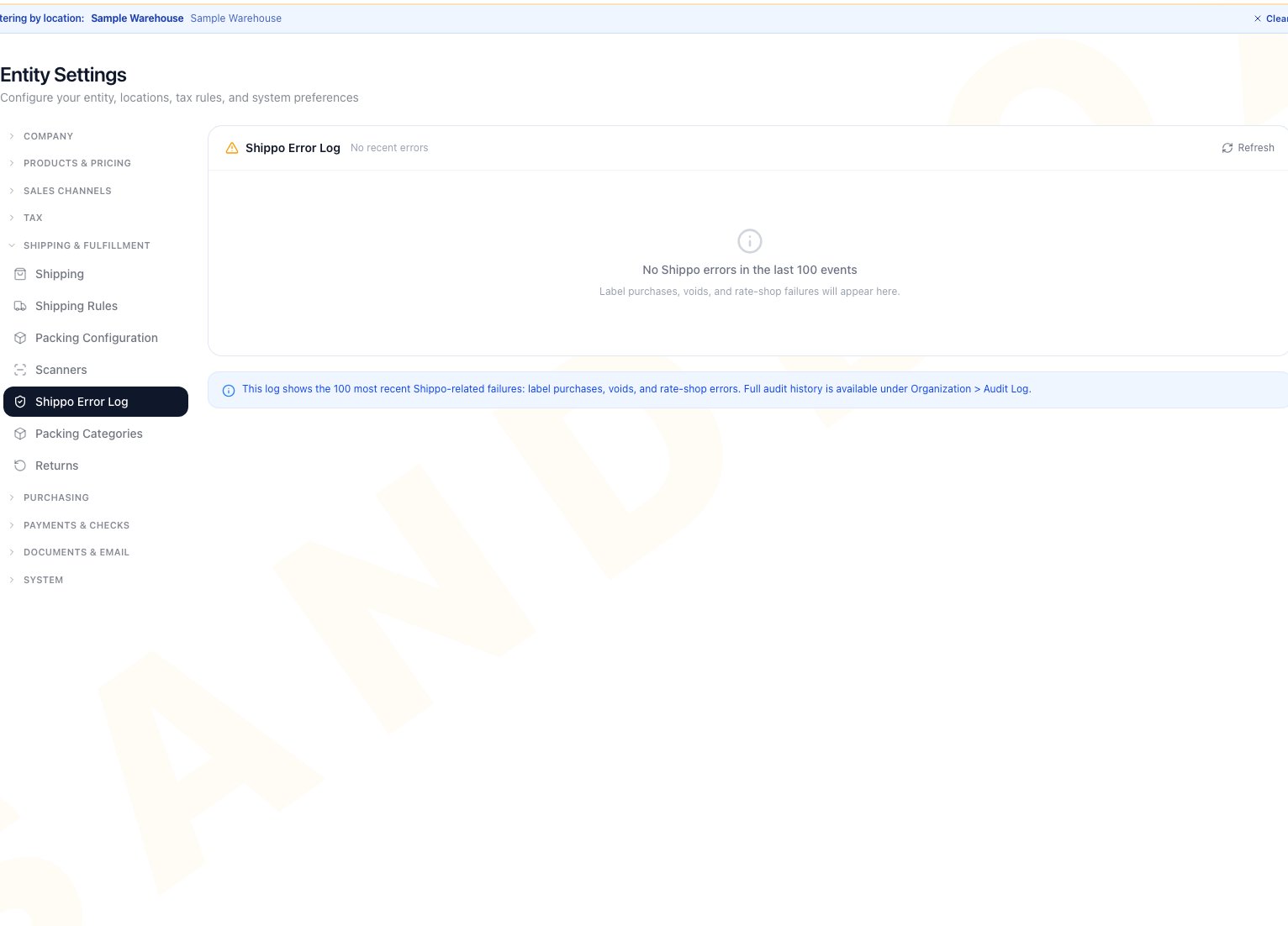
Shippo Error Log is selected under Shipping & Fulfillment, showing no qualifying failure rows returned and the Refresh control.
Resolve a Failure
- Read the failure type and message.
- Open the package when a link is available.
- Correct the visible cause, such as an incomplete address, missing package details, unavailable service, or a repack blocked because the previous label could not be voided.
- Retry the original action from the package workflow.
- Refresh the log and confirm the workflow succeeded. The historical error may remain in the recent list.
The log is read-only. It does not retry a shipment or remove an error. Full activity history is available from Organization > Audit Log.
Empty and Error States
- No recent errors: the filtered request returned no rows for the four tracked failure actions with a failed outcome. This is not a statement about the latest 100 shipping events.
- Could not load error log: check your connection and select Refresh.
- View package is missing: the entry is not tied to a package that can be opened from this page.
- Refresh is disabled: wait for the current load to finish.
Related Articles
Shipping Settings
Configure the carrier connection and label defaults.
Labels
Buy, reprint, void, and troubleshoot shipping labels.