

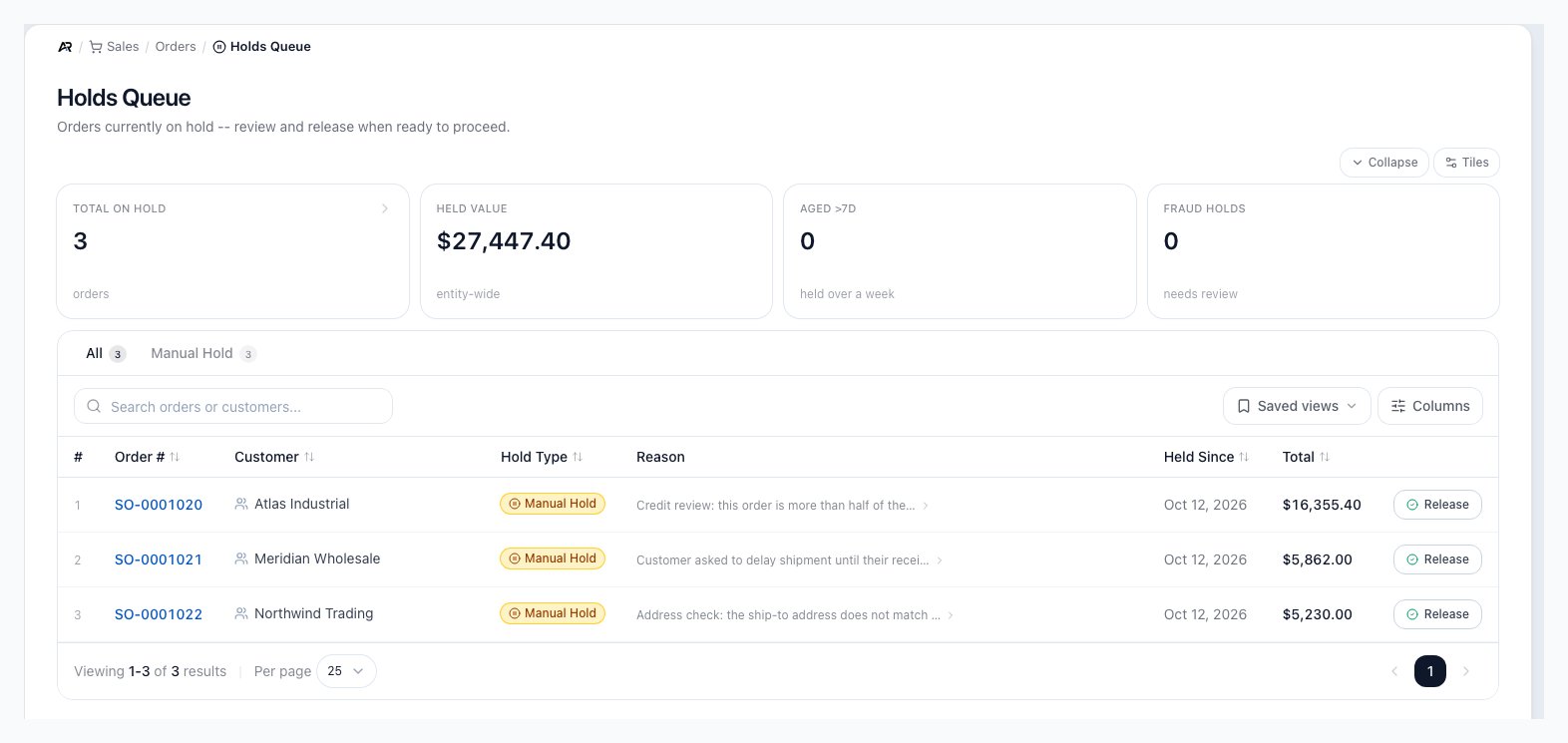
The Holds Queue: summary tiles, a tab per hold type, and a Release button on each held order.
Before You Start
- You need View Orders to open the page.
- Releasing a Manual Hold or a Credit Hold needs Edit Orders.
- Releasing a Fraud Hold needs both Edit Orders and Release Fraud Hold, so by default only the Owner and Admin roles can release one: the Manager role lacks Release Fraud Hold, and the Accountant role has Release Fraud Hold but not Edit Orders, so it sees Release enabled and Arcus refuses the release.
- A custom hold code your company created needs the release permission chosen for that code under Settings > System > Approval Workflows (Custom Hold Codes): Edit Orders by default, or Release Fraud Hold or Override Credit Hold. The Release button only checks Edit Orders for these, so a role without the code’s permission sees the button and Arcus refuses the release.
How Orders Land Here
An order is on hold when something has to be decided before it can be confirmed or fulfilled. Fulfillment is blocked while the hold is active.- Credit Hold: placed when an order is confirmed and the customer would go over its credit limit, or when a pre-pay customer (credit limit of zero) still owes on the order. The reason states the amounts and the way forward. A credit hold clears on its own when the order is paid in full.
- Fraud Hold: placed automatically when your card processor sends an early fraud warning on the order’s payment, or when a connected store’s risk check recommends investigating or cancelling the order. A payment never clears it.
- Manual Hold: placed by your team or an integration, for example when a store order arrives with a shipping method that has not been mapped and strict mapping is on. A payment never clears it.
- Custom hold codes: holds your company defined, shown with the label you gave them.
Read the Page
Four summary tiles sit above the list. They always count every held order, whatever tab or search you are on.- Total on hold: how many orders are on hold. Select it to return to the All tab.
- Held value: the combined order total of every held order.
- Aged >7d: orders held for more than seven days. These have waited too long and need attention.
- Fraud holds: orders waiting for fraud review. When there are any, select it to open the Fraud Hold tab.
- Go to Sales > Orders > Holds Queue.
- Pick a tab, or search by order number or customer name.
- Select an order number, or anywhere on its row, to open the order. Select the customer name to open the customer’s account.
- Use Columns to hide, restore, or reorder columns (Order # always stays), and Saved views to keep a layout, including its search. Choose how many rows show with Per page.
Release a Hold
Release a hold only after its reason is resolved: the customer paid or the credit limit was raised, the fraud review cleared the order, or the manual issue is fixed.- Find the order and select Release on its row. Hover the button first to see what it does: Release this order hold. The order can then proceed to confirmation and fulfillment., or for a fraud hold Release the fraud hold. Audit-logged. Use only after fraud review clears the order.
- The Release order hold window names the order, says it will be able to proceed to confirmation and fulfillment, and notes that the action is logged in the order timeline.
- Select Release Hold, or Cancel to keep the hold.
Releasing a hold does not confirm, charge, pack, or ship the order. Open the order and confirm it, or continue
with its next step. On an order whose credit hold is left over after the customer paid in full, the order’s own
hold banner offers Release Hold + Confirm to do both at once.
What Happens Behind the Scenes
- The order: its hold type and reason are cleared, and the person and time of the release are recorded on it.
- History: a Hold released entry naming the hold type is added to the order’s timeline, and the release is written to the activity history with your name.
- Nothing else moves: releasing a hold posts nothing to the ledger, moves no stock, and sends no email.
- Live updates: the queue refreshes for everyone when a hold is placed or released, or when a held order is changed, confirmed, or cancelled.
Common Blocks
- Release is greyed out: your role lacks the permission for that hold type. Hover the button to see which one, and ask an Owner or Admin.
- The release is refused with a permission message: the order carries a custom hold code whose release permission your role does not have, or it is a Fraud Hold and your role has Release Fraud Hold but not Edit Orders (the Accountant role by default). Every release needs Edit Orders, and a fraud hold also needs Release Fraud Hold.
- You see Order is not on hold: someone else released it first. The list refreshes on its own.
- You see Failed to release hold: the release did not save. Try again, and open the order if it keeps failing.
- An order is missing: check the tab and clear the search. Only orders currently on hold appear here; a released order is back on Sales > Orders > All Orders.
- A customer on credit hold needs this one order today: use the override on the order’s hold banner instead. See Order Exceptions.
Related Articles
All Orders
Sales > Orders > All Orders: find, filter, and work every order, including the On hold filter.
Order Exceptions
The hold banner on an order, the credit hold override, and other blocks.
Account Management
Sales > Accounts > Customers: credit limits, terms, and the customer credit hold flag.
Approval Workflows
Settings > System > Approval Workflows: custom hold codes and who can release them.