

After a label is purchased, choose the smallest safe recovery action. Reprint only when the same label is still correct. Void and relabel when shipment details changed. Repack only when the physical package work needs to be rebuilt.
Decide What To Do
Use this decision guide:- Reprint: the package, address, carrier, service, and contents are correct, but the label did not print cleanly or was damaged before shipment.
- Void: the purchased label should not be used because address, box, dimensions, carrier, service, or contents changed.
- Repack: the package split or contents are wrong and the order needs new package work.
- Track only: the carrier already has the package or the shipment is delivered.
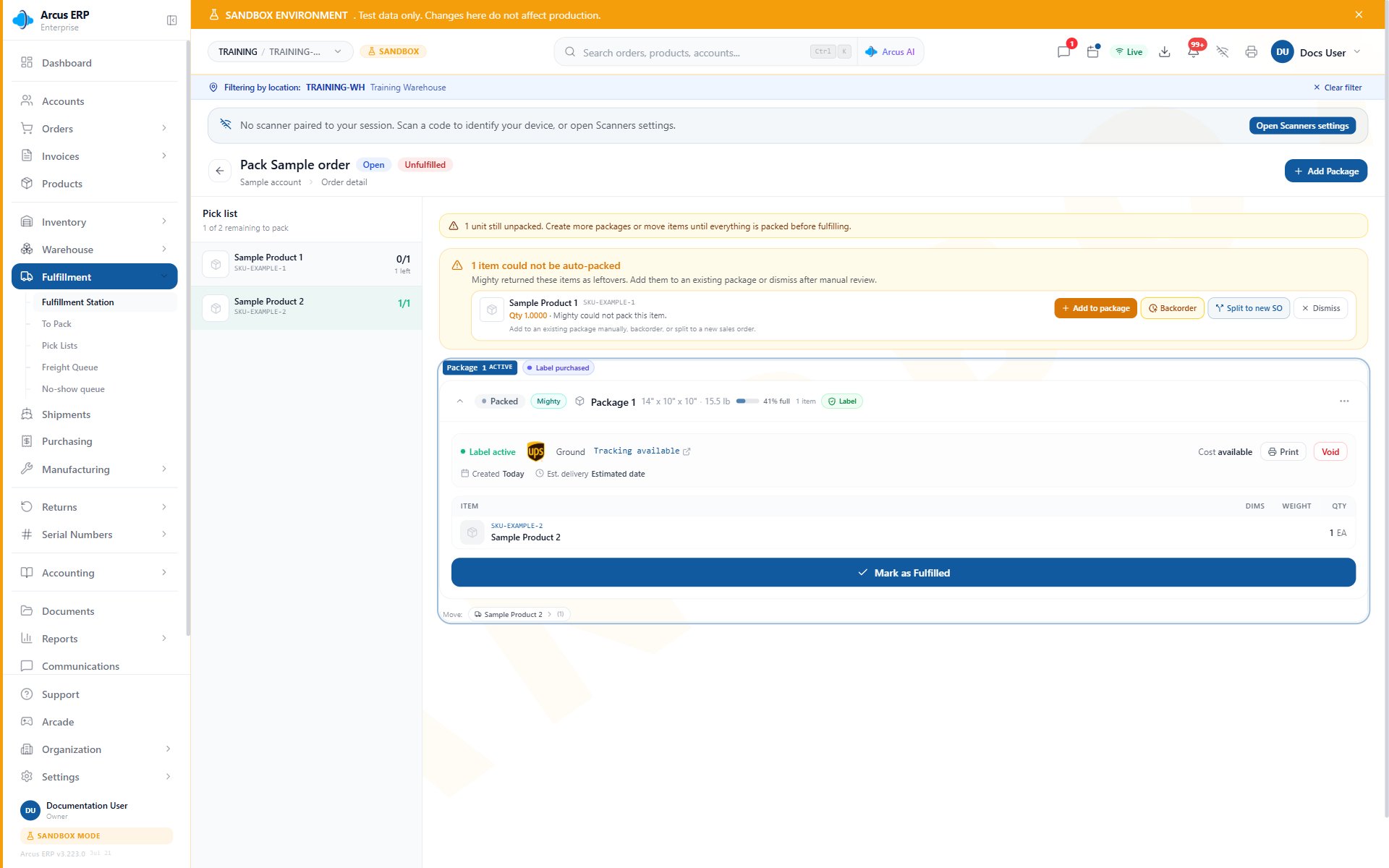
Package detail shows the label state and package contents used to decide whether to reprint, void, or repack.
Reprint A Correct Label
- Open the package or shipment.
- Confirm the package, address, carrier, service, and contents are still correct.
- Choose print label.
- Use the selected label printer or PDF fallback.
- Put the reprinted label on the matching physical package.

Printing preferences decide which printer receives label reprints and which document printer receives packing paperwork.
Void And Relabel
Void the label when the active label should not travel with the package.- Open the labeled package.
- Choose void label.
- Confirm the void.
- Wait for Arcus to clear the active label from the package.
- Correct the package, address, carrier, service, or contents.
- Get rates again.
- Buy and print the replacement label.
Repack Safely
Use Repack with Mighty when the package split or physical packing is wrong. The action is available only after all units are packed, at least one package exists, and the order remains unfulfilled.- Confirm the order should be repacked.
- Review every active label on the order.
- Choose Repack with Mighty.
- Let Arcus attempt the required label voids before rebuilding eligible packages.
- If any void fails, stop and resolve the failed label first.
- Review the rebuilt packages and any packages Arcus preserved.
- Review the staged rates and labels, then buy labels only after the package work is correct.
Edit A Labeled Package
Changing a labeled package can invalidate the label. If Arcus warns that the active label will be voided, read the warning and continue only when the label should no longer be used. Common changes that require relabeling include:- Box or dimensions changed.
- Carrier or service changed.
- Address changed.
- Package contents changed.
- The order was repacked into different packages.
Printer Recovery
If the label is correct but printing failed:- Check that the selected label printer is online.
- Confirm the printer has the right label stock.
- Retry the print job.
- Use PDF fallback if PrintNode is unavailable.
- Do not void a correct label just because the printer failed.
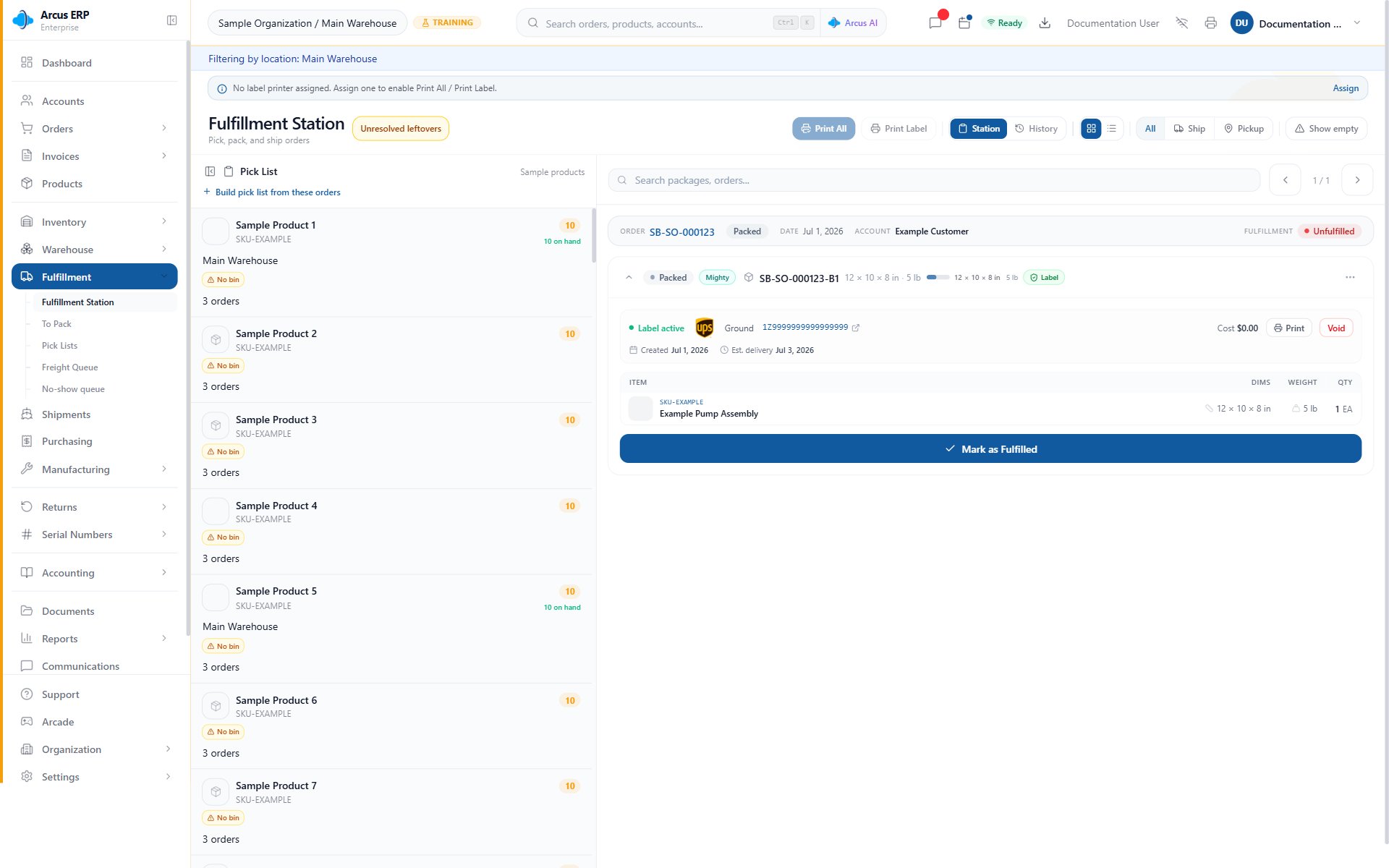
The fulfillment station shows printer assignment and print controls beside package search, the active package, and fulfillment controls.
Common Blocks
- Label printed on the wrong stock: reprint the same label on the correct label printer.
- Wrong address on the label: void the active label, correct the address, then buy a replacement label.
- Void is blocked: the carrier may already have the shipment. Track it and contact the carrier before relabeling.
- Refund denied: do not keep using the replacement process blindly. Review the restored label and carrier tracking.
- Repack is blocked: retry the failed void before rebuilding packages.
- Package already fulfilled: review shipment status before editing package or label details.
Related Articles
Shipping Labels
Understand label state, rate purchase, print, void, and refund behavior.
Printer Fallback and Reprint Recovery
Recover from offline printers, missing defaults, and damaged labels.
Pack with Mighty
Pack packages, accept or adjust suggestions, and resolve packing exceptions.
Mighty Leftovers
Resolve unpacked units before rates, labels, and final fulfillment review.
Fulfillment Station
Use station printer controls and package queues.
Address and Customs Blocks
Fix address validation and customs failures before label purchase.
Shipments and Rate Preview
Track shipped packages and preview rates without buying a label.