

Manual journal entries are for accounting adjustments, accruals, corrections, and review
work. Routine operations should usually be handled in their source module so the subledger,
inventory, payments, and audit trail stay aligned.
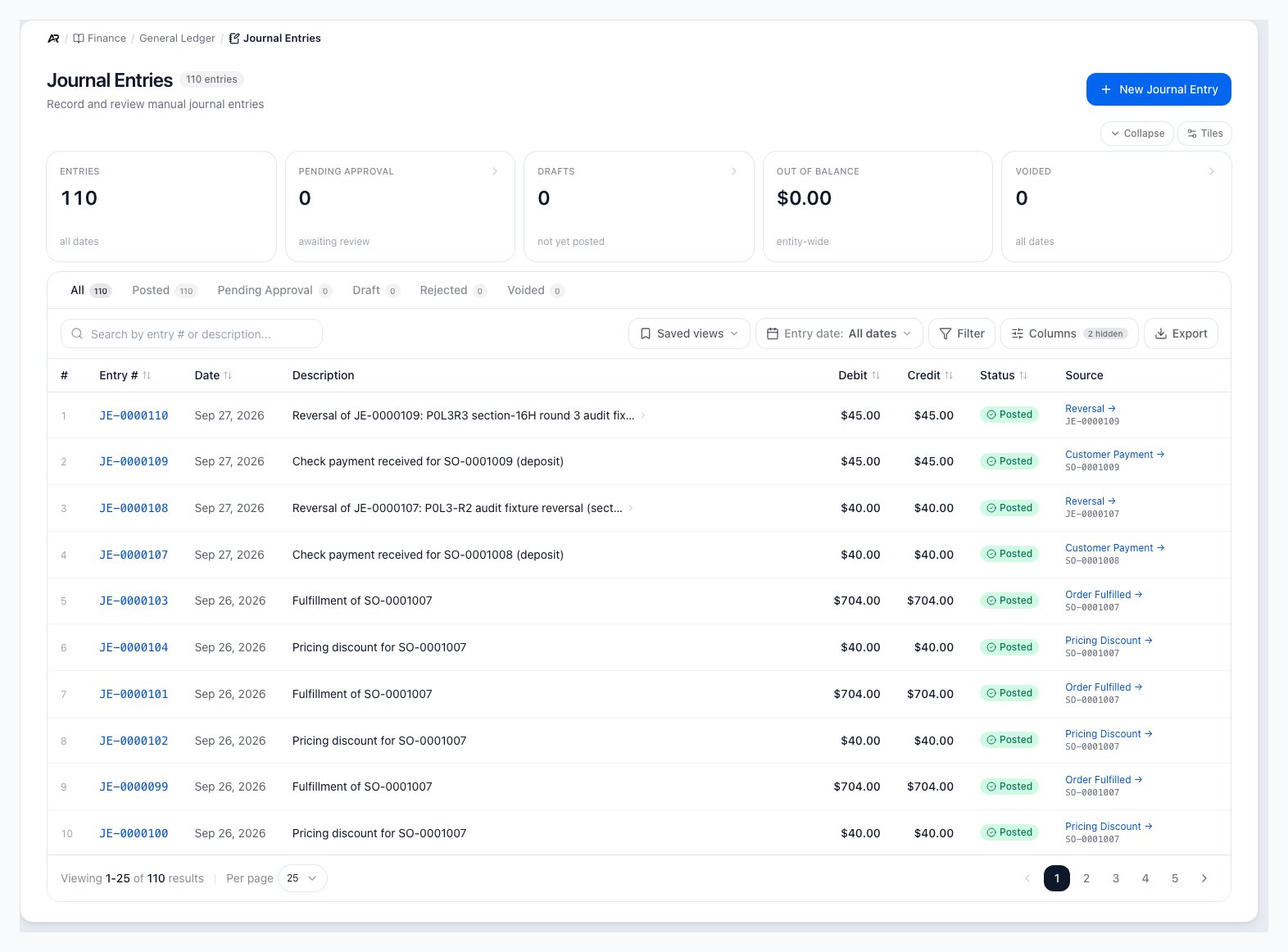
The journal entry list with its summary tiles, status tabs, search, saved views, filters and the Source column.
Open Journal Entries
Open Finance > General Ledger > Journal Entries. You can also search for Journal Entries in the command palette, use the Finance dashboard (its pending-approval card opens the Pending Approval tab), or follow the draft and pending counts on Period Close. A source on another screen (a purchase order, a warehouse transfer, an inventory transaction, a lease modification, a bank-account audit finding, or the GL movements on a bill or order) opens that one entry’s detail page directly, and New Journal Entry from the quick-create menu opens the new-entry form. If a link points to an entry that belongs to another of your companies, Arcus finds it, switches to that company and shows Switched to (company name) to open this journal entry. The tabs are All, Posted, Pending Approval, Draft, Rejected and Voided; the tiles above them are Entries, Pending approval, Drafts, Out of balance and Voided. Use search, source links, and entry dates to find the accounting event you need. Each source link opens with View to jump straight to the originating record. The list also has saved views, an Entry date range, Filter, a Columns menu (Entry #, Date, Description, Debit, Credit, Status, Created By, Source and Party) and Export. When entries are waiting, a banner says how many require approval and Click to review opens the pending tab. If the list cannot load, the page says Failed to load journal entries. Viewing needs permission to view accounting. New Journal Entry, posting and reversing need permission to post accounting. Approving and rejecting entries, and posting into a prior period beyond your business’s date window, need permission to close periods.Automatic Entries
Arcus posts many journal entries without a user opening this page. Common examples include:- Invoice posted: receivables and revenue are updated.
- Payment received: cash or clearing accounts and receivables are updated.
- Order fulfilled: inventory and cost of goods sold are updated.
- Inventory adjusted or received: inventory value and offset accounts are updated when accounting is enabled.
- Vendor bill recorded: expense, inventory, GRNI, and payable accounts may be updated.
- Bill payment or check written: cash and payable accounts are updated.
- Bank reconciliation adjustment: cash and selected GL accounts can be updated.
Vendor Bill Entries
A vendor bill you enter posts its journal entry on the bill’s effective date, its posting date. That is not necessarily the day you entered the bill or the date printed on the vendor’s invoice. A recurring or lease bill whose date is not allowed (outside your posting window, in a closed month or in a locked tax year) posts on the day it is created instead, and keeps the date that was asked for as its effective date. A bill posted before October 6, 2026 posted on its bill date (on the day it posted, when the bill date was still ahead), whatever its effective date said, and it stays there until you move it. When the entry is on another date, the Bill Summary on the bill shows Posted to GL on (date) under Effective date, with a line saying why when Arcus can tell. Moving a posted bill’s effective date does not edit that entry: Arcus posts two linked correcting entries, one that takes the bill’s lines out of the old date and one that records them on the new date, and the original entry stays as it is. Use Filter and set Entry kind to Corrections only to list correcting entries. See Bill Dates and GL Posting.Create a Manual Journal Entry
- Open Finance > General Ledger > Journal Entries.
- Click New Journal Entry. Choose Start blank or Use a template. If you left an entry unfinished, Arcus restores it and says it has not been posted.
- Choose the entry date and add a clear description.
- Add at least two lines. Click Add Line for another line, or Remove line on a row you no longer need (Arcus keeps at least two lines on the form).
- Select the GL account for each line.
- Enter either a debit or a credit amount on each line.
- Confirm total debits equal total credits.
- Click Post Journal Entry, then follow the approval workflow when approval is required.
What Happens When You Post
- Balanced entry and no approval required: the entry posts immediately and appears in balances, ledgers, and reports.
- Approval required: the entry is saved as pending approval and does not affect reports until it is approved.
- Approval bypass configured: authorized accounting roles may post without waiting for a second approval.
- Closed period: Arcus blocks posting into a closed period. The form may suggest the next open period.
- Controlled account warning: entries that touch receivables, payables, inventory, or other system-controlled accounts show Posting to a system-controlled account inside the form, and a Subledger Warning before posting that suggests adjusting through the source document. Click Acknowledge or Post Anyway only when a GL-only entry is really intended.
- Future date: a date after today is refused unless it falls inside your business’s future posting window. The window is the Future posting window setting under Settings > System > Fiscal Year, and it is 0 days by default, so by default no entry can post after today. A date beyond the window shows a yellow Future-dated entry banner naming how many days ahead it is, with a Reason for the future date field (at least four characters). A user who can close periods can enter a reason and post: the entry posts to the ledger on that date, the reason is recorded on the audit trail, and a monthly accounting period must cover the date and be open. A user without that permission sees a red banner saying the date is beyond the window and that posting on a future date needs permission to close periods, plus That date is (n) days ahead, beyond this entity’s (n)-day future posting window. Without a reason, Give a reason for posting on a future date (at least 4 characters). Day counts use the server’s day, not the day on your device, so the guidance matches what the server checks when it posts.
- Prior-period date: a date further back than your business’s window needs a reason of at least four characters (Give a reason for posting into a prior period (at least 4 characters).), recorded on the audit trail. If you lack permission to close periods, Arcus refuses and says so. The window itself is the Journal entry backdate window setting under Settings > System > Fiscal Year (180 days by default).
- Validation: Arcus refuses an entry with fewer than two lines that have an account and an amount (Manual JE requires at least 2 populated lines with an account and amount), an entry that does not balance (Entry is out of balance; debits must equal credits), a line with an amount but no account, or a closed posting period (the message names the period and says to pick an open period first).
Pending approval means no financial impact yet
A pending journal entry is visible for review, but it is not included in account balances,
account ledger totals, period close totals, or financial reports until an approver posts it.
Approval and Posting
Your entity settings can require approval before manual entries post. When approval is required, the entry can sit in a pending state until an authorized reviewer approves, rejects, or asks for changes. Posted entries affect balances and financial reports. Two thresholds under Settings > System > Approval Workflows control this: JE Approval Threshold (Supervisor) routes a manual entry at or above that total to pending approval, and JE Approval Threshold (Controller) raises entries at or above the higher amount to Controller-level approval. Leaving a threshold at zero or blank turns that tier off, so entries post immediately without waiting for review.- Draft: saved work that does not affect GL balances.
- Pending Approval: waiting for an authorized reviewer.
- Posted: included in account balances and financial reports.
- Rejected: not posted. Review the reason and create a corrected entry if needed.
- Voided or reversed: retained for audit history while correcting the financial effect.
Approve Or Reject A Pending Entry
- Open Finance > General Ledger > Journal Entries.
- Open the Pending approval tab.
- Open the entry and review the description, source, date, lines, and attachments or notes.
- Click Approve and Post when the entry is correct.
- Click Reject Entry when it should not post, then enter the reason. Approval posts the entry immediately. A pending entry dated ahead of today is checked again at approval. If its date is beyond the future posting window, Approve Journal Entry says Not approved yet. The entry is still pending approval and nothing was posted. and, for a user who can close periods, offers a Reason for the future date field and Approve with this reason. Other users are told the approval needs permission to close periods and to ask someone who can. When the window is 0 days, or the date is outside it and cannot be overridden, the dialog gives the date from which the entry can be approved and suggests approving then or rejecting it so its date can be changed. Other refusals are explained in the same dialog and name what to do: you created the entry so someone else has to approve it, the date is in a closed accounting period (reopen it from Period Close or reject the entry), no monthly accounting period covers the date (generate the month’s period from Period Close), or the entry is no longer in this company’s ledger (close the dialog and reload the list). Anything unexpected shows The approval did not go through with Try again. Rejection keeps the entry out of the GL and preserves the reviewer reason for audit history. An entry above your business’s high approval threshold shows Approve (Controller Required) and can only be approved by a user with that authority. If someone else already approved or rejected the entry in another tab, the dialog says Entry Already Actioned; click Reload.
Reverse a Posted Entry
Posted entries should be corrected with a reversal and a new corrected entry, not by changing the original lines. A reversal flips the debit and credit lines while preserving the original record for audit history.- Open the posted journal entry.
- Click Reverse when the action is available.
- Enter a reason when your team needs one for review.
- Confirm Create Reversal.
- Post a corrected entry if the financial event still needs to be recorded differently. A reversal creates a new offsetting journal entry, marks the original as reversed, and keeps both records visible in the audit trail. The reversal is dated today (the server’s day), and is refused if today’s period is closed; for an entry dated ahead of today, the Reverse Journal Entry dialog says the offsetting entry takes the entry’s own date instead, never an earlier day. When the entry came from a bank line, Arcus puts that bank line back in Banking > For Review and names it in the confirmation; if a settlement correction is still posted, the confirmation says so and that only the bank line’s own Undo can reverse it. Arcus does not let you reverse an entry that is itself a reversal or an entry that has already been reversed.
Common Blocks
- Entry will not post: total debits and credits do not match.
- Account is missing: confirm the GL account is active and allowed for the workflow.
- Period is closed: choose an open period or ask accounting to reopen the period according to policy.
- Approval is required: wait for an authorized approver or update the manual journal approval settings.
- Approval action is unavailable: confirm the entry is still pending approval and that your role can approve manual journal entries.
- Reverse action is unavailable: the entry may not be posted, may already be reversed, or may itself be a reversing entry.
- Date is ahead of today: the future posting window is 0 days by default. Raise it under Settings > System > Fiscal Year, or ask someone who can close periods to post with a reason.
- No monthly period covers the date: Arcus names the date and says to generate that month’s period from Period Close first.
- System-account warning appears: confirm the entry should really affect that controlled account.
Related Articles
Chart of Accounts
Understand account structure, account types, and posting behavior.
Account Ledger
Review transaction history, source activity, debits, credits, and running balance for one GL account.
GL Reconciliation and Integrity
Compare control accounts to subledgers, review clearing account health, and audit GL integrity check logs.
Financial Reports
Run balance sheet, profit and loss, cash flow, and operational reports.
Bank Reconciliation
Match bank transactions to payments, deposits, payouts, and checks.
Period Close
Close, approve, reopen, and audit accounting periods with pre-close checklist controls.
Fiscal Year Settings
Set the fiscal year start and the manual journal entry backdate window.
Inventory Management
Track stock, locations, reorder points, and inventory movement history.