

Find The Right Recipe
- Search by BOM name, product, or SKU.
- Narrow the list by Type, Status, or a BOM tag.
- Choose By product, All, or Catalog for the amount and arrangement of information you need.
- Click Load more if Arcus reports more results.
- Review the active work-order count, then open the recipe and verify its type, product, revision, output quantity, status, and component lines before using it.
Choose The Right List View
The view buttons change how the same filtered recipes are presented. Arcus remembers the selected view for the current entity.
None of these list views calculates production capacity. An active work-order count shows current use, not how much can be built. Open the exact recipe to read Can Build Now, Can Disassemble Now, or Can Convert Now using current entity-wide stock.
Use Tags And Filters
BOM tag chips appear only when BOM-scoped tags exist for the entity. One tag can be selected at a time:- Click a tag chip to show recipes with that tag.
- Click the selected chip again to remove that tag filter, or click Clear.
- Continue using search, All types, and the status filter as needed.
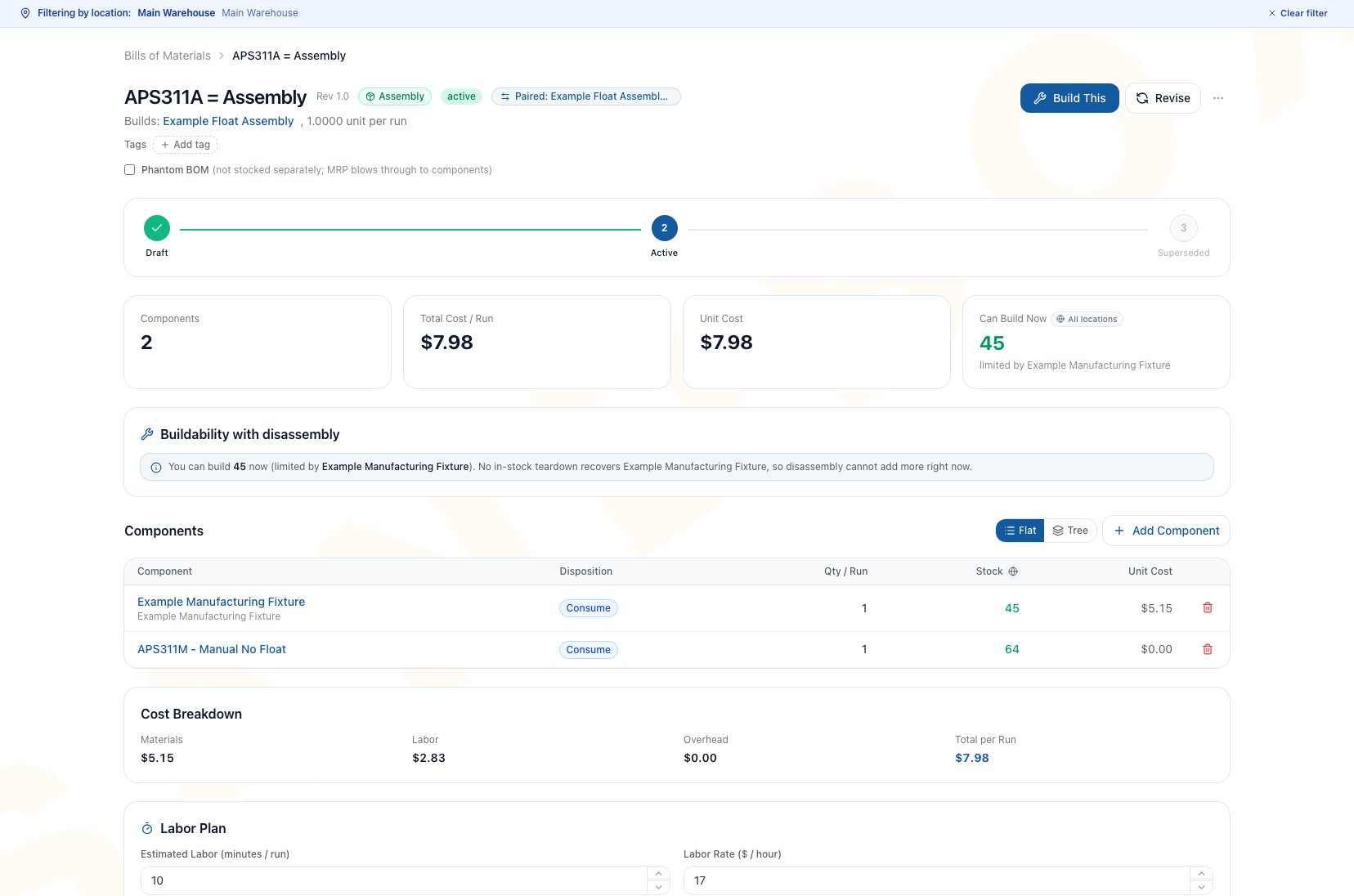
The BOM detail page keeps recipe identity, status, availability, components, cost, and labor decisions together.
Choose The BOM Type
The type changes the available material dispositions, availability calculation, primary action, and inventory result. It is more than a reporting label.
Select an eligible specific product or SKU for the output, source, and component fields. Kits, services, variant-parent shells, and box packaging records are not eligible BOM choices. Eligibility does not guarantee that a product is active, inventory tracked, or correctly configured for planning.
When the exact recipe matters, open that BOM and use Build This, Disassemble, or Convert. The New Work Order page opens with that recipe selected for final review.
Read A Recipe Before Using It
Check these areas in order:- Header: Confirm BOM type, product, revision, status, and output quantity per run.
- Availability: Read Can Build Now, Can Disassemble Now, or Can Convert Now as a current entity-wide planning estimate.
- Components: Verify quantity per run, disposition, and floor instruction for every line.
- Cost Breakdown: Treat the material and labor rollup as a current estimate, not a historical cost snapshot.
- Labor Plan: Confirm planned time, rate, and whether planned labor should auto-book at completion.
- Full Material Explosion or Recovery Preview: For an Assembly or Conversion, simulate a whole-number output and review resolved leaf requirements, stock, and estimated current cost. For a Disassembly, simulate source units and review returned quantities, allocation percentages, and recovered value.
- Work Orders: Open the work that used this exact BOM and inspect its actual quantity, cost, inventory movements, and accounting entries.
- Documents: Open the current work instruction, drawing, or specification before the floor starts.
- Lifecycle: Confirm whether this is the intended active revision and whether it is the product default when planning depends on it.
Actions On A Recipe
The recipe page has its main buttons beside the title and a menu for the rest. A button you may not use stays visible and turns off with its reason: “You do not have permission to edit BOMs (manufacturing.edit)” or “You do not have permission to create work orders / revisions (manufacturing.create)”.
Adding a component opens Add Component (product, Quantity per Run, Disposition, optional instructions) and says “Component added”, or “Failed to add” with the reason. Removing one says “Component removed”. Attached documents say “Document uploaded” or “Document removed”. A name, labor, overhead or allocation edit says “BOM updated” or “Failed to update cost allocation” when it cannot save.
The disposition choices are Consume (pull new from stock), Add (a new part to install), Return to stock (a removed part goes back to inventory), Scrap (removed and discarded) and Retain (stays with the unit, no movement).
Archive Or Delete
Archive BOM says the recipe “will be hidden from the default lists and MRP, and can no longer be the product’s default recipe”, that its history is kept and that you can restore it any time from the Archived filter. Arcus says “BOM archived. Restore it any time from the Archived filter.” Delete BOM appears only for a recipe that has never been used to build anything. It permanently deletes the recipe with its lines, tag links and reverse-recipe pairing, and archives any attached documents (the files stay recoverable in the Document Manager). It cannot be undone. Arcus says “BOM deleted.” A recipe that active work orders still reference is refused with the work orders named: “Complete or cancel them first.”Use The Detail Views
The explosion is hypothetical and does not reserve its displayed stock. A Disassembly uses Recovery Preview instead because its returned parts are outputs, not consumed leaf requirements.
Understand Status And Default At A Glance
Arcus can technically place the default flag on any nonarchived BOM, including a Draft or Superseded recipe. MRP only uses a BOM when it is both Active and Default, and the product is active, inventory tracked, and uses the Manufactured or Both supply method. See BOM Lifecycle before changing a default.
Common Scenario: Two Ways To Make One Product
Suppose the same output can be assembled by hand or on an automated line. Keep each physical process as its own BOM rather than hiding both methods in one recipe.- Name each BOM so the process is obvious in search.
- Keep only verified recipes Active.
- Set the recipe MRP should normally use as the active default.
- Open the alternate BOM directly when a planner intentionally needs its exact process.
- Use revision comparison when either recipe changes.
Troubleshooting And Refusals
- A recipe is missing from the normal list: Clear filters, search by product or SKU, click Load more, and include Archived when appropriate.
- Clear did not reset the whole list: The Clear action beside tag chips removes only the selected tag. Reset search, type, or status separately.
- A product does not appear in a picker: Confirm it is an eligible specific product or variant. Kits, services, variant parents, and box packaging records are refused.
- The primary action is missing: Confirm the BOM is Active and that you have create permission. Draft, Superseded, and Archived recipes are not normal production choices.
- The recipe appears active but MRP ignores it: Confirm it is also Default and that the product is active, inventory tracked, and supplied as Manufactured or Both.
- Availability looks higher than one warehouse can support: BOM availability is entity-wide. Confirm the work-order location before release.
- The cost changed without a recipe edit: BOM comparisons and rollups use current recorded costs, so product-cost changes can change the estimate.
- Tree view failed to load: Return to Flat and retry. Do not treat a failed hierarchy view as proof that the BOM has no components.
- Full Material Explosion has no leaf rows: Confirm the recipe has lines and that nested products resolve to leaf requirements for the simulated quantity.
- Recovery Preview is empty: Add at least one Return to stock line. Scrap lines are not recovered outputs.
- Work Orders failed to load: Retry before concluding that the BOM has never been used; retirement behavior depends on server-confirmed history.
FAQ
Can an assembly BOM coexist with a conversion BOM for the same output?
Can an assembly BOM coexist with a conversion BOM for the same output?
Yes. They represent different physical work and may coexist. Give each a clear name, activate only verified recipes, and set the intended MRP recipe as the active default.
Does the star or Set as default action activate a BOM?
Does the star or Set as default action activate a BOM?
No. Default and status are separate. A Draft or Superseded BOM can technically be marked default, but MRP requires the same BOM to be Active and Default.
Is Can Build Now reserved inventory?
Is Can Build Now reserved inventory?
No. It is a current entity-wide estimate. Stock can change before a work order is created or released.
Which action should I use for an exact recipe?
Which action should I use for an exact recipe?
Open the intended BOM and use Build This, Disassemble, or Convert. Review the selected recipe, quantity, location, dates, and availability before creating the work order.
Related Guides
Create A BOM
Create the header, add material lines, plan labor, and activate a verified draft.
Disassembly And Conversion
Choose dispositions and understand the inventory and cost consequences of teardown and transformation.
BOM Lifecycle
Revise, compare, default, archive, delete, and restore recipes safely.
Buildability
Interpret current availability, teardown-assisted buildability, and MRP eligibility.
BOM Documents
Keep approved operating instructions and specifications with the exact recipe.
Manufacturing Overview
Return to the Manufacturing Help Center workflow map.