> ## Documentation Index
> Fetch the complete documentation index at: https://docs.arcuserp.com/llms.txt
> Use this file to discover all available pages before exploring further.
# Print Label by Scan
> Scan a product's SKU and print its barcode label to your label printer in one step, for relabeling stock, bins, and incoming goods.
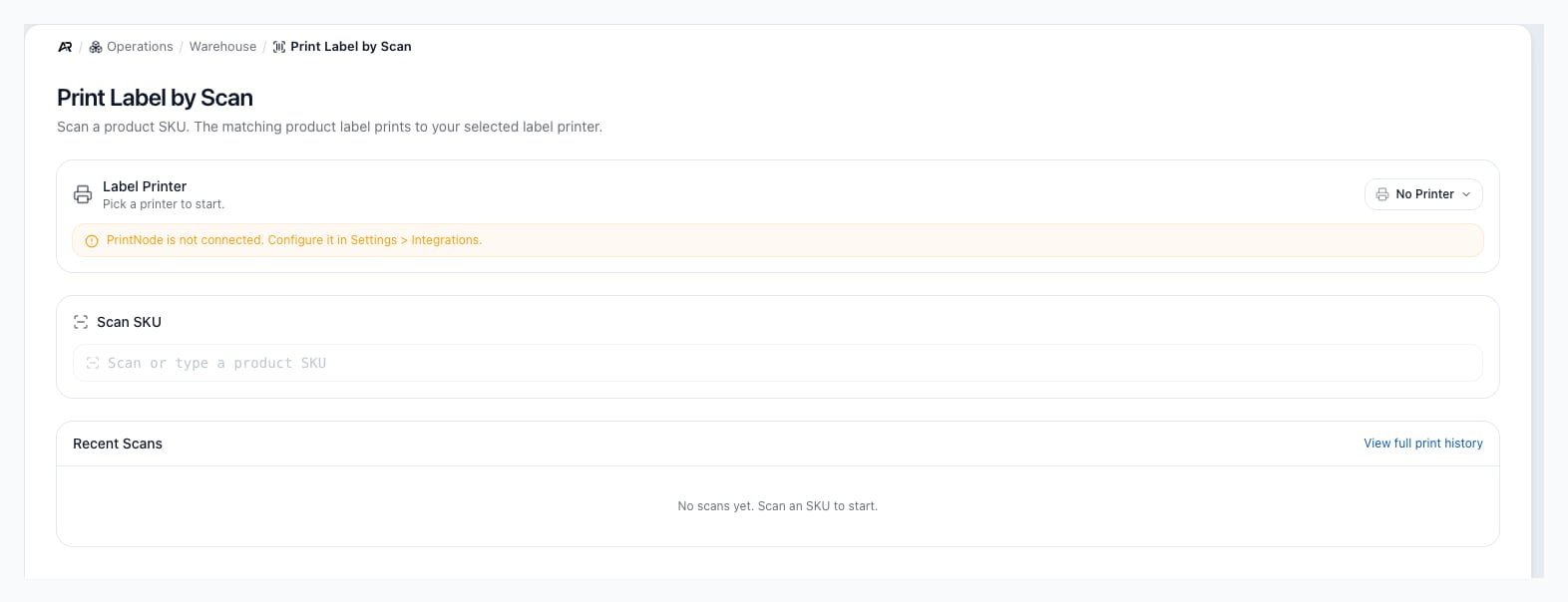
Print Label by Scan prints a product label the moment you scan the product's SKU. Use it when stock arrives without a readable barcode, when a label is damaged, or when you are labeling shelves and bins. Open it at **Operations > Warehouse > Print Label by Scan**.
 ## Before You Start
* **Permissions**: opening the screen needs **View Inventory**. Looking up the scanned product needs **View Products**. Sending the label to the printer needs **Edit Settings**: the screen does not check it before you scan, so without it the scan finds the product and the print is refused, with the reason under the scan box.
* **A connected printing service**: printers reach Arcus through PrintNode. Connect it and install its client on the computer the printer is attached to; see [Printing](/support/settings/printing) at **Settings > System > Printing**.
* **A label printer that is online**: the printer you pick must be flagged as a label printer, not a document printer, and must report online.
* **SKUs on your products**: the scan is matched to a product's SKU, or to its part number.
Other ways in:
* Search for **Print Label by Scan** in the command palette.
## Print a Label
1. Open **Operations > Warehouse > Print Label by Scan**.
2. In the **Label Printer** card, open the printer list and choose your label printer. Arcus shows "Printer set to" the printer name, and the card shows the printer and the computer it is attached to. This browser remembers the choice for your next visit.
3. Scan the product's barcode into the **Scan SKU** box, or type the SKU and press Enter. The box is ready for a scan as soon as the page opens, and it stays disabled until a usable label printer is chosen.
4. Arcus finds the product and shows "Scanned SKU" with the SKU, then "Sending label to" the printer name.
5. When the job is accepted, Arcus shows "Printed to" the printer name, the box shows **Last scanned** with what you scanned, and the scan is added to **Recent Scans**.
6. Scan the next product. The box is ready again right away.
The label is 4 by 2 inches. It carries the product name, the SKU (or the part number when the product has no SKU), and a barcode of it.
**A printer that drops offline does not lose the label**
"Printed to" means the label was queued for the printer. If the printer is briefly offline, it prints when it reconnects. Check the job's status in the print history when a label does not come out.
## How a Scan Is Matched
* Arcus looks for a product whose SKU is exactly what you scanned, ignoring upper and lower case, and then for one whose part number is.
* A product that is inactive is not printed.
* When the scan only resembles a product name or description, nothing prints: a wrong label is worse than none. Scan or type the exact SKU or part number instead.
## Recent Scans
**Recent Scans** lists the last 20 scans you made on this screen, newest first. A printed scan shows the product name, the SKU, and the printer it was sent to; a failed scan shows what you scanned and the reason in red. Each row shows the time.
The list lives only on this screen. It clears when you leave the page or reload it, and it shows "No scans yet. Scan an SKU to start." until you scan. The lasting record is the print history: select **View full print history** to open it at **Settings > System > Printing**.
## What Printing a Label Changes
* **Print history**: each label is recorded as a print job with the printer, the product, and its status.
* **Nothing else**: printing a label does not move stock, change the product, post to the general ledger, or notify anyone.
## Messages You May See
| Message | What it means | What to do |
| - | - | - |
| "PrintNode is not connected. Configure it in Settings > Integrations." | No printing service is connected for your company. | Ask an administrator to connect it; see [Printing](/support/settings/printing). |
| "No printer selected. Pick one above." | No printer is chosen in the **Label Printer** card. | Choose your label printer. |
| The printer name, "is set to" a type, then "Choose a printer flagged as a label printer." | The chosen printer is a document printer. | Choose a label printer, or change the printer's type in the printer list. |
| The printer name, then "is offline. Check the printer connection and retry." | The printer does not report online. | Check that the printer is on and that its computer and the printing client are running. |
| "No product matches SKU" followed by what you scanned | No product has that SKU or part number. | Check the barcode, or add the SKU to the product. |
| "Product" followed by the name, then "is inactive." | The matching product is turned off. | Reactivate the product if it should be labeled. |
| "No exact SKU match for" what you scanned, the number of fuzzy hits, then "Try the exact part number." | The scan only resembles other products. | Scan or type the exact SKU or part number. |
| "Empty scan." | The scan held no characters. | Scan again. |
| "PrintNode not connected. Configure it in Settings." | The printing service was disconnected after the page opened. | Ask an administrator to reconnect it. |
## Related Articles
Settings > System > Printing: printers, defaults, and the print history.
Operations > Warehouse > Bins: the storage spots you label.
Operations > Warehouse > Receiving: label goods as they arrive.
Carrier labels for packages, a different kind of label.
This documentation is built and hosted on [Mintlify](https://mintlify.com), a developer documentation platform.
## Before You Start
* **Permissions**: opening the screen needs **View Inventory**. Looking up the scanned product needs **View Products**. Sending the label to the printer needs **Edit Settings**: the screen does not check it before you scan, so without it the scan finds the product and the print is refused, with the reason under the scan box.
* **A connected printing service**: printers reach Arcus through PrintNode. Connect it and install its client on the computer the printer is attached to; see [Printing](/support/settings/printing) at **Settings > System > Printing**.
* **A label printer that is online**: the printer you pick must be flagged as a label printer, not a document printer, and must report online.
* **SKUs on your products**: the scan is matched to a product's SKU, or to its part number.
Other ways in:
* Search for **Print Label by Scan** in the command palette.
## Print a Label
1. Open **Operations > Warehouse > Print Label by Scan**.
2. In the **Label Printer** card, open the printer list and choose your label printer. Arcus shows "Printer set to" the printer name, and the card shows the printer and the computer it is attached to. This browser remembers the choice for your next visit.
3. Scan the product's barcode into the **Scan SKU** box, or type the SKU and press Enter. The box is ready for a scan as soon as the page opens, and it stays disabled until a usable label printer is chosen.
4. Arcus finds the product and shows "Scanned SKU" with the SKU, then "Sending label to" the printer name.
5. When the job is accepted, Arcus shows "Printed to" the printer name, the box shows **Last scanned** with what you scanned, and the scan is added to **Recent Scans**.
6. Scan the next product. The box is ready again right away.
The label is 4 by 2 inches. It carries the product name, the SKU (or the part number when the product has no SKU), and a barcode of it.
**A printer that drops offline does not lose the label**
"Printed to" means the label was queued for the printer. If the printer is briefly offline, it prints when it reconnects. Check the job's status in the print history when a label does not come out.
## How a Scan Is Matched
* Arcus looks for a product whose SKU is exactly what you scanned, ignoring upper and lower case, and then for one whose part number is.
* A product that is inactive is not printed.
* When the scan only resembles a product name or description, nothing prints: a wrong label is worse than none. Scan or type the exact SKU or part number instead.
## Recent Scans
**Recent Scans** lists the last 20 scans you made on this screen, newest first. A printed scan shows the product name, the SKU, and the printer it was sent to; a failed scan shows what you scanned and the reason in red. Each row shows the time.
The list lives only on this screen. It clears when you leave the page or reload it, and it shows "No scans yet. Scan an SKU to start." until you scan. The lasting record is the print history: select **View full print history** to open it at **Settings > System > Printing**.
## What Printing a Label Changes
* **Print history**: each label is recorded as a print job with the printer, the product, and its status.
* **Nothing else**: printing a label does not move stock, change the product, post to the general ledger, or notify anyone.
## Messages You May See
| Message | What it means | What to do |
| - | - | - |
| "PrintNode is not connected. Configure it in Settings > Integrations." | No printing service is connected for your company. | Ask an administrator to connect it; see [Printing](/support/settings/printing). |
| "No printer selected. Pick one above." | No printer is chosen in the **Label Printer** card. | Choose your label printer. |
| The printer name, "is set to" a type, then "Choose a printer flagged as a label printer." | The chosen printer is a document printer. | Choose a label printer, or change the printer's type in the printer list. |
| The printer name, then "is offline. Check the printer connection and retry." | The printer does not report online. | Check that the printer is on and that its computer and the printing client are running. |
| "No product matches SKU" followed by what you scanned | No product has that SKU or part number. | Check the barcode, or add the SKU to the product. |
| "Product" followed by the name, then "is inactive." | The matching product is turned off. | Reactivate the product if it should be labeled. |
| "No exact SKU match for" what you scanned, the number of fuzzy hits, then "Try the exact part number." | The scan only resembles other products. | Scan or type the exact SKU or part number. |
| "Empty scan." | The scan held no characters. | Scan again. |
| "PrintNode not connected. Configure it in Settings." | The printing service was disconnected after the page opened. | Ask an administrator to reconnect it. |
## Related Articles
Settings > System > Printing: printers, defaults, and the print history.
Operations > Warehouse > Bins: the storage spots you label.
Operations > Warehouse > Receiving: label goods as they arrive.
Carrier labels for packages, a different kind of label.
This documentation is built and hosted on [Mintlify](https://mintlify.com), a developer documentation platform.