> ## Documentation Index
> Fetch the complete documentation index at: https://docs.arcuserp.com/llms.txt
> Use this file to discover all available pages before exploring further.
# Shippo Error Log
> Review recent label purchase, repack-blocked label-void, multi-parcel, and rate-shopping failures and open an affected package when a package link is available.
Use the Shippo Error Log when a rate, label purchase, repack-blocked label void, or multi-parcel label workflow fails.
## Open the Log
1. Open **Settings** and choose **Entity Settings**.
2. Open **Shipping & Fulfillment**.
3. Select **Shippo Error Log**.
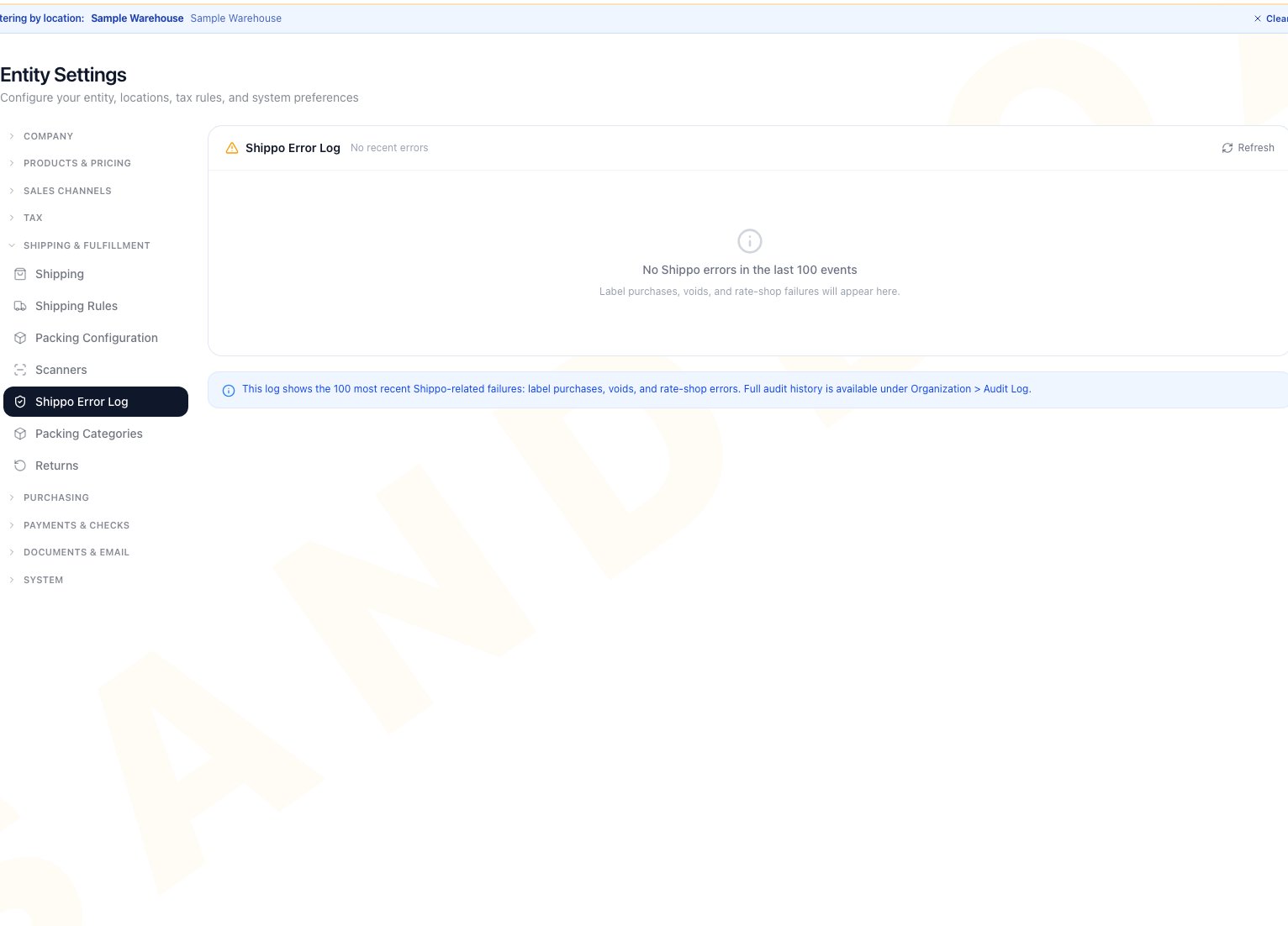 The page returns up to 100 newest matching failures for four workflows: label purchase, repack blocked by a label-void failure, rate shop, and multi-parcel label purchase. It filters for failed outcomes before applying the 100-row limit. **No recent errors** means this filtered request returned no matching rows. It does not mean the latest 100 shipping events were error-free.
Each entry can show the failure type, affected resource, error code, message, date and time, and user. Select **View package** when available to return to the affected fulfillment record. Select **Refresh** after correcting the issue.
## Resolve a Failure
1. Read the failure type and message.
2. Open the package when a link is available.
3. Correct the visible cause, such as an incomplete address, missing package details, unavailable service, or a repack blocked because the previous label could not be voided.
4. Retry the original action from the package workflow.
5. Refresh the log and confirm the workflow succeeded. The historical error may remain in the recent list.
The log is read-only. It does not retry a shipment or remove an error. Full activity history is available from **Organization > Audit Log**.
## Empty and Error States
* **No recent errors**: the filtered request returned no rows for the four tracked failure actions with a failed outcome. This is not a statement about the latest 100 shipping events.
* **Could not load error log**: check your connection and select **Refresh**.
* **View package is missing**: the entry is not tied to a package that can be opened from this page.
* **Refresh is disabled**: wait for the current load to finish.
## Related Articles
Configure the carrier connection and label defaults.
Buy, reprint, void, and troubleshoot shipping labels.
The page returns up to 100 newest matching failures for four workflows: label purchase, repack blocked by a label-void failure, rate shop, and multi-parcel label purchase. It filters for failed outcomes before applying the 100-row limit. **No recent errors** means this filtered request returned no matching rows. It does not mean the latest 100 shipping events were error-free.
Each entry can show the failure type, affected resource, error code, message, date and time, and user. Select **View package** when available to return to the affected fulfillment record. Select **Refresh** after correcting the issue.
## Resolve a Failure
1. Read the failure type and message.
2. Open the package when a link is available.
3. Correct the visible cause, such as an incomplete address, missing package details, unavailable service, or a repack blocked because the previous label could not be voided.
4. Retry the original action from the package workflow.
5. Refresh the log and confirm the workflow succeeded. The historical error may remain in the recent list.
The log is read-only. It does not retry a shipment or remove an error. Full activity history is available from **Organization > Audit Log**.
## Empty and Error States
* **No recent errors**: the filtered request returned no rows for the four tracked failure actions with a failed outcome. This is not a statement about the latest 100 shipping events.
* **Could not load error log**: check your connection and select **Refresh**.
* **View package is missing**: the entry is not tied to a package that can be opened from this page.
* **Refresh is disabled**: wait for the current load to finish.
## Related Articles
Configure the carrier connection and label defaults.
Buy, reprint, void, and troubleshoot shipping labels.