> ## Documentation Index
> Fetch the complete documentation index at: https://docs.arcuserp.com/llms.txt
> Use this file to discover all available pages before exploring further.
# Pricing Levels
> Use Pricing Levels to keep the named price tiers, such as Retail, Wholesale, or Distributor, that accounts, sales channels, orders, and product pricing policies choose from.
A pricing level is a named price tier for a group of customers, such as Retail, Wholesale, or Distributor. Use this page to create, rename, and remove the tiers. A level does not set a price by itself: a product's pricing policies say what each level pays, and an account, a sales channel, or an order picks the level that applies.
 ## Before You Start
* You need the **settings.view** permission to open the page.
* You need **settings.edit** to add, edit, delete, or import levels. Without it, **Import**, **Add Level**, and the edit and delete buttons are disabled, and pointing at one shows "You need the 'Edit Settings' permission to perform this action. Ask your admin in Settings > Users." The server refuses adding, editing, and deleting a level for a role without **settings.edit**, with "Permission denied: settings.edit".
## Open Pricing Levels
1. In the deck, open **Settings**.
2. Under **Products & Pricing**, choose **Pricing Levels**.
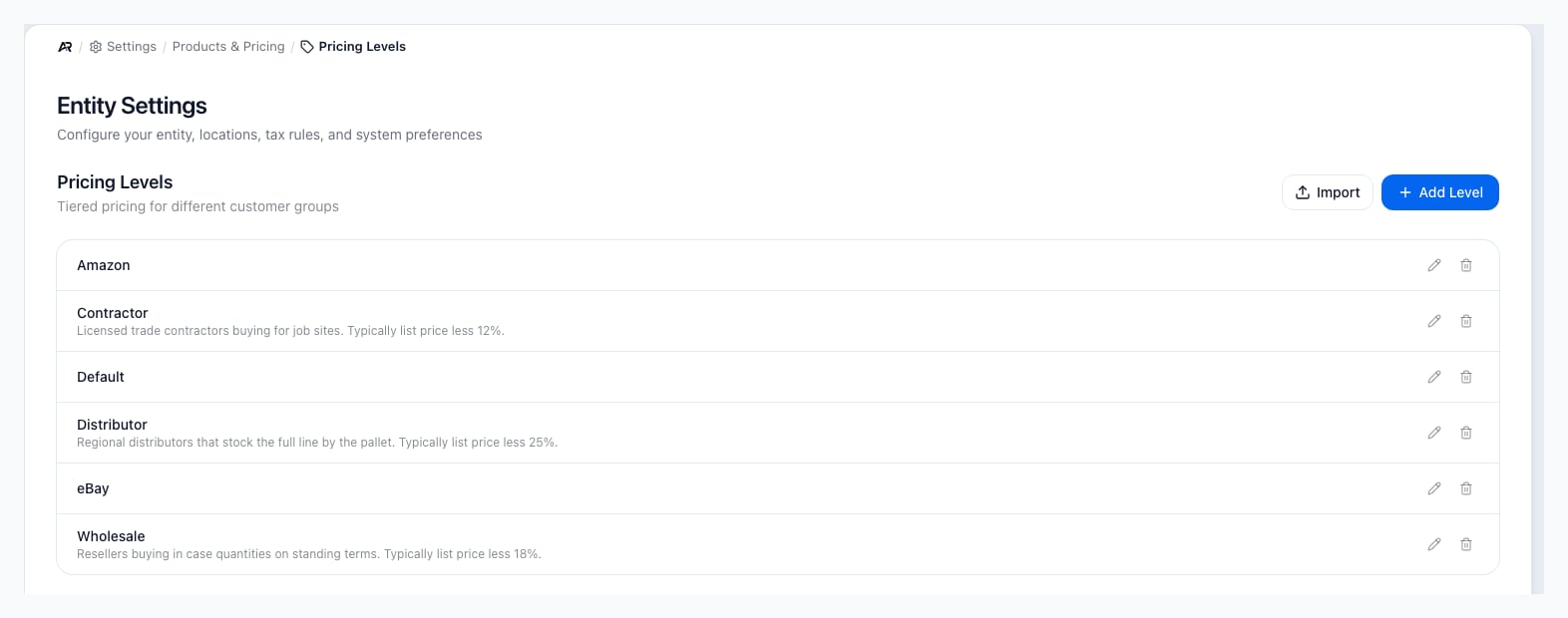
The breadcrumb reads **Settings > Products & Pricing > Pricing Levels**. You can also search for **Pricing Levels** in the command palette.
## The Level List
The list shows each level's name, in alphabetical order, with its description underneath when it has one. Each row has an edit button (the pencil) and a delete button (the trash can). When you have no levels, the list reads "No pricing levels configured".
## Add Or Edit A Level
1. Click **Add Level**, or the edit button on a row. The **Add Pricing Level** or **Edit Pricing Level** dialog opens.
2. Enter the **Name**. Keep it short and plain: people see it when they choose a level on an account or an order.
3. Optionally enter a **Description**.
4. Click **Create** or **Update**. The button stays disabled until the level has a name.
Arcus shows "Pricing level created" or "Pricing level updated". Renaming a level keeps every account, channel, order, and pricing policy that uses it pointed at the same level, under its new name.
## Import Levels
1. Click **Import**. The **Import Pricing Levels** dialog opens: "Upload a CSV file to bulk import pricing levels".
2. Click **Download Sample CSV** for a file with the right columns: **Name** (required), and optionally **Description** and **Active** (true or false).
3. Drop your CSV on the upload area, or click it to browse. A preview shows the rows and marks any row with a problem, such as a missing name.
4. Click **Import N valid rows**, where N is the number of rows without a problem.
A row whose name matches an existing level, ignoring capitals, updates that level: a filled **Description** replaces its description and a filled **Active** sets whether it is active. Blank cells leave the level as it is. Any other row creates a new level, which is active unless **Active** says false. **Import Complete** then shows how many levels were imported, updated, and failed. When rows failed, the dialog lists them with the reason, and **Download errors** saves them as a CSV. Click **Close** when you are done; the list refreshes after a successful import.
## Delete A Level
1. Click the delete button on the row.
2. The **Delete Pricing Level** dialog asks "Are you sure you want to delete" the level, and warns that this cannot be undone.
3. Click **Delete**.
Arcus shows "Pricing level deleted". A level that anything still uses cannot be deleted: a product pricing policy, an account's default level, a sales channel's default level, or any order, including closed and past orders. The refusal counts each kind of use, for example "2 product pricing policies, 5 accounts, 3 sales channels, and 40 orders reference this pricing level. Update them before deleting." Because past orders keep their level, a level that was ever used on an order stays. Rename it instead if you no longer want people to pick it by its old name.
## Messages You May See
| Message | What it means |
| - | - |
| "Pricing level created", "Pricing level updated", "Pricing level deleted" | The change saved. |
| A message ending "reference this pricing level. Update them before deleting." | The level is in use. The message counts the product pricing policies, accounts, sales channels, and orders that use it. |
| A message that the pricing level was not found | The level no longer exists, for example because another admin deleted it. Reload the page to see the current list. |
| "Permission denied: settings.edit" | Your role cannot change pricing levels. Nothing saved. Ask an owner or admin of your company for the permission. |
| "Import failed", or a reason from the server during an import | The file was not imported. Check that it is a CSV with a **Name** column and at least one data row. |
## What Changes Elsewhere
* **Product pricing**: each product's **Pricing** tab sets a sell price per level, with quantity breaks. That is where a level gets its prices.
* **Accounts and sales channels**: an account or a sales channel can name a default level, which preselects it on new orders.
* **Orders**: an order records the level it was priced at.
* **Coupons**: a rule on Adjustments & Coupons can be restricted to customers on certain levels.
* **Shopify imports**: the Shopify connector's sync settings can name the level that new accounts and new orders imported from your store start on.
* **Accounting and stock**: nothing posts and no stock moves when you change a level.
* **Audit trail**: creating, editing, deleting, and importing levels is recorded in the activity log.
* **Other open sessions**: people who already have this page open see your change after they reload it.
## Related Settings Pages
The other pages under **Products & Pricing** are **Categories**, **Brands / Manufacturers**, **Units of Measure**, **Manufacturing** and **Adjustments & Coupons**. A sales channel's default level is set on **Settings > Sales Channels > Sales Channels**.
## Related Articles
Set what each pricing level pays on a product, with quantity breaks.
Give a sales channel a default pricing level.
Restrict a discount or fee rule to customers on certain levels.
Review the other lists under Products & Pricing.
This documentation is built and hosted on [Mintlify](https://mintlify.com), a developer documentation platform.
## Before You Start
* You need the **settings.view** permission to open the page.
* You need **settings.edit** to add, edit, delete, or import levels. Without it, **Import**, **Add Level**, and the edit and delete buttons are disabled, and pointing at one shows "You need the 'Edit Settings' permission to perform this action. Ask your admin in Settings > Users." The server refuses adding, editing, and deleting a level for a role without **settings.edit**, with "Permission denied: settings.edit".
## Open Pricing Levels
1. In the deck, open **Settings**.
2. Under **Products & Pricing**, choose **Pricing Levels**.
The breadcrumb reads **Settings > Products & Pricing > Pricing Levels**. You can also search for **Pricing Levels** in the command palette.
## The Level List
The list shows each level's name, in alphabetical order, with its description underneath when it has one. Each row has an edit button (the pencil) and a delete button (the trash can). When you have no levels, the list reads "No pricing levels configured".
## Add Or Edit A Level
1. Click **Add Level**, or the edit button on a row. The **Add Pricing Level** or **Edit Pricing Level** dialog opens.
2. Enter the **Name**. Keep it short and plain: people see it when they choose a level on an account or an order.
3. Optionally enter a **Description**.
4. Click **Create** or **Update**. The button stays disabled until the level has a name.
Arcus shows "Pricing level created" or "Pricing level updated". Renaming a level keeps every account, channel, order, and pricing policy that uses it pointed at the same level, under its new name.
## Import Levels
1. Click **Import**. The **Import Pricing Levels** dialog opens: "Upload a CSV file to bulk import pricing levels".
2. Click **Download Sample CSV** for a file with the right columns: **Name** (required), and optionally **Description** and **Active** (true or false).
3. Drop your CSV on the upload area, or click it to browse. A preview shows the rows and marks any row with a problem, such as a missing name.
4. Click **Import N valid rows**, where N is the number of rows without a problem.
A row whose name matches an existing level, ignoring capitals, updates that level: a filled **Description** replaces its description and a filled **Active** sets whether it is active. Blank cells leave the level as it is. Any other row creates a new level, which is active unless **Active** says false. **Import Complete** then shows how many levels were imported, updated, and failed. When rows failed, the dialog lists them with the reason, and **Download errors** saves them as a CSV. Click **Close** when you are done; the list refreshes after a successful import.
## Delete A Level
1. Click the delete button on the row.
2. The **Delete Pricing Level** dialog asks "Are you sure you want to delete" the level, and warns that this cannot be undone.
3. Click **Delete**.
Arcus shows "Pricing level deleted". A level that anything still uses cannot be deleted: a product pricing policy, an account's default level, a sales channel's default level, or any order, including closed and past orders. The refusal counts each kind of use, for example "2 product pricing policies, 5 accounts, 3 sales channels, and 40 orders reference this pricing level. Update them before deleting." Because past orders keep their level, a level that was ever used on an order stays. Rename it instead if you no longer want people to pick it by its old name.
## Messages You May See
| Message | What it means |
| - | - |
| "Pricing level created", "Pricing level updated", "Pricing level deleted" | The change saved. |
| A message ending "reference this pricing level. Update them before deleting." | The level is in use. The message counts the product pricing policies, accounts, sales channels, and orders that use it. |
| A message that the pricing level was not found | The level no longer exists, for example because another admin deleted it. Reload the page to see the current list. |
| "Permission denied: settings.edit" | Your role cannot change pricing levels. Nothing saved. Ask an owner or admin of your company for the permission. |
| "Import failed", or a reason from the server during an import | The file was not imported. Check that it is a CSV with a **Name** column and at least one data row. |
## What Changes Elsewhere
* **Product pricing**: each product's **Pricing** tab sets a sell price per level, with quantity breaks. That is where a level gets its prices.
* **Accounts and sales channels**: an account or a sales channel can name a default level, which preselects it on new orders.
* **Orders**: an order records the level it was priced at.
* **Coupons**: a rule on Adjustments & Coupons can be restricted to customers on certain levels.
* **Shopify imports**: the Shopify connector's sync settings can name the level that new accounts and new orders imported from your store start on.
* **Accounting and stock**: nothing posts and no stock moves when you change a level.
* **Audit trail**: creating, editing, deleting, and importing levels is recorded in the activity log.
* **Other open sessions**: people who already have this page open see your change after they reload it.
## Related Settings Pages
The other pages under **Products & Pricing** are **Categories**, **Brands / Manufacturers**, **Units of Measure**, **Manufacturing** and **Adjustments & Coupons**. A sales channel's default level is set on **Settings > Sales Channels > Sales Channels**.
## Related Articles
Set what each pricing level pays on a product, with quantity breaks.
Give a sales channel a default pricing level.
Restrict a discount or fee rule to customers on certain levels.
Review the other lists under Products & Pricing.
This documentation is built and hosted on [Mintlify](https://mintlify.com), a developer documentation platform.