> ## Documentation Index
> Fetch the complete documentation index at: https://docs.arcuserp.com/llms.txt
> Use this file to discover all available pages before exploring further.
# Brands / Manufacturers
> Use Brands / Manufacturers to keep the list of companies that make the products you sell, so every product can name its maker for filtering, reporting, and marketplace listings.
A brand, or manufacturer, is the company that makes a product. Use this page to keep one clean list of makers, so products name them the same way every time. Products pick a brand from this list, the product list can filter and show products by it, and a connected Shopify store receives it. A brand is not the vendor you buy from: a product can come from one vendor and be made by another company.
 ## Before You Start
* You need the **settings.view** permission to open the page.
* You need **settings.edit** to add, edit, or delete a brand. Without it, **Add Brand** and the edit and delete buttons on each row are disabled, and pointing at one shows "You need the 'Edit Settings' permission to perform this action. Ask your admin in Settings > Users." The server refuses the same changes for a role without **settings.edit**, with "Permission denied: settings.edit".
## Open Brands / Manufacturers
1. In the deck, open **Settings**.
2. Under **Products & Pricing**, choose **Brands / Manufacturers**.
The breadcrumb reads **Settings > Products & Pricing > Brands / Manufacturers**. You can also search for **Brands / Manufacturers** in the command palette.
## The Brand List
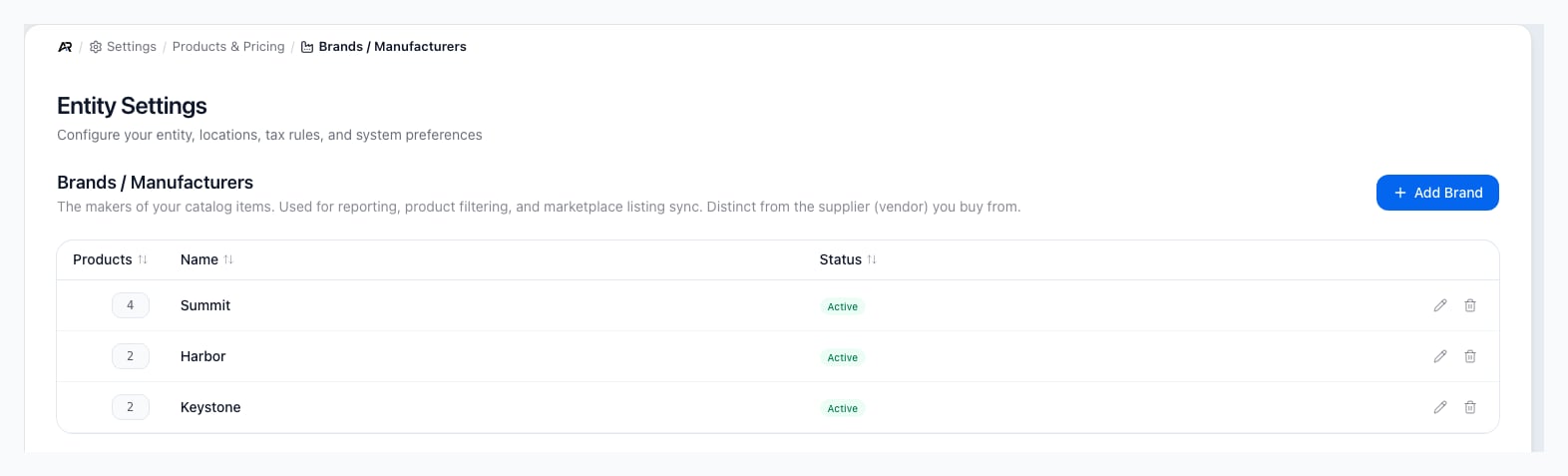
The list shows one row per brand. Click a column header to sort by it. The sort you choose is kept in the page address, so **Back** from another page, a refresh, or a copied link opens the list in the same order.
| Column | What it shows |
| - | - |
| **Products** | How many active products name this brand. Point at the number to read it in words. |
| **Name** | The brand name. A very long name is shortened in the list. |
| **Status** | **Active** or **Inactive**. The list includes inactive brands, but this page has no control to change a brand's status. |
| (no title) | The edit and delete buttons. |
Until you click a column header, brands are listed by **Sort Order**, then by name. When you have no brands, the list reads "No brands configured".
## Add Or Edit A Brand
1. Click **Add Brand**, or the edit button on a row. The **Add Brand** or **Edit Brand** dialog opens.
2. Enter the **Name**. It must be unique among your brands, ignoring capitals, so "Acme" and "ACME" cannot both exist.
3. Set the **Sort Order**, a whole number of 0 or more. Lower numbers are listed first, and brands with the same number are listed by name.
4. Under **Optional details**, add a **Website**, a **Support email**, and **Notes**, such as a warranty contact or a sales rep. Leave any of them blank.
5. Click **Create** or **Update**. The button stays disabled until the brand has a name.
Arcus shows "Brand created" or "Brand updated", and the list refreshes. Clearing an optional detail and saving removes it.
## Delete A Brand
1. Click the delete button on the row.
2. The **Delete Brand** dialog asks "Are you sure you want to delete" the brand, and reminds you that products assigned to it must be reassigned first.
3. Click **Delete**.
A brand that any product still names cannot be deleted, including products that are no longer active. Open those products, change or clear their **Brand / Manufacturer**, and then delete the brand. Deleting cannot be undone.
## Messages You May See
| Message | What it means |
| - | - |
| "Brand created", "Brand updated", "Brand deleted" | The change saved. |
| "A manufacturer with that name already exists for this entity." | Another brand already uses this name. Choose a different name, or edit the existing brand. |
| "This manufacturer is still assigned to products. Reassign or clear the manufacturer on those products before deleting." | Change the brand on those products first, then delete. |
| "No manufacturer exists with that id under this entity." | The brand was already deleted, for example by another admin. Refresh the page to see the current list. |
| "Could not create the manufacturer." or "Could not update the manufacturer." | Nothing saved. Try again; if it keeps failing, contact support. |
| "Permission denied: settings.edit" | Your role cannot change brands. Nothing saved. Ask an owner or admin of your company for the permission. |
## What Changes Elsewhere
* **Products**: the **Brand / Manufacturer** field on a product offers the brands on this list. Its **Add new brand** link creates a brand without leaving the product, and that brand then appears here too.
* **Product list**: you can show a **Manufacturer** column and filter products by **Manufacturer**.
* **Shopify**: when a product is pushed to a connected Shopify store, its brand goes along as a custom brand field on the product. The store's own Vendor field keeps the supplier you buy from. A renamed brand is sent with its new name the next time the product syncs.
* **Accounting and stock**: nothing posts and no stock moves. A brand is a label on products.
* **Audit trail**: creating, editing, and deleting a brand is recorded in the activity log.
* **Other open sessions**: when another admin adds, edits, or deletes a brand, your list refreshes to show it.
## Related Settings Pages
The other pages under **Products & Pricing** are **Pricing Levels**, **Categories**, **Units of Measure**, **Manufacturing** and **Adjustments & Coupons**.
## Related Articles
Create products and choose each one's brand.
Group products by type, separate from who makes them.
See how products are listed and synced to a connected store.
Review the other lists under Products & Pricing.
This documentation is built and hosted on [Mintlify](https://mintlify.com), a developer documentation platform.
## Before You Start
* You need the **settings.view** permission to open the page.
* You need **settings.edit** to add, edit, or delete a brand. Without it, **Add Brand** and the edit and delete buttons on each row are disabled, and pointing at one shows "You need the 'Edit Settings' permission to perform this action. Ask your admin in Settings > Users." The server refuses the same changes for a role without **settings.edit**, with "Permission denied: settings.edit".
## Open Brands / Manufacturers
1. In the deck, open **Settings**.
2. Under **Products & Pricing**, choose **Brands / Manufacturers**.
The breadcrumb reads **Settings > Products & Pricing > Brands / Manufacturers**. You can also search for **Brands / Manufacturers** in the command palette.
## The Brand List
The list shows one row per brand. Click a column header to sort by it. The sort you choose is kept in the page address, so **Back** from another page, a refresh, or a copied link opens the list in the same order.
| Column | What it shows |
| - | - |
| **Products** | How many active products name this brand. Point at the number to read it in words. |
| **Name** | The brand name. A very long name is shortened in the list. |
| **Status** | **Active** or **Inactive**. The list includes inactive brands, but this page has no control to change a brand's status. |
| (no title) | The edit and delete buttons. |
Until you click a column header, brands are listed by **Sort Order**, then by name. When you have no brands, the list reads "No brands configured".
## Add Or Edit A Brand
1. Click **Add Brand**, or the edit button on a row. The **Add Brand** or **Edit Brand** dialog opens.
2. Enter the **Name**. It must be unique among your brands, ignoring capitals, so "Acme" and "ACME" cannot both exist.
3. Set the **Sort Order**, a whole number of 0 or more. Lower numbers are listed first, and brands with the same number are listed by name.
4. Under **Optional details**, add a **Website**, a **Support email**, and **Notes**, such as a warranty contact or a sales rep. Leave any of them blank.
5. Click **Create** or **Update**. The button stays disabled until the brand has a name.
Arcus shows "Brand created" or "Brand updated", and the list refreshes. Clearing an optional detail and saving removes it.
## Delete A Brand
1. Click the delete button on the row.
2. The **Delete Brand** dialog asks "Are you sure you want to delete" the brand, and reminds you that products assigned to it must be reassigned first.
3. Click **Delete**.
A brand that any product still names cannot be deleted, including products that are no longer active. Open those products, change or clear their **Brand / Manufacturer**, and then delete the brand. Deleting cannot be undone.
## Messages You May See
| Message | What it means |
| - | - |
| "Brand created", "Brand updated", "Brand deleted" | The change saved. |
| "A manufacturer with that name already exists for this entity." | Another brand already uses this name. Choose a different name, or edit the existing brand. |
| "This manufacturer is still assigned to products. Reassign or clear the manufacturer on those products before deleting." | Change the brand on those products first, then delete. |
| "No manufacturer exists with that id under this entity." | The brand was already deleted, for example by another admin. Refresh the page to see the current list. |
| "Could not create the manufacturer." or "Could not update the manufacturer." | Nothing saved. Try again; if it keeps failing, contact support. |
| "Permission denied: settings.edit" | Your role cannot change brands. Nothing saved. Ask an owner or admin of your company for the permission. |
## What Changes Elsewhere
* **Products**: the **Brand / Manufacturer** field on a product offers the brands on this list. Its **Add new brand** link creates a brand without leaving the product, and that brand then appears here too.
* **Product list**: you can show a **Manufacturer** column and filter products by **Manufacturer**.
* **Shopify**: when a product is pushed to a connected Shopify store, its brand goes along as a custom brand field on the product. The store's own Vendor field keeps the supplier you buy from. A renamed brand is sent with its new name the next time the product syncs.
* **Accounting and stock**: nothing posts and no stock moves. A brand is a label on products.
* **Audit trail**: creating, editing, and deleting a brand is recorded in the activity log.
* **Other open sessions**: when another admin adds, edits, or deletes a brand, your list refreshes to show it.
## Related Settings Pages
The other pages under **Products & Pricing** are **Pricing Levels**, **Categories**, **Units of Measure**, **Manufacturing** and **Adjustments & Coupons**.
## Related Articles
Create products and choose each one's brand.
Group products by type, separate from who makes them.
See how products are listed and synced to a connected store.
Review the other lists under Products & Pricing.
This documentation is built and hosted on [Mintlify](https://mintlify.com), a developer documentation platform.