> ## Documentation Index
> Fetch the complete documentation index at: https://docs.arcuserp.com/llms.txt
> Use this file to discover all available pages before exploring further.
# Partial Completions and Undo
> Complete work orders in whole-unit batches, record serials, and reverse the newest eligible completion safely.
Use completion to record physical output or recovery, consume the required inputs, and move actual cost out of work in progress. Use **Undo last completion** only when the newest batch was wrong and all of that batch's output is still available.
Completion is a stock and accounting event, not a queue-cleanup action. Confirm the physical quantity, serials, material, location, and labor before posting. Undo is conditional and may be refused.
## Check access and readiness
Go to **Manufacturing > Work Orders** and open the work order.
To complete, you need:
* **manufacturing.complete** permission.
* A work order in **Released** or **In Progress** status.
* A work-order location.
* A positive whole-number quantity no greater than the remaining planned quantity.
* Enough entity-wide stock for every input that completion must backflush.
* Enough source stock for disassembly or conversion.
* Exactly one unique output serial per completed serialized assembly or conversion unit.
Review **Materials**, **Serials**, **Labor**, **Cost**, **GL Movements**, and **Inventory Movements** first. Resolve any known mismatch before completion.
For a serialized disassembly or conversion source, use one quantity-1 work order per source unit. One source serial is allocated to the work order and changed when that source completes.
## Complete a batch
1. Click **Complete Build**, **Complete Disassembly**, or **Complete Conversion** in the work-order header.
2. Enter **Quantity to Complete** as a whole number. Use **Complete 1**, **Half**, or **All remaining** when the relevant quick choice appears.
3. For disassembly, review **Cost Allocation Preview**. Its percentages are a planning preview; actual amounts use FIFO source cost at completion.
4. For serialized assembly or conversion output, enter exactly one unique serial per completed unit, one per line.
5. If you enter the optional **Lot Number**, use an existing active lot code.
6. Recheck the current progress and remaining quantity.
7. Click **Complete**.
8. Verify the new completed quantity, status, serials, costs, and both ledgers.
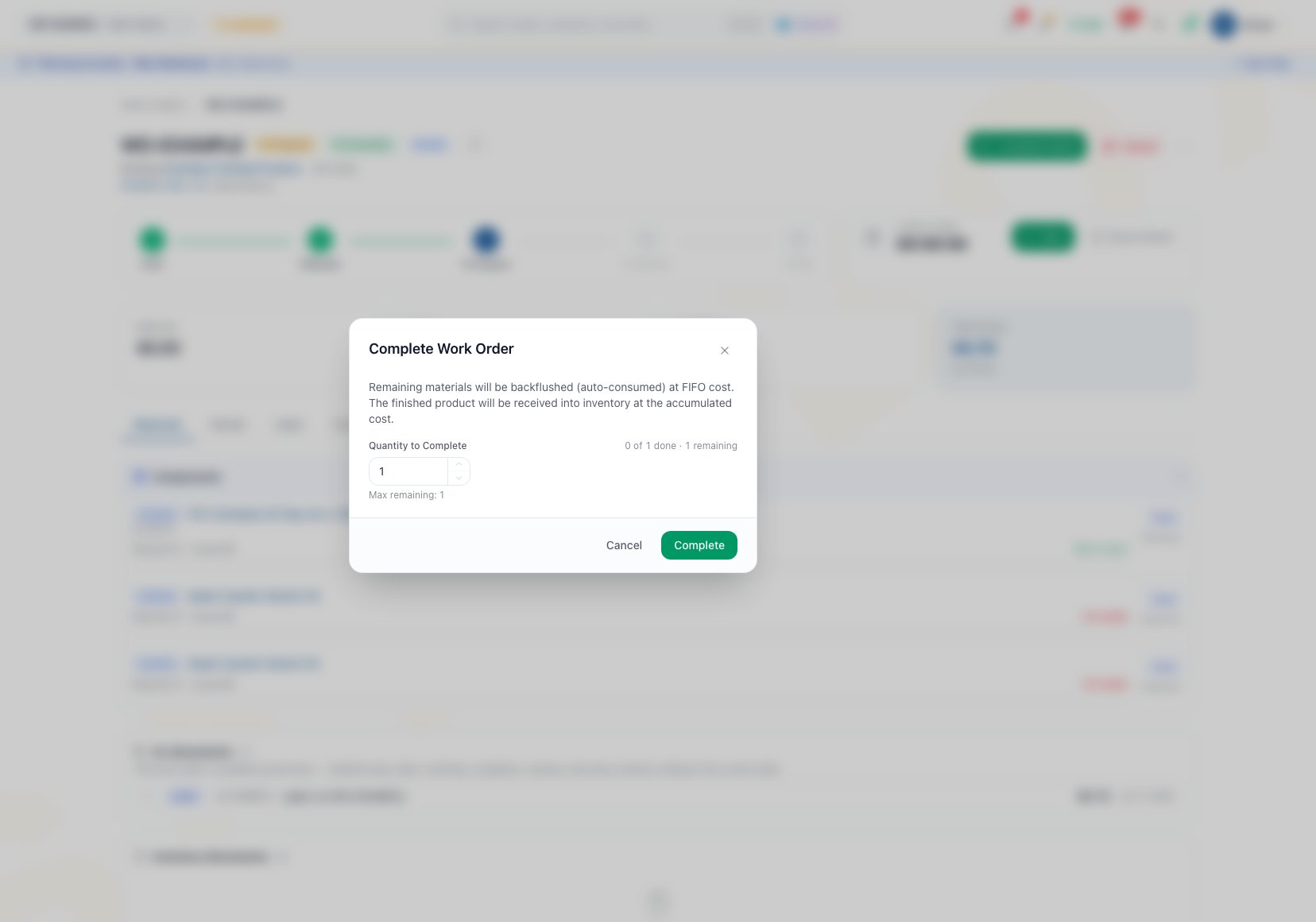 The completion button is disabled when quantity is zero, exceeds the remaining quantity, or does not have the required serial count. The service also refuses fractional quantities even if another interface presents a decimal input.
### Outcome
Completed quantity increases by the posted whole-unit batch. Arcus records its input, output, serial, cost, GL, inventory, and Timeline effects together. A partial batch preserves the previous Released or In Progress status; the final batch moves the order to Completed.
## Understand the type-specific result
| Work-order type | Inputs consumed | Inventory produced or returned | Serial result |
| --------------- | ------------------------------------------------------------------------ | --------------------------------------------------------------------------------------- | ---------------------------------------------------------------------------------- |
| Assembly | Remaining Consume and Add quantities for the cumulative completion share | Completed product is received at the work-order location | Serialized output requires one new unique serial per unit |
| Disassembly | Source product plus any required Consume or Add inputs | Return-to-stock recovery lines are received; Scrap and Retain lines do not become stock | An allocated source serial is marked disassembled |
| Conversion | Source product plus remaining Add or Consume inputs | Converted output and proportional Return-to-stock removed parts are received | Source serial is consumed in manufacturing; serialized output receives new serials |
Arcus checks the full completion batch before posting a backflush shortage. Input consumption uses actual FIFO cost, preferring the work-order location and then other entity locations. See [Materials and Substitutions](/support/manufacturing/materials-and-substitutions) for location and issue behavior.
## Understand the cost and GL result
Each completion is costed as its own incremental batch.
* Material issued before completion is relieved in proportion to the cumulative completed share.
* Remaining required inputs are backflushed and relieved at actual FIFO cost.
* Disassembly and conversion source cost is relieved in the batch that consumes the source.
* Conversion Return-to-stock removed parts reduce the material value carried into converted output.
* Recorded labor is relieved by completion share. The final batch takes the remaining accrued labor.
* When BOM auto-applied labor is on, the batch creates its own standard labor entry before relief.
* BOM overhead is applied to the batch's material and labor relief and is relieved with the same batch.
* Assembly and conversion output receives a FIFO layer at the batch's actual relieved cost per unit.
* Disassembly recovered items split the batch's relieved value using the BOM's resolved allocation percentages, reconciled to the cent.
The work-order GL card shows material issue, labor, overhead, completion, and later reversal or variance entries. Inventory Movements shows the related input and output movements.
Disassembly completion resolves allocation percentages from the current BOM. Review **Cost Allocation Preview** immediately before completing an open order if that BOM has changed since the order was created.
## Work with partial completions
A partial completion increases **Completed Quantity** but keeps the work order in its prior status, either Released or In Progress. Completing the final remaining unit changes the status to **Completed**.
### Common scenario: finish 4 of 10 units
1. Start the Released work order so active floor work is visible as In Progress.
2. Confirm material and labor for the first four units.
3. Click **Complete Build** and enter `4`.
4. Enter four unique serials if the output product is serialized.
5. Complete the batch and verify `4 of 10` on the header.
6. Review the batch's produced inventory, backflush, actual cost, and ledgers.
7. Keep the order In Progress while the remaining six units are worked.
8. Complete `6` only after the remaining output is physically ready.
The first batch receives four units and relieves only its share of WIP. The second batch catches up the remaining required material and labor, receives six units, and moves the order to Completed.
If a partial completion is posted directly from **Released**, the order stays Released. The current UI does not show **Undo last completion** for that Released partial state.
## Undo the newest eligible completion
The current work-order UI shows **Undo last completion** only when:
* Status is **Completed** or **In Progress**.
* Completed quantity is greater than zero.
Open the work-order action menu, then:
1. Click **Undo last completion (N units)**.
2. Read the server-generated preview.
3. Match the completion number and quantity to the physical batch.
4. Review **WIP restored**, **Output removed**, **Components restored**, and **Journal entries reversed**.
5. Check the status and completed quantity that will remain.
6. Enter an optional reason.
7. Click **Undo Completion** only when all listed output is still physically and systemically available.
8. Verify the resulting status, quantity, stock, serials, Cost tab, GL Movements, Inventory Movements, and Timeline.
Undo operates newest first. It cannot skip a later active completion to reverse an older one.
### What Undo reverses
* Removes the newest batch's intact produced FIFO layers.
* Restores input stock consumed by that batch.
* Deletes that batch's produced serial records when they are still Available.
* Restores its consumed source serial to Allocated.
* Reverses the batch's material, overhead, completion, and related journal entries.
* Restores relieved material, labor, and overhead to WIP.
* Removes auto-applied standard labor owned by that batch.
* Reduces completed quantity and restores the status saved before that completion.
Timer and manually recorded labor stays booked because it represents work performed. Undo records new reversal history; it does not delete the original ledger story. A closed accounting period does not by itself block Undo. The reversing entries post to the next open period shown in the preview.
## Know every Undo refusal
| Refusal | Why Arcus stops | Safe next step |
| --------------------------- | ------------------------------------------------------------------------------------------------------------------ | --------------------------------------------------------------------------------------------------------------- |
| Output consumed | A FIFO layer produced by the batch was sold, transferred, consumed by other work, or is no longer intact | Reverse the listed downstream transactions first, or use an approved manual inventory and accounting correction |
| Produced serial unavailable | A serial created by the batch is no longer in Available status | Reverse the serial's downstream transaction before retrying, or use an approved correction |
| Work order closed | Close already swept residual WIP to variance, so reopening is unsupported | Do not attempt a completion undo; use an approved manual correcting journal entry and inventory correction |
| Nonlatest batch | The requested batch is not the newest active completion, often because another completion posted after the preview | Refresh and review the current newest batch; undo batches in newest-first order |
| No reversible batch | Nothing eligible remains to reverse, or the order is Draft or Cancelled | Verify Timeline and ledgers before taking any correction action |
| Legacy completion | Completed quantity exists but the completion predates stored reversal snapshots | Use an approved manual journal entry plus inventory adjustment; the completion cannot use this Undo workflow |
When output was consumed or a serial moved, the refusal modal lists the blocking transactions or serials and does not show a confirm button.
The UI visibility is narrower than the service's eligibility checks. **Undo last completion** is hidden for a Released partial completion and for every Closed work order. A direct request against a Closed work order is still refused as **work order closed**. Do not change status merely to expose a hidden correction action.
## Close only after the correction window
Once the full quantity is Completed, review the physical output, serials, materials, labor, cost, and ledger movements. Keep the order Completed while a legitimate completion correction may still be needed. Click **Close** only when the record is final.
Close attempts to roll any remaining timer sessions and clears residual material, labor, or overhead WIP to Manufacturing Variance. After close, completion Undo is unsupported.
## Troubleshoot completion blocks
| What you see | What to check |
| --------------------------------- | -------------------------------------------------------------------------------------------- |
| Complete action is unavailable | Status must be Released or In Progress, and you need **manufacturing.complete** |
| Quantity is refused | Use a positive whole number no greater than remaining quantity |
| Insufficient stock | Review every backflush input and the source product for disassembly or conversion |
| Serial count mismatch | Enter exactly one nonblank unique serial per serialized output unit |
| Serial already in use | Replace the conflicting output serial with a unique value |
| Lot is refused | The optional lot text must match an active existing lot code |
| Disassembly allocation is refused | Correct explicit BOM allocation percentages before retrying |
| Undo action is missing | Current UI requires Completed or In Progress status and completed quantity greater than zero |
| Undo preview has no confirm | Read the structured refusal and resolve its downstream inventory or serial dependency |
## Frequently asked questions
No. Work-order completion is whole-unit only. Use a positive integer no greater than the remaining planned quantity.
No. Completion backflushes the remaining Consume and Add quantities needed for the cumulative completion share. A shortage blocks the batch before posting.
Completion preserves the prior status until the full planned quantity is complete. Start the job before partial completion when the work should be represented as In Progress.
No. Undo removes only the completion batch's auto-applied standard labor. Timer and manual entries stay booked.
No. Closing sweeps residual WIP and the service refuses completion reversal on Closed work orders.
## Related guides
Create, release, start, close, or cancel the order that owns each completion.
Prepare inputs and understand what completion backflushes.
Book labor before completion and understand what Undo preserves.
Review completion cost, build history, and open WIP after posting.
The completion button is disabled when quantity is zero, exceeds the remaining quantity, or does not have the required serial count. The service also refuses fractional quantities even if another interface presents a decimal input.
### Outcome
Completed quantity increases by the posted whole-unit batch. Arcus records its input, output, serial, cost, GL, inventory, and Timeline effects together. A partial batch preserves the previous Released or In Progress status; the final batch moves the order to Completed.
## Understand the type-specific result
| Work-order type | Inputs consumed | Inventory produced or returned | Serial result |
| --------------- | ------------------------------------------------------------------------ | --------------------------------------------------------------------------------------- | ---------------------------------------------------------------------------------- |
| Assembly | Remaining Consume and Add quantities for the cumulative completion share | Completed product is received at the work-order location | Serialized output requires one new unique serial per unit |
| Disassembly | Source product plus any required Consume or Add inputs | Return-to-stock recovery lines are received; Scrap and Retain lines do not become stock | An allocated source serial is marked disassembled |
| Conversion | Source product plus remaining Add or Consume inputs | Converted output and proportional Return-to-stock removed parts are received | Source serial is consumed in manufacturing; serialized output receives new serials |
Arcus checks the full completion batch before posting a backflush shortage. Input consumption uses actual FIFO cost, preferring the work-order location and then other entity locations. See [Materials and Substitutions](/support/manufacturing/materials-and-substitutions) for location and issue behavior.
## Understand the cost and GL result
Each completion is costed as its own incremental batch.
* Material issued before completion is relieved in proportion to the cumulative completed share.
* Remaining required inputs are backflushed and relieved at actual FIFO cost.
* Disassembly and conversion source cost is relieved in the batch that consumes the source.
* Conversion Return-to-stock removed parts reduce the material value carried into converted output.
* Recorded labor is relieved by completion share. The final batch takes the remaining accrued labor.
* When BOM auto-applied labor is on, the batch creates its own standard labor entry before relief.
* BOM overhead is applied to the batch's material and labor relief and is relieved with the same batch.
* Assembly and conversion output receives a FIFO layer at the batch's actual relieved cost per unit.
* Disassembly recovered items split the batch's relieved value using the BOM's resolved allocation percentages, reconciled to the cent.
The work-order GL card shows material issue, labor, overhead, completion, and later reversal or variance entries. Inventory Movements shows the related input and output movements.
Disassembly completion resolves allocation percentages from the current BOM. Review **Cost Allocation Preview** immediately before completing an open order if that BOM has changed since the order was created.
## Work with partial completions
A partial completion increases **Completed Quantity** but keeps the work order in its prior status, either Released or In Progress. Completing the final remaining unit changes the status to **Completed**.
### Common scenario: finish 4 of 10 units
1. Start the Released work order so active floor work is visible as In Progress.
2. Confirm material and labor for the first four units.
3. Click **Complete Build** and enter `4`.
4. Enter four unique serials if the output product is serialized.
5. Complete the batch and verify `4 of 10` on the header.
6. Review the batch's produced inventory, backflush, actual cost, and ledgers.
7. Keep the order In Progress while the remaining six units are worked.
8. Complete `6` only after the remaining output is physically ready.
The first batch receives four units and relieves only its share of WIP. The second batch catches up the remaining required material and labor, receives six units, and moves the order to Completed.
If a partial completion is posted directly from **Released**, the order stays Released. The current UI does not show **Undo last completion** for that Released partial state.
## Undo the newest eligible completion
The current work-order UI shows **Undo last completion** only when:
* Status is **Completed** or **In Progress**.
* Completed quantity is greater than zero.
Open the work-order action menu, then:
1. Click **Undo last completion (N units)**.
2. Read the server-generated preview.
3. Match the completion number and quantity to the physical batch.
4. Review **WIP restored**, **Output removed**, **Components restored**, and **Journal entries reversed**.
5. Check the status and completed quantity that will remain.
6. Enter an optional reason.
7. Click **Undo Completion** only when all listed output is still physically and systemically available.
8. Verify the resulting status, quantity, stock, serials, Cost tab, GL Movements, Inventory Movements, and Timeline.
Undo operates newest first. It cannot skip a later active completion to reverse an older one.
### What Undo reverses
* Removes the newest batch's intact produced FIFO layers.
* Restores input stock consumed by that batch.
* Deletes that batch's produced serial records when they are still Available.
* Restores its consumed source serial to Allocated.
* Reverses the batch's material, overhead, completion, and related journal entries.
* Restores relieved material, labor, and overhead to WIP.
* Removes auto-applied standard labor owned by that batch.
* Reduces completed quantity and restores the status saved before that completion.
Timer and manually recorded labor stays booked because it represents work performed. Undo records new reversal history; it does not delete the original ledger story. A closed accounting period does not by itself block Undo. The reversing entries post to the next open period shown in the preview.
## Know every Undo refusal
| Refusal | Why Arcus stops | Safe next step |
| --------------------------- | ------------------------------------------------------------------------------------------------------------------ | --------------------------------------------------------------------------------------------------------------- |
| Output consumed | A FIFO layer produced by the batch was sold, transferred, consumed by other work, or is no longer intact | Reverse the listed downstream transactions first, or use an approved manual inventory and accounting correction |
| Produced serial unavailable | A serial created by the batch is no longer in Available status | Reverse the serial's downstream transaction before retrying, or use an approved correction |
| Work order closed | Close already swept residual WIP to variance, so reopening is unsupported | Do not attempt a completion undo; use an approved manual correcting journal entry and inventory correction |
| Nonlatest batch | The requested batch is not the newest active completion, often because another completion posted after the preview | Refresh and review the current newest batch; undo batches in newest-first order |
| No reversible batch | Nothing eligible remains to reverse, or the order is Draft or Cancelled | Verify Timeline and ledgers before taking any correction action |
| Legacy completion | Completed quantity exists but the completion predates stored reversal snapshots | Use an approved manual journal entry plus inventory adjustment; the completion cannot use this Undo workflow |
When output was consumed or a serial moved, the refusal modal lists the blocking transactions or serials and does not show a confirm button.
The UI visibility is narrower than the service's eligibility checks. **Undo last completion** is hidden for a Released partial completion and for every Closed work order. A direct request against a Closed work order is still refused as **work order closed**. Do not change status merely to expose a hidden correction action.
## Close only after the correction window
Once the full quantity is Completed, review the physical output, serials, materials, labor, cost, and ledger movements. Keep the order Completed while a legitimate completion correction may still be needed. Click **Close** only when the record is final.
Close attempts to roll any remaining timer sessions and clears residual material, labor, or overhead WIP to Manufacturing Variance. After close, completion Undo is unsupported.
## Troubleshoot completion blocks
| What you see | What to check |
| --------------------------------- | -------------------------------------------------------------------------------------------- |
| Complete action is unavailable | Status must be Released or In Progress, and you need **manufacturing.complete** |
| Quantity is refused | Use a positive whole number no greater than remaining quantity |
| Insufficient stock | Review every backflush input and the source product for disassembly or conversion |
| Serial count mismatch | Enter exactly one nonblank unique serial per serialized output unit |
| Serial already in use | Replace the conflicting output serial with a unique value |
| Lot is refused | The optional lot text must match an active existing lot code |
| Disassembly allocation is refused | Correct explicit BOM allocation percentages before retrying |
| Undo action is missing | Current UI requires Completed or In Progress status and completed quantity greater than zero |
| Undo preview has no confirm | Read the structured refusal and resolve its downstream inventory or serial dependency |
## Frequently asked questions
No. Work-order completion is whole-unit only. Use a positive integer no greater than the remaining planned quantity.
No. Completion backflushes the remaining Consume and Add quantities needed for the cumulative completion share. A shortage blocks the batch before posting.
Completion preserves the prior status until the full planned quantity is complete. Start the job before partial completion when the work should be represented as In Progress.
No. Undo removes only the completion batch's auto-applied standard labor. Timer and manual entries stay booked.
No. Closing sweeps residual WIP and the service refuses completion reversal on Closed work orders.
## Related guides
Create, release, start, close, or cancel the order that owns each completion.
Prepare inputs and understand what completion backflushes.
Book labor before completion and understand what Undo preserves.
Review completion cost, build history, and open WIP after posting.