> ## Documentation Index
> Fetch the complete documentation index at: https://docs.arcuserp.com/llms.txt
> Use this file to discover all available pages before exploring further.
# Materials and Substitutions
> Issue, return, scrap, or substitute work-order material while preserving inventory and cost traceability.
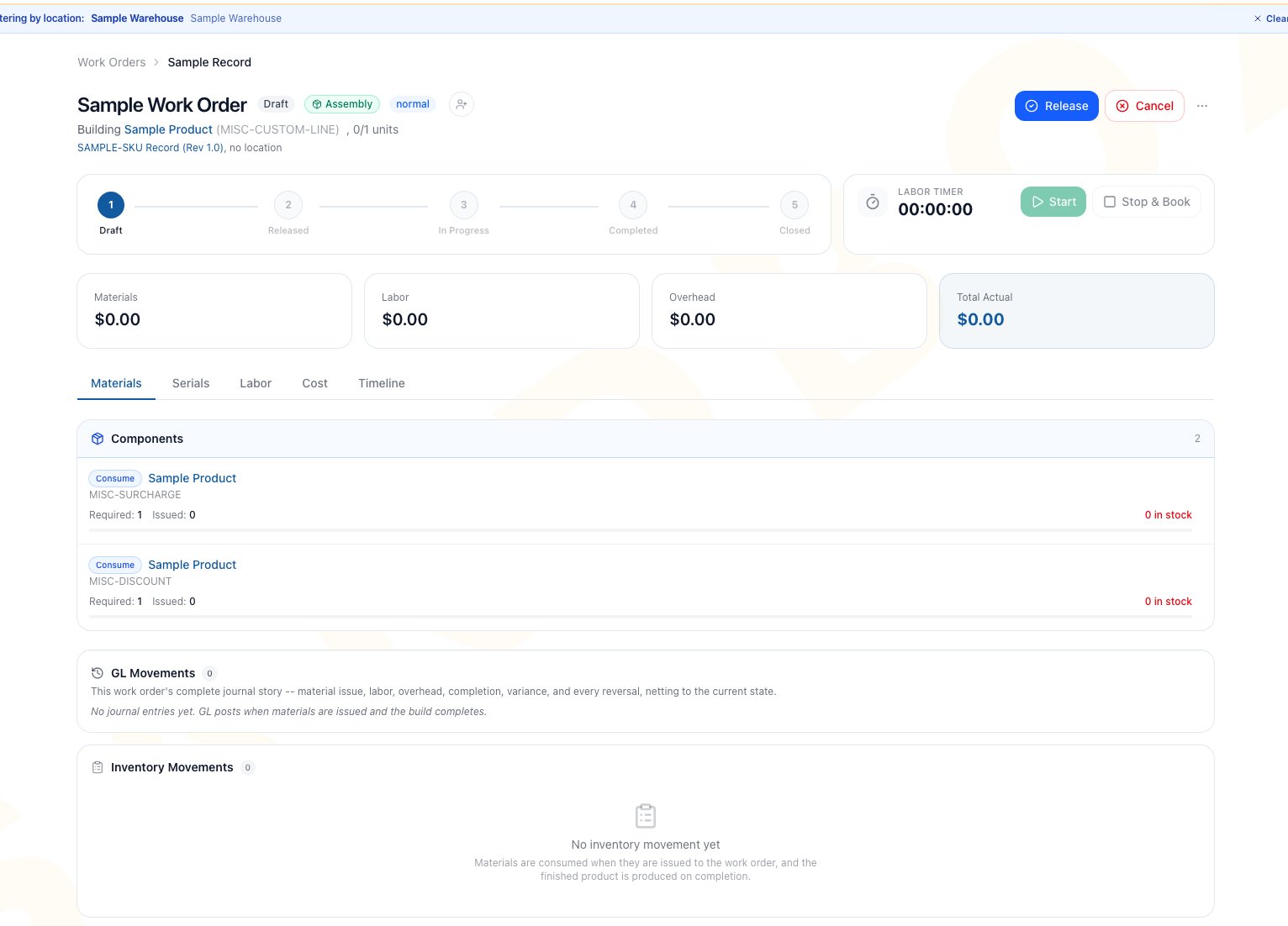
Use the **Materials** tab to move components into work in progress, record recoveries, scrap issued inputs, or replace an input before it is issued. Each action changes the work order's quantities and can change inventory value or the manufacturing ledger.
## Open the Materials tab
Go to **Manufacturing > Work Orders**, open the work order, and select **Materials**.
You need:
* **manufacturing.view** to review the material plan and movements.
* **manufacturing.edit** to issue, return, scrap, or substitute.
* A work order in **Released** or **In Progress** status for material actions.
* A work-order location and enough entity-wide stock for an issue.
The BOM instructions and its attached SOP documents also appear on this tab. They are read-only here. Manage the recipe and its documents from [Bills of Materials](/support/manufacturing/boms).
 ## Choose the correct action
| Situation | Action | Inventory result | Cost result |
| ---------------------------------------------------- | ------------------------- | -------------------------------------------------------------------------- | ---------------------------------------------------------------------------------------------------------- |
| A Consume or Add input is ready for the job | **Issue** | Stock leaves available inventory and enters the work order | Actual FIFO cost enters material WIP |
| An expected recovered or removed part is available | **Return** | Stock is received at the work-order location | Value leaves material WIP and returns to inventory |
| Issued input was damaged or cannot be used | **Scrap issued material** | No second on-hand reduction, because stock already left inventory at issue | Value moves from material WIP to scrap expense |
| A Consume or Add input must be replaced before issue | **Substitute** | No stock moves until the replacement is issued or backflushed | The line normally adopts the replacement's usable product cost; verify the stored basis after substitution |
| Remaining input should be consumed with output | Complete the work order | Required remaining input is backflushed for that completion batch | Actual FIFO cost is added and relieved with the batch |
A BOM line marked **Retain** is informational. A BOM line marked **Scrap** does not become available stock at completion. These line types do not provide the same buttons as an issued Consume or Add line.
## Issue an input
1. On a **Consume** or **Add** line, click **Issue**.
2. Enter a quantity greater than zero and no more than the displayed remaining quantity.
3. Confirm the product, quantity, and available stock.
4. Click **Issue Material**.
5. Check **Issued**, the work-order cost cards, **GL Movements**, and **Inventory Movements**.
Arcus checks stock across the entity. It consumes from the work-order location first, then from other locations with available stock. Actual FIFO layers determine the issue cost. The first successful issue on a Released work order also moves the order to **In Progress**.
Entity-wide availability does not mean all stock is at the work-order location. Review Inventory Movements after issue when location control matters, because the issue can draw from other locations.
### Outcome
The line's issued quantity and actual material cost increase. Available stock decreases at the source location or locations, and the related value moves into material WIP.
## Return an expected recovery
**Return** applies to a **Return to stock** line. It is not a way to reverse an issued Consume or Add line.
1. Click **Return** on the eligible recovery line.
2. Enter a quantity greater than zero and no more than the expected quantity still available to return.
3. Confirm the action.
4. Put the physical item into the work-order location and follow your warehouse's normal bin process.
5. Verify the returned quantity and Inventory Movements.
Arcus receives the item at the work-order location using the work-order line's cost basis and posts the corresponding material return. Completion later records only the remaining recovery for that completion share.
### Outcome
The line's returned quantity increases, inventory receives the recovered item at the work-order location, and material WIP is reduced by the recorded return value.
## Scrap issued material
Use this action only for a Consume or Add quantity that was already issued into WIP and is now unusable.
1. Click **Scrap issued material** on the line.
2. Enter a quantity no greater than the issued quantity that has not already been scrapped.
3. Confirm the reason against the physical material.
4. Click the scrap action.
5. Review the line, Cost tab, GL Movements, and Inventory Movements.
The issue already reduced available stock, so scrapping does not reduce on-hand stock a second time. It removes the corresponding value from material WIP and records scrap expense.
Scrap is a real cost event. If the work order is later cancelled, the resulting system stock can differ from the physical quantity. Review inventory, location, cost, and GL after cancellation, then resolve every difference through your approved correction process.
### Outcome
The line's scrapped quantity increases, actual material cost remaining on the work order decreases, and the value moves from material WIP to scrap expense.
## Substitute before any issue
Substitution is available only when all of these are true:
* The line disposition is **Consume** or **Add**.
* The work order is Released or In Progress.
* The line's issued quantity is exactly zero.
* The line has not already been substituted.
Substitute before the first issue. Once any quantity has been issued on the line, Arcus refuses substitution even when some quantity remains.
1. Click **Substitute** on the input line.
2. Search for the replacement product.
3. Select a physical product. The original product, kits, and services are excluded.
4. Compare the original and replacement products and the unit-cost change.
5. Enter an optional reason.
6. Click **Substitute**.
7. If stock is short, review **Required** and **Available**. Click **Substitute Anyway** only when receiving or another supply action will resolve the shortage.
Substitution preserves the original product on the line for audit and replaces the product used for later issue or backflush. It does not move or create stock. Verify the stored line-cost basis after substitution: when the replacement product has zero or blank cost, the current workflow can retain the prior line basis.
### Outcome
The line shows the replacement as a one-time substitution, retains the original product for audit, and shifts future dependent demand to the replacement. Inventory and GL remain unchanged until issue or completion.
### Common scenario: replace a short component
Suppose an assembly requires 10 units of Component A, no quantity has been issued, and an approved Component B is available.
1. Confirm with engineering or the recipe owner that Component B is approved.
2. Substitute Component B before issuing any material.
3. Review the cost change shown in the modal.
4. If Arcus warns that Component B is short, do not rely on **Substitute Anyway** as a supply action. Receive the missing stock first.
5. Issue Component B or let completion backflush it.
The result is one traceable substituted line. The original component remains visible for audit, and actual cost is determined when the replacement is consumed.
## Let completion backflush remaining inputs
You do not have to issue every Consume or Add line manually. During a partial or full completion, Arcus calculates the cumulative required share and backflushes any remaining quantity needed for that share.
* A stock shortage blocks the completion before that completion posts its inventory changes.
* Stock is checked entity-wide and consumed from the work-order location first, then other locations.
* A partial completion consumes only the cumulative share required at that point.
* The final completion catches up the remaining required input.
Use [Complete and Undo Work Orders](/support/manufacturing/partial-completions-and-undo) for the whole-unit completion workflow and reversal limits.
## Review the transaction result
After every material action:
1. Match the physical quantity to **Required**, **Issued**, **Returned**, or **Scrapped** on the line.
2. Expand **Inventory Movements** and confirm product, quantity, and location.
3. Expand **GL Movements** and confirm the related material issue, return, scrap, completion, or reversal entry.
4. Review **Cost** for the updated actual material amount.
5. Check **Timeline** for the acting user and event.
Do this review before completion, cancellation, or close. Cancellation returns current issued Consume and Add quantities to the work-order location, but it does not erase earlier Return or Scrap activity. See [Run Manufacturing Work Orders](/support/manufacturing/work-orders) for the full cancellation warning.
## Troubleshoot refusals
| What you see | Cause and next check |
| ---------------------------------------------- | ----------------------------------------------------------------------------------------------------------------- |
| Issue, Return, Scrap, or Substitute is missing | Confirm Released or In Progress status, **manufacturing.edit**, line disposition, and remaining eligible quantity |
| Issue is refused for insufficient stock | Compare entity-wide availability by product and variant, then receive or correct stock before retrying |
| Substitute is missing | Any issued quantity or a prior substitution makes the line ineligible |
| **Substitute Anyway** appears | The replacement is short; the choice records the replacement but does not supply it |
| Return quantity is capped at zero | The expected recovery has already been returned for the current work-order plan |
| Scrap quantity is capped | Only issued quantity not already scrapped is eligible |
| Stock changed at an unexpected location | Issue can pull from other locations; Return and cancellation receive at the work-order location |
## Frequently asked questions
No. The current workflow requires the line's issued quantity to be exactly zero. Return or correct the existing material through the approved inventory process before deciding how to continue the work order.
No. It records the replacement despite the shortage warning. The work order still needs enough stock before issue or completion.
Availability and consumption are entity-wide. Arcus prefers the work-order location, then consumes available FIFO layers from other locations. Review Inventory Movements for the exact source locations.
No. On-hand was reduced at issue. Scrap moves the issued value from material WIP to scrap expense without a second stock consumption.
## Related guides
Create, release, start, assign, close, or cancel manufacturing work.
Backflush remaining inputs and understand when a completion can be reversed.
Define Consume, Add, Return to stock, Scrap, and Retain behavior in the recipe.
Review open WIP, completion cost, and component usage after posting.
## Choose the correct action
| Situation | Action | Inventory result | Cost result |
| ---------------------------------------------------- | ------------------------- | -------------------------------------------------------------------------- | ---------------------------------------------------------------------------------------------------------- |
| A Consume or Add input is ready for the job | **Issue** | Stock leaves available inventory and enters the work order | Actual FIFO cost enters material WIP |
| An expected recovered or removed part is available | **Return** | Stock is received at the work-order location | Value leaves material WIP and returns to inventory |
| Issued input was damaged or cannot be used | **Scrap issued material** | No second on-hand reduction, because stock already left inventory at issue | Value moves from material WIP to scrap expense |
| A Consume or Add input must be replaced before issue | **Substitute** | No stock moves until the replacement is issued or backflushed | The line normally adopts the replacement's usable product cost; verify the stored basis after substitution |
| Remaining input should be consumed with output | Complete the work order | Required remaining input is backflushed for that completion batch | Actual FIFO cost is added and relieved with the batch |
A BOM line marked **Retain** is informational. A BOM line marked **Scrap** does not become available stock at completion. These line types do not provide the same buttons as an issued Consume or Add line.
## Issue an input
1. On a **Consume** or **Add** line, click **Issue**.
2. Enter a quantity greater than zero and no more than the displayed remaining quantity.
3. Confirm the product, quantity, and available stock.
4. Click **Issue Material**.
5. Check **Issued**, the work-order cost cards, **GL Movements**, and **Inventory Movements**.
Arcus checks stock across the entity. It consumes from the work-order location first, then from other locations with available stock. Actual FIFO layers determine the issue cost. The first successful issue on a Released work order also moves the order to **In Progress**.
Entity-wide availability does not mean all stock is at the work-order location. Review Inventory Movements after issue when location control matters, because the issue can draw from other locations.
### Outcome
The line's issued quantity and actual material cost increase. Available stock decreases at the source location or locations, and the related value moves into material WIP.
## Return an expected recovery
**Return** applies to a **Return to stock** line. It is not a way to reverse an issued Consume or Add line.
1. Click **Return** on the eligible recovery line.
2. Enter a quantity greater than zero and no more than the expected quantity still available to return.
3. Confirm the action.
4. Put the physical item into the work-order location and follow your warehouse's normal bin process.
5. Verify the returned quantity and Inventory Movements.
Arcus receives the item at the work-order location using the work-order line's cost basis and posts the corresponding material return. Completion later records only the remaining recovery for that completion share.
### Outcome
The line's returned quantity increases, inventory receives the recovered item at the work-order location, and material WIP is reduced by the recorded return value.
## Scrap issued material
Use this action only for a Consume or Add quantity that was already issued into WIP and is now unusable.
1. Click **Scrap issued material** on the line.
2. Enter a quantity no greater than the issued quantity that has not already been scrapped.
3. Confirm the reason against the physical material.
4. Click the scrap action.
5. Review the line, Cost tab, GL Movements, and Inventory Movements.
The issue already reduced available stock, so scrapping does not reduce on-hand stock a second time. It removes the corresponding value from material WIP and records scrap expense.
Scrap is a real cost event. If the work order is later cancelled, the resulting system stock can differ from the physical quantity. Review inventory, location, cost, and GL after cancellation, then resolve every difference through your approved correction process.
### Outcome
The line's scrapped quantity increases, actual material cost remaining on the work order decreases, and the value moves from material WIP to scrap expense.
## Substitute before any issue
Substitution is available only when all of these are true:
* The line disposition is **Consume** or **Add**.
* The work order is Released or In Progress.
* The line's issued quantity is exactly zero.
* The line has not already been substituted.
Substitute before the first issue. Once any quantity has been issued on the line, Arcus refuses substitution even when some quantity remains.
1. Click **Substitute** on the input line.
2. Search for the replacement product.
3. Select a physical product. The original product, kits, and services are excluded.
4. Compare the original and replacement products and the unit-cost change.
5. Enter an optional reason.
6. Click **Substitute**.
7. If stock is short, review **Required** and **Available**. Click **Substitute Anyway** only when receiving or another supply action will resolve the shortage.
Substitution preserves the original product on the line for audit and replaces the product used for later issue or backflush. It does not move or create stock. Verify the stored line-cost basis after substitution: when the replacement product has zero or blank cost, the current workflow can retain the prior line basis.
### Outcome
The line shows the replacement as a one-time substitution, retains the original product for audit, and shifts future dependent demand to the replacement. Inventory and GL remain unchanged until issue or completion.
### Common scenario: replace a short component
Suppose an assembly requires 10 units of Component A, no quantity has been issued, and an approved Component B is available.
1. Confirm with engineering or the recipe owner that Component B is approved.
2. Substitute Component B before issuing any material.
3. Review the cost change shown in the modal.
4. If Arcus warns that Component B is short, do not rely on **Substitute Anyway** as a supply action. Receive the missing stock first.
5. Issue Component B or let completion backflush it.
The result is one traceable substituted line. The original component remains visible for audit, and actual cost is determined when the replacement is consumed.
## Let completion backflush remaining inputs
You do not have to issue every Consume or Add line manually. During a partial or full completion, Arcus calculates the cumulative required share and backflushes any remaining quantity needed for that share.
* A stock shortage blocks the completion before that completion posts its inventory changes.
* Stock is checked entity-wide and consumed from the work-order location first, then other locations.
* A partial completion consumes only the cumulative share required at that point.
* The final completion catches up the remaining required input.
Use [Complete and Undo Work Orders](/support/manufacturing/partial-completions-and-undo) for the whole-unit completion workflow and reversal limits.
## Review the transaction result
After every material action:
1. Match the physical quantity to **Required**, **Issued**, **Returned**, or **Scrapped** on the line.
2. Expand **Inventory Movements** and confirm product, quantity, and location.
3. Expand **GL Movements** and confirm the related material issue, return, scrap, completion, or reversal entry.
4. Review **Cost** for the updated actual material amount.
5. Check **Timeline** for the acting user and event.
Do this review before completion, cancellation, or close. Cancellation returns current issued Consume and Add quantities to the work-order location, but it does not erase earlier Return or Scrap activity. See [Run Manufacturing Work Orders](/support/manufacturing/work-orders) for the full cancellation warning.
## Troubleshoot refusals
| What you see | Cause and next check |
| ---------------------------------------------- | ----------------------------------------------------------------------------------------------------------------- |
| Issue, Return, Scrap, or Substitute is missing | Confirm Released or In Progress status, **manufacturing.edit**, line disposition, and remaining eligible quantity |
| Issue is refused for insufficient stock | Compare entity-wide availability by product and variant, then receive or correct stock before retrying |
| Substitute is missing | Any issued quantity or a prior substitution makes the line ineligible |
| **Substitute Anyway** appears | The replacement is short; the choice records the replacement but does not supply it |
| Return quantity is capped at zero | The expected recovery has already been returned for the current work-order plan |
| Scrap quantity is capped | Only issued quantity not already scrapped is eligible |
| Stock changed at an unexpected location | Issue can pull from other locations; Return and cancellation receive at the work-order location |
## Frequently asked questions
No. The current workflow requires the line's issued quantity to be exactly zero. Return or correct the existing material through the approved inventory process before deciding how to continue the work order.
No. It records the replacement despite the shortage warning. The work order still needs enough stock before issue or completion.
Availability and consumption are entity-wide. Arcus prefers the work-order location, then consumes available FIFO layers from other locations. Review Inventory Movements for the exact source locations.
No. On-hand was reduced at issue. Scrap moves the issued value from material WIP to scrap expense without a second stock consumption.
## Related guides
Create, release, start, assign, close, or cancel manufacturing work.
Backflush remaining inputs and understand when a completion can be reversed.
Define Consume, Add, Return to stock, Scrap, and Retain behavior in the recipe.
Review open WIP, completion cost, and component usage after posting.