> ## Documentation Index
> Fetch the complete documentation index at: https://docs.arcuserp.com/llms.txt
> Use this file to discover all available pages before exploring further.
# Track Manufacturing Labor
> Choose live timers, manual labor entries, or BOM auto-applied labor and verify the resulting work-order cost.
Track labor on each work order so the operating record, actual cost, and manufacturing ledger match the work performed. Choose one primary method for the job: a live operator timer, a manual entry, or labor auto-applied from the BOM at completion.
## Open labor tracking
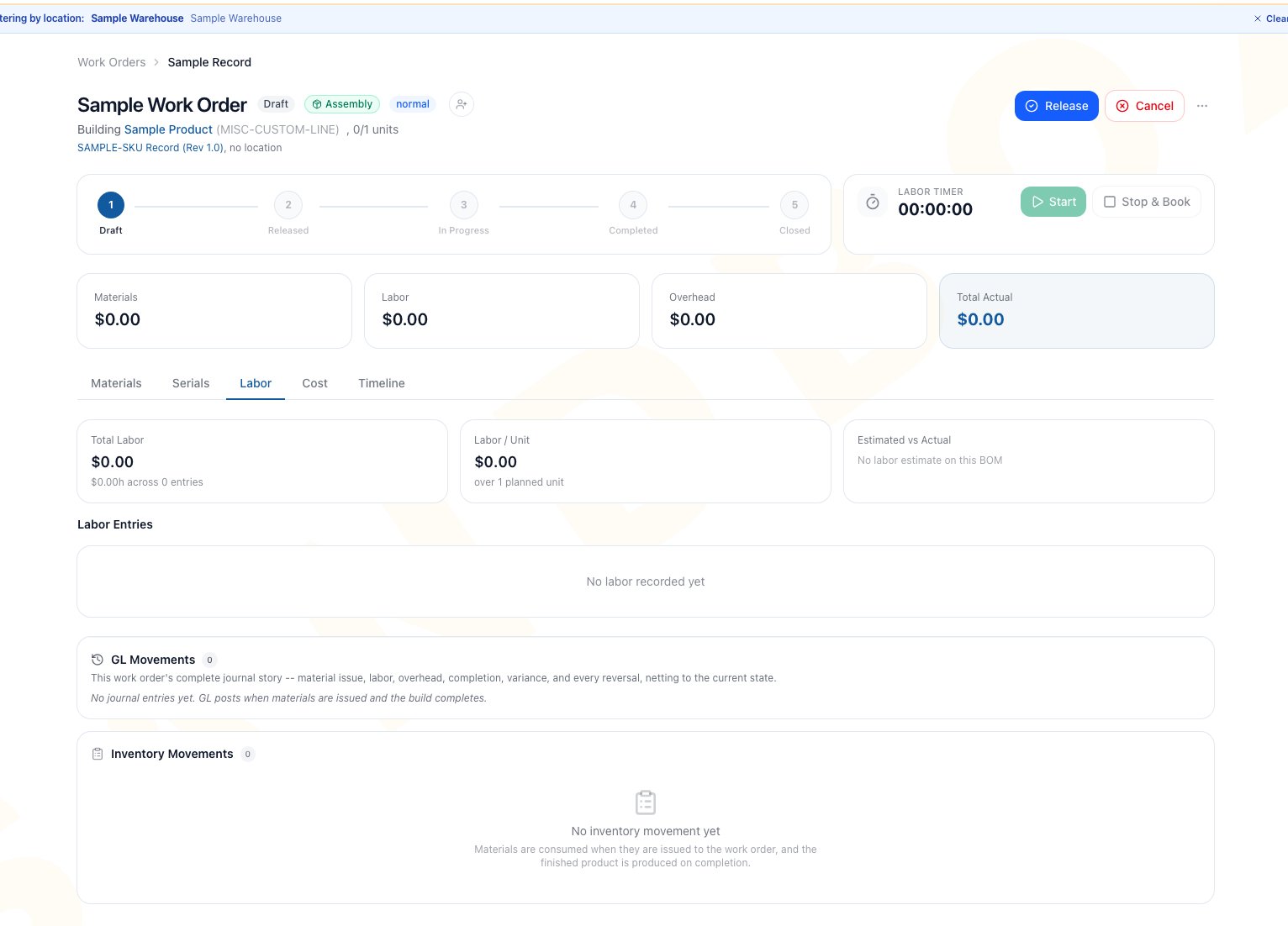
Go to **Manufacturing > Work Orders**, open the work order, and select **Labor**. The live timer card also appears above the tabs.
You need:
* **manufacturing.view** to review labor entries, sessions, and cost.
* **manufacturing.edit** to use a timer or record labor manually.
* A work order in **Released** or **In Progress** status.
* A signed-in user for a personal timer.
The Labor tab shows **Total Labor**, **Labor / Unit**, and **Estimated vs Actual**, followed by booked labor entries and timer-session history. A BOM without an estimated time and rate shows an honest no-estimate state.
 ## Choose one labor method
| Method | Best for | When cost posts | Rate used |
| -------------- | ----------------------------------------------------------------- | ------------------------------------------------------------- | ------------------------------------------------------------------------------------------------------------- |
| Live timer | Operators clocking real elapsed work | When **Stop & Book** rolls the user's segments into one entry | BOM labor rate, then the company's **Default labor rate**, then \$35/hour |
| Manual entry | Known hours from a timecard or completed task | Immediately when **Record** succeeds | BOM labor rate prefill, then a prior positive work-order labor rate, then \$35/hour; the operator can edit it |
| BOM auto-apply | A controlled standard time that should scale with completed units | During each completion batch | BOM labor rate when positive; otherwise the current completion fallback is \$35/hour |
The company's **Default labor rate** currently governs timer roll-ups only. It does not set the manual-entry prefill or the BOM auto-applied completion rate. Put the intended rate on the BOM or verify the editable manual rate before posting.
## Use the live timer
1. Open a Released or In Progress work order.
2. Confirm that the BOM is not set to auto-apply labor unless you intentionally want both standard and actual timer labor.
3. Click **Start** on the timer card.
4. Click **Pause** when work stops temporarily.
5. Click **Resume** to add another segment to the same unbooked session set.
6. Click **Stop & Book** when the work is ready to post.
7. Open **Labor** and verify the booked hours, rate, cost, and session rows.
Starting a timer on a Released work order also moves it to **In Progress**. Each user has a separate timer on the work order, and the avatar cluster shows who is currently clocked in. Arcus refuses a second running timer for the same user on the same work order.
When you choose **Stop & Book**, Arcus closes the user's running segment, combines all of that user's paused and open unbooked segments for this work order, rounds the total to hundredths of an hour, and creates one labor entry.
### Handle a timer under one minute
When the accumulated timer is under 60 seconds, choose one of these outcomes:
* **Book 0.01h** creates the minimum labor entry.
* **Discard session** removes all of your unbooked segments on this work order without labor cost or GL posting.
* **Keep running** closes the prompt and leaves the timer state unchanged.
**Discard session** only removes unbooked timer segments. It cannot remove a labor entry after **Stop & Book** has posted it.
### Outcome
The booked entry adds actual labor cost to the work order and posts labor value into labor WIP. The entry and its timer sessions remain visible on the Labor tab and Timeline.
## Understand automatic timer start
Clicking the work-order header's **Start** button normally also starts the current user's timer when the company setting **Start the operator's labor timer when they start a build** is on.
The automatic timer is skipped when:
* The BOM auto-applies standard labor at completion.
* The company setting is off.
* The current user already has a running timer on this work order.
* The current user lacks edit permission or signed-in user context.
If the work order reaches In Progress but the timer request fails, Arcus keeps the status change and tells you to start the timer from its card. Review [Manufacturing Settings](/support/manufacturing/settings) for the timer-start setting and timer fallback rate.
## Record labor manually
Use a manual entry when the hours are known and do not need a live clock.
1. Open the **Labor** tab.
2. Click **Record Labor**.
3. Enter **Hours** greater than zero.
4. Review **Rate per Hour (\$)**. Change it when the prefilled rate is not correct for this work.
5. Add an optional **Description**.
6. Compare the displayed **Total** with the source timecard or approval.
7. Click **Record**.
8. Verify the new entry and GL movement.
The interface stores hours and rate to two decimal places. The manual form prefers the BOM rate after it loads. Without a positive BOM rate, it starts with a prior positive labor-entry rate on this work order, or \$35/hour when there is no prior entry. Always verify the editable prefill before recording.
### Outcome
One labor row is added with the entered hours, rate, description, user, and time. Actual labor cost and labor WIP increase by the displayed total.
## Auto-apply standard labor from the BOM
Use BOM auto-apply only when a repeatable standard should be booked by completed quantity.
The completion calculation uses:
1. The BOM's **Estimated Labor Minutes** for its defined output quantity.
2. The number of units in the completion batch.
3. The BOM's positive labor rate, or \$35/hour when that BOM rate is absent.
4. Hours rounded to hundredths before the cost is posted.
Each partial completion adds only that batch's standard labor. The Labor tab identifies the resulting standard labor entry.
A live timer or manual entry adds cost on top of auto-applied standard labor. Arcus does not treat those methods as replacements for one another.
### Common scenario: choose actual time or standard time
A two-person assembly has a BOM standard of 30 minutes per unit, but the team wants actual operator time for a prototype run.
1. Before release, decide whether the prototype should use the standard or actual time.
2. If actual time is required, turn off auto-applied labor on the BOM before creating or running the order.
3. Have each operator use their own timer.
4. Stop and book both timers before the final completion.
5. Compare Total Labor with the BOM estimate.
Leaving auto-apply on while both people time the job would record the standard plus both operators' actual time. The warning on the timer card flags this risk.
## Review completion, undo, close, and cancel effects
| Later action | Labor behavior |
| ----------------------------------- | -------------------------------------------------------------------------------------------------------------------------------------------------------------------------- |
| Partial completion | Relieves the accumulated labor share for that batch; the order remains open |
| Final completion | Attempts to stop and book all remaining timer sessions before final cost relief |
| Undo latest completion | Removes only auto-applied labor owned by that completion batch; manual and timer labor stays booked |
| Close | Attempts to roll remaining sessions, then clears labor WIP left after final completion to Manufacturing Variance |
| Cancel with zero completed quantity | Attempts to roll sessions, reverses accumulated labor cost out of labor WIP, and resets the work-order labor total; booked rows and timer-session history remain for audit |
Do not rely on an automatic stop as the operator's normal control. Stop and verify timers before final completion so the cost review is deliberate. See [Complete and Undo Work Orders](/support/manufacturing/partial-completions-and-undo) for completion and reversal details.
## Verify the posted result
After booking labor:
1. Match the Labor entry's **Hours**, **Rate**, and **Cost** to the approved source.
2. Review **Total Labor** and **Labor / Unit**.
3. Compare **Estimated vs Actual** when the BOM has both estimated minutes and a positive labor rate.
4. Open **Cost** and confirm actual labor and total actual cost.
5. Expand **GL Movements** and confirm the labor entry.
6. Check **Timeline** for the user and event.
Missing labor can make estimated-versus-actual variance appear more favorable than the physical job. Finish this review before close.
## Troubleshoot timer and entry blocks
| What you see | What to check |
| --------------------------------------------- | ------------------------------------------------------------------------------------------------- |
| Timer controls are disabled | Sign in, confirm **manufacturing.edit**, and Release the work order |
| Starting a timer moved the job to In Progress | This is expected when the timer starts from Released |
| **Timer already running** | Pause or stop your existing timer on this work order before starting another |
| **No running timer** | Refresh and check whether the segment was already paused, booked, or discarded |
| **Record Labor** is unavailable | The order must be Released or In Progress and you need edit permission |
| Hours or rate is refused | Both values must be numeric and greater than zero |
| Labor is higher than expected | Look for timer entries plus BOM auto-applied labor, multiple clocked-in users, and manual entries |
| Default rate is unexpected | Check the BOM rate first, then apply the method-specific fallback table above |
## Frequently asked questions
Yes. Each signed-in user has separate sessions. The timer avatar cluster shows active users, and each person's Stop & Book creates that person's labor entry.
No. Pause closes the current segment but leaves it unbooked. Resume adds another segment, and Stop & Book combines the unbooked segments.
No. The manual form prefers the BOM rate, then a prior positive work-order labor rate, then \$35/hour. Review the editable rate before recording.
Undo removes the standard labor automatically created by the completion batch being reversed. Timer and manual labor represents performed work and stays booked.
## Related guides
Release, start, assign, close, or cancel the job that owns the labor.
Understand labor relief and what a completion reversal does not remove.
Configure the timer fallback rate and automatic timer start.
Compare WIP and completion cost after labor is booked.
## Choose one labor method
| Method | Best for | When cost posts | Rate used |
| -------------- | ----------------------------------------------------------------- | ------------------------------------------------------------- | ------------------------------------------------------------------------------------------------------------- |
| Live timer | Operators clocking real elapsed work | When **Stop & Book** rolls the user's segments into one entry | BOM labor rate, then the company's **Default labor rate**, then \$35/hour |
| Manual entry | Known hours from a timecard or completed task | Immediately when **Record** succeeds | BOM labor rate prefill, then a prior positive work-order labor rate, then \$35/hour; the operator can edit it |
| BOM auto-apply | A controlled standard time that should scale with completed units | During each completion batch | BOM labor rate when positive; otherwise the current completion fallback is \$35/hour |
The company's **Default labor rate** currently governs timer roll-ups only. It does not set the manual-entry prefill or the BOM auto-applied completion rate. Put the intended rate on the BOM or verify the editable manual rate before posting.
## Use the live timer
1. Open a Released or In Progress work order.
2. Confirm that the BOM is not set to auto-apply labor unless you intentionally want both standard and actual timer labor.
3. Click **Start** on the timer card.
4. Click **Pause** when work stops temporarily.
5. Click **Resume** to add another segment to the same unbooked session set.
6. Click **Stop & Book** when the work is ready to post.
7. Open **Labor** and verify the booked hours, rate, cost, and session rows.
Starting a timer on a Released work order also moves it to **In Progress**. Each user has a separate timer on the work order, and the avatar cluster shows who is currently clocked in. Arcus refuses a second running timer for the same user on the same work order.
When you choose **Stop & Book**, Arcus closes the user's running segment, combines all of that user's paused and open unbooked segments for this work order, rounds the total to hundredths of an hour, and creates one labor entry.
### Handle a timer under one minute
When the accumulated timer is under 60 seconds, choose one of these outcomes:
* **Book 0.01h** creates the minimum labor entry.
* **Discard session** removes all of your unbooked segments on this work order without labor cost or GL posting.
* **Keep running** closes the prompt and leaves the timer state unchanged.
**Discard session** only removes unbooked timer segments. It cannot remove a labor entry after **Stop & Book** has posted it.
### Outcome
The booked entry adds actual labor cost to the work order and posts labor value into labor WIP. The entry and its timer sessions remain visible on the Labor tab and Timeline.
## Understand automatic timer start
Clicking the work-order header's **Start** button normally also starts the current user's timer when the company setting **Start the operator's labor timer when they start a build** is on.
The automatic timer is skipped when:
* The BOM auto-applies standard labor at completion.
* The company setting is off.
* The current user already has a running timer on this work order.
* The current user lacks edit permission or signed-in user context.
If the work order reaches In Progress but the timer request fails, Arcus keeps the status change and tells you to start the timer from its card. Review [Manufacturing Settings](/support/manufacturing/settings) for the timer-start setting and timer fallback rate.
## Record labor manually
Use a manual entry when the hours are known and do not need a live clock.
1. Open the **Labor** tab.
2. Click **Record Labor**.
3. Enter **Hours** greater than zero.
4. Review **Rate per Hour (\$)**. Change it when the prefilled rate is not correct for this work.
5. Add an optional **Description**.
6. Compare the displayed **Total** with the source timecard or approval.
7. Click **Record**.
8. Verify the new entry and GL movement.
The interface stores hours and rate to two decimal places. The manual form prefers the BOM rate after it loads. Without a positive BOM rate, it starts with a prior positive labor-entry rate on this work order, or \$35/hour when there is no prior entry. Always verify the editable prefill before recording.
### Outcome
One labor row is added with the entered hours, rate, description, user, and time. Actual labor cost and labor WIP increase by the displayed total.
## Auto-apply standard labor from the BOM
Use BOM auto-apply only when a repeatable standard should be booked by completed quantity.
The completion calculation uses:
1. The BOM's **Estimated Labor Minutes** for its defined output quantity.
2. The number of units in the completion batch.
3. The BOM's positive labor rate, or \$35/hour when that BOM rate is absent.
4. Hours rounded to hundredths before the cost is posted.
Each partial completion adds only that batch's standard labor. The Labor tab identifies the resulting standard labor entry.
A live timer or manual entry adds cost on top of auto-applied standard labor. Arcus does not treat those methods as replacements for one another.
### Common scenario: choose actual time or standard time
A two-person assembly has a BOM standard of 30 minutes per unit, but the team wants actual operator time for a prototype run.
1. Before release, decide whether the prototype should use the standard or actual time.
2. If actual time is required, turn off auto-applied labor on the BOM before creating or running the order.
3. Have each operator use their own timer.
4. Stop and book both timers before the final completion.
5. Compare Total Labor with the BOM estimate.
Leaving auto-apply on while both people time the job would record the standard plus both operators' actual time. The warning on the timer card flags this risk.
## Review completion, undo, close, and cancel effects
| Later action | Labor behavior |
| ----------------------------------- | -------------------------------------------------------------------------------------------------------------------------------------------------------------------------- |
| Partial completion | Relieves the accumulated labor share for that batch; the order remains open |
| Final completion | Attempts to stop and book all remaining timer sessions before final cost relief |
| Undo latest completion | Removes only auto-applied labor owned by that completion batch; manual and timer labor stays booked |
| Close | Attempts to roll remaining sessions, then clears labor WIP left after final completion to Manufacturing Variance |
| Cancel with zero completed quantity | Attempts to roll sessions, reverses accumulated labor cost out of labor WIP, and resets the work-order labor total; booked rows and timer-session history remain for audit |
Do not rely on an automatic stop as the operator's normal control. Stop and verify timers before final completion so the cost review is deliberate. See [Complete and Undo Work Orders](/support/manufacturing/partial-completions-and-undo) for completion and reversal details.
## Verify the posted result
After booking labor:
1. Match the Labor entry's **Hours**, **Rate**, and **Cost** to the approved source.
2. Review **Total Labor** and **Labor / Unit**.
3. Compare **Estimated vs Actual** when the BOM has both estimated minutes and a positive labor rate.
4. Open **Cost** and confirm actual labor and total actual cost.
5. Expand **GL Movements** and confirm the labor entry.
6. Check **Timeline** for the user and event.
Missing labor can make estimated-versus-actual variance appear more favorable than the physical job. Finish this review before close.
## Troubleshoot timer and entry blocks
| What you see | What to check |
| --------------------------------------------- | ------------------------------------------------------------------------------------------------- |
| Timer controls are disabled | Sign in, confirm **manufacturing.edit**, and Release the work order |
| Starting a timer moved the job to In Progress | This is expected when the timer starts from Released |
| **Timer already running** | Pause or stop your existing timer on this work order before starting another |
| **No running timer** | Refresh and check whether the segment was already paused, booked, or discarded |
| **Record Labor** is unavailable | The order must be Released or In Progress and you need edit permission |
| Hours or rate is refused | Both values must be numeric and greater than zero |
| Labor is higher than expected | Look for timer entries plus BOM auto-applied labor, multiple clocked-in users, and manual entries |
| Default rate is unexpected | Check the BOM rate first, then apply the method-specific fallback table above |
## Frequently asked questions
Yes. Each signed-in user has separate sessions. The timer avatar cluster shows active users, and each person's Stop & Book creates that person's labor entry.
No. Pause closes the current segment but leaves it unbooked. Resume adds another segment, and Stop & Book combines the unbooked segments.
No. The manual form prefers the BOM rate, then a prior positive work-order labor rate, then \$35/hour. Review the editable rate before recording.
Undo removes the standard labor automatically created by the completion batch being reversed. Timer and manual labor represents performed work and stays booked.
## Related guides
Release, start, assign, close, or cancel the job that owns the labor.
Understand labor relief and what a completion reversal does not remove.
Configure the timer fallback rate and automatic timer start.
Compare WIP and completion cost after labor is booked.