> ## Documentation Index
> Fetch the complete documentation index at: https://docs.arcuserp.com/llms.txt
> Use this file to discover all available pages before exploring further.
# Disassembly And Conversion BOMs
> Plan teardown and transformation recipes, choose material dispositions, allocate recovery cost, and understand inventory outcomes.
Use a Disassembly BOM to tear one source product into recovered or scrapped parts. Use a Conversion BOM when one source becomes a different output and the job may also remove, add, retain, return, or scrap parts.
Open **Manufacturing > Bills of Materials**. Create a new recipe or open a Draft. You need **manufacturing.create** to create the BOM or its work order and **manufacturing.edit** to add lines and activate the recipe.
## Decide Which Process You Need
| Decision | Disassembly | Conversion |
| -------------------------- | ------------------------------ | ---------------------------------------------------------------- |
| Primary purpose | Tear down a source into parts | Transform a source into a different output |
| Required header product | **Product to Disassemble** | **Source Product** and **Output Product** |
| Line choices | **Return to stock**, **Scrap** | **Consume**, **Add**, **Return to stock**, **Scrap**, **Retain** |
| Primary action | **Disassemble** | **Convert** |
| Finished output received | No separate finished output | Yes |
| Current availability limit | Source stock | Source stock plus any **Consume** and **Add** constraints |
Choose an eligible specific product or SKU. Product selection alone does not reserve stock or prove that a location can perform the work.
 ## Understand Dispositions
| Disposition | Floor meaning | Inventory and cost behavior |
| ------------------- | ----------------------------------------- | ------------------------------------------------------------------------------------------------------------------------- |
| **Consume** | Material is used by the conversion | Pulls inventory into work-order material cost |
| **Add** | A new part is installed during conversion | Currently pulls inventory into work-order material cost in the same way as Consume |
| **Return to stock** | A removed or recovered part is usable | Receives that part into stock; its value reduces a conversion's output cost or receives a share of disassembly input cost |
| **Scrap** | A removed part is not recoverable | Does not receive that part into stock |
| **Retain** | The part stays with the source process | Creates no separate inventory movement |
**Add** and **Consume** currently share the same inventory and accounting mechanics. Both constrain availability, issue or backflush from FIFO stock into work-order material cost, reverse issued material through the same eligible cancellation path, and restore batch-owned backflush through the same supported completion Undo path. Use the label that best tells the floor whether the part is an installed addition or a normal consumed requirement.
## Create And Run A Disassembly Recipe
### Prerequisites
* An eligible source product or SKU exists.
* The expected recovered parts are known.
* A recovery-cost split has been agreed when more than one part returns to stock.
* The source will be available when the work order completes.
### Workflow
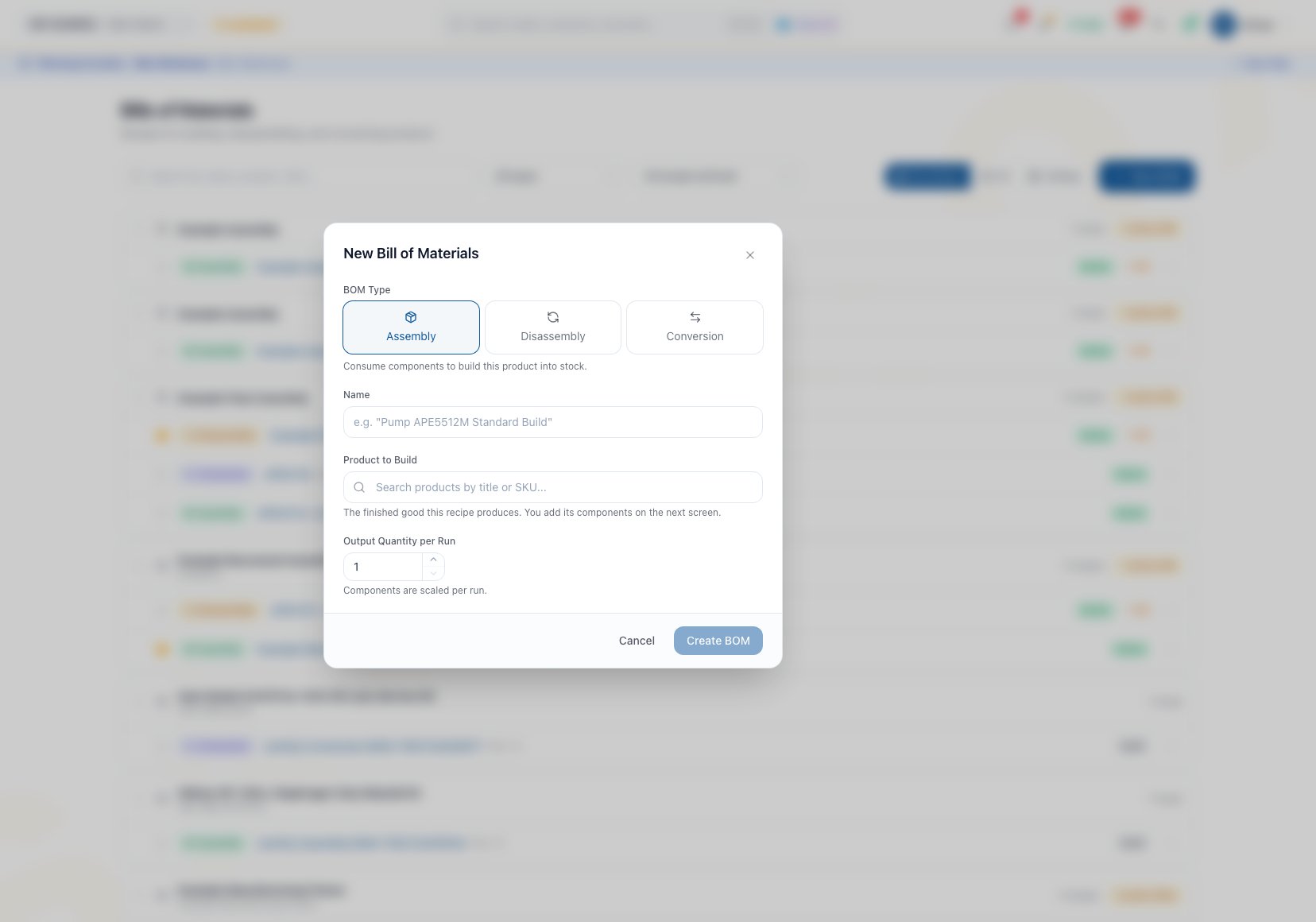
1. Click **New BOM** and choose **Disassembly**.
2. Enter the name, **Product to Disassemble**, and **Output Quantity per Run**.
3. Add every expected removed part.
4. Choose **Return to stock** for a usable recovery or **Scrap** when it will not return to inventory.
5. Set **Cost %** on selected Return to stock lines, or leave them on automatic allocation.
6. Review **Recovery Preview**, labor, cost, instructions, and documents.
7. Activate the verified Draft.
8. Open the exact BOM and click **Disassemble**.
9. On the New Work Order page, verify quantity, source serial when required, location, dates, availability, and release choice.
**Outcome at completion:** Arcus consumes the source quantity. Return to stock lines are received at their allocated share of the relieved source, labor, and overhead cost. Scrap lines create no recovered inventory.
The work order posts the manufacturing accounting entries that move source, labor, and overhead value through work in process and into recovered inventory. Creating or editing the BOM does not post those entries.
A disassembly with only Scrap lines consumes the source without receiving recovered parts. Confirm that the physical teardown truly yields no usable stock before activation.
## Allocate Disassembly Recovery Cost
Cost allocation divides the run's relieved input value among **Return to stock** lines. It does not use list price.
* An explicit **Cost %** reserves that share for its line.
* Blank lines share the remaining percentage automatically.
* Automatic weighting uses each line's quantity multiplied by its current recorded product or variant cost.
* If every automatic line has zero weight, Arcus divides the remaining percentage equally.
* If some automatic lines have positive weight, a zero-cost automatic line receives zero percent.
* Explicit percentages cannot exceed 100 percent.
* If every Return to stock line is explicit, the total must equal 100 percent.
Review **Recovery Preview** before activation and before completing the work order. Current recorded costs can change the automatic split even when the recipe lines have not changed.
## Create And Run A Conversion Recipe
### Prerequisites
* The source and output are eligible specific products or SKUs.
* The source and every Consume or Add line can be stocked for the work.
* Removed-part outcomes are known.
* The source, output, output quantity, and required overhead are correct before creation because the current detail page cannot edit them later.
### Workflow
1. Click **New BOM** and choose **Conversion**.
2. Enter the name, **Output Product**, **Source Product**, and **Output Quantity per Run**.
3. Add at least one total material line. On the current BOM page, **Activate** remains unavailable without a line. There is no two-line minimum.
4. Classify each line as Consume, Add, Return to stock, Scrap, or Retain.
5. Review both the source stock and all Consume or Add constraints in **Can Convert Now**.
6. Review estimated output cost, labor, instructions, and documents.
7. Activate the verified Draft.
8. Open the exact BOM and click **Convert**.
9. Verify quantity, source serial when required, location, dates, availability, and release choice before creating the work order.
**Outcome at completion:** Arcus consumes the source and the issued Consume or Add material, receives the converted output, receives Return to stock lines, omits Scrap lines from stock, and makes no separate movement for Retain lines.
The work order posts the material, return, labor, overhead, and completion entries. Creating or editing the Conversion BOM is planning setup and posts none of them.
### How Conversion Output Cost Is Formed
The planning estimate combines current recorded source cost, Consume and Add material cost, planned labor, and overhead, then recognizes the value of Return to stock lines separately from the converted output. List price is not used.
At work-order completion, actual source and issued-material cost can differ from the estimate. The received converted output carries the actual relieved work-order value after returned-part value, labor, and overhead are applied.
## Common Scenario: Upgrade A Stocked Unit
A stocked source unit receives a replacement controller and gives up an old controller that is still usable.
1. Create a Conversion BOM from the original unit to the upgraded output SKU.
2. Add the replacement controller as **Add**.
3. Add the old controller as **Return to stock**.
4. Add any removed unusable seal as **Scrap**.
5. Check that both source stock and replacement-controller stock support the quantity.
6. Review the returned controller's current recorded value in the output-cost estimate.
7. Use **Convert** from the exact Active BOM.
An assembly BOM may still coexist for building the upgraded product from loose components. Keep both when they represent genuinely different physical processes, and set only the intended MRP recipe as the active default.
## Troubleshooting And Refusals
* **Create BOM is disabled**: Disassembly needs its source product. Conversion needs both source and output products, plus a name.
* **Activate is disabled even though the source and output exist**: Add at least one material line. The current BOM page keeps the action unavailable without one.
* **Can Convert Now is visible before lines exist**: Arcus can calculate a source-based preview for the Draft. That number does not make the empty recipe activatable or complete.
* **Can Convert Now looks too high**: Add all required Consume and Add lines first, then inspect both source and material constraints. The estimate is entity-wide.
* **Disassembly allocation is refused**: Keep explicit percentages at or below 100 total. When every return line is explicit, make the total exactly 100.
* **An automatic allocation changed**: Automatic weights use current recorded costs and quantities, so a product-cost change can change the split.
* **Source stock is insufficient at completion**: Arcus refuses the completion. Correct stock or complete a supported smaller quantity; do not assume the earlier entity-wide estimate reserved stock.
* **The wrong source, output, quantity, or overhead was saved**: Leave the recipe in Draft and create a correct BOM. Those controls are not currently editable on the detail page.
* **An expected removed part did not return to inventory**: Confirm its disposition is Return to stock, not Scrap or Retain.
## FAQ
Add tells the floor that a part is being installed during conversion. Consume describes a normal consumed requirement. Both currently constrain availability and use the same issue, backflush, material-cost, and completion-undo treatment. Undo restores only the eligible latest completion batch; it does not rewrite unrelated earlier work.
The current BOM page requires at least one total material line before it enables **Activate**. The source and output define the transformation header, but they do not satisfy that page control. An **Add** plus **Return to stock** pair is a useful two-line teaching example for an upgrade, not a system minimum.
The Draft preview can calculate a limit from source stock before the material list is complete. Add every Consume and Add requirement before relying on the estimate; the current BOM page keeps **Activate** unavailable while no line exists.
The estimate uses current recorded source, Consume, and Add costs with planned labor and overhead, while Return to stock value is separated from the converted output. Completion uses actual work-order material relief, so the received output cost can differ.
Return to stock receives a removed part, Scrap receives nothing, and Retain creates no separate inventory movement. Choose the disposition from the physical outcome, not from a desired accounting number.
Use Conversion when one controlled operation transforms one source into a different output and should have one work order, completion, and cost story. Use a Combined Run when two or more Active BOMs remain independent work orders but need a shared sequence, such as a teardown followed by an assembly.
## Related Guides
Create the header, add recipe lines, and activate a verified Draft.
Read source and material constraints before creating a work order.
Generate a paired inverse or merge an assembly and disassembly into a conversion Draft.
Run, complete, undo, close, or cancel the controlled work.
Compare all three recipe types and choose the exact process.
## Understand Dispositions
| Disposition | Floor meaning | Inventory and cost behavior |
| ------------------- | ----------------------------------------- | ------------------------------------------------------------------------------------------------------------------------- |
| **Consume** | Material is used by the conversion | Pulls inventory into work-order material cost |
| **Add** | A new part is installed during conversion | Currently pulls inventory into work-order material cost in the same way as Consume |
| **Return to stock** | A removed or recovered part is usable | Receives that part into stock; its value reduces a conversion's output cost or receives a share of disassembly input cost |
| **Scrap** | A removed part is not recoverable | Does not receive that part into stock |
| **Retain** | The part stays with the source process | Creates no separate inventory movement |
**Add** and **Consume** currently share the same inventory and accounting mechanics. Both constrain availability, issue or backflush from FIFO stock into work-order material cost, reverse issued material through the same eligible cancellation path, and restore batch-owned backflush through the same supported completion Undo path. Use the label that best tells the floor whether the part is an installed addition or a normal consumed requirement.
## Create And Run A Disassembly Recipe
### Prerequisites
* An eligible source product or SKU exists.
* The expected recovered parts are known.
* A recovery-cost split has been agreed when more than one part returns to stock.
* The source will be available when the work order completes.
### Workflow
1. Click **New BOM** and choose **Disassembly**.
2. Enter the name, **Product to Disassemble**, and **Output Quantity per Run**.
3. Add every expected removed part.
4. Choose **Return to stock** for a usable recovery or **Scrap** when it will not return to inventory.
5. Set **Cost %** on selected Return to stock lines, or leave them on automatic allocation.
6. Review **Recovery Preview**, labor, cost, instructions, and documents.
7. Activate the verified Draft.
8. Open the exact BOM and click **Disassemble**.
9. On the New Work Order page, verify quantity, source serial when required, location, dates, availability, and release choice.
**Outcome at completion:** Arcus consumes the source quantity. Return to stock lines are received at their allocated share of the relieved source, labor, and overhead cost. Scrap lines create no recovered inventory.
The work order posts the manufacturing accounting entries that move source, labor, and overhead value through work in process and into recovered inventory. Creating or editing the BOM does not post those entries.
A disassembly with only Scrap lines consumes the source without receiving recovered parts. Confirm that the physical teardown truly yields no usable stock before activation.
## Allocate Disassembly Recovery Cost
Cost allocation divides the run's relieved input value among **Return to stock** lines. It does not use list price.
* An explicit **Cost %** reserves that share for its line.
* Blank lines share the remaining percentage automatically.
* Automatic weighting uses each line's quantity multiplied by its current recorded product or variant cost.
* If every automatic line has zero weight, Arcus divides the remaining percentage equally.
* If some automatic lines have positive weight, a zero-cost automatic line receives zero percent.
* Explicit percentages cannot exceed 100 percent.
* If every Return to stock line is explicit, the total must equal 100 percent.
Review **Recovery Preview** before activation and before completing the work order. Current recorded costs can change the automatic split even when the recipe lines have not changed.
## Create And Run A Conversion Recipe
### Prerequisites
* The source and output are eligible specific products or SKUs.
* The source and every Consume or Add line can be stocked for the work.
* Removed-part outcomes are known.
* The source, output, output quantity, and required overhead are correct before creation because the current detail page cannot edit them later.
### Workflow
1. Click **New BOM** and choose **Conversion**.
2. Enter the name, **Output Product**, **Source Product**, and **Output Quantity per Run**.
3. Add at least one total material line. On the current BOM page, **Activate** remains unavailable without a line. There is no two-line minimum.
4. Classify each line as Consume, Add, Return to stock, Scrap, or Retain.
5. Review both the source stock and all Consume or Add constraints in **Can Convert Now**.
6. Review estimated output cost, labor, instructions, and documents.
7. Activate the verified Draft.
8. Open the exact BOM and click **Convert**.
9. Verify quantity, source serial when required, location, dates, availability, and release choice before creating the work order.
**Outcome at completion:** Arcus consumes the source and the issued Consume or Add material, receives the converted output, receives Return to stock lines, omits Scrap lines from stock, and makes no separate movement for Retain lines.
The work order posts the material, return, labor, overhead, and completion entries. Creating or editing the Conversion BOM is planning setup and posts none of them.
### How Conversion Output Cost Is Formed
The planning estimate combines current recorded source cost, Consume and Add material cost, planned labor, and overhead, then recognizes the value of Return to stock lines separately from the converted output. List price is not used.
At work-order completion, actual source and issued-material cost can differ from the estimate. The received converted output carries the actual relieved work-order value after returned-part value, labor, and overhead are applied.
## Common Scenario: Upgrade A Stocked Unit
A stocked source unit receives a replacement controller and gives up an old controller that is still usable.
1. Create a Conversion BOM from the original unit to the upgraded output SKU.
2. Add the replacement controller as **Add**.
3. Add the old controller as **Return to stock**.
4. Add any removed unusable seal as **Scrap**.
5. Check that both source stock and replacement-controller stock support the quantity.
6. Review the returned controller's current recorded value in the output-cost estimate.
7. Use **Convert** from the exact Active BOM.
An assembly BOM may still coexist for building the upgraded product from loose components. Keep both when they represent genuinely different physical processes, and set only the intended MRP recipe as the active default.
## Troubleshooting And Refusals
* **Create BOM is disabled**: Disassembly needs its source product. Conversion needs both source and output products, plus a name.
* **Activate is disabled even though the source and output exist**: Add at least one material line. The current BOM page keeps the action unavailable without one.
* **Can Convert Now is visible before lines exist**: Arcus can calculate a source-based preview for the Draft. That number does not make the empty recipe activatable or complete.
* **Can Convert Now looks too high**: Add all required Consume and Add lines first, then inspect both source and material constraints. The estimate is entity-wide.
* **Disassembly allocation is refused**: Keep explicit percentages at or below 100 total. When every return line is explicit, make the total exactly 100.
* **An automatic allocation changed**: Automatic weights use current recorded costs and quantities, so a product-cost change can change the split.
* **Source stock is insufficient at completion**: Arcus refuses the completion. Correct stock or complete a supported smaller quantity; do not assume the earlier entity-wide estimate reserved stock.
* **The wrong source, output, quantity, or overhead was saved**: Leave the recipe in Draft and create a correct BOM. Those controls are not currently editable on the detail page.
* **An expected removed part did not return to inventory**: Confirm its disposition is Return to stock, not Scrap or Retain.
## FAQ
Add tells the floor that a part is being installed during conversion. Consume describes a normal consumed requirement. Both currently constrain availability and use the same issue, backflush, material-cost, and completion-undo treatment. Undo restores only the eligible latest completion batch; it does not rewrite unrelated earlier work.
The current BOM page requires at least one total material line before it enables **Activate**. The source and output define the transformation header, but they do not satisfy that page control. An **Add** plus **Return to stock** pair is a useful two-line teaching example for an upgrade, not a system minimum.
The Draft preview can calculate a limit from source stock before the material list is complete. Add every Consume and Add requirement before relying on the estimate; the current BOM page keeps **Activate** unavailable while no line exists.
The estimate uses current recorded source, Consume, and Add costs with planned labor and overhead, while Return to stock value is separated from the converted output. Completion uses actual work-order material relief, so the received output cost can differ.
Return to stock receives a removed part, Scrap receives nothing, and Retain creates no separate inventory movement. Choose the disposition from the physical outcome, not from a desired accounting number.
Use Conversion when one controlled operation transforms one source into a different output and should have one work order, completion, and cost story. Use a Combined Run when two or more Active BOMs remain independent work orders but need a shared sequence, such as a teardown followed by an assembly.
## Related Guides
Create the header, add recipe lines, and activate a verified Draft.
Read source and material constraints before creating a work order.
Generate a paired inverse or merge an assembly and disassembly into a conversion Draft.
Run, complete, undo, close, or cancel the controlled work.
Compare all three recipe types and choose the exact process.